

Video Channels
Group videos into a channel and publish a branded, browsable video library from a single embed code or URL.
Publish a group of videos as one browsable library.
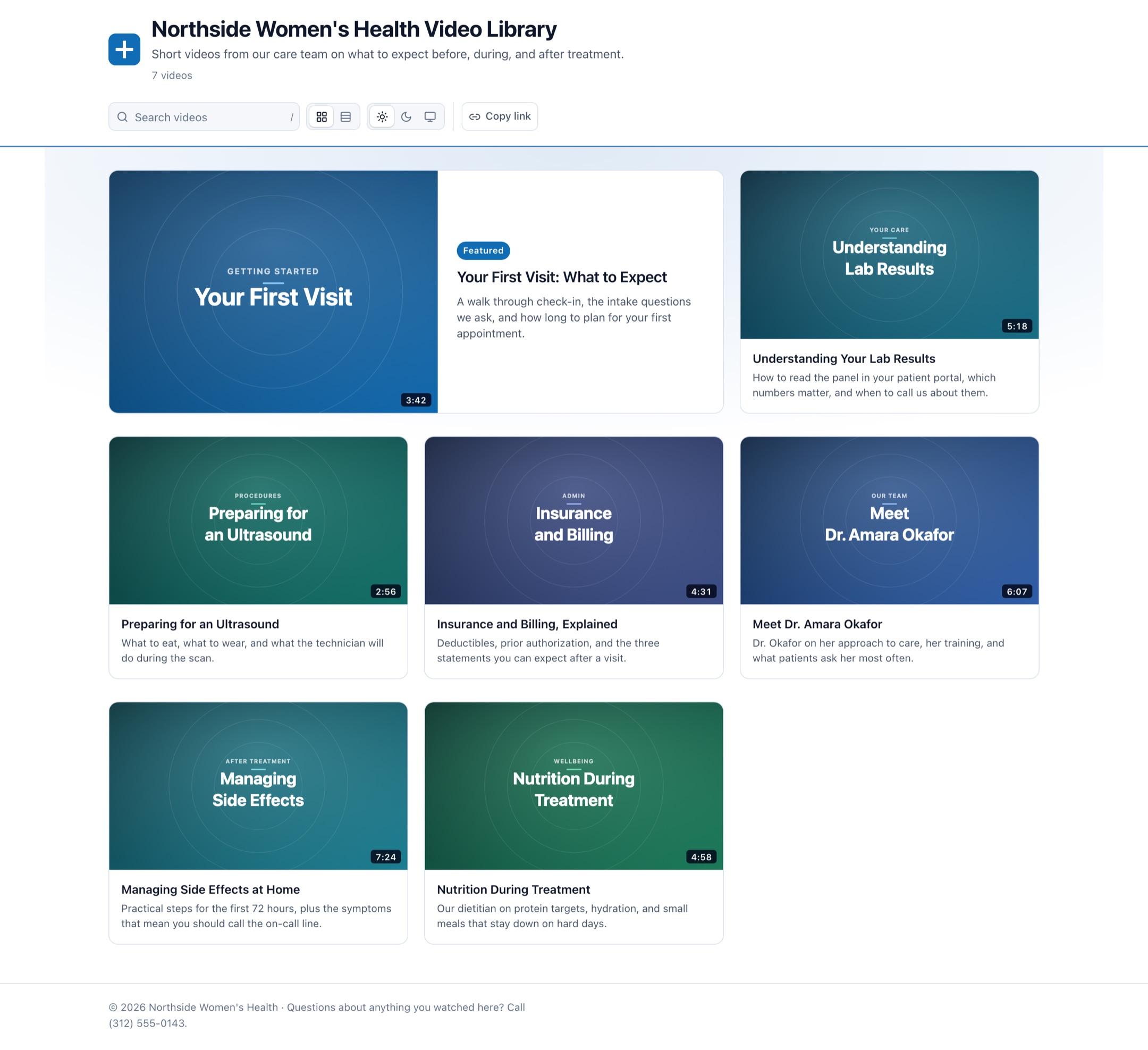
A channel is a set of videos published together as a single branded page. Instead of one embed code per video, a channel gets its own URL and its own embed code, so adding a video to the channel updates the page without anyone touching your site.
When to use a channel
A single embed works well when the video belongs in a specific spot on a specific page: a hero, a product explainer, a testimonial beside a form.
Reach for a channel when the video collection itself is the destination. A patient education library, a set of onboarding videos, a conference session archive, or a recurring webinar series all want one place a visitor can browse. A channel covers that without you building a listing page, a router, and a player layout for it.
Create a channel
- Go to Videos in the dashboard and open Channels.
- Create a channel and give it a name.
- Assign videos to it, and set the order they appear in.
- Fill in the channel's presentation fields: a description shown under the title, a brand color, an optional logo, and footer text.
- Publish the channel.
A channel stays private until you publish it, so you can assemble and order it before anyone can reach the page.
A video can belong to several channels at once, in a different position in each, and can still be embedded on its own elsewhere. Assigning it to a channel does not move it or change its own embed code. Removing it from one channel leaves the others alone.
Put a channel on your site
A published channel gives you two options:
- Link to the channel URL when you want the library to be its own destination, for example from a navigation item or an email.
- Paste the channel embed code into a page when you want the library to appear inside your own layout.
For an embed, choose its starting layout, column count, and theme before copying the code. The theme setting can be light, dark, or system, which matches the visitor's device setting. The copied snippet adjusts the iframe height as the channel reflows, so the full library stays visible at desktop and mobile widths without an inner scrollbar.
Selecting a video in the channel plays it in the Ours Privacy player, with the same captions, brand color, and accessibility behavior described in Player accessibility. The rest of the channel stays on screen beside the player, so a visitor can pick the next video without going back.
What a visitor can change
You choose the channel's starting layout, theme, and brand color. A few controls then belong to the visitor, and nothing they choose is saved or tracked:
- Search, once the channel holds more than one video. Searching matches video titles and descriptions.
- Grid or list layout, starting from the one your embed code requests.
- Light, dark, or match-system theme. The copied embed starts with the theme you choose. A visitor can switch it without changing the saved embed code.
The views below are the same nine-video channel embedded in the same page. The first three differ only in the layout the embed code requests; the fourth is the same channel on a device set to dark.
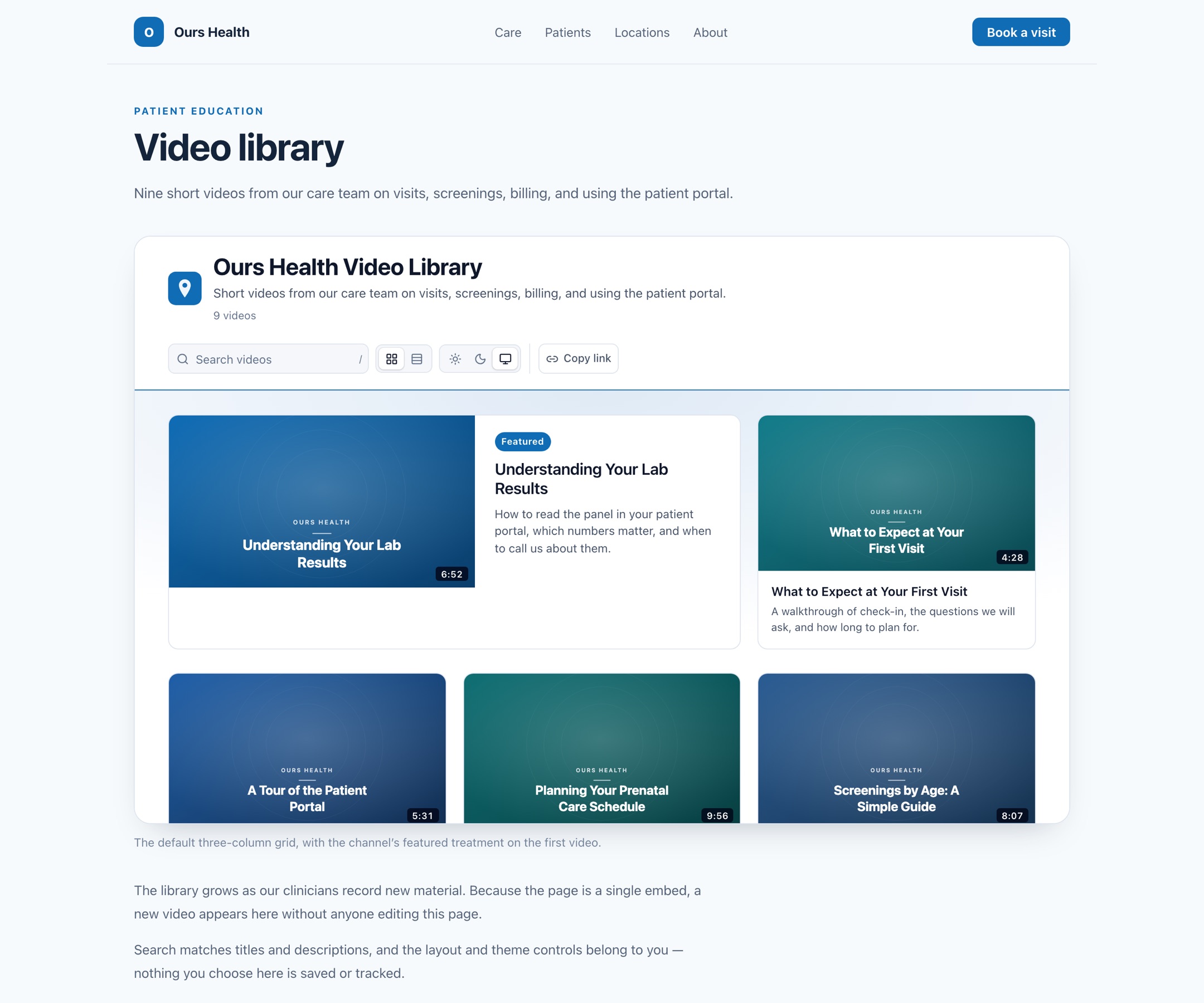
Three-column grid. The default grid. The first video gets the featured treatment, with its description beside a larger poster.
Who can see a channel
Channel pages are public by their URL, the same as individual video embeds. Anyone with the link can browse the channel and play the videos in it. There is no per-viewer sign-in and no expiring link.
Treat a channel like any other public page on your site. Use it for marketing, education, and provider content, not for video meant only for specific people.
A channel page needs no consent banner of its own. Opened directly it sets no cookies and loads no tracking. Embedded in your site, video analytics flow through your existing consent manager exactly as a single video embed does.
What a channel does not do
- Sorting or filtering beyond search. Visitors browse the order you set.
- Channel-level reporting. Playback in a channel reports the same per-video events as any other embed, so Video Analytics shows the videos individually rather than the channel as a unit.
Before you publish
- Give every video a real title and description. Both appear on the channel page and in reporting; see Updating a video.
- Set a deliberate poster image on each video. The channel page shows them side by side, where an inconsistent set is obvious. See Thumbnails and poster images.
- Review captions on anything published as a library, where visitors are more likely to browse without sound. See Captions and transcripts.
Next steps
- Uploading videos: bulk upload the videos a channel will hold.
- Embedding videos: place an individual video instead.
- Video Analytics: how playback in a channel is reported.
How is this guide?