

Uploading Videos
Upload one video or bulk upload hundreds at a time to Ours Privacy, see which formats are supported, and understand what automatic processing produces.
Use this page to upload a video and understand what happens to it afterward.
Open Videos in appUpload a video
- Go to Videos in the dashboard and choose Add Video.
- On the video's detail page, choose the source caption language before selecting an original MP4 or WebM file. English is selected by default.
- Choose the file and wait for the upload and video processing to finish.
- Return to the detail page to review the resulting captions or add more languages.
Files upload straight from your browser, so a large upload does not pass through the dashboard.
Bulk upload
Select or drag as many files as you want in one go. Bulk upload handles hundreds of videos at a time, so you can bring over an existing library in one action.
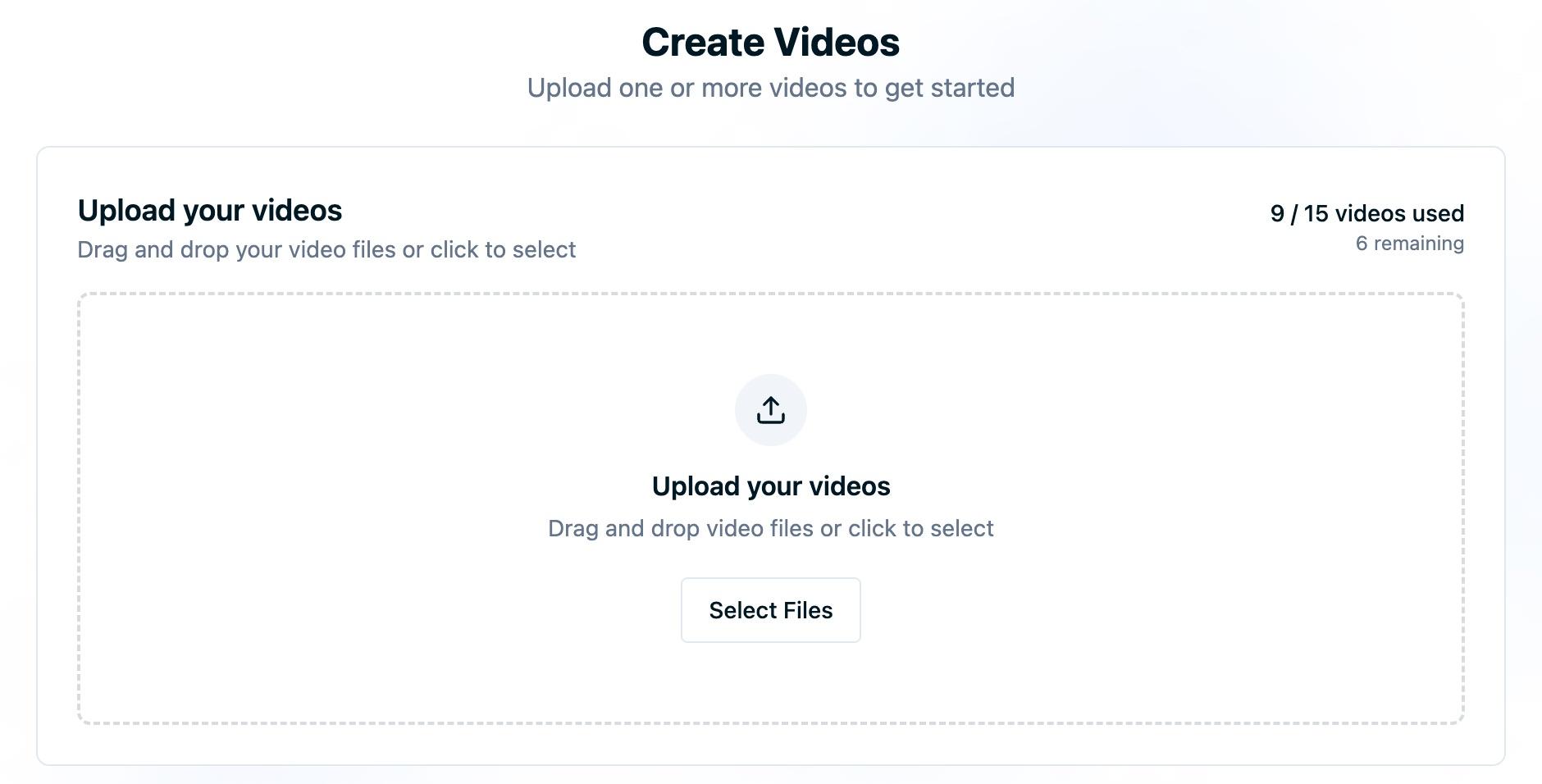
On a large batch:
- Uploads run in parallel with per-file progress, and one file failing does not stop the rest. Retry just the files that failed.
- Your account's video limit still applies. If a batch would take you past it, the files that fit are uploaded and the rest are skipped with a message telling you how many slots were left.
Each uploaded file becomes its own video with its own title, captions, and thumbnail. Set titles afterward on anything you want to find in reporting.
Note: If you are migrating a large library and want help planning it, contact support@oursprivacy.com.
Supported formats
Video uploads accept:
- MP4 (
video/mp4) - WebM (
video/webm)
Companion assets you can upload separately have their own formats: JPEG or PNG for a poster image, and VTT or SRT for captions.
What happens after upload
Processing starts on its own and produces:
- A converted MP4. Your file is re-encoded to H.264 video with AAC audio at up to 5 Mbps, so it plays in every modern browser. This is the file the player and the raw asset URL both serve.
- Poster frames. Several still frames are captured from the first seconds of the video, and one becomes the default poster image. You can pick a different frame or upload your own on the Thumbnails and poster images page.
- Captions in the source language you choose. The audio is transcribed and saved as a VTT caption file. Videos larger than 2 GB skip automatic transcription; you can still upload your own caption file for those.
- Adaptive playback assets. The upload produces an adaptive stream alongside the standard MP4, so the Adaptive player can select an appropriate rendition for the viewer's connection.
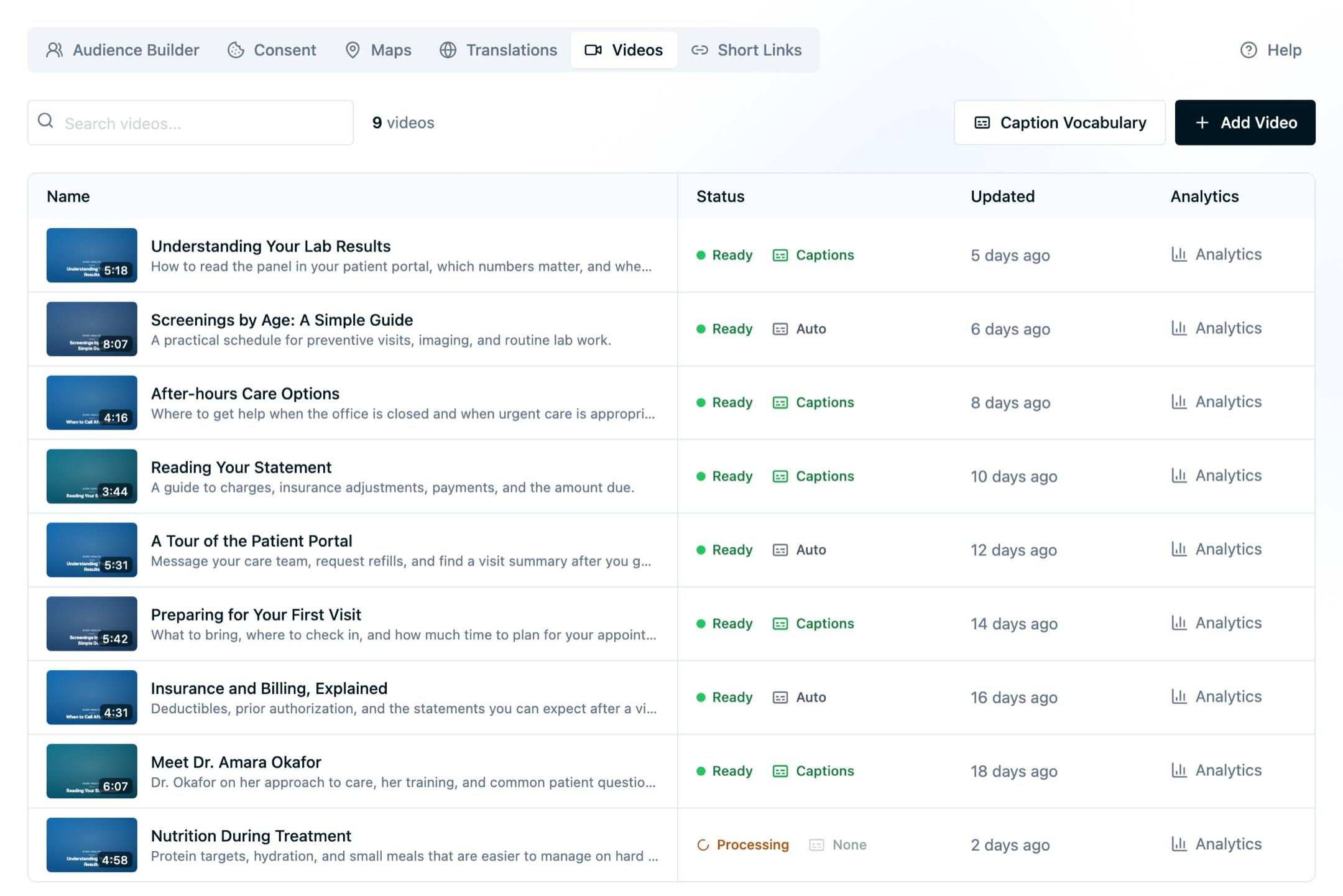
While processing runs, the video shows a Processing status in the list and the detail page shows a progress indicator instead of a player. Playback and the embed snippet become available once it shows Ready.
Playback quality
Each video keeps a standard MP4, which is what the Inline and Popup players serve and what the raw asset URLs point at. It also gets adaptive playback assets for the Adaptive player embed choice.
The Adaptive player starts in Auto and selects among the available renditions based on the viewer's connection. When multiple renditions are available, its control bar also lets the viewer choose one. Source video is never upscaled, so a lower-resolution upload can expose fewer quality choices.
Video limits
Each account has a maximum number of videos. The Videos page shows your current count against that limit, and Add Video is unavailable once you reach it. To raise the limit, contact your account representative.
Next steps
- Embedding videos: generate the snippet and add the video to a page.
- Captions and transcripts: review and correct the generated captions.
- Thumbnails and poster images: choose the frame viewers see first.
- Updating a video: edit the title and description, replace assets, or delete the video.
How is this guide?