

Captions and Transcripts
Create, translate, upload, and edit caption tracks for Ours Privacy videos, then let viewers choose their language in the player.
Use this page to review, correct, or replace the captions on a video.
Automatic captions
When you upload a video, choose its source language before selecting the original video file. English is the default. The audio is transcribed into that language and saved as a caption file in the standard VTT format. Existing videos continue to use English unless you select another source language for a replacement upload or provide your own source captions.
A caption file is a list of cues. Each cue is one line of on-screen text plus the moment it appears and the moment it goes away.
- Review automatic captions. Automatic transcription can still misrender clinical terms and proper nouns. Add terms to your caption vocabulary and review the source track before publishing.
- Videos over 2 GB skip transcription. Upload your own caption file for those, using the steps below.
The Captions section on the video detail page shows which state a video is in: Auto-generated, Uploaded (a person supplied or edited the file), or None.
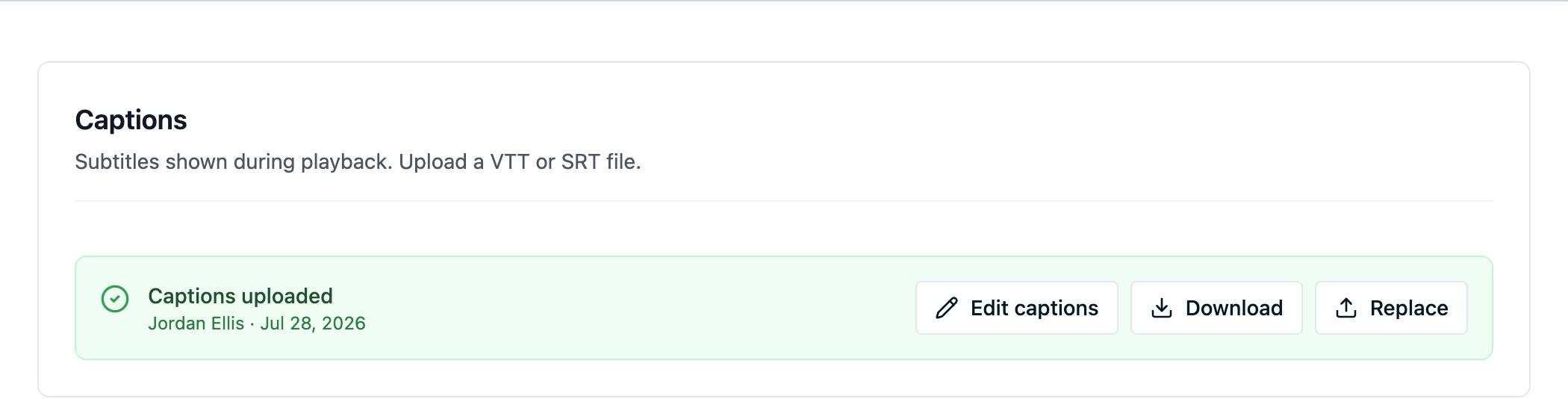
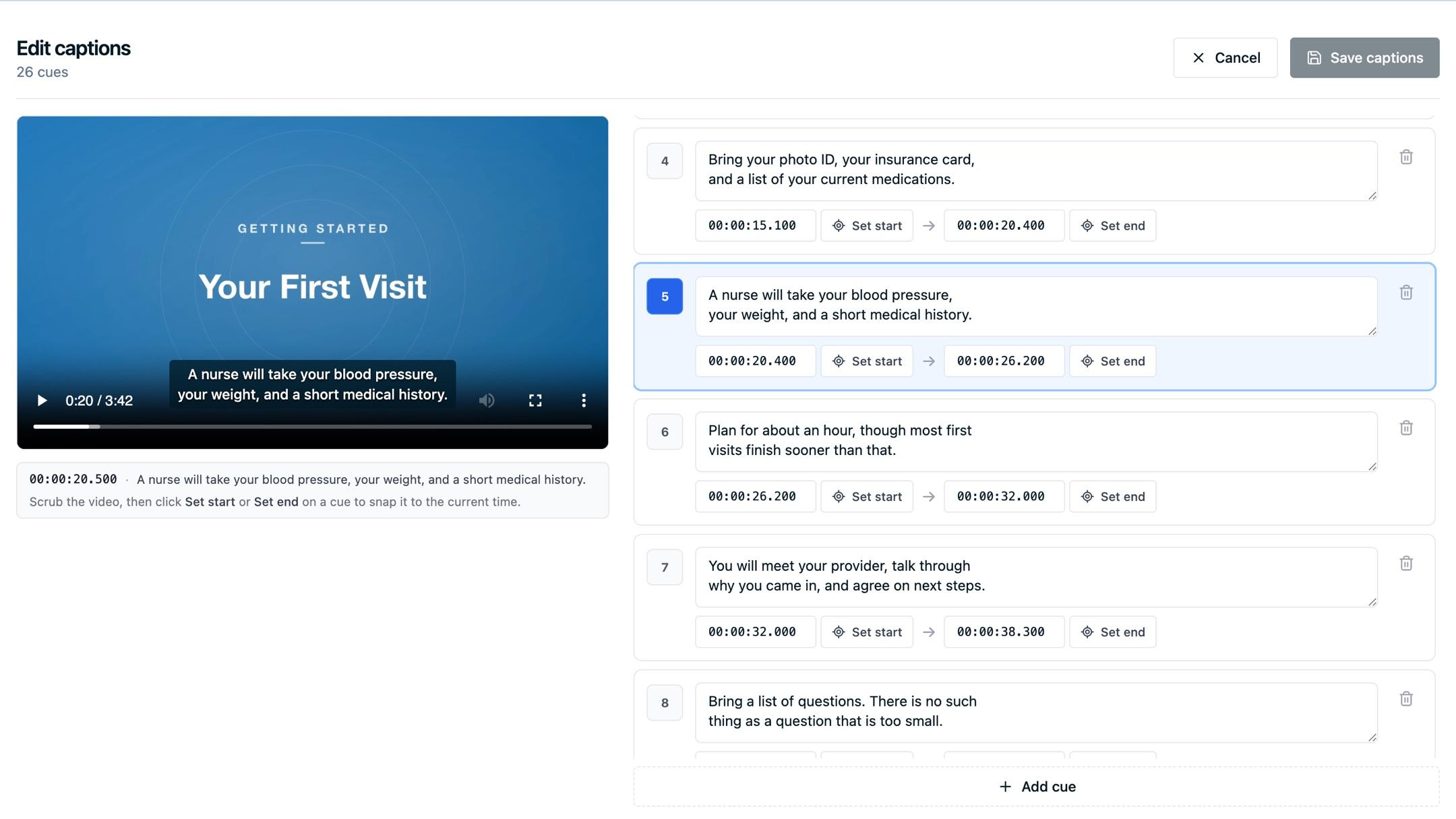
Correct captions in the dashboard
The caption editor lets you fix wording and timing one cue at a time, against the video as it plays.
- Open the video and find the Captions section.
- Choose Edit source captions, or choose Edit on a ready language in Other languages.
- Play the video. The active cue is highlighted and shown over the player as it plays.
- Edit any cue's text directly in its row.
- Adjust timing by typing a timestamp, or by moving the playhead to the right moment and choosing Set start or Set end.
- Add missing lines with Add cue, and remove stray ones with the row's delete control.
- Choose Save captions.
Use the Caption language selector inside the editor to switch tracks. Saved captions replace only the selected track. A machine-translated track is labeled Machine translated until its first successful edit; after that it is labeled Edited translation. This label describes the whole track, not which individual cues a person reviewed. The editor blocks saving while a cue has an invalid time range, so fix any flagged rows first.
To get consistently better first-pass results on terms specific to your organization, add them to your caption vocabulary before uploading.
Add another language
Use the Captions section to add another language:
- Under Original captions, choose Translate auto-generated captions (or Translate captions if you supplied the source captions). Search and select one or more target languages, then choose Translate. To provide a professionally translated VTT or SRT instead, choose Upload captions in another language under Other languages.
- Track progress in Other languages: Queued, Translating, then Machine translated. Failed or out-of-date translations can be retried; queued or translating jobs can be canceled.
- Choose Edit on a ready language to review and correct its cues. Choose its download control to save the VTT. Replacing human-edited captions with a new translation requires confirmation. To prevent duplicate translation charges, a ready machine translation can be requested again after five minutes; failed jobs can be retried immediately.
Translations are on demand for existing videos. On the Videos page, Automatic translations is a separate setting from Caption Vocabulary: choose up to five default target languages for future original video uploads. This also translates the captions generated from those new uploads. Existing videos are unchanged; use their Captions tab instead. For more languages, contact support so we can assess your needs. Language names show the English name first, followed by the native name.
The player lists every ready track in its native captions menu. When captions are enabled, it prefers an exact match for the viewer's browser language, then a match for the primary language, then the source track. This choice does not modify the video or its embed settings. Replacing the source marks machine-generated tracks Out of date so authors can retry them; an uploaded or human-edited target is not automatically overwritten.
Upload your own caption file
If you caption elsewhere, upload the finished file for the source language or another language:
- Open the video and find the Captions section.
- Choose Upload source (or Replace source if the video already has captions).
- Pick a VTT or SRT file. SRT files are converted to VTT during upload.
To upload the source track, use Upload source in the original captions area. To upload a professional translation, choose Upload captions in another language, select its Upload language, then choose the file. Uploading replaces only the selected language track; the dialog asks for confirmation when replacing existing captions. Source replacement marks machine-generated targets out of date, but does not overwrite uploaded or edited target tracks.
Caption tracks are delivered as public, unsigned files on the same CDN as video captions. Do not include PHI or other confidential information in caption files. Machine translation sends cue text to AWS Translate; review captions and organization-specific terminology before publishing. Video translation is text-only: translated audio and dubbing are not included.
Download the caption file
Choose the download control in the Captions section to save the current VTT file. This is useful for editing in a dedicated captioning tool, having captions reviewed, or reusing the transcript elsewhere on the page.
Captions and accessibility
Captions are one of the clearest accessibility wins on a video.
- Review automatic captions before publishing anything where accuracy matters.
- Viewers control caption appearance themselves through the player's caption settings, so you do not need to style them.
- Captions only help if the viewer can reach them, which means leaving the player controls visible. See Player accessibility.
Next steps
- Caption vocabulary: teach automatic captions the terms your organization uses.
- Player accessibility: how captions render and what else the player supports.
- Updating a video: replace assets and clear caches after a change.
- Building your own player: use the caption file URL in a player of your own.
How is this guide?