

Thumbnails and Poster Images
Choose which frame viewers see before a video plays, or upload your own poster image for an Ours Privacy video.
Set the still image viewers see before a video plays.
Pick a generated frame
Processing captures several frames from the first seconds of your video and uses one as the default poster.
- Open the video and find the Thumbnail section.
- Review the captured frames.
- Preview a frame to see it at full size, then confirm it to make it the poster.
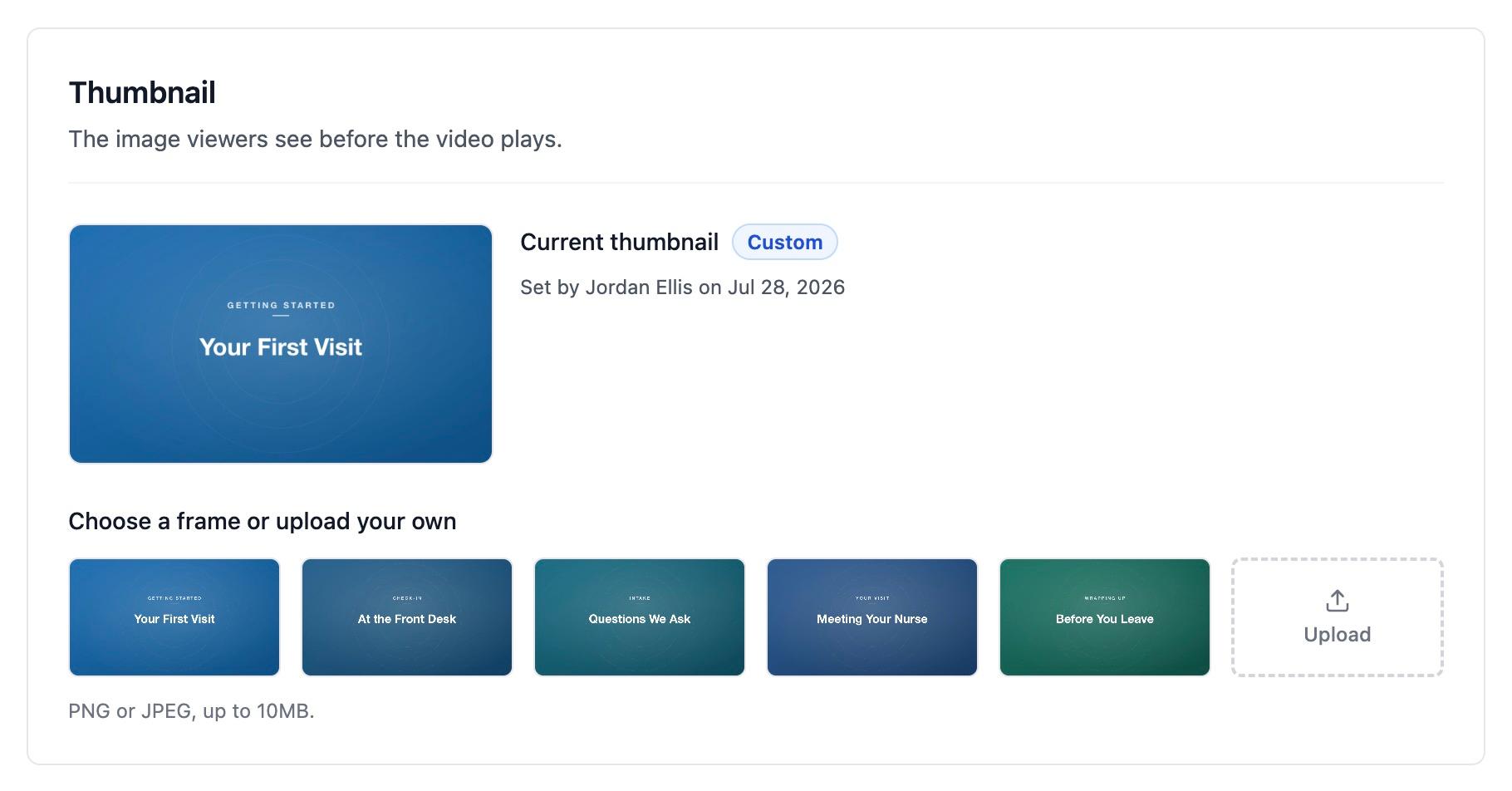
Upload your own image
Use your own image when no frame from the video works, or when you want a designed title card.
- In the Thumbnail section, choose Upload.
- Pick a PNG or JPEG file. PNGs are converted to JPEG during upload, with transparent areas filled white.
The uploaded image replaces the generated poster.
Sizing
Match the image to the aspect ratio you plan to use for the embed, and match the video's own dimensions where you can. Channel cards use a 16:9 frame. The poster fills its frame and is cropped when its shape differs, so keep text, logos, and other important content inside the center 80% of the image.
Seeing the new image on your site
After a change, the player may briefly serve the previous image from cache. The dashboard refreshes its own preview automatically. If your live page still shows the old image after a few minutes, use Clear caches on the video detail page; see Updating a video.
Next steps
- Embedding videos: generate the snippet once the poster looks right.
- Updating a video: clear caches so a replaced asset appears everywhere.
- Embed configuration: pick the aspect ratio your poster should match.
How is this guide?