

Embedding Videos
Generate an Ours Privacy video embed, choose Inline, Popup, or Adaptive display, and paste the player into any page on your site.
Use this page to generate an embed snippet and put the player on a page.
Copy the embed snippet
- Open the video from the Videos list and select Embed.
- Choose Inline player, Popup lightbox, or Adaptive player. Adaptive is available after a newly uploaded video finishes adaptive processing. For Popup, choose whether the lightbox opens from the video thumbnail, a text link, time on page, or a shared URL.
- Adjust the player color, aspect ratio, and playback options. The snippet updates as you change them. Every option is listed in Embed configuration.
- To collect an email or show a CTA, configure one interaction under Engagement. Choose when it appears, what it shows, and whether a visitor must complete it before continuing. See Video Lead Capture.
- If you have a custom domain configured, pick it from the domain selector above the snippet so the player and assets load from your own domain.
- Choose Copy embed code.
- Paste the snippet into your page's HTML where you want the player to appear.
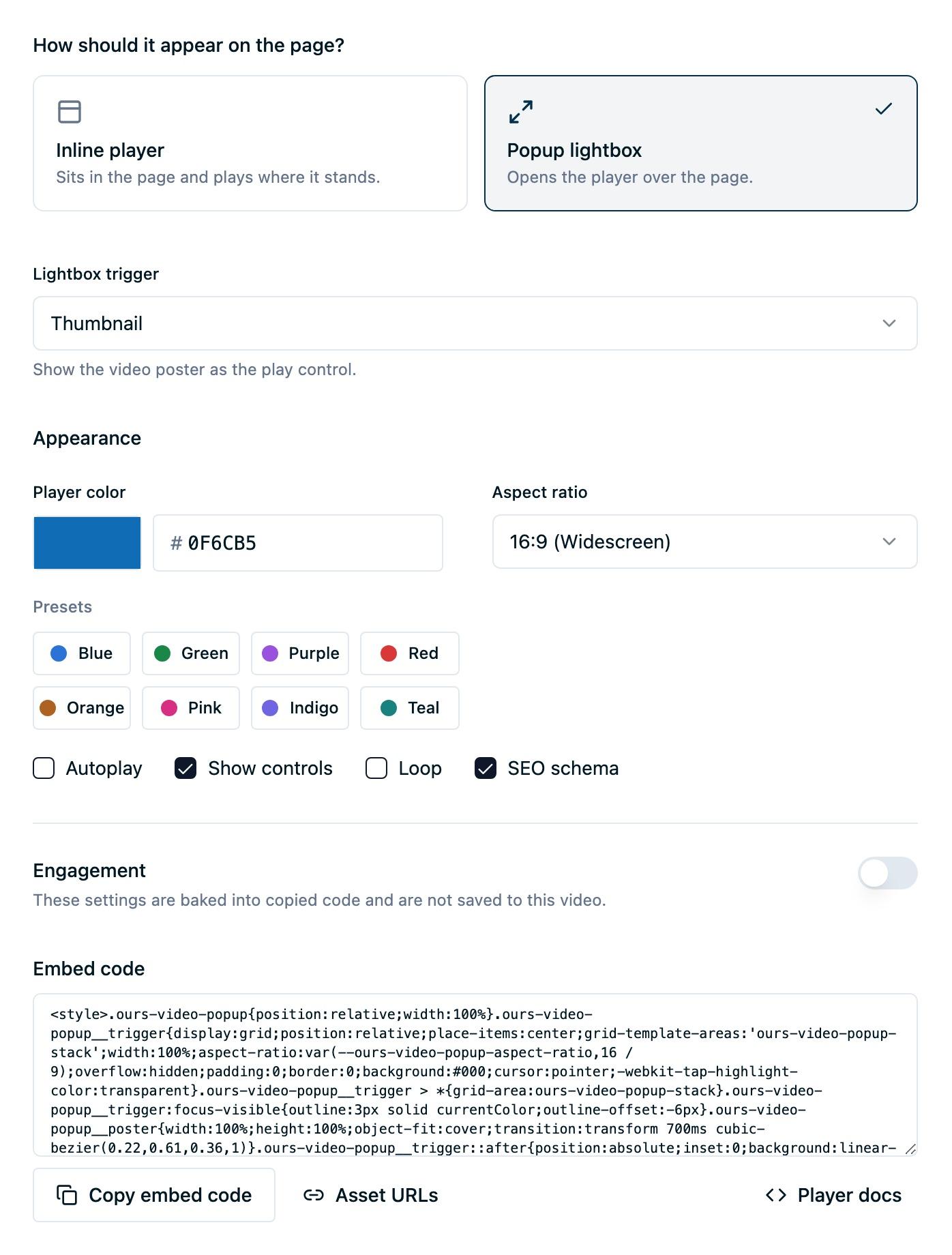
The snippet is available once the video finishes processing. Before then, the Embed tab explains that the code is not ready yet.
Choose a display mode
Use Inline when the player belongs in the page content. The player appears in place, and visitors start playback from its play control. This is the default.
Use Popup when you want the same player to open in a lightbox above the page. Choose one of four launch methods:
- Thumbnail renders the video's poster as an accessible play button.
- Text link renders a link with text you choose.
- Time on page opens the lightbox after a delay from 1 to 300 seconds, once per browser session.
- URL parameter opens the lightbox when the page URL includes the video's generated
ours-videovalue.
Thumbnail and Text link work well for an explainer, testimonial, or product video that should be available without reserving room for the full player. Time on page works for a campaign or announcement that should appear after a visitor has had time to orient themselves. URL parameter works when an email, ad, or page link should open a specific video on arrival. Use Inline when the player itself is part of the page's primary content.
The Thumbnail button and Text link can receive keyboard focus and open from the keyboard. In the lightbox, visitors can use the close control, select the backdrop, or press Escape to return to the page. Focus returns to the launch control after the lightbox closes. For Time on page, focus returns to the page element the visitor was using before the lightbox opened.
Note: Thumbnail and Text link playback follow a visitor action, so the player requests sound as it opens. Time on page and URL parameter start muted because they do not follow a visitor action. Browser, device, and operating-system settings can still block autoplay.
Use Adaptive when you want the player to adjust quality for the visitor's connection. It starts in Auto and offers a quality menu when the video has more than one available rendition. Adaptive is an Inline embed, not a Popup mode. It is available only after a new upload finishes processing. Videos processed before Adaptive was available are not converted retroactively, so upload or replace an older video before choosing it.
Existing Inline and Popup snippets continue to use the standard MP4 player.
What the snippet contains
The snippet is a short block of HTML that loads the hosted player in a frame on your page, plus optional data for search engines. In Popup mode, it also loads an Ours Privacy-hosted script that manages the selected launch method and opens the player in a lightbox. Paste the complete snippet as copied.
It needs no build step, so it works in any CMS or page builder that accepts an HTML block: Webflow, WordPress, Squarespace, Wix, Shopify, HubSpot CMS, Ghost, Framer, Drupal, BigCommerce, Adobe Experience Manager, Sitecore, Duda, and Weebly among them. The website platform directory lists the exact location on each platform.
Because the player goes in page content rather than your site's <head>, it does not depend on being able to add a site-wide script. A video can work on a platform where tracking cannot be installed.
The frame sizes itself to the width of whatever you paste it into, so the player scales on mobile with no styling on your side. It is sized for a 16:9 player. If you picked a different aspect ratio, the snippet needs a one-number edit, described in Embed configuration.
For an Inline embed with Keep playing while scrolling on, the snippet also carries an attribute on its outer element and one extra script tag that keeps the player visible after the visitor scrolls past it. See Floating playback.
Important: Your settings are baked into the snippet at the moment you copy it. Changing a setting in the dashboard does not change a snippet already on your page. After changing any embed option, including the player color, aspect ratio, Engagement interaction, or Keep playing while scrolling, copy the snippet again and replace the one on your page.
Use your own launch control
In Popup mode you can supply your own launch control instead of the generated thumbnail button or text link. Keep the generated wrapper and script, and put your own element inside the wrapper:
<div class="ours-video-popup" data-ours-video-popup>
  <button
    type="button"
    data-ours-video-popup-trigger
    data-player-url="https://cdn.oursprivacy.com/embed/video/<short-id>?autoplay=any&muted=false&aspectRatio=16%3A9"
    data-player-title="Video: Clinic overview"
    data-player-color="#1f6feb"
    data-ours-video-popup-aspect-ratio="16:9"
  >
    Watch the overview
  </button>
</div>
<script src="https://cdn.oursprivacy.com/embed/video-popup.js"></script>
The contract:
- Keep the generated
<div class="ours-video-popup" data-ours-video-popup ...>wrapper, every generateddata-player-*attribute, and the<script src=".../embed/video-popup.js">tag. For a Thumbnail or Text link trigger those attributes sit on the generated trigger you are replacing, not on the wrapper, so copy them across to your own control. - Mark your element with
data-ours-video-popup-trigger. The script initializes the first descendant of the wrapper carrying that attribute. - Use a real
<button type="button">or<a>. A<div>or<span>is not keyboard operable. - Give it an accessible name, either visible text or an
aria-label. - Its visible styling and placement belong to your page. Ours Privacy does not style it.
The lightbox behaves the same way it does with a generated control: it closes through its close control or by clicking the area around the player, focus moves to the close control when it opens, and focus returns to your trigger when it closes. Escape closes it from anywhere, including while the visitor is using the player controls.
Link to a specific moment
Add start=<seconds> to the player URL to open the video partway in. Append &start=45 to the generated URL, or ?start=45 if the URL has no query string yet, and the video begins at 45 seconds.
It works on both the Inline iframe src and the Popup player URL, and it keeps every other embed parameter intact. The value has to be a whole number of seconds from 0 through 86400; timestamps such as 1:30 and suffixed values such as 45s are ignored, and the video starts at the beginning. See Embed configuration for the full list of accepted and ignored values.
Structured data for search engines
SEO schema is on by default. It adds a VideoObject block to the snippet describing the video's title, description, poster image, upload date, and file URL, which lets search engines recognize the page as containing a video.
The title and description come from the video's fields in the dashboard, so fill those in before you copy the snippet. Turn the option off if your CMS already emits VideoObject data for the page and you want to avoid a duplicate block.
Serving from your own domain
By default the player and video files load from a shared Ours Privacy domain. With a custom domain configured, the domain selector lets you generate a snippet that serves both from your own domain instead. This keeps every request on your domain, which matters if your site is configured to block content loaded from other companies' domains.
Verify playback
After pasting the snippet:
- Load the page and confirm the player or selected launch control appears.
- For Inline, start the video and confirm audio and captions work. For Popup, use the selected launch method and confirm the lightbox opens and begins playback.
- If you use Popup, press Escape after opening it and confirm focus returns to the launch control or prior page element.
- If you have the Ours Privacy Web SDK on the page, check that engagement events arrive in Video Analytics within a few minutes.
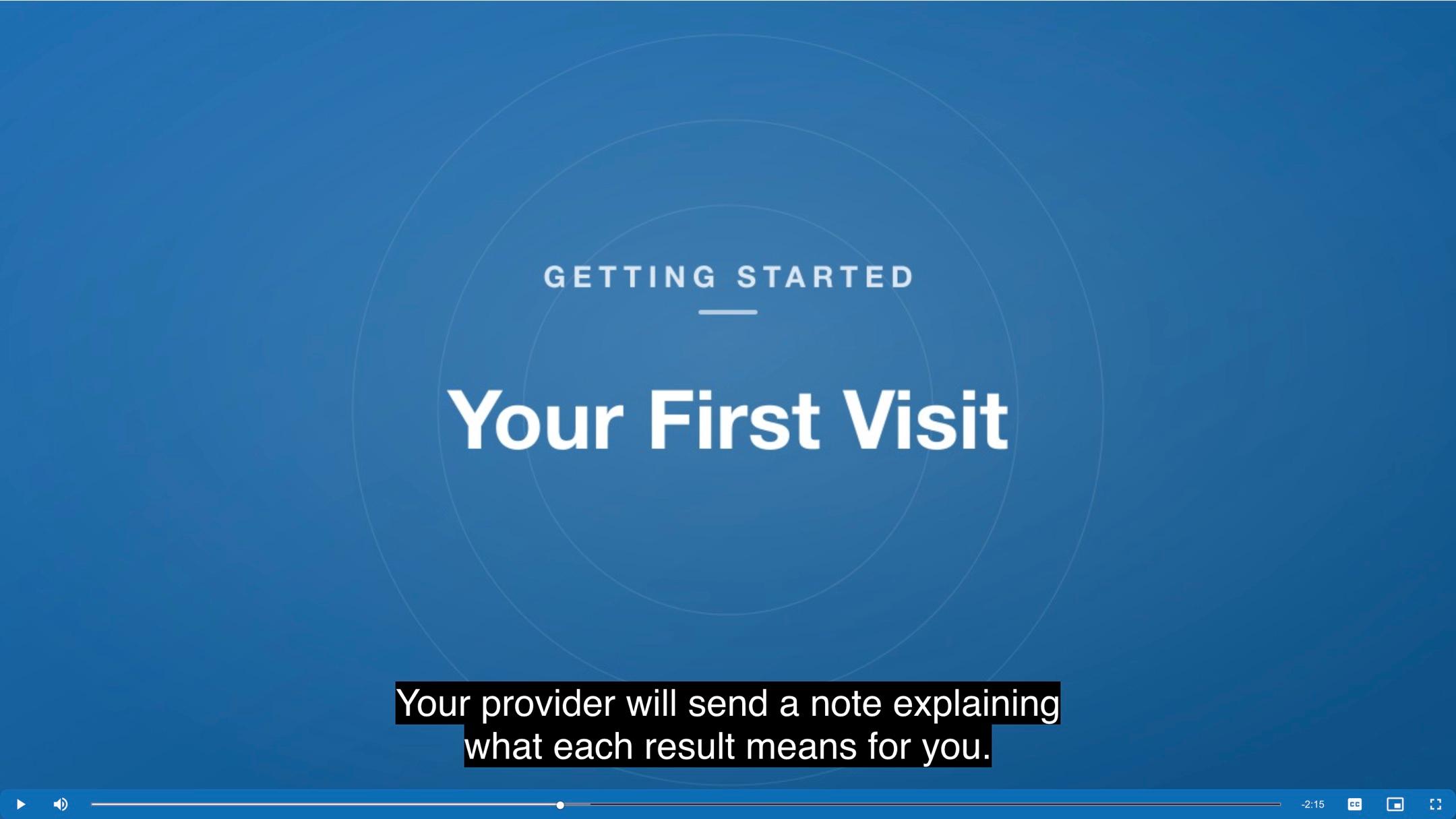
If the player area is blank, first confirm the video shows Ready in the dashboard. If it does, your site may be blocking content loaded from the player's domain. That is a site-level setting, so pass the domain shown in the snippet to whoever manages it.
Next steps
- Embed configuration: every option, its accepted values, and its default.
- Video Lead Capture: configure one email capture or CTA in a standalone embed.
- Recipes: worked setups for hero videos, vertical video, and accessible playback.
- Video Analytics: confirm engagement is being recorded.
- Building your own player: skip the embed snippet and use the raw asset URLs.
How is this guide?