

Player Accessibility
How the Ours Privacy video player supports captions, keyboard control, and color contrast, and the embed choices that affect accessibility.
What the player handles for you, and which accessibility choices are yours when you generate an embed.
Healthcare and public-sector sites are frequently held to WCAG Level AA, and video is one of the places accessibility reviews look first. The player conforms to WCAG 2.2 Level AA and Section 508, so it satisfies both the current standard and the earlier 2.1 version that many procurement checklists still name. Most of what a review asks for is either built in or a matter of the settings you pick when you generate the embed.
Captions
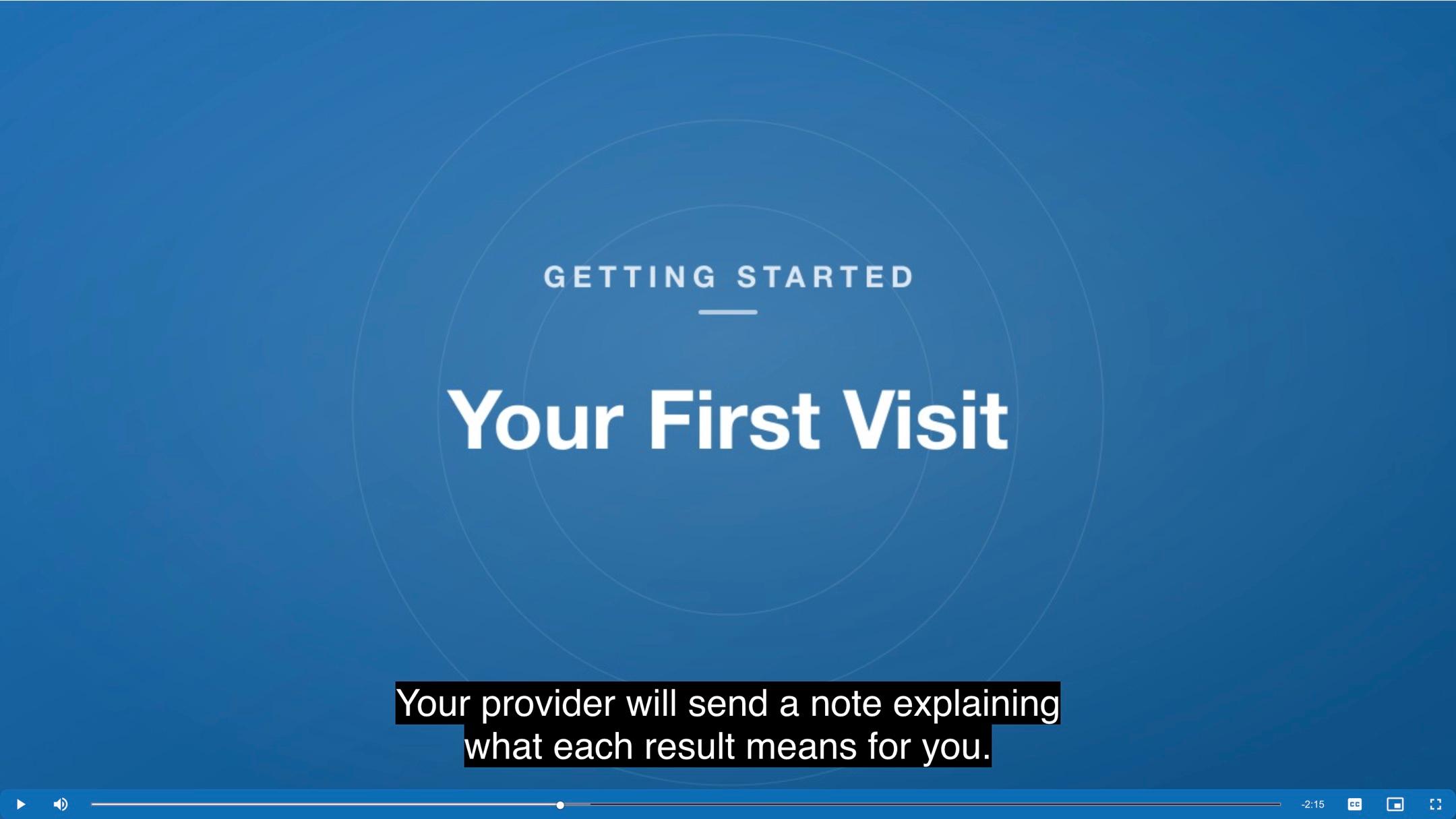
Every uploaded video is transcribed in its selected source language and the player picks the caption file up automatically, so captions are available without extra setup. Add translated or professionally provided tracks for the languages your audience needs. Automatic transcription is not perfect, and an inaccurate caption track can be worse than none for someone who depends on it, so review captions before publishing anything where accuracy matters.
Viewers control caption appearance themselves through the player's caption settings, so there is nothing to style. See Captions and transcripts for the editor and Caption vocabulary for improving first-pass accuracy on your own terminology.
Audio description is not generated. If a video conveys information visually that the narration does not state, provide it another way, such as a described version or an on-page transcript.
Keyboard and screen readers
The player is built on Video.js, so its controls are reachable by keyboard and labeled for assistive technology out of the box: the play button, progress bar, volume, playback speed, captions, and fullscreen are all focusable and operable without a mouse.
The playback speed control follows the same pattern as a standard menu button. It can receive focus, Enter or Space opens the rate menu, arrow keys move between the available rates, and Enter selects one. The menu is exposed as role="menu", and each rate is a role="menuitemradio" whose aria-checked state reflects the rate currently playing, so a screen reader announces which speed is active.
In a Popup embed, Escape closes the lightbox wherever focus is, including on a control inside the player. It is applied in order: anything already open inside the player (a player menu, the caption settings dialog, or an engagement interaction the viewer can decline) takes the first Escape, and the next press closes the lightbox. A visitor dismissing a menu never loses the video by accident. There are two exceptions. While the player is fullscreen, Escape leaves fullscreen instead. A locked engagement interaction does not take Escape at all, so Escape remains the way out of a video the viewer has decided not to complete.
The player loads in a frame on your page, and the generated snippet already gives that frame a label built from the video's description, or from its title if there is no description. Screen reader users hear that label when they reach the player, so fill in the video's description before copying the snippet rather than leaving the generic fallback in place. See Updating a video.
Color contrast
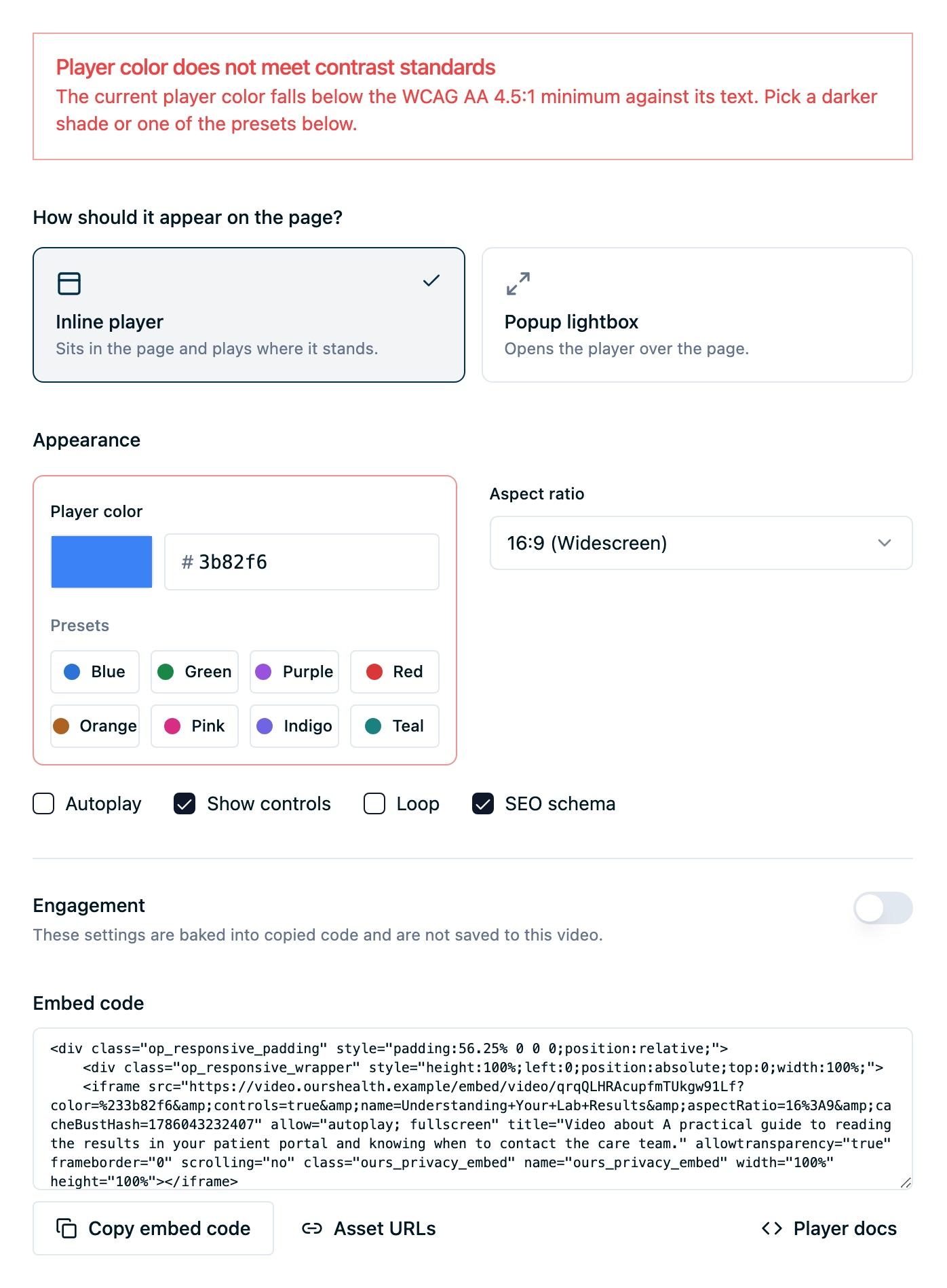
The Player color you choose drives the play button, control bar, and progress bar. The dashboard checks it against a WCAG AA 4.5:1 contrast minimum and warns when the combination falls short, so you find out before publishing rather than during an audit.
The player derives its matching foreground and hover shades from that one value, so you cannot end up with a mismatched pair by hand. If you see the contrast warning, pick a darker or lighter variant of your brand color rather than overriding it on the page.
Embed choices that affect accessibility
These options in Embed configuration carry accessibility consequences:
- Show controls off removes the viewer's ability to pause, mute, change playback speed, or turn on captions. Only use it for decorative video that is muted, looping, and carries no information the viewer needs.
- Autoplay on starts motion the viewer did not ask for, and the player is muted automatically as a result. Keep the controls visible so anyone who needs to stop it can.
- Loop on means motion never stops on its own. Pair looping background video with a still poster or a static alternative where you can, and keep the loop short.
- Keep playing while scrolling on is motion that follows the viewer down the page. The floating player's Close floating video button is how someone gets that motion out of their way, and it leaves playback running. The player moves without animation for a viewer who has set a reduced-motion preference, and the option is only offered with controls on and autoplay off, so pausing is always available. Avoid pairing it with an automatic lightbox trigger on the same page, where two things would compete for attention.
- Time on page and URL parameter open a modal while the visitor may be reading or completing another task. Prefer Thumbnail or Text link for informational video. If you use an automatic trigger, keep controls visible and test that the lightbox does not compete with another modal or form step.
A safe default for informational video is controls on, autoplay off, loop off, with reviewed captions.
Lead capture and CTA interactions
The Video Lead Capture overlay keeps keyboard focus within the interaction while it is visible. Before playback, the email field receives focus. At the midpoint, continuing returns focus to the player. After completion, replay returns focus to the player as playback begins.
An unlocked interaction includes a clear continue or replay control. A locked interaction intentionally has no in-player way to continue or replay without completing its primary action, so use it only when that requirement is appropriate for the page.
Conformance
The Ours Privacy Video Player is built to meet modern accessibility standards. Playback controls are keyboard navigable and screen reader compatible, captions are supported, and the player conforms to WCAG 2.2 Level AA and Section 508.
Conformance has been validated by an independent third-party accessibility audit firm and documented in a Voluntary Product Accessibility Template (VPAT). To request a copy of the VPAT for a procurement or compliance review, contact support@oursprivacy.com.
Related pages
- Captions and transcripts: review and correct the caption track.
- Embed configuration: every option and its default.
- Video Lead Capture: configure accessible email capture and CTA interactions.
- Recipes: accessible combinations for common placements.
How is this guide?