

Embed Configuration
Reference for every Ours Privacy video embed option - display mode, adaptive quality, engagement, player color, aspect ratio, autoplay, controls, loop, and SEO structured data.
Every option available when generating a video embed snippet, with its accepted values and default. Set these on the Embed tab of a video's detail page; see Embedding videos for the walkthrough and Recipes for worked combinations.
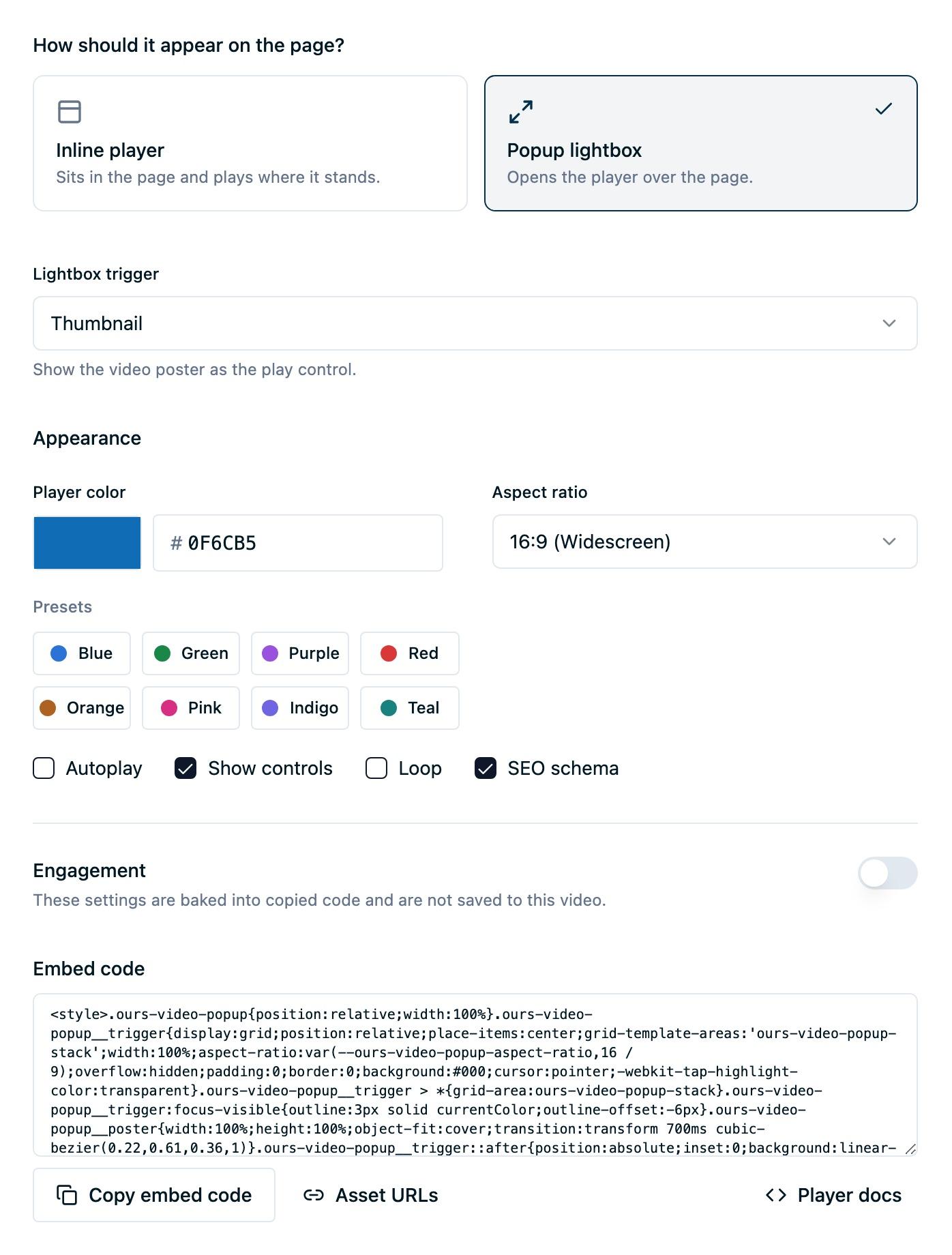
Options
| Option | Label in dashboard | Values | Default |
|---|---|---|---|
| Display mode | Inline player / Popup lightbox / Adaptive player | Inline, Popup, Adaptive | Inline |
| Lightbox trigger | Lightbox trigger | Thumbnail, Text link, Time on page, URL parameter | Thumbnail |
| Link text | Link text | Up to 80 characters | Watch video |
| Page delay | Delay in seconds | 1 to 300 | 5 |
| Engagement | Enable engagement | Off, one Email capture, or one CTA | Off |
| Interaction timing | Show when | Before playback, Midpoint, On completion | Before playback |
| Interaction completion | Lock interaction | On, off | Off |
| Player color | Player color | Any hex color, or a brand preset | A default accessible blue |
| Aspect ratio | Aspect ratio | 16:9, 4:3, 21:9, 1:1, 9:16, 3:2 | 16:9 |
| Autoplay | Autoplay | On, off | Off |
| Controls | Show controls | On, off | On |
| Loop | Loop | On, off | Off |
| Structured data | SEO schema | On, off | On |
| Floating playback | Keep playing while scrolling | On, off | Off |
How the options look on a page
The same video, embedded four times with different settings. Two separate things are at work:
- Inside the player: the tint and the shape come from Player color and Aspect ratio, and the missing control bar from Show controls. These are the only ways to change the player itself; it renders in an iframe, so your stylesheet cannot reach inside it.
- Around the player: the corner radius, border, shadow, and width in these examples are the host page styling the iframe's own wrapper. That part is entirely yours, and it is most of what makes an embed look native to your site.
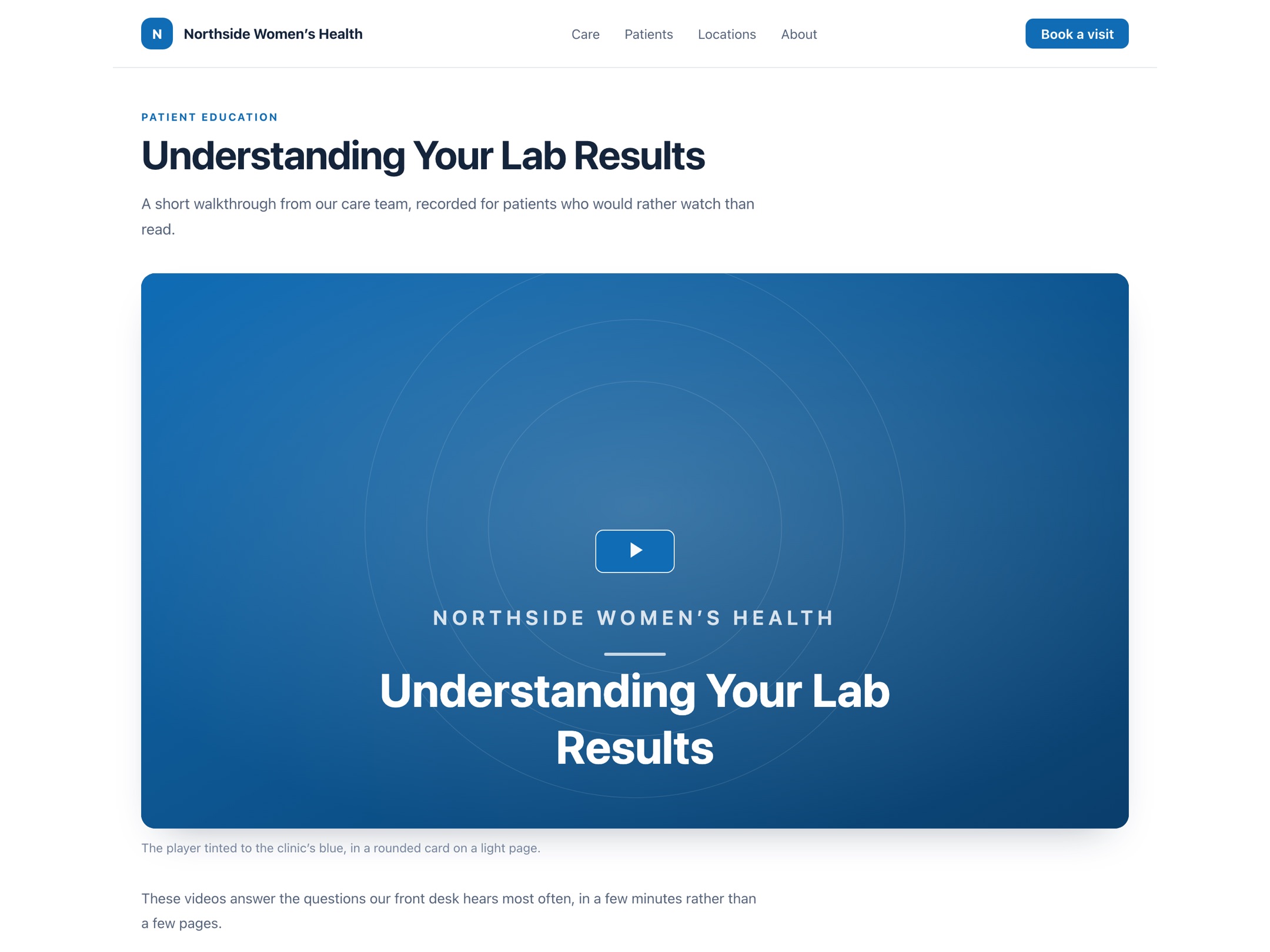
Brand color. Player Color set to the clinic's blue, which tints the play button and the control bar. The rounded card and shadow around it are host page CSS.
Display mode
Inline puts the hosted player directly in the page. Visitors use the player controls where the video appears.
Popup opens the same player in a lightbox. The hosted script included in the generated code manages the launch control, timing, and lightbox, so you do not need to add your own modal or iframe trigger.
Popup inherits the video's player color, aspect ratio, controls, loop setting, captions, and analytics behavior. It is useful when you want a video available from a page without reserving the full player area before a visitor chooses to watch.
Visitors can close the lightbox through its close control, its backdrop, or Escape. Escape works wherever focus happens to be, including on the player controls. When a player menu, the caption settings dialog, or an engagement interaction the visitor can decline is open, Escape dismisses that first and a second press closes the lightbox. While the player is fullscreen, Escape leaves fullscreen instead.
Adaptive is an Inline player that becomes available after a newly uploaded video finishes adaptive processing. It starts in Auto, which chooses a rendition for the visitor's device and connection. When more than one rendition is available, the player also gives the visitor a quality menu.
Adaptive generates 360p, 540p, 720p, and 1080p options when the uploaded source supports them. It never uses a quality higher than the source video. Videos processed before Adaptive was available are not converted retroactively, so upload or replace an older video before choosing it.
Adaptive does not change existing Inline or Popup snippets. Those continue to use the standard MP4 player.
Lightbox trigger
Thumbnail renders the selected poster as a focusable play button. It opens with a pointer, Enter, or Space.
Text link renders a normal page link with the text you enter. Selecting it opens the lightbox instead of navigating away. If the lightbox script is blocked or unavailable, the link falls back to opening the hosted player directly.
Time on page opens the lightbox once per browser session after the configured delay. Set a whole number from 1 to 300 seconds. It starts muted and returns focus to the page element the visitor was using when the lightbox opened.
URL parameter opens the lightbox when a visitor arrives through a link containing the video's generated ours-video value. Copy the generated snippet to the destination page, then use the parameter shown in that snippet when building the link. It starts muted.
Use a visitor-controlled launch method for informational video. Delayed and URL-triggered lightboxes interrupt the current page task, so reserve them for a campaign or announcement where the interruption is intentional.
Engagement
Turn on Enable engagement to place one email capture or CTA in the copied standalone embed. Choose a fixed time under Show when, then choose what the visitor sees under Show:
- Email capture asks for one email address and lets you set offer text and the submit-button label.
- CTA shows a headline, button label, and URL.
Lock interaction controls whether the player offers an in-player path to continue or replay without completing the interaction. The setting is copied into the snippet and is not saved to the video, so copy and replace the snippet after every change. See Video Lead Capture for the setup flow, event routing, and current limits.
Player color
Applies to the play button, the control bar, and the filled portion of the progress bar. Choose a hex value directly or pick one of your brand presets.
The dashboard checks the chosen color against a WCAG AA 4.5:1 contrast minimum and shows a warning when a combination fails. The player computes a matching foreground and hover shade from the color you set, so only the one value is configurable. See Player accessibility.
Aspect ratio
Sets the shape the player holds as it scales. 16:9 suits most landscape marketing video; 9:16 suits vertical video shot for mobile. The poster image fills the player area and is cropped when its shape differs from the ratio you choose.
The generated snippet is sized for a 16:9 player, so any other ratio shows with empty bars around it inside a widescreen box. To fix the shape, find padding in the first line of the snippet and change its percentage to the one below. It is a one-number edit, and nothing else in the snippet changes:
| Aspect ratio | Padding to use |
|---|---|
16:9 | 56.25% |
4:3 | 75% |
21:9 | 42.86% |
1:1 | 100% |
9:16 | 177.78% |
3:2 | 66.67% |
See Recipes for a worked vertical-video example.
Autoplay
For an Inline embed, turning on autoplay requests playback as soon as the player loads. Inline autoplay starts muted because browsers commonly block unmuted playback without a visitor action. Muted playback is not separately configurable.
For a Popup embed, selecting a Thumbnail or Text link opens the player and requests playback immediately. Because the request follows a visitor action, the player can request audio as well. Time on page and URL parameter start muted because they open without a visitor action.
Autoplay is always a request, not a guarantee. Browsers and operating systems can refuse it, particularly on mobile or when the visitor has data saving enabled.
Controls
When on, the player shows its control bar: play and pause, progress, volume, playback speed, captions, and fullscreen. When off, the control bar is hidden and the video plays without visible controls.
Turning controls off removes the visitor's ability to pause, mute, change playback speed, or turn on captions, so reserve it for decorative video that is muted, looping, and carries no information the viewer needs. See Player accessibility.
Playback speed
The control bar includes a playback speed control. Visitors choose 0.5x, 0.75x, 1x, 1.25x, 1.5x, or 2x.
This is not a dashboard setting, so there is no row for it in the table above. It is always present when Show controls is on, in both Inline and Popup players, and it stays available at phone-width player sizes.
The selected rate applies to the current playback session only. It is not saved as a visitor preference across page loads, and it does not change the source asset.
Note: Turning Show controls off removes the playback speed control along with the rest of the control bar.
Loop
When on, playback restarts from the beginning each time the video reaches the end.
Looping affects analytics: the player reports one video_complete for the first full pass and stays silent on later passes, so a looping background video does not inflate your engagement numbers with repeated events from a single view. See Video analytics events.
Floating playback
Keep playing while scrolling lets a video the visitor started keep playing after they scroll past it. While the video is playing, if less than about a quarter of the embed is still on screen, the player moves to a corner and continues. Scrolling back up returns it to its place in the page. The container in your page keeps holding its original space the whole time, so the page never reflows.
On desktop-width viewports the floating player sits in the lower right at 400px wide, with a 20px gap from both edges. On viewports 640px wide or narrower it spans the full width along the bottom of the screen and respects the phone's bottom safe area. When the visitor has asked their system for reduced motion, the player moves without animation.

Desktop. The article carries on underneath the player, which sits 400px wide with a 20px gap from both edges. Its close button hangs just outside the top right corner, where it cannot cover the video.
The option appears for Inline player embeds only, and it requires Show controls on and Autoplay off. When either of those is not met, the checkbox is visible but disabled with text explaining why. Those requirements keep a floating player to video the visitor chose to start and can still pause or mute. Popup lightbox embeds do not offer the option, since a lightbox already plays above the page.

Available. The default embed state meets both requirements, so the checkbox is selectable and the text below it describes what the setting does.
Important: Turning this on adds an attribute to the embed's outer element, a
float=trueparameter to the iframe'ssrc, and one extra<script ... async>tag to the generated code. Copy the snippet again and replace the one on your page. Changing the setting does not alter a snippet you already pasted.
Returning the player to the page
- The floating player carries a close button labeled Close floating video. Selecting it returns the player to its place in the page without stopping playback, and moves focus to the player. The player will not float again for the rest of that page view, unless the video plays to the end.
- Pausing does not return the player to the page. A paused player stays in the corner so it is still there to resume from, since its place in the page is off screen by then.
- Reaching the end of the video returns the player to the page and clears an earlier dismissal, so a later replay can float again.
More than one floating embed on a page
Only one player floats at a time. When a second video would begin floating, it takes the corner and the first returns to its place in the page, still playing.
Analytics and older browsers
Floating does not affect analytics. The player is not reloaded when it moves, so floating produces no duplicate start or completion events and no extra views. See Video analytics events.
On a browser that does not support the visibility detection this relies on, the embed behaves as an ordinary inline player.
Start time in a link
Add start=<seconds> to a player URL to open the video at that moment. For example, ?start=45 starts playback 45 seconds in.
The value is a base-10 whole number of seconds from 0 through 86400 (24 hours). It works on both the Inline iframe src and the Popup player URL, and it preserves every other embed parameter already on the URL. Append &start=45 to the generated URL, or ?start=45 if the URL has no query string yet.
Seconds are the only accepted form. The following values are ignored, and the video starts at the beginning with no error shown:
- Negative or signed numbers:
-5,+5. - Fractional, exponential, or hexadecimal numbers:
1.5,1e3,0x10. - Values containing spaces, or a unit suffix:
45s. - Timestamp form:
1:30. - The parameter repeated more than once:
start=30&start=60.
At the boundaries:
- A value larger than the video's duration seeks to the end of the video rather than failing.
- A value above
86400is ignored, not clamped.
The seek is applied once the player knows the video's duration, so on a slow connection the first frame can appear briefly before the seek lands.
Include SEO Schema
When on, the snippet carries a VideoObject structured data block describing the video's title, description, poster image, upload date, and file URL. The title and description come from the video's fields in the dashboard.
Go further with your own player
For quality control, choose the Adaptive player: it starts in Auto and, when more than one rendition is available, gives the visitor a quality menu. For a fully custom look, such as your own CSS or thumbnail previews on the progress bar, use the raw asset URLs with a player of your own. See Building your own player.
Related pages
- Embedding videos: how to generate and place the snippet.
- Video Lead Capture: configure an email capture or CTA interaction.
- Recipes: these options combined for common goals.
- Player accessibility: contrast, captions, and keyboard behavior.
- Video analytics events: how playback options affect reported events.
How is this guide?