

Preview Mode
Use preview mode to debug your tag manager configuration in real-time. See events, tags, and variables as they fire on your website with our Chrome extension.
Preview mode provides a real-time debugging interface for your Tag Manager configuration using a Chrome extension. It displays events, tags, variables, and data layer state as they occur on your website, helping you verify that your tags are firing correctly.
Chrome Extension
The Ours Privacy Tag Manager Chrome extension adds a Tag Manager panel to Chrome DevTools, where you can inspect events, tags, variables, and data layer state without opening a popup or changing your website URL.
Installation
- Install the Ours Privacy Tag Manager extension from the Chrome Web Store
- The extension will automatically appear in your Chrome DevTools
Using the Extension
- Navigate to your website where the tag manager is installed
- Open Chrome DevTools (F12 or right-click > Inspect)
- Click the Tag Manager tab in DevTools
- The extension will automatically detect and display tag manager events
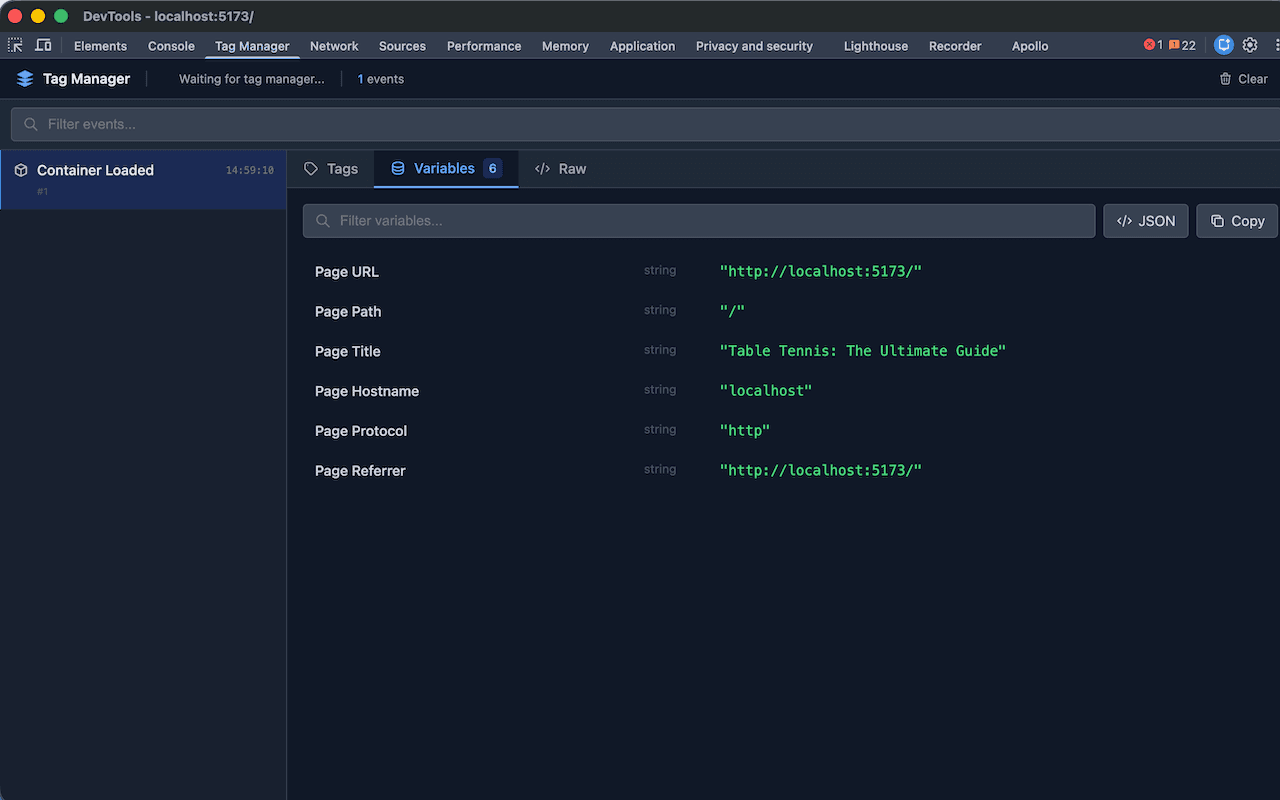
What You Can Debug
The Chrome extension allows you to:
- See events in real-time: View all events as they fire on your website
- Inspect tag firing: See which tags fired, which were blocked, and why
- View variable values: Check variable values at the time of each event
- Examine data layer: See the complete data layer state for each event
- Debug triggers: Understand why triggers fired or didn't fire
Using the Preview Interface
Left Panel: Event Timeline
- Chronological list of all events that have fired
- Shows event name and timestamp
- Click any event to view its details
Right Panel: Event Details
When you select an event, the right panel shows detailed information across three tabs:
Tags Tab
- Fired tags: Tags that successfully fired
- Blocked tags: Tags that were blocked by block triggers
- Not fired tags: Tags that didn't fire because trigger conditions weren't met
- Each tag shows its type, name, and reason for firing/not firing
Variables Tab
- All variable values at the time of the event
- Shows variable name, type, and current value
- Values are displayed as JSON for complex objects
Raw Tab
- Raw event data in JSON format
- Useful for debugging complex data structures
Best Practices
- Test before publishing: Use preview mode to verify your configuration before publishing
- Check multiple events: Test different user interactions to see how tags fire
- Verify variable values: Ensure variables resolve to expected values
- Test trigger conditions: Verify that triggers fire when expected
- Check for blocked tags: Review why tags were blocked to understand your configuration
Troubleshooting
Extension Not Showing Events
Problem: The Tag Manager tab shows no events.
Solutions:
- Verify tag manager is installed: Ensure the tag manager script is loaded on your website
- Refresh the page: Reload the page with DevTools open to capture all events
- Check for errors: Look in the Console tab for any tag manager errors
- Interact with your site: Events only appear when they fire - try clicking links, submitting forms, or triggering other events
Tag Manager Tab Not Appearing
Problem: The Tag Manager tab doesn't appear in DevTools.
Solutions:
- Check extension is enabled: Go to
chrome://extensionsand ensure the Ours Privacy Tag Manager extension is enabled - Close and reopen DevTools: Sometimes DevTools needs to be reopened for new tabs to appear
- Reinstall the extension: Try removing and reinstalling the extension from the Chrome Web Store
Related Documentation
- Installation Guide: Learn how to install the tag manager
- Publishing & Versions: Understand how to publish your configuration
- Tags: Learn about creating and configuring tags
- Triggers: Understand how triggers work
- Variables: Learn about variables and how to use them
How is this guide?