

Folders
Learn how to use folders to organize tags, triggers, and variables in the Ours Privacy Tag Manager.
Folders let you organize your tags, triggers, and variables into logical groups. As your Tag Manager workspace grows, folders help you keep things manageable by grouping related assets together.
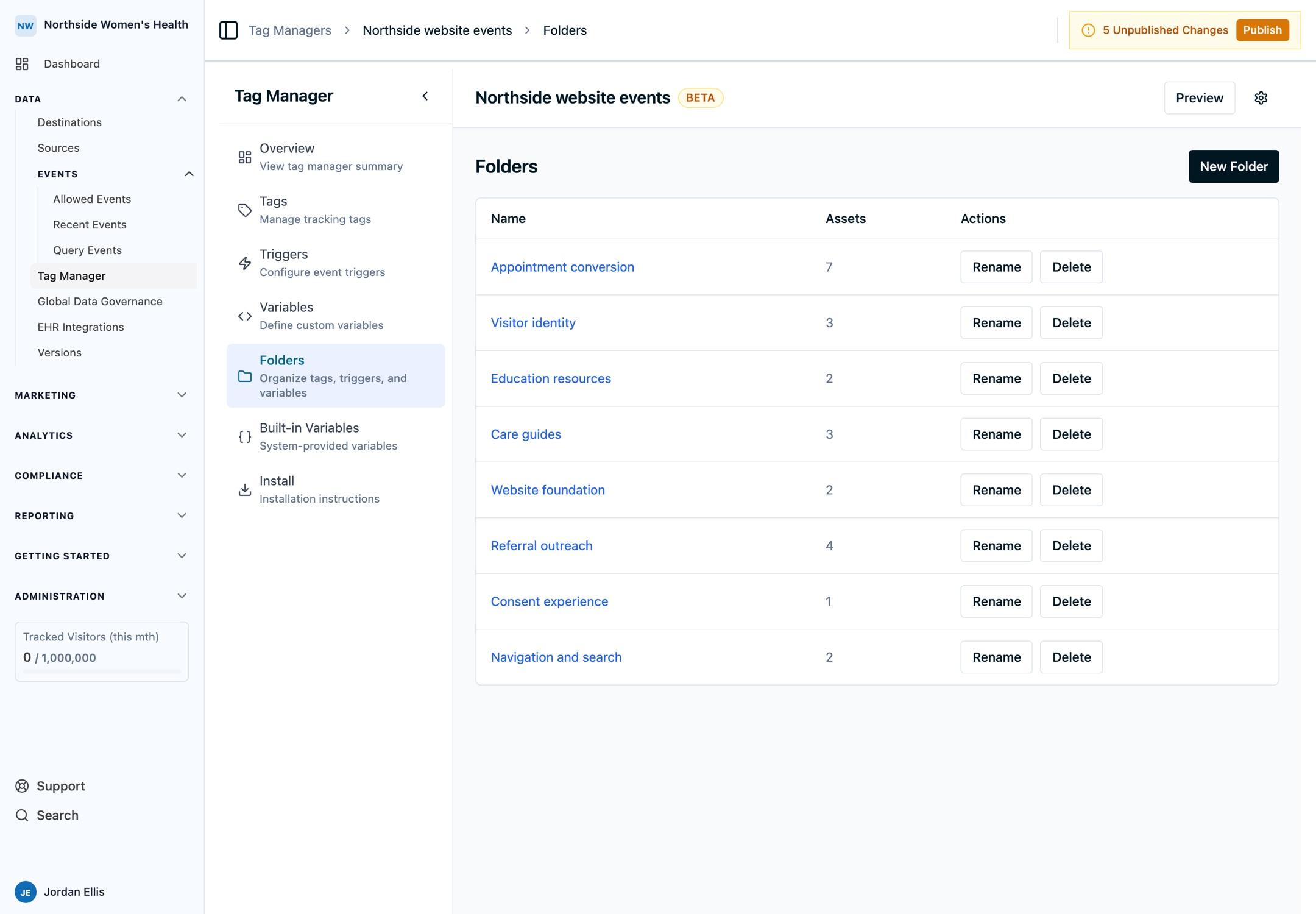
Creating a Folder
- Navigate to the Folders page in the Tag Manager sidebar
- Click New Folder
- Enter a name for the folder
Once created, the folder appears in the folders list with a count of assets assigned to it.
Assigning Assets to Folders
Tags, triggers, and variables can each be assigned to a folder. When editing a tag, trigger, or variable, select a folder from the folder dropdown to assign it.
Each asset can belong to one folder at a time, or remain unassigned.
Filtering by Folder
On the Tags, Triggers, and Variables list pages, use the folder dropdown to filter the view:
- All folders: show every asset regardless of folder
- Unassigned: show only assets that aren't in any folder
- Specific folder: show only assets in that folder
This makes it easy to focus on a specific group of related assets without scrolling through everything.
Managing Folders
From the Folders page you can:
- Rename a folder to update its name
- Delete a folder to remove it (assets in the folder become unassigned; they are not deleted)
Tips
- Group assets by feature or page (e.g., "Checkout", "Blog", "Marketing Pixels") to keep your workspace organized
- Use the Unassigned filter to find assets that haven't been categorized yet
- Folders are purely organizational. They do not affect how tags, triggers, or variables behave at runtime
How is this guide?