

Creating and Managing Variables
Complete guide to creating and managing variables in the Ours Privacy Tag Manager for dynamic and reusable tag configurations.
Variables capture dynamic data from your website, making your tags and triggers more flexible and reusable. Instead of hardcoding values, variables adapt to the context, whether that's the current URL, a button's text, or data from your application.
Variables fall into two categories: pre-built variables that are always available, and customizable variables that you configure for specific needs.
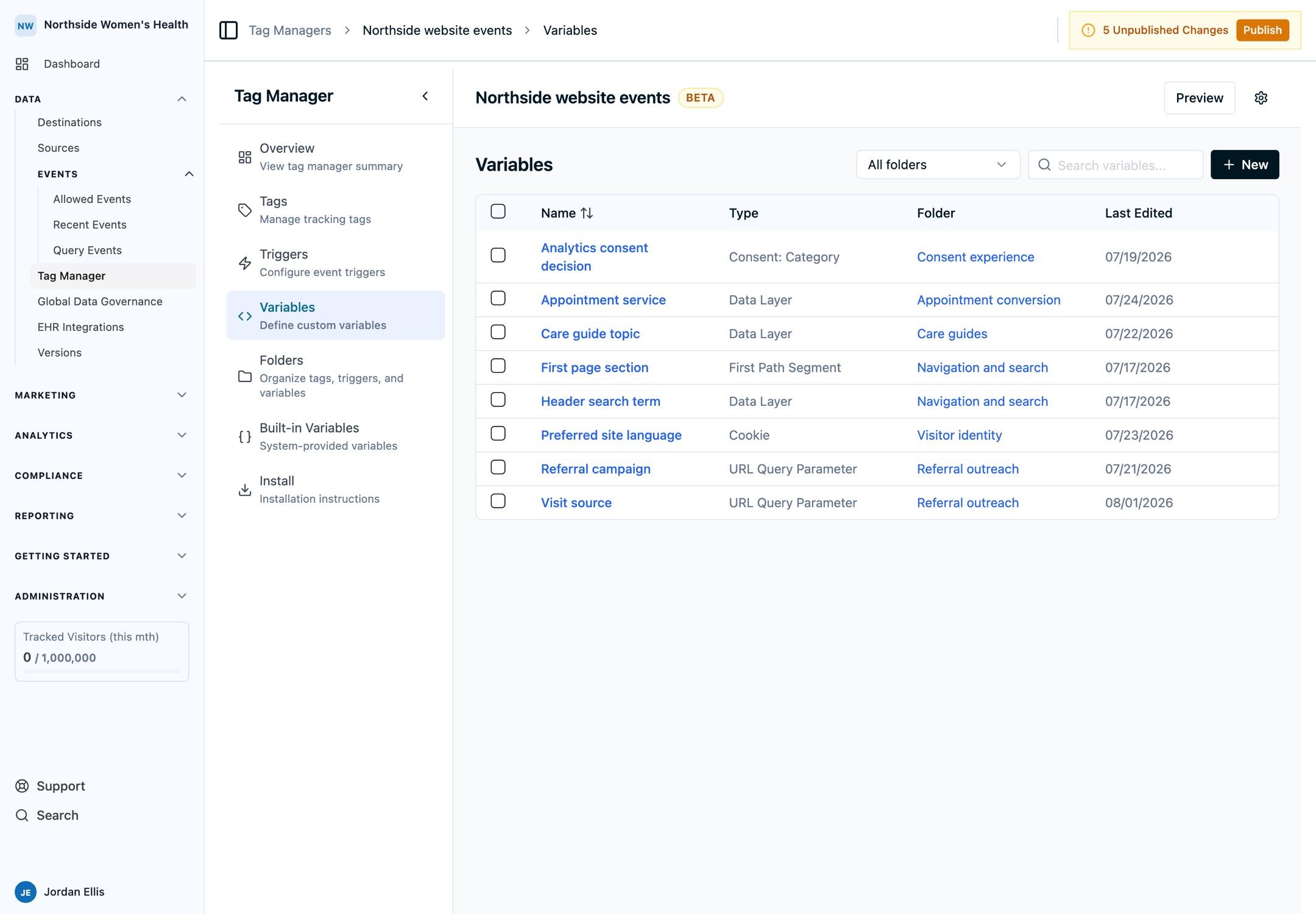
Pre-built Variables
Pre-built variables are built-in and automatically available in every workspace. They capture common values without any configuration:
- Page URL: The full URL of the current page
- Page Path: The path portion of the current URL
- Page Title: The title of the current page
- Page Hostname: The hostname of the current page
- Page Protocol: The protocol of the current page (
https:orhttp:) - Page Referrer: The URL of the page that linked to the current page
These variables are ready to use immediately. Just reference them in your tags or triggers.
Event Context Variables
Pre-built event context variables describe the interaction that fired the tag. They hold a value only while an event of the matching kind is being handled, so use them in tags and triggers that fire on that event.
Click variables:
- Click Element: The DOM element that was clicked
- Click Element URL: The
hrefof the clicked element - Click Element ID: The clicked element's
id - Click Element Classes: The clicked element's
classattribute - Click Text: The visible text of the clicked element
- Click Node Name: The clicked element's tag name (e.g.
A,BUTTON) - Click Button: Which mouse button was used
The same naming pattern covers the other interaction types: form submissions (Form Element, Form Element ID, Form Element Name, Form Element Classes, Form Element Action), element visibility (Element Visibility Element, Element Visibility Percentage, and the matching ID/Classes/Text/Node Name/URL variables), scrolling (Scroll Source, Scroll Vertical Percentage, Scroll Horizontal Percentage, and the pixel-valued variables), and history changes (History Change Source, Old URL, New URL, and their Hash/Path/Search variants).
Consent Variables
Pre-built consent variables provide access to the current consent state from the consent banner. These update automatically when consent changes:
- Consent Type: The type of consent decision (
all,custom, ornecessary) - Accepted Categories: Comma-separated list of accepted consent categories
- Rejected Categories: Comma-separated list of rejected consent categories
- Consent ID: The current consent identifier from the consent SDK
- Consent: Necessary: Whether the necessary category is accepted (
trueorfalse) - Consent: Analytics: Whether the analytics category is accepted (
trueorfalse) - Consent: Marketing: Whether the marketing category is accepted (
trueorfalse)
Use these in trigger conditions to fire tags only when specific consent categories are granted. For example, a trigger can use {{Consent: Analytics}} equals true to ensure analytics tags fire only after analytics consent is given.
Customizable Variables
Customizable variables let you create variables for specific data you need to capture. Configure how and where to get the data, then reuse the variable across multiple tags and triggers.
The following types are available (this is a non-exhaustive list):
Click Variables
Variables that capture data from user clicks:
- Click Data Attribute: Retrieves data attributes (e.g.,
data-product-id) from the element that was clicked. - Click HTML Attribute: Retrieves HTML attributes (e.g.,
href,class,id) from the element that was clicked.
Page Variables
Variables that capture information about the current page:
- URL Component: Retrieves specific parts of the current URL, such as the hostname, pathname, or full URL.
- URL Parameter: Retrieves values from URL query parameters (e.g.,
utm_source,campaign_id). - Referrer URL: Retrieves parts of the referrer URL to understand where users came from.
- Meta Tag Content: Retrieves content from meta tags in the page's
<head>section.
Data Variables
Variables that capture data from various sources:
- Constant: Returns a predefined constant value that you set during configuration.
- Cookie: Retrieves the value of a specific cookie from the browser.
- Data Layer: Retrieves values from the data layer, enabling integration with your application's data. Supports nested values with dot notation (e.g.,
user.profile.name). - DOM Element: Retrieves values from DOM elements, such as input field values or element text content.
- Local Storage: Retrieves the value of a specific key from the browser's
localStorage, useful for reading persisted user preferences or state across page loads. - Session Storage: Retrieves the value of a specific key from the browser's
sessionStorage, useful for reading state that persists within a single browser session.
Advanced Variables
Specialized variables for advanced use cases:
- Custom JavaScript: Executes custom JavaScript code and returns the result, giving you full flexibility.
- Time Since Page Load: Returns the time elapsed (in milliseconds) since the page finished loading.
- eTracker Configuration: A configuration variable specifically for eTracker integration.
Lookup and RegEx Tables
Use table variables to turn a source value into a reporting-friendly label without writing Custom JavaScript. For example, map page paths to service lines or group URL patterns into a shared event property.
Lookup Table
A Lookup Table compares the source value with each input row using an exact, case-sensitive match. If more than one row has the same input, the last matching row is used. Set a fallback value for values that do not match a row.
Use a Lookup Table when you have a short list of known values:
| Input | Output |
|---|---|
/services | service-line |
/providers | provider-directory |
RegEx Table
A RegEx Table checks patterns from top to bottom and returns the first matching output. It supports case-insensitive matching, complete-value matching, and capture replacements such as $1.
For example, the pattern ^/providers/([^/]+)$ with the output provider-$1 turns /providers/acme into provider-acme.
Note: Table outputs and fallback values are literal text. They do not evaluate
{{Variable Name}}references. Choose a built-in or source variable, such as a Data Layer or URL variable, as the table input. Lookup Tables, RegEx Tables, and Custom JavaScript variables cannot be table inputs.
Using Variables
Variables make your tracking dynamic and context-aware. Use them in three main ways:
- In trigger conditions: Fire triggers based on variable values (e.g., "fire when URL contains
/checkout") - In tag configurations: Pass variable values to tags (e.g., send the button text as an event property)
- In event properties: Capture contextual data with events (e.g., track which page the user came from)
Variables eliminate the need for hardcoding values and make your tag management setup adaptable to different contexts.
Referencing Variables
To reference a variable, use double curly braces with the exact variable name:
{{Variable Name}}The variable name must match exactly (case-sensitive). For example:
{{Page URL}}- References the pre-built Page URL variable{{My Custom Variable}}- References a custom variable you created named "My Custom Variable"{{userTier}}- References a value you pushed to the data layer under the keyuserTier, even without creating a variable for it
If a name doesn't match a pre-built or custom variable, it's read directly from the data layer. A variable you've defined always takes precedence over a data layer key of the same name.
In Custom HTML Tags
Variables can be embedded directly in Custom HTML tags:
<script>
  console.log('Current page:', {{Page URL}});
</script>
See Custom HTML Tags for more examples.
In Custom JavaScript Variables
References work inside a Custom JavaScript Function body too, and resolve each time the variable is read. Click and form references reflect the event being handled:
function () {
  var clickedUrl = {{Click Element URL}};
  if (!clickedUrl) {
    return undefined;
  }
  return new URL(clickedUrl, window.location.href).hostname;
}
Values keep their type: {{Click Element}} gives you a real DOM element, and a data layer key holding an object stays an object. A reference that matches nothing resolves to undefined, so guard against it as you would any missing value.
References resolve only where a value belongs in the code. A reference inside a quoted string, a template literal's text, or a comment is left exactly as you typed it. Concatenate instead of embedding:
function () {
  // Not resolved - returns the literal text "Clicked: {{Click Element URL}}"
  var wrong = "Clicked: {{Click Element URL}}";

  // Resolved
  return 'Clicked: ' + {{Click Element URL}};
}
A ${ } substitution inside a template literal counts as code, so a reference does resolve there.
A Custom JavaScript variable must not reference itself, directly or through another variable that references it back. A cycle resolves to undefined instead of being evaluated.
The code editor doesn't offer the variable picker that other fields do. Type the {{Variable Name}} reference yourself. If the body fails to compile, the variable resolves to undefined and the reason is logged to the browser console. References left unresolved inside strings, and cycles, are logged there too.
Common Use Cases
Here are some practical examples of how variables enhance your tracking:
- Track which button was clicked: Use a Click HTML Attribute variable to capture the button's
idorclassattribute - Send UTM parameters as event properties: Use a URL Parameter variable to capture campaign tracking parameters
- Conditionally fire tags based on URL: Use a URL Component variable in trigger conditions to fire tags only on specific pages
- Capture form field values: Use a DOM Element variable to retrieve input values when forms are submitted
- Track time on page: Use a Time Since Page Load variable to measure how long users spend before taking action
Next Steps
Now that you understand variables, explore how to use them in practice:
- Creating Tags - Learn how to use variables in tag configurations
- Triggers - Discover how to use variables in trigger conditions
- Core Concepts - Understand how variables fit into the overall tag management system
- Custom Variables & Triggers Examples - See detailed variable implementations
- Publishing & Versions - Deploy your variables to production
How is this guide?