

Publishing and Versions
Guide to publishing tag manager configurations and managing versions in the Ours Privacy Tag Manager, including rollback and version control strategies.
All of our privacy CDP and web scripts generally go through a publishing-style system. Tag management is no different. The Ours Privacy Tag Manager uses a draft-to-production workflow that lets you make changes safely and publish them only when you're ready.
When you create or modify tags, triggers, and variables, those changes exist as unpublished drafts. This gives you complete control over when changes go live on your website.
How Publishing Works
The Tag Manager follows a simple publishing workflow:
- Make Changes: Create or edit tags, triggers, and variables through the Tag Manager UI
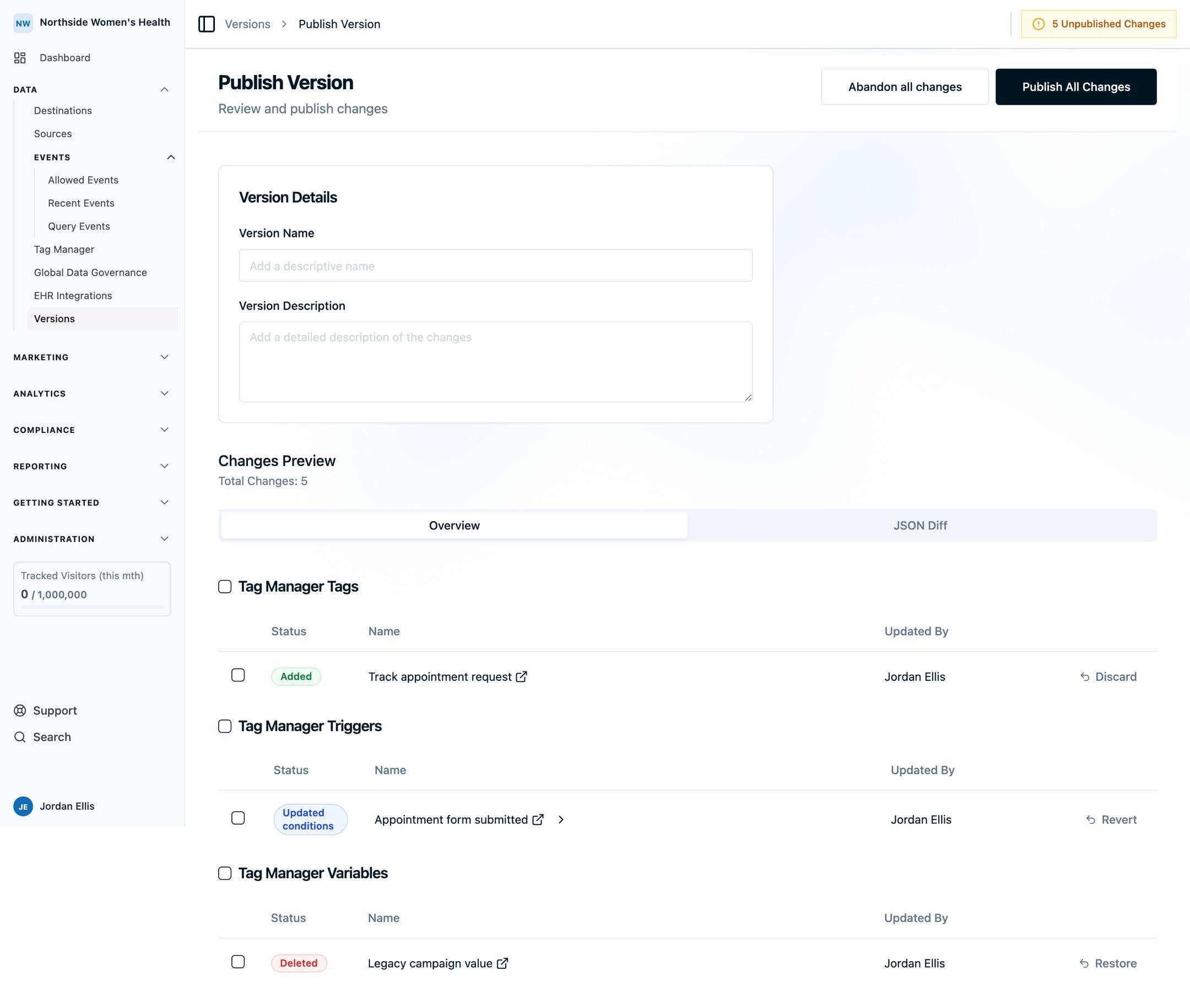
- Review Unpublished Changes: See all changes that haven't been published yet
- Selectively Publish: Choose which changes to publish, or publish everything at once
- Go Live: Published changes immediately affect your live website
- Track Versions: Every publish creates a new version with a complete changelog
This workflow ensures you never accidentally break tracking on your production site.
Understanding Unpublished Changes
What Are Unpublished Changes?
When you create or edit any component in the Tag Manager, whether it's a tag, trigger, or variable, that change is saved as a draft. The Tag Manager tracks all these drafts as "unpublished changes" or "recent unpublished changes" in the UI.
What This Means
- Changes don't affect your live site until you publish them
- Multiple changes accumulate across tags, triggers, and variables
- You can work on complex setups without worrying about breaking production
- Test and refine your configurations before making them live
You can make many changes across tags, triggers, and variables, and then publish only when you're ready.
Example Workflow
Let's say you're setting up conversion tracking:
- Create a new variable to capture form data (unpublished)
- Create a trigger for form submissions (unpublished)
- Create a tag to send the conversion event (unpublished)
- Test your setup to make sure everything works
- Publish all three changes together when ready
All three components stay in draft mode until you decide to publish them. This gives you time to build, test, and refine without affecting your live site.
Selective Publishing
The Tag Manager gives you flexibility in what you publish and when.
Publish Everything or Choose Specific Items
You have two options when publishing:
- Publish All Changes: Publish every unpublished change at once (tags, triggers, variables)
- Selective Publishing: Choose specific items to publish and leave others in draft mode
Why Selective Publishing Matters
Selective publishing lets you:
- Stage deployments: Publish ready changes while continuing to work on others
- Test incrementally: Deploy one change at a time to isolate issues
- Coordinate releases: Align publishing with marketing campaigns or feature launches
- Maintain flexibility: Don't wait for everything to be perfect before publishing anything
Example
Imagine you have three unpublished changes:
- A new conversion tracking tag (ready to go)
- A trigger for exit intent (still testing)
- A variable for product data (waiting on engineering)
With selective publishing, you can publish just the conversion tracking tag while leaving the other two in draft mode. When they're ready, you can publish them separately.
Version History and Changelog
Every time you publish changes, the Tag Manager creates a new version with a complete record of what changed.
What Version History Includes
- Full changelog: See exactly what tags, triggers, and variables were added, modified, or removed
- Diff view: Compare versions to understand what changed between publishes
- Publish metadata: Track who published and when
- Complete audit trail: Maintain compliance and debugging records
Why Version History Matters
Version history provides:
- Debugging: Identify when a change was introduced that caused an issue
- Compliance: Maintain an audit trail of all tracking changes for regulatory requirements
- Collaboration: Understand what teammates have deployed
- Documentation: Keep a record of your tracking evolution over time
Accessing Version History
Navigate to the Version History section in the Tag Manager to:
- Browse all published versions
- View detailed changelogs for each version
- See who made changes and when
- Compare versions side-by-side
This complete history helps you understand how your tracking has evolved and makes it easy to identify when specific changes were deployed.
Notifications on Publish
Every time a new version is published, teammates who can publish versions are notified by email and in their in-app notifications. The notification includes the version number and name, who published it, and when, so your team has a record of every change that goes live without having to check the dashboard.
Each teammate can manage which notifications they receive from their notification preferences.
Rolling Back to Previous Versions
If you publish a change that causes issues, you can rollback to a previous version.
What Rollback Does
Rolling back restores your Tag Manager configuration to a previous published state:
- All components revert: Tags, triggers, and variables return to their previous state
- Immediate effect: Rollback takes effect on your live site right away
- Safe recovery: Quickly undo problematic changes without manual reconfiguration
Time-Based Limitations
Important: Rollback is available for versions within a specific time period. Older versions may not be available for rollback.
Plan your version management strategy accordingly and don't rely on indefinite rollback availability.
When to Use Rollback
Rollback is useful when:
- A tag is firing incorrectly and sending bad data
- A trigger condition was misconfigured and firing too frequently or not at all
- A variable is capturing wrong data and breaking your tracking
- You need to quickly revert while you debug the issue offline
How Rollback Works
- Navigate to Version History
- Select the version you want to rollback to
- Confirm the rollback action
- The Tag Manager immediately restores that version
After rollback, you can make corrections in draft mode and publish again when ready.
Best Practices for Publishing
1. Test Before Publishing
Always verify your changes work correctly before publishing:
- Use Preview Mode to debug your configuration in real-time with the Chrome extension
- Use the Recent Events dashboard to see events in real-time
- Test triggers fire under the right conditions
- Verify variables capture the correct data
- Confirm tags send the expected events
2. Use Descriptive Names
Give your tags, triggers, and variables clear, descriptive names:
- Makes version history easier to understand
- Helps identify what changed in each version
- Improves collaboration with teammates
- Simplifies debugging when issues arise
3. Publish Related Changes Together
When changes depend on each other, publish them together:
- A tag that depends on a new variable should be published together
- A trigger and tag that work together should be deployed at the same time
- This prevents partial deployments that might break tracking
4. Keep Version History Clean
- Publish changes when they're ready rather than accumulating too many drafts
- Use selective publishing to deploy changes incrementally
- Document significant changes for future reference
- Regular publishing makes it easier to identify when issues were introduced
5. Monitor After Publishing
After publishing changes:
- Check the Recent Events dashboard to verify events are flowing correctly
- Monitor for a few minutes to ensure triggers fire as expected
- Be ready to rollback if you notice issues
- Document any unexpected behavior for future reference
Publishing Workflow Example
Here's a complete example of the publishing workflow in action:
Scenario: Adding Product Click Tracking
Step 1: Create Components (All Unpublished)
- Create a variable to capture the product ID from clicked elements
- Create a click trigger for product links
- Create a tag to send "Product Clicked" events to Ours Privacy
At this point, you see "3 unpublished changes" in the Tag Manager.
Step 2: Review Changes
Review the unpublished changes list to ensure everything looks correct:
- Variable: "Product ID" (captures data-product-id attribute)
- Trigger: "Product Link Click" (fires on clicks to .product-link)
- Tag: "Track Product Click" (sends event with product ID)
Step 3: Publish
You have two options:
- Option A: Publish all three changes together
- Option B: Publish just the variable first, test it, then publish the trigger and tag
For this example, you publish all three together since they're closely related.
Step 4: Verify
After publishing:
- Click a product link on your website
- Check the Recent Events dashboard
- Confirm "Product Clicked" events are appearing with correct product IDs
Step 5: Monitor
Monitor for a few minutes to ensure everything works as expected. If there's an issue, you can rollback to the previous version while you debug.
This workflow ensures safe, controlled deployments of your tracking changes.
Next Steps
Now that you understand publishing and versions, you're ready to:
- Create Tags: Build tags to track events
- Configure Triggers: Define when tags should fire
- Use Variables: Capture dynamic data
- See Examples: Learn from real-world implementations
For help with debugging published changes, see the Recent Events dashboard guide.
Need Help?
If you have questions about publishing or need assistance with version management, reach out to support@oursprivacy.com.
How is this guide?