

Tag Manager Concepts
Essential concepts for working with the Ours Privacy Tag Manager, including tags vs triggers vs variables and integrating non-Ours Privacy code snippets.
This page covers the fundamental building blocks of the Ours Privacy Tag Manager: variables, triggers, tags, and publishing. These concepts explain how the system works and how you can track events without writing code.
Already familiar with tag management systems? You can skip this page. The concepts work the same way in Ours Privacy Tag Manager.
How the System Works
The Tag Manager follows a simple workflow that lets you track events without deploying code:
- Define Variables → Capture dynamic data from your website (like button text, URL parameters, or form values)
- Create Triggers → Set conditions that use variables to determine when something should happen
- Build Tags → Define what actions to take when triggers activate (primarily tracking events for Ours Privacy)
- Publish → Make your changes live on your website
This workflow gives you complete control over event tracking through a visual interface, with no coding required.
Variables
Variables are dynamic values you can capture from your website.
What They Are
Variables hold information from your website that changes based on user behavior or page context. Examples include:
- URL parameters (like
?utm_source=google) - Form field values
- Button text or link URLs
- Data layer values
- JavaScript variables
- Page titles or referrer URLs
Why They Matter
Variables provide the data that powers your triggers and tags. They let you capture context about user actions and include that information in your tracked events.
For example, you might capture which button was clicked, what form was submitted, or what product was viewed, all without hardcoding values.
How They Work
When you define a variable, you're telling the Tag Manager where to look for specific data. Once defined, that variable becomes available to use in triggers (to create conditions) and tags (to include in event data).
For detailed information on creating and using variables, see the Variables guide.
Triggers
Triggers are conditions that determine when a tag should fire.
What They Are
Triggers define the "when" of your tracking. They specify the exact conditions under which a tag should execute. Common trigger types include:
- Page views (when a page loads)
- Click events (when a user clicks an element)
- Form submissions
- Custom events
- Scroll depth
- Time-based conditions
Why They Matter
Triggers give you precise control over when events are tracked. Instead of tracking everything, you can track only the specific user interactions that matter to your business.
How They Work
Triggers use variables to evaluate conditions. For example:
- "Fire when the URL contains
/checkout" - "Fire when a button with class
.cta-buttonis clicked" - "Fire when the form ID equals
contact-form"
When a trigger's conditions are met, all tags associated with that trigger will fire.
For detailed information on creating and configuring triggers, see the Triggers guide.
Tags
Tags are the actual tracking code that executes when triggers activate.
What They Are
Tags define the "what" of your tracking: the action that should happen when a trigger fires. In the Ours Privacy Tag Manager, tags primarily track events that get sent to Ours Privacy.
Why They Matter
Tags are where you define what data gets tracked and sent to Ours Privacy. Each tag can:
- Track custom events using the
ours.track()function - Send event properties (like purchase amount or product name)
- Include user properties for identification
- Execute custom JavaScript if needed
How They Work
When a tag fires, it executes the code you've defined. For Ours Privacy tracking, this typically means calling the ours.track() function with:
- An event name (like "Button Clicked" or "Form Submitted")
- Event properties from variables you've defined
- Any additional context you want to capture
Tags can also run third-party scripts or custom JavaScript for more advanced use cases.
You can control the order tags execute using priority, a numeric value where lower numbers fire first. This is useful when one tag must run before another (e.g., initializing the SDK before tracking events). See Tag Execution Priority for details.
For detailed information on creating tags and tracking events, see the Tags guide.
Publishing
Publishing is the process of making your tag configurations live on your website.
What It Is
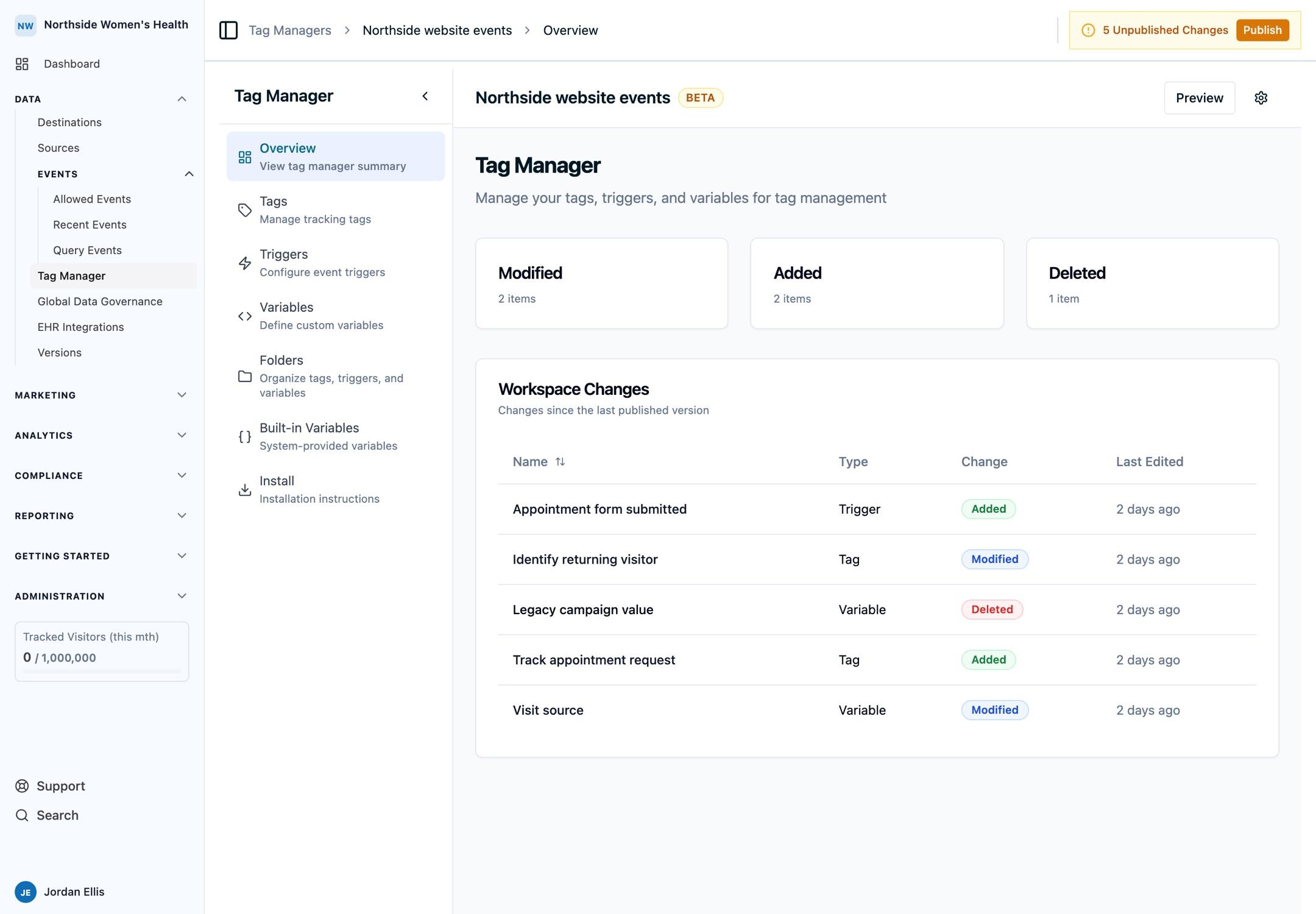
When you create or modify variables, triggers, and tags in the Tag Manager, those changes exist in a draft state. Publishing moves your changes from draft to production.
Why It Matters
Changes only take effect once published. This lets you:
- Build and test configurations safely without affecting your live site
- Debug changes with the Chrome extension before making them live
- Roll back to previous versions if needed
- Maintain a history of all changes
How It Works
The publishing workflow includes:
- Draft Mode: Create and edit your configurations
- Preview Mode: Test your changes using the Chrome extension before publishing
- Publish: Make changes live for all visitors
- Version Control: Each publish creates a new version you can revert to
This ensures you never accidentally break tracking on your live site.
For detailed information on the publishing workflow and version management, see the Publishing & Versions guide.
Putting It All Together
Here's a conceptual example of how these pieces work together to track a custom event:
Example: Tracking a Newsletter Signup
- Define a Variable: Create a variable to capture the form ID
- Create a Trigger: Set up a trigger that fires when a form with ID
newsletter-signupis submitted - Build a Tag: Create a tag that tracks an Ours Privacy event called "Newsletter Signup" when the trigger fires
- Publish: Make your configuration live
Now, whenever someone submits the newsletter signup form, the trigger activates, the tag fires, and an event is sent to Ours Privacy without writing or deploying any code.
This is the power of the Tag Manager: track custom events without writing code.
Next Steps
Now that you understand the core concepts, you can dive deeper into each area:
- Data Layer: Push events from your code to trigger tags
- Variables: Learn how to create and configure variables
- Folders: Organize tags, triggers, and variables into groups
- Triggers: Understand trigger types and conditions
- Tags: Start tracking custom events
- Publishing & Versions: Master the publishing workflow
- Examples: See real-world implementations
Ready to start tracking? Head to the Tags guide to create your first tag, or learn how to push events from your code.
How is this guide?