

Heatmaps Overview
See where visitors click and how far they scroll on any page with HIPAA-compliant, first-party heatmaps built into your CDP — click maps, scroll depth, rage clicks, and dead clicks, each linked to the session replays behind them.
Heatmaps
Heatmaps show you where visitors click and how far they scroll on every page of your site, painted on top of a real recording of the page. Click any hotspot to drop straight into the session replays behind it.
Heatmaps are part of the same analytics suite as Session Replay and Web Analytics — the same visitors and pages, seen from a different angle.
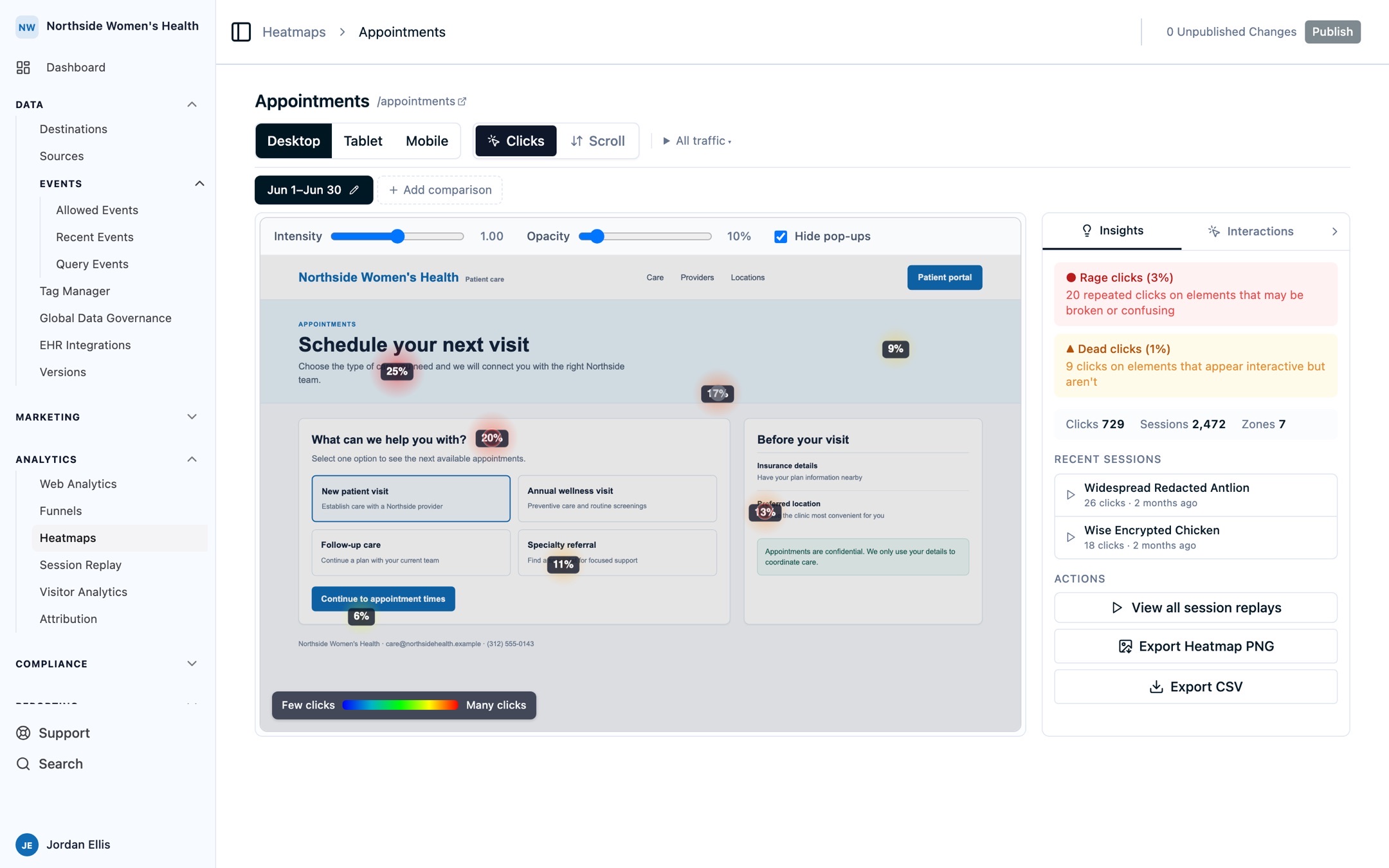
Clicks. Click concentration appears over a replay-backed page while the insight panel summarizes the most useful follow-up signals.
New here? Heatmaps turn on automatically when session replay is enabled. See Heatmaps Installation to start collecting data.
Why Ours Privacy Heatmaps
- HIPAA-compliant by default. No element text or user input is captured — elements are identified by tag, role, and position only.
- First-party. All data flows through your own domain, not a third-party heatmap service.
- Built on real recordings. Each heatmap renders on top of an actual session replay of the page, so it reflects what visitors truly saw — including pages behind login or personalization.
- Four views, one backdrop. Clicks, scroll depth, rage clicks, and dead clicks share the same filters and the same page snapshot.
- Connected to the rest of your analytics. Click a hotspot to watch the sessions behind it, then move between heatmaps, session replay, and web analytics for the same page.
- No setup required. Heatmaps activate with session replay — no extra script or configuration.
The Four Heatmap Types
Every page's heatmap has four overlay layers. Each answers a different question, and all of them respond to the same filters.
- Click heatmaps visualize where visitors click or tap. Use them to see which buttons and links get attention, and whether visitors click where you expect.
- Scroll depth shows how far down the page visitors get before leaving. Use it to check whether key content or CTAs sit above where most visitors stop.
- Rage clicks highlight bursts of repeated clicks in the same spot. Use them to spot places where visitors expect a faster response or clearer feedback.
- Dead clicks highlight clicks that produced no on-page response. Use them to find confusing layouts or elements that look interactive but aren't.
See Reading a Heatmap for how to read the legend, tune the overlays, filter, compare, and export.
Key Features
- Heatmaps Installation: enable tracking and verify pages are appearing.
- Reading a Heatmap: review the replay snapshot, filter by device, geography, and audience, compare two views, rank clicks by element, and export to CSV or PNG.
- Element Labels: give important elements stable, privacy-safe names with
data-heatmap-id. - Heatmaps FAQs: common questions about setup, privacy, and data.
Works With the Rest of Your Analytics
Heatmaps are one view into the same visitor data the rest of the platform uses, so you can drill from a hotspot into the behavior behind it:
- Session Replay: watch the individual sessions behind any hotspot, rage click, or dead click.
- Web Analytics: see traffic, sources, and page performance, then jump to a page's heatmap.
- Element Labels: name key elements so per-element click counts and exports stay readable.
Privacy
- No element text is captured — element identification uses tag name, role, and position only.
- All data flows through your first-party domain, not a third-party service.
- Built for HIPAA-compliant workflows by default.
- Optionally label elements with
data-heatmap-idfor clearer identification without exposing content.
Need Help?
Reach out to support@oursprivacy.com with any questions about heatmaps.
How is this guide?