

Web Analytics Overview
Ours Privacy Web Analytics provides HIPAA-compliant website analytics with real-time monitoring, traffic source attribution, page performance, geographic and device breakdowns, and CSV/PDF export.
Ours Privacy Web Analytics gives you a complete view of your website traffic: visitors, sessions, pageviews, traffic sources, and audience breakdowns. All data can be collected using first-party cookies with no third-party cookies required. With a custom domain, every request stays fully first-party.
New here? Web Analytics turns on with a single SDK option. See Set Up Web Analytics to start collecting data.
Tracking a healthcare practice? Send the Standard Healthcare Events schema and your conversions, funnels, and revenue reports recognize events like
appointment_bookedandappointment_completedwith no extra setup.
Why Ours Privacy Web Analytics
- HIPAA-compliant by default. No separate BAA or compliance add-on required.
- No third-party cookies. With a custom domain, visitor tracking uses first-party cookies only.
- Real-time and historical views. Switch between a live view of current activity and historical analysis across any date range.
- Traffic source attribution. See where visitors come from: referrers, UTM parameters, and campaigns. First-touch attribution at the session level.
- Export-ready. Download your data as CSV files (one per dimension) or export a full PDF snapshot of the dashboard.
- Session-level and pageview-level insights. Understand both the full visitor journey (sessions, bounce rate, duration) and individual page performance (views, time on page, exit rate).
Key Features
- Set Up Web Analytics: enable tracking with a single SDK option and verify data is flowing.
- Sources & Campaigns: see where traffic comes from and scope the dashboard to one web source, the way you'd use a GA4 property.
- Pages & Content: analyze top, entry, and exit pages, then drill into session replays.
- Filtering & Exporting Data: narrow to a segment and download CSV or PDF.
- Bots & Traffic Quality: keep automated traffic out of your reports.
- Conversions & Funnels: measure what visitors actually complete.
- Metrics Glossary: how every metric is defined and calculated.
Dashboard Layout
The web analytics dashboard is a single page with a sticky toolbar at the top and five content sections below. The toolbar stays visible as you scroll and contains the date range picker, filter bar, realtime toggle, and export menu.
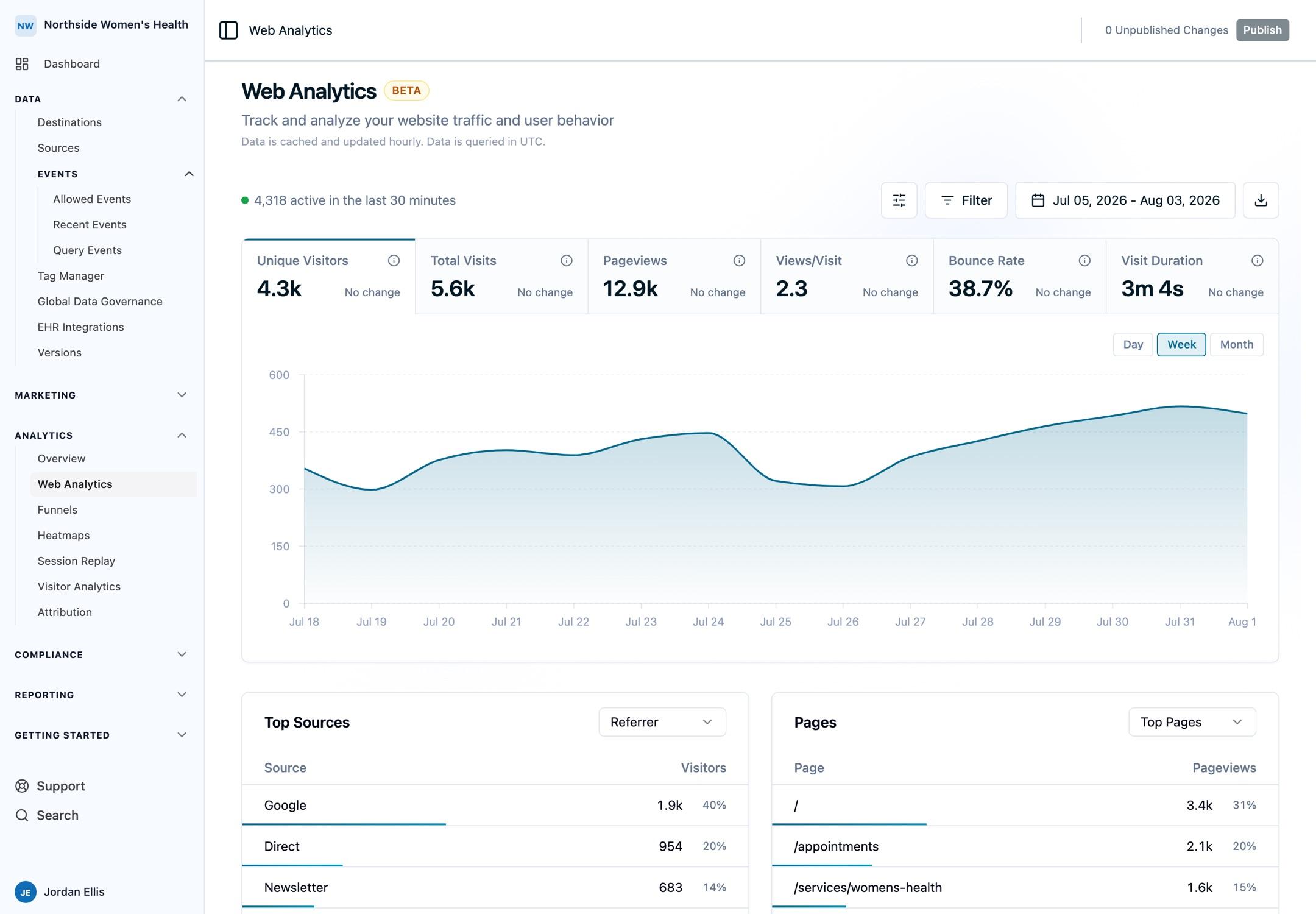
The five sections are:
- Overview: headline metrics and time-series chart
- Sources: where your traffic comes from
- Pages: which pages visitors view, enter on, and exit from
- Locations: visitor geography by country, region, and city
- Devices: device type, browser, and operating system breakdowns
Each section shows a summary with the top results. Click View Details on any section to open a full paginated view with sorting, search, and export.
Overview
The overview section shows six headline metrics with a time-series chart.
Metrics displayed:
- Unique Visitors: distinct visitor count for the selected period
- Total Visits: number of sessions (a new session starts after 30 minutes of inactivity)
- Pageviews: total page view events, including repeat views
- Views per Visit: average number of pages viewed per session
- Bounce Rate: percentage of sessions where the visitor viewed only one page
- Visit Duration: typical session length, measured as the median across all sessions
Click any metric to highlight it on the time-series chart. Use the interval toggle to switch between Day, Week, and Month granularity.
Previous period comparison. The dashboard compares each metric to the equivalent previous period. If you select the last 7 days, the comparison shows the 7 days before that. Percentage changes appear alongside each metric.
For detailed definitions and calculation methodology, see the Metrics Glossary.
Sources
The sources section shows where your traffic comes from across six dimensions: referrer, source, medium, campaign, content, and term. Each shows visitor count, bounce rate, and visit duration. You can also scope the entire dashboard to a single web source, the way you'd switch GA4 properties.
See Sources & Campaigns for attribution detail, the full dimension reference, and scoping by source.
Pages
The pages section has three view modes: Top Pages, Entry Pages, and Exit Pages. Each answers a different question about how your content performs. From any page you can open its full metrics, search all pages, and jump into session replays.
See Pages & Content for the full walkthrough.
Locations
The locations section shows where your visitors are. Switch between three dimensions:
- Country: visitor count by country
- Region: visitor count by state or region
- City: visitor count by city
Each row shows the location name, visitor count, and percentage of total traffic. Click View Details for the full list.
Visitor map
The visitor map shows United States traffic by state. Select a state to see city-level visitor counts for that state, then select Back to states to return to the national view.
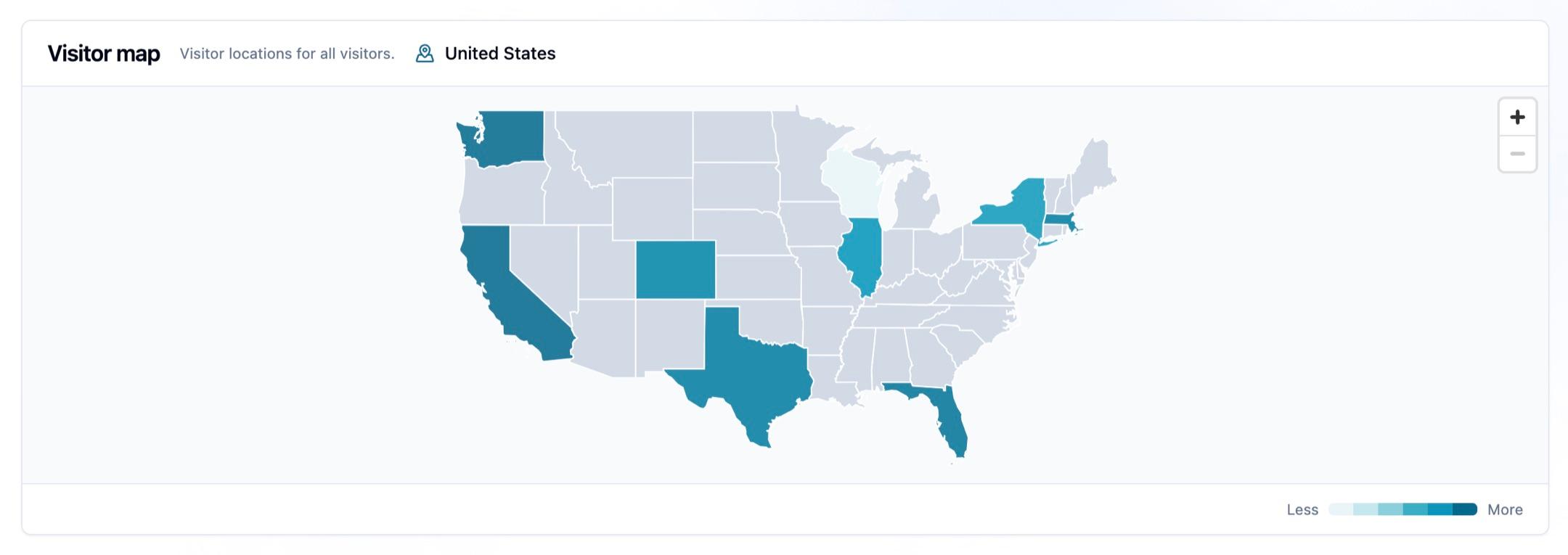
The map uses the dashboard's active date range, web source, filters, conversion-event scope, and bot setting. Selecting a state changes only the map; it does not add a location filter or change the other dashboard sections.
Within Ours Privacy, Web Analytics supports location-based reporting and filtering by country, region or state, and city. Use these dimensions to analyze a geographically scoped audience, then export the same country, region, and city reporting in CSV files.
This geographic detail stays in Web Analytics. ZIP or postal code is not a Web Analytics dimension or export, and city-level Web Analytics data is not automatically sent to GA4. Postal code captured in request context may support a destination-specific mapping, but does not add ZIP reporting to Web Analytics.
Devices
The devices section shows what technology your visitors use. Switch between three dimensions:
- Device: desktop, mobile, or tablet
- Browser: Chrome, Safari, Firefox, Edge, and others
- OS: operating system (iOS, Windows, macOS, Android, Linux, etc.)
Each row shows the dimension value, visitor count, and percentage of total traffic. Use this data to prioritize testing and optimization for your most common visitor configurations.
Realtime Mode
Toggle Realtime in the toolbar to switch from historical analysis to a live view of current activity.
In realtime mode:
- The dashboard shows data from the last 30 minutes only
- A current visitors count displays how many visitors were active in the last 30 minutes
- The time-series chart updates every few seconds
- The dashboard hides session-dependent metrics (views per visit, bounce rate, visit duration) because sessions are still in progress
- The date range picker and interval toggle are locked
Toggle realtime off to return to historical mode with your previous date range restored.
Date Range and Period Comparison
Use the date range picker in the toolbar to select your analysis window.
Preset ranges include common options like Today, Last 7 Days, Last 30 Days, Month to Date, and Last 12 Months.
Custom range lets you select any start and end date.
The dashboard compares your selected range to the equivalent previous period. For example, if you select April 1-7, the comparison period is March 25-31. Percentage changes appear next to each metric in the overview section.
Works With the Rest of Your Analytics
Web Analytics is one view into the same visitor data the rest of the platform uses, so you can drill from a number into the behavior behind it:
- Session Replay: watch individual visits to a page
- Heatmaps: see where visitors click and scroll
- Bots & Traffic Quality: confirm your numbers reflect real people
- Conversions & Funnels: measure what visitors complete
Frequently Asked Questions
How fresh is the data?
Realtime mode refreshes every few seconds; historical mode updates within a few minutes. The last updated indicator in the toolbar shows when data was last processed.
Does Web Analytics use third-party cookies?
No. Visitor tracking uses first-party cookies only, and with a custom domain every request is served from your own subdomain.
Can I track more than one site?
Yes. Each site or app can be its own source, and you can scope the dashboard to one at a time. See Sources & Campaigns.
Is it HIPAA-compliant?
Web Analytics is built for HIPAA-regulated workflows and only collects events from consenting visitors. No separate BAA or compliance add-on is required.
Next Steps
- Set Up Web Analytics: enable tracking and verify data is flowing
- Sources & Campaigns: where traffic comes from and how to scope by source
- Pages & Content: top, entry, and exit page performance
- Filtering & Exporting Data: narrow your view with filters and download your data
- Metrics Glossary: detailed definitions and calculation methodology for every metric
Need Help?
Reach out to support@oursprivacy.com if you have questions about web analytics or need help interpreting your data.
How is this guide?