

Creating and Managing Tags
Complete guide to creating and managing tags in the Ours Privacy Tag Manager, including how to send Ours Privacy events with custom configurations.
Tags are how you send events and manage visitor data in Ours Privacy. They define what data to track, while triggers determine when they fire. With tags, you can track custom events, identify visitors, and manage visitor state, all without writing code.
Tag Types Overview
The Tag Manager provides five types of tags for different use cases:
- Track Tags - Send Ours Privacy events and optionally set visitor properties (most common)
- Identify Tags - Set visitor properties without sending an event
- Reset Tags - Reset the visitor ID (useful for logout scenarios)
- Init Tag - Configure Web SDK settings
- Custom HTML Tags - Load other scripts or HTML (advanced)
Most of your work will be with Track tags for sending events to Ours Privacy.
Track Tags
Track tags are the primary way to send events to Ours Privacy.
In the Platform API, a Track tag uses type: "OursTrackTag"; its Event Name is parameters.eventName, and its selected triggers are fireTriggerIds. See Track an on-page interaction through the API for a complete programmatic example.
What Track Tags Do
- Send events to Ours Privacy
- Let you define the event name, event properties, visitor properties, and when to fire
- Can track events and update visitor properties in one action
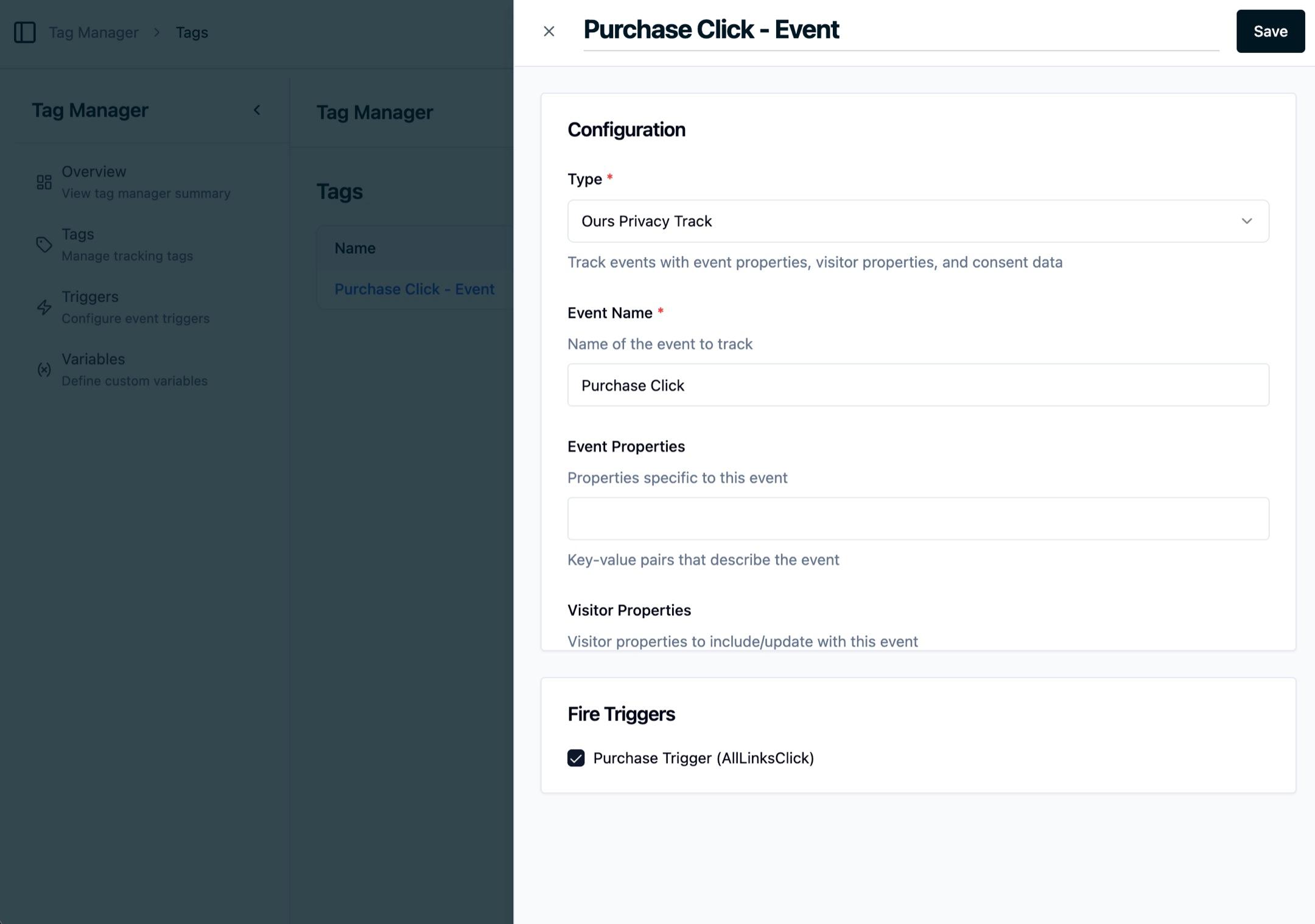
Key Configuration Options
- Event Name: The name of the event you're tracking (e.g., "Button Clicked", "Form Submitted", "Purchase Completed")
- Event Properties: Data to include with the event (e.g., button text, form ID, product name, purchase amount)
- Visitor Properties: Properties to set on the visitor (e.g., email, name, subscription tier)
- Override Properties: Override default properties like UTM parameters or user properties
- Trigger: Choose when the tag fires (connect to a trigger)
Example Workflow
Want to track button clicks on a specific button? Here's how:
- Create a button click trigger for that specific button (e.g., "Click on CTA Button")
- Create a Track tag that fires when that trigger activates
- Set the event name (e.g., "CTA Button Clicked")
- Add event properties to capture context (e.g., button text, page URL)
- Optionally include visitor properties to identify the user
When the button is clicked, the trigger activates, the tag fires, and the event is sent to Ours Privacy with all the data you defined.
Verifying Track Tags
After creating tags, verify they're working using the Recent Events dashboard to see events flowing in real-time.
Identify Tags
Identify tags let you set visitor properties without sending an event.
What Identify Tags Do
- Set or update properties on the current visitor
- Do NOT send an event to Ours Privacy
- Useful for identifying users without tracking a specific action
When to Use Identify Tags
- User logs in and you want to attach their email/ID to the visitor
- User updates their profile information
- You want to enrich visitor data without tracking an event
- You need to update visitor properties based on some condition
Key Configuration Options
- Visitor Properties: Properties to set on the visitor (e.g., email, external_id, name, subscription_tier, plan_type)
- Trigger: When to identify the visitor (e.g., on login, on profile update)
Example
An Identify tag that fires on login, setting the user's email and external_id to link their session to their account.
Reset Tags
Reset tags let you reset the current visitor ID.
What Reset Tags Do
- Reset the visitor ID to start a fresh session
- Generates a new anonymous visitor or sets a specific visitor ID
- Clears all previous visitor properties and attribution data
When to Use Reset Tags
- User logs out and you want to start a fresh visitor session
- Account switching scenarios
- Privacy compliance (user requests to be forgotten)
Important Warning
Resetting a visitor creates a completely new visitor in Ours Privacy. This means:
- Previous UTM parameters, session history, and visitor properties are lost
- The new visitor will not be linked to the previous visitor
- Attribution data starts fresh
Use carefully: this is a destructive action that should only be used when you truly want to create a new visitor.
Key Configuration Options
- New Visitor ID (optional): Specific ID to set, or leave blank for an auto-generated ID
- Trigger: When to reset (typically on logout)
Example
A Reset tag that fires when a user clicks the logout button, clearing their visitor data and starting a fresh session.
Init Tag
The Init tag configures your Web SDK settings.
What It Does
- Takes your Web SDK token ID
- Configures SDK settings like automatic page view tracking
- Typically only need one Init tag per site
Key Settings
- Web SDK Token: Your project's Web SDK token
- Auto-track Page Views: Enable or disable automatic page view tracking
- Other SDK Configuration: Additional SDK options like custom domains, default properties, etc.
Note
The Init tag is usually set up during initial Tag Manager installation and rarely needs changes afterward. It provides the foundation for all other tags to work.
Custom HTML Tags
Custom HTML tags let you execute custom scripts, load third-party tools, or inject HTML into your page.
What They Do
- Execute custom HTML, scripts, or JavaScript
- Load third-party tools or tracking pixels
- Use variables for dynamic values
When to Use Custom HTML Tags
- Loading third-party scripts (analytics, chat widgets, etc.)
- Custom JavaScript logic on your page
- Injecting dynamic HTML
- Integrating with tools that require custom code
Using Variables in Custom HTML
Reference variables using double curly braces with the exact variable name:
<script>
  // Log the current page path
  console.log('Page:', {{Page URL}});
</script>
Example: Track with a third-party analytics tool
<script>
  thirdPartyAnalytics.track('pageview', {
    url: {{Page URL}},
    title: {{Page Title}},
    referrer: {{Page Referrer}}
  });
</script>
Example: Conditional logic based on URL
<script>
  var path = {{Page URL}};
  if (path.includes('/checkout')) {
    // Load checkout-specific script
    loadCheckoutWidget();
  }
</script>
Example: Using custom variables
<script>
  // Assuming you created a custom variable named "User Tier"
  window.userTier = {{User Tier}};
</script>
How Variable Values Are Handled
The tag manager automatically handles escaping based on context:
| Context | How Values Appear |
|---|---|
Inside <script> | Strings are quoted (e.g., "/products") |
| HTML content | HTML-escaped for safety |
| URL attributes | URI-encoded |
Script context example:
<script>
  var path = {{Page URL}};
  // Outputs: var path = "https://example.com/products";
</script>
Missing Variables
If a variable doesn't exist, it resolves to an empty string:
<script>
  // If "Unknown Var" doesn't exist, value will be ""
  var value = {{Unknown Var}};
</script>
Note
Most users will primarily use Track tags for sending events to Ours Privacy. Custom HTML is for advanced scenarios where you need functionality beyond standard event tracking.
Connecting Tags to Triggers
Tags and triggers work together to control your tracking:
- Tags define WHAT to track - The event name, properties, and data you want to capture
- Triggers define WHEN to track - The conditions that must be met for the tag to fire
You connect a tag to one or more triggers when configuring the tag. When the trigger conditions are met, the tag fires automatically.
Example
A "Submit Form" tag connected to a "Form Submission" trigger:
- The tag defines what event to send ("Form Submitted") and what data to include
- The trigger defines when to fire (when a form with ID
contact-formis submitted) - When the form is submitted, the trigger activates and the tag sends the event
This separation lets you reuse triggers across multiple tags and maintain clear, organized tracking logic.
Tag Execution Priority
By default, all tags have a priority of 0 and fire in the order they were created. You can set a numeric priority on any tag to control the order tags execute when the same trigger fires.
How Priority Works
- Lower numbers fire first: a tag with priority
1fires before a tag with priority10 - Tags with equal priority keep their original order (the order they were created)
- Negative priorities are supported: a tag with priority
-1fires before the default0
Setting Priority
In the tag editor, set the Priority field to any integer. Leave it at 0 (the default) if order doesn't matter.
When to Use Priority
- Initialization before tracking: Give your Init tag a lower priority (e.g.,
-10) so the SDK is configured before Track tags fire - Sequential dependencies: If one tag must run before another (e.g., setting a variable before reading it), assign a lower priority to the tag that should run first
- Third-party script ordering: Ensure a consent script loads before marketing pixels by giving it a lower priority
Example
| Tag | Priority | Fires |
|---|---|---|
| Init SDK | -10 | 1st |
| Set User Properties | 0 | 2nd |
| Track Page View | 10 | 3rd |
| Load Chat Widget | 50 | 4th |
All four tags can share the same trigger. When the trigger fires, they execute in priority order (lowest first).
Testing Your Tags
Before publishing your tags to production, always test them:
- Use Preview Mode: Test your tags using the Chrome extension before publishing
- Check Recent Events: Navigate to the Recent Events dashboard to see events flowing in real-time
- Verify Event Properties: Ensure all event properties and visitor properties are correct
- Test Different Scenarios: Trigger your tags in different ways to ensure they work as expected
- Publish When Ready: Once verified, publish your tags to make them live
Testing ensures your tracking is accurate before it goes live to all visitors.
Next Steps
Now that you understand tags, explore related topics:
- Triggers: Learn how to create triggers that control when tags fire
- Variables: Use dynamic data in your tags and triggers
- Publishing & Versions: Understand the publishing workflow
- Examples: See real-world tag implementations
Ready to see tags in action? Check out the examples page for step-by-step walkthroughs.
How is this guide?