

Data Layer
Complete guide to using the data layer with the Ours Privacy Tag Manager, including pushing events, creating triggers, and configuring the data layer name.
The data layer is a JavaScript array that acts as a communication bridge between your website and the Tag Manager. By pushing events and data to the data layer, you can trigger tags and pass dynamic values without modifying your tag configurations.
This uses the same standard dataLayer format used by other tag managers, making it easy to migrate existing implementations.
What is the Data Layer?
The data layer is a global JavaScript array (window.dataLayer by default) where you push objects containing event names and associated data. When you push to the data layer:
- The Tag Manager receives the pushed data
- Custom Event triggers check if the event name matches
- Data Layer variables can read values from the pushed data
- Matching tags fire with access to the pushed data
This allows your development team to fire events from anywhere in your application, while marketing teams configure what happens in response through the Tag Manager UI.
Default Name and Customization
Default: dataLayer
By default, your data layer uses the name dataLayer, which is the industry standard. This makes it compatible with existing implementations and familiar to developers.
// Default data layer name
window.dataLayer.push({ event: 'purchase' });
Customizing the Name
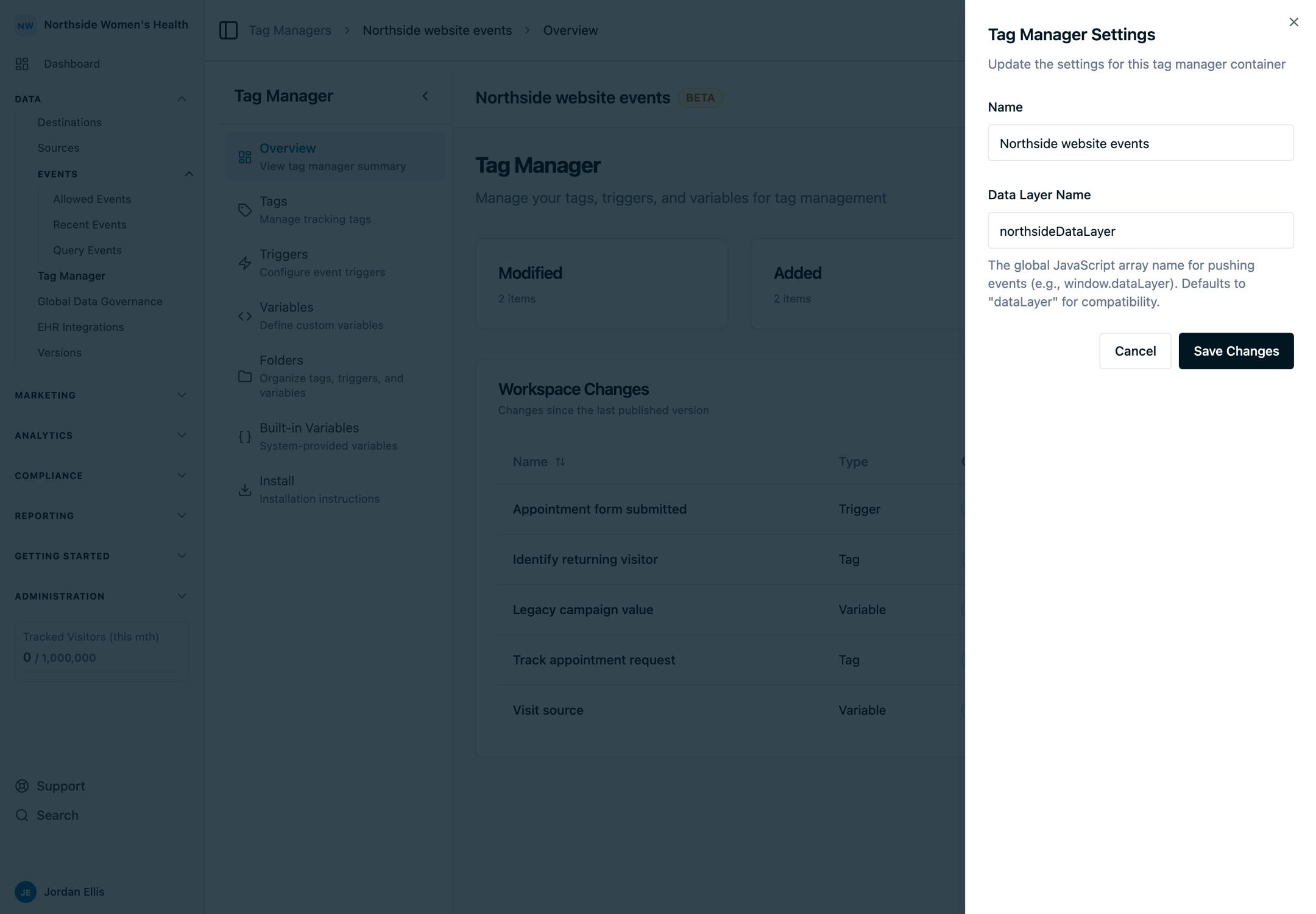
You can customize the data layer name in Tag Manager Settings:
- Open your Tag Manager
- Click the Settings icon (gear) in the header
- Find the Data Layer Name field
- Enter your custom name (must be a valid JavaScript variable name)
- Save
After changing the name, use your custom name instead:
// If you changed the name to 'myDataLayer'
window.myDataLayer.push({ event: 'purchase' });Note: The data layer name must be a valid JavaScript variable name (letters, numbers, underscores; cannot start with a number).
Initializing the Data Layer
For the best experience, initialize the data layer before the Tag Manager script loads. This ensures any events pushed before the Tag Manager loads are captured and processed.
Recommended Setup
Add this snippet before your Tag Manager script in the <head> section:
<script>
  var dataLayer = window.dataLayer || [];
</script>

<!-- Then your Tag Manager scripts -->
<script src="https://cdn.oursprivacy.com/main.js"></script>
<script src="https://cdn.oursprivacy.com/tag-manager-init?token=YOUR_TOKEN"></script>
If you're using a custom data layer name, adjust accordingly:
<script>
  var myDataLayer = window.myDataLayer || [];
</script>
Why Initialize Early?
When you initialize the data layer before the Tag Manager loads:
- Events pushed immediately on page load are captured
- No events are lost during the Tag Manager initialization
- Your application can start pushing events right away
Pushing Events to the Data Layer
Push events to trigger Custom Event triggers and fire associated tags.
Basic Event Push
// Push an event with just a name
window.dataLayer.push({
  event: 'button_click',
});
Event with Additional Data
// Push an event with associated data
window.dataLayer.push({
  event: 'purchase',
  transactionId: 'TXN-12345',
  value: 99.99,
  currency: 'USD',
  items: [
    { name: 'Product A', price: 49.99 },
    { name: 'Product B', price: 50.0 },
  ],
});
Push Data Without an Event
You can also push data without triggering an event. This data becomes available to Data Layer variables:
// Push user data (no event fires, but data is stored)
window.dataLayer.push({
  userId: 'user-123',
  userEmail: 'user@example.com',
  userTier: 'premium',
});

// Later, reference these values with Data Layer variables
Creating Triggers from Data Layer Events
To fire tags when specific events are pushed, create a Custom Event trigger.
For API and AI-driven setup, use the same event name in a CustomEvent trigger and an OursTrackTag, then publish the reviewed draft changes. The on-page interaction guide includes the exact request sequence.
Step 1: Create a Custom Event Trigger
- Navigate to Triggers in your Tag Manager
- Click New Trigger
- Select Custom Event as the trigger type
- Enter the Event Name exactly as it appears in your
dataLayer.push()call
Step 2: Configure the Event Name
The event name in your trigger must exactly match the event property in your push:
// Your code pushes this event
window.dataLayer.push({ event: 'form_submit' });
In the trigger configuration:
- Event Name:
form_submit
Step 3: Add Conditions (Optional)
You can add conditions to fire only on certain events:
- Fire only when
transactionValueis greater than 100 - Fire only when
categoryequals "electronics" - Fire only on specific pages
Step 4: Connect to Tags
When creating or editing tags, select your Custom Event trigger in the Fire Triggers section.
Using Data Layer Variables
Data Layer variables let you read values from data pushed to the data layer and use them in your tags.
Creating a Data Layer Variable
- Navigate to Variables in your Tag Manager
- Click New Variable
- Select Data Layer as the variable type
- Enter the Data Layer Variable Name (the key you want to read)
Example: Reading Transaction Value
If you push:
window.dataLayer.push({
  event: 'purchase',
  transactionId: 'TXN-12345',
  value: 99.99,
});
Create a Data Layer variable:
- Name:
Transaction Value - Data Layer Variable Name:
value
Now you can reference {{Transaction Value}} in your tags to include 99.99.
Nested Values with Dot Notation
For nested data, use dot notation:
window.dataLayer.push({
  user: {
    profile: {
      name: 'John Doe',
      email: 'john@example.com',
    },
  },
});
Create a variable with:
- Data Layer Variable Name:
user.profile.name
This returns "John Doe".
Referencing Data Layer Values Directly
You don't have to create a Data Layer variable for every value. You can reference any key you've pushed to the data layer directly by name with {{ }}:
window.dataLayer.push({ userTier: 'premium' });<script>
console.log('Tier:', {{userTier}});
</script>Dot notation works here too: {{user.profile.name}} resolves a nested value. If you create a variable whose name matches a data layer key, the variable takes precedence; otherwise the key is read straight from the data layer. Creating a named Data Layer variable is still recommended when you want to reuse the value across many tags or give it a friendlier name.
Common Patterns
E-commerce Purchase Tracking
// On checkout completion
window.dataLayer.push({
  event: 'purchase',
  ecommerce: {
    transaction_id: 'T12345',
    value: 149.99,
    currency: 'USD',
    items: [
      {
        item_id: 'SKU_123',
        item_name: 'Product Name',
        price: 149.99,
        quantity: 1,
      },
    ],
  },
});
Form Submission Tracking
// When a form is submitted
document.getElementById('contact-form').addEventListener('submit', function () {
  window.dataLayer.push({
    event: 'form_submit',
    formId: 'contact-form',
    formName: 'Contact Us',
  });
});
User Identification
// After user logs in
window.dataLayer.push({
  event: 'login',
  userId: 'user-abc-123',
  userType: 'returning',
  subscriptionTier: 'premium',
});
Virtual Page Views (SPAs)
// On route change in a single-page application
window.dataLayer.push({
  event: 'virtual_page_view',
  pagePath: '/products/electronics',
  pageTitle: 'Electronics - My Store',
});
Debugging the Data Layer
View Data Layer Contents
Open your browser's developer console and inspect the data layer:
// View all data layer contents
console.log(window.dataLayer);

// View the Tag Manager's processed data
console.log(window.MatomoTagManager.dataLayer.getAllEvents());
Common Issues
- Event not firing: Ensure the event name in your trigger exactly matches your push (case-sensitive)
- Variable returning undefined: Check the key name and ensure the data was pushed before the variable is evaluated
- Events pushed before load not captured: Initialize the data layer array before the Tag Manager script
Next Steps
How is this guide?