

Installing the Tag Manager
Learn how to install the Ours Privacy Tag Manager with a simple copy-paste script tag, verify it's working, and start tracking page views automatically.
Installing the Ours Privacy Tag Manager is straightforward: just copy a snippet from the Ours Privacy app and paste it into your website's <head> section. Once installed, the Ours Web SDK automatically handles page view tracking and provides the foundation for all your tags to run.
Step 1: Get Your Install Tag
- Log into the Ours Privacy app
- Navigate to the Tag Manager section
- Find your Install Tag code snippet
- Click Copy to copy the code to your clipboard
The install tag includes two scripts that look like this:
<script src="https://cdn.oursprivacy.com/main.js"></script>
<script src="https://cdn.oursprivacy.com/tag-manager-init?token=YOUR_TOKEN"></script>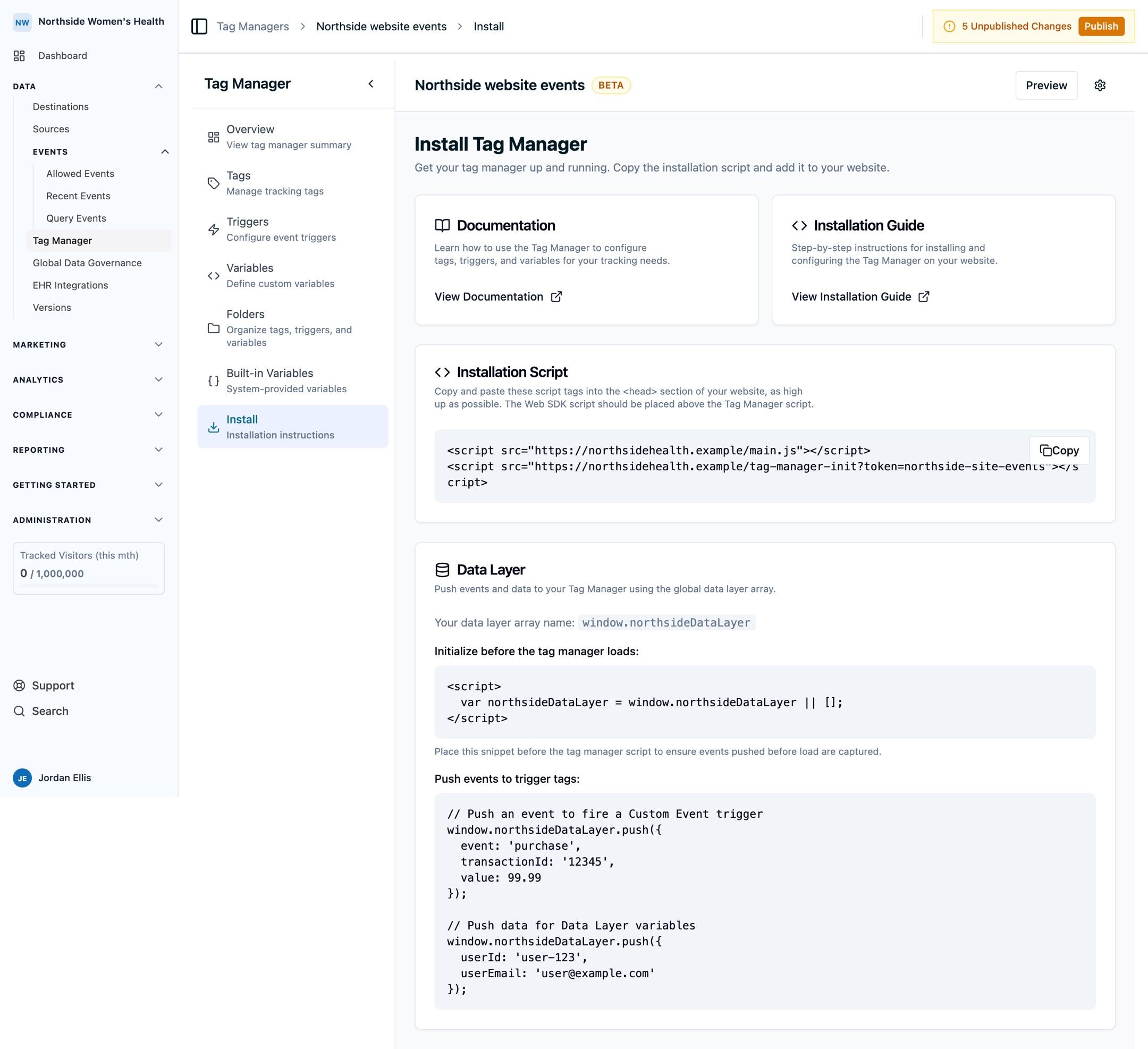
Step 2: Add the Tag to Your Website
Paste the install tag into the <head> section of your HTML, preferably just before the closing </head> tag:
<html>
  <head>
    <title>Your Website</title>
    <!-- Other head elements -->

    <!-- Ours Privacy Tag Manager Install Tag -->
    <script src="https://cdn.oursprivacy.com/main.js"></script>
    <script src="https://cdn.oursprivacy.com/tag-manager-init?token=YOUR_TOKEN"></script>
  </head>
  <body>
    <!-- Your page content -->
  </body>
</html>
Important: Add this script to every page where you want tracking to work. For most websites, this means adding it to your main layout or template file.
How It Works: Automatic Page View Tracking
Once the install tag loads, the Ours Web SDK automatically takes over:
- Automatic Page Views: Page view events are tracked automatically on every page load
- /ingest Endpoint: Events are sent to the Ours Privacy
/ingestendpoint for processing - No Additional Code: You don't need to write any extra code for basic page view tracking
- Ready for Tags: The foundation is set for creating and managing tags through the Tag Manager UI
The Web SDK handles all the heavy lifting. You just need to install the tag once.
Verifying Your Installation
There are two ways to confirm your Tag Manager is installed and working correctly:
Method 1: Recent Events Dashboard (Recommended)
The Recent Events dashboard in the Ours Privacy app provides real-time visibility into your events:
- Navigate to Recent Events in the Ours Privacy app
- Filter by your URL pattern:
- Use your domain name (e.g.,
yoursite.com) - For local testing, filter by
localhost
- Use your domain name (e.g.,
- You should see
page_viewevents appearing in real-time
For more details on using the Recent Events dashboard for debugging, see the Real-Time Debugging guide.
Method 2: Network Tab (Technical Verification)
- Open your website in a browser
- Open Developer Tools (F12 or right-click → Inspect)
- Go to the Network tab
- Reload the page
- Look for:
- The tag manager script loading from
cdn.oursprivacy.com/tag-manager-init - Requests to the
/ingestendpoint
- The tag manager script loading from
If you see these requests, your installation is working!
Next Steps
Now that your Tag Manager is installed, you're ready to start creating tags:
- Understand Core Concepts: Learn about tags, triggers, and variables
- Create Your First Tag: Start tracking custom events
- Preview Mode: Debug your configuration in real-time using the Chrome extension
- Publishing & Versions: Learn how to test and publish your tags
Troubleshooting
Tag Manager Not Loading
- Check the script URL: Ensure the token in your install tag is correct
- Check for errors: Look in the browser console for any loading errors
- Check ad blockers: Some ad blockers may interfere with tracking scripts
Page Views Not Appearing
- Wait a few seconds: Events may take a moment to process
- Check filters: Make sure your Recent Events filters aren't too restrictive
- Verify the URL: Ensure the page URL matches your filter patterns
- Make sure you published: Your Tag Manager changes must be published to take effect
- Check for init command: Ensure you have an Ours Privacy init command running on install
Still Having Issues?
Reach out to support@oursprivacy.com for assistance with installation.
How is this guide?