

Sending Events with Custom Variables and Triggers
Step-by-step example of sending Ours Privacy events with custom variables and conditional triggers in the Tag Manager for advanced tracking scenarios.
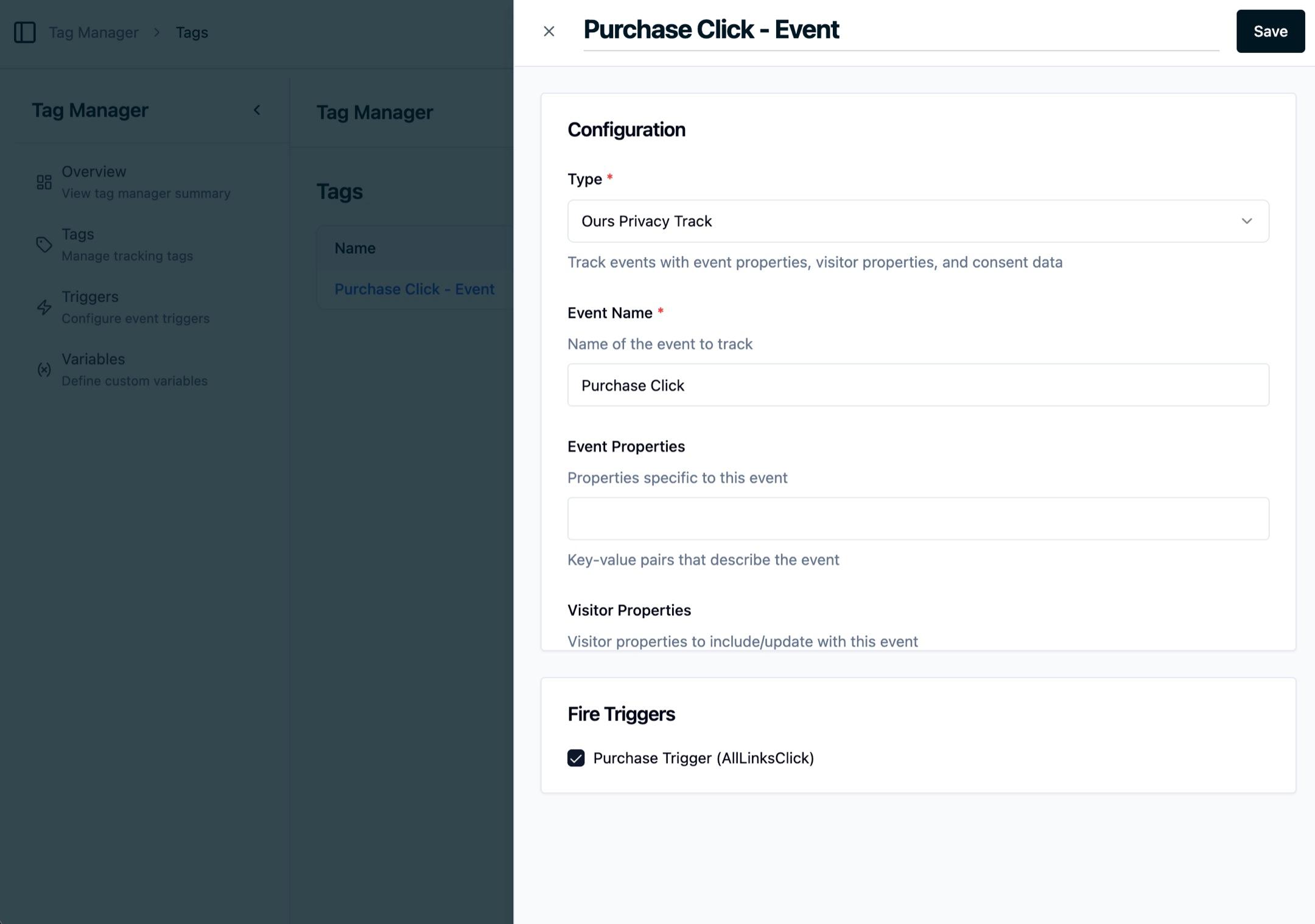
This example demonstrates how to track a custom "Purchase Click" event using the Tag Manager. We'll create a tag that fires when a custom purchase trigger activates.
Example: Tracking Purchase Clicks
In this example, we'll set up a tag to track when users click on purchase-related elements on your website.
Configuration Overview
- Event Name:
Purchase Click - Tag Type: Ours Privacy Track
- Trigger: Purchase Trigger (AllLinksClick)
Setting Up the Tag
- Navigate to the Tags section in the Tag Manager
- Create a new tag and select Ours Privacy Track as the type
- Set the Event Name to
Purchase Click - Connect it to your Purchase Trigger (configured to fire on all link clicks)
How It Works
When the trigger conditions are met (a link is clicked), the tag automatically fires and sends a Purchase Click event to Ours Privacy. This event can then be analyzed in your Ours Privacy dashboard to understand user purchase behavior.
Next Steps
You can extend this example by:
- Adding event properties to capture additional context (e.g., product name, price)
- Adding visitor properties to identify the user
- Creating more specific triggers to target only purchase-related links
- Using variables to dynamically populate event properties
For more information on configuring tags and triggers, see:
How is this guide?