

Chrome Extension
Install the Ours Privacy Chrome extension to see what every tag did on a page, which events the Web SDK sent, and to build a content experiment by selecting elements on your live site.
Use this page to install the Ours Privacy Chrome extension and read its Tag Manager panel in Chrome DevTools. The panel shows what each tag did on the page, the events the Web SDK sent from this browser, and an experiment builder for the page you are looking at.
Install
- Install the Ours Privacy Tag Manager extension from the Chrome Web Store.
- Open a page on your site, open Chrome DevTools, and select the Tag Manager tab.
The extension runs in Chrome only. It cannot run on chrome:// pages or the Chrome Web Store itself.
The header shows whether the tag manager was detected, the container's name, and whether the page is running a Published container or a Draft preview. A page without the tag manager shows Not detected on this page; the CDP events tab still works there when the Web SDK is installed on its own.
Tag Manager events
Every event the tag manager processed, grouped under the page visit it happened on with the page title and path. Select an event to see what each tag did:
- Fired: the tag ran. Expand it to see the field values it used.
- Blocked: the tag did not run, with the reason, such as a consent rule or a block trigger.
- Errored: the tag threw, with the error message.
- Not fired: the tag is in the container but this event did not trigger it.
A delayed tag reports its outcome once the delay has passed. The Variables tab shows every variable's value at that moment, and Raw shows the event as JSON. Filter by event, tag, or URL from the search field.
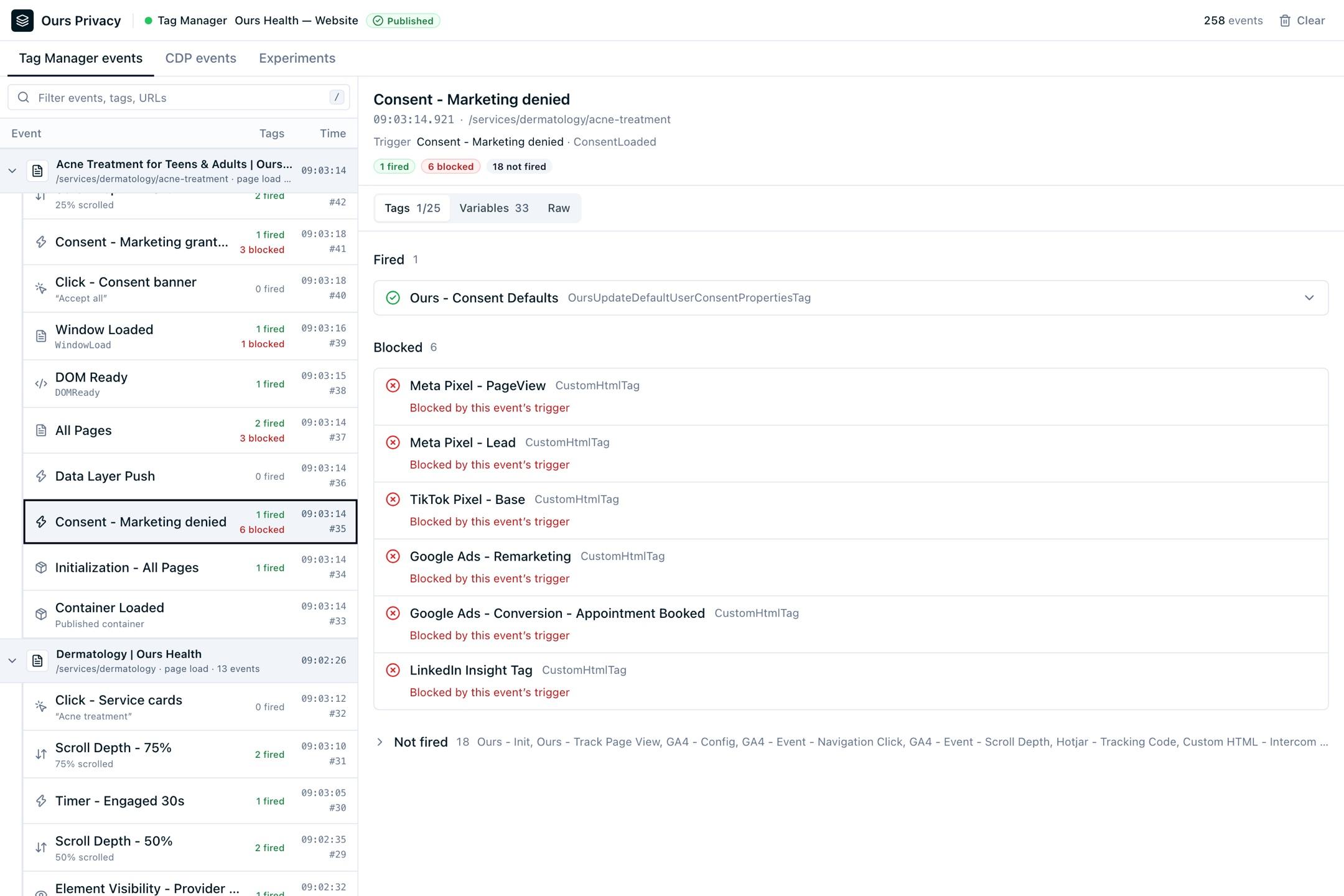
History follows the browser tab, so a visit that crosses from your marketing site to a scheduling subdomain stays in one timeline, and each route change in a single-page app gets its own page group. The panel keeps the latest 500 events in view. Clear empties the history for the tab.
CDP events
The track, identify, and page calls the Web SDK attempted from this browser, grouped by page visit. Select one to see its Properties, User, Context, and Raw payload, and filter the list by event, property, or URL. Events sent in debug mode carry a Debug mode badge, and each event links to Query Events with Find it in Query events.
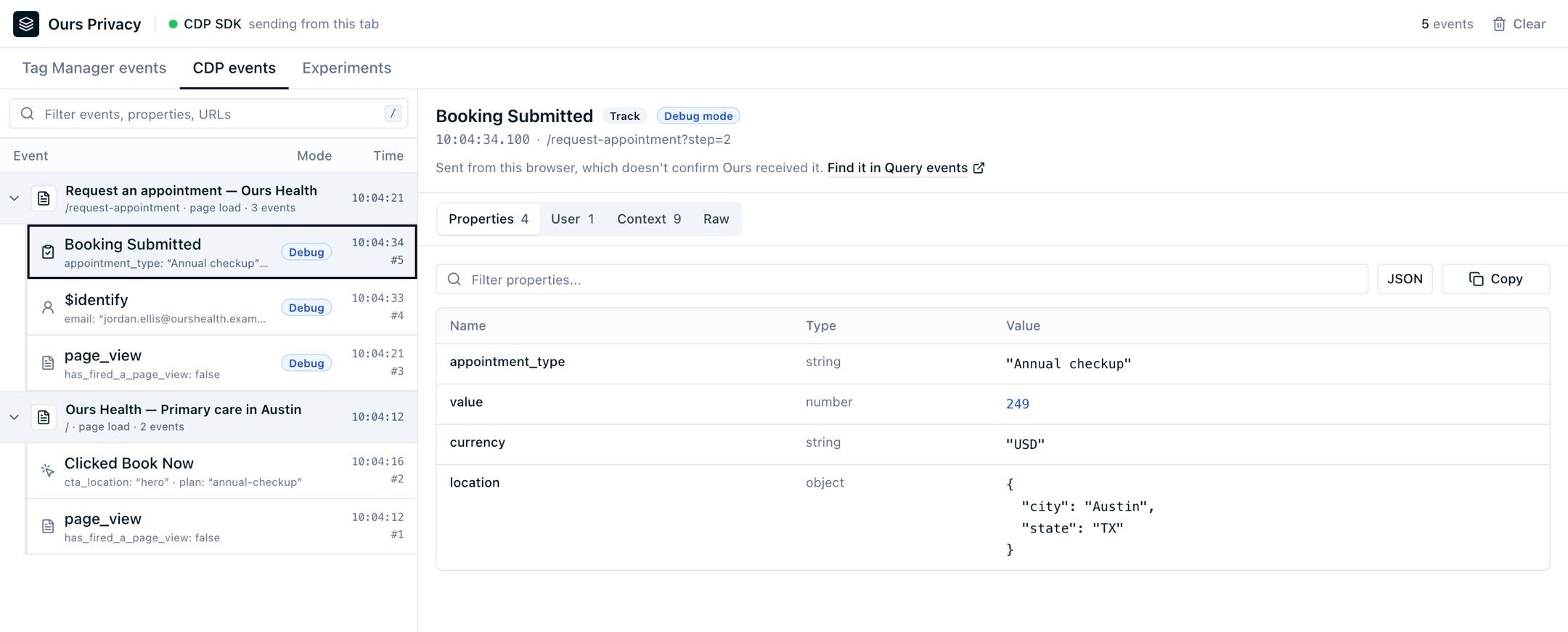
The tab shows what the browser sent, and says so on screen. It does not confirm that Ours Privacy received the event; follow the Query Events link for the receiving side. Sites running an older Web SDK show an empty state. The extension keeps sessions for 24 hours, up to 50 sessions and 1,000 events per session, in your browser only.
Experiments
Build a content experiment on the page you are looking at, then hand it to the dashboard.
- Name the experiment. The current page becomes its page targeting, which you can widen later in Ours Privacy.
- Add a change to a variant: select Pick element and choose an element on the live page, or type a CSS selector. Change types cover text, style, attributes, HTML, insert, move, hide, redirect, and custom JavaScript.
- Select Preview to apply the variant on the page, and Stop preview to restore it. Add variant for a second treatment and set the traffic weights.
- Select Open in Ours. The Create Experiment page opens pre-filled with the name, page targeting, variants, changes, and split, saved as a draft. You still choose a goal and start it there.
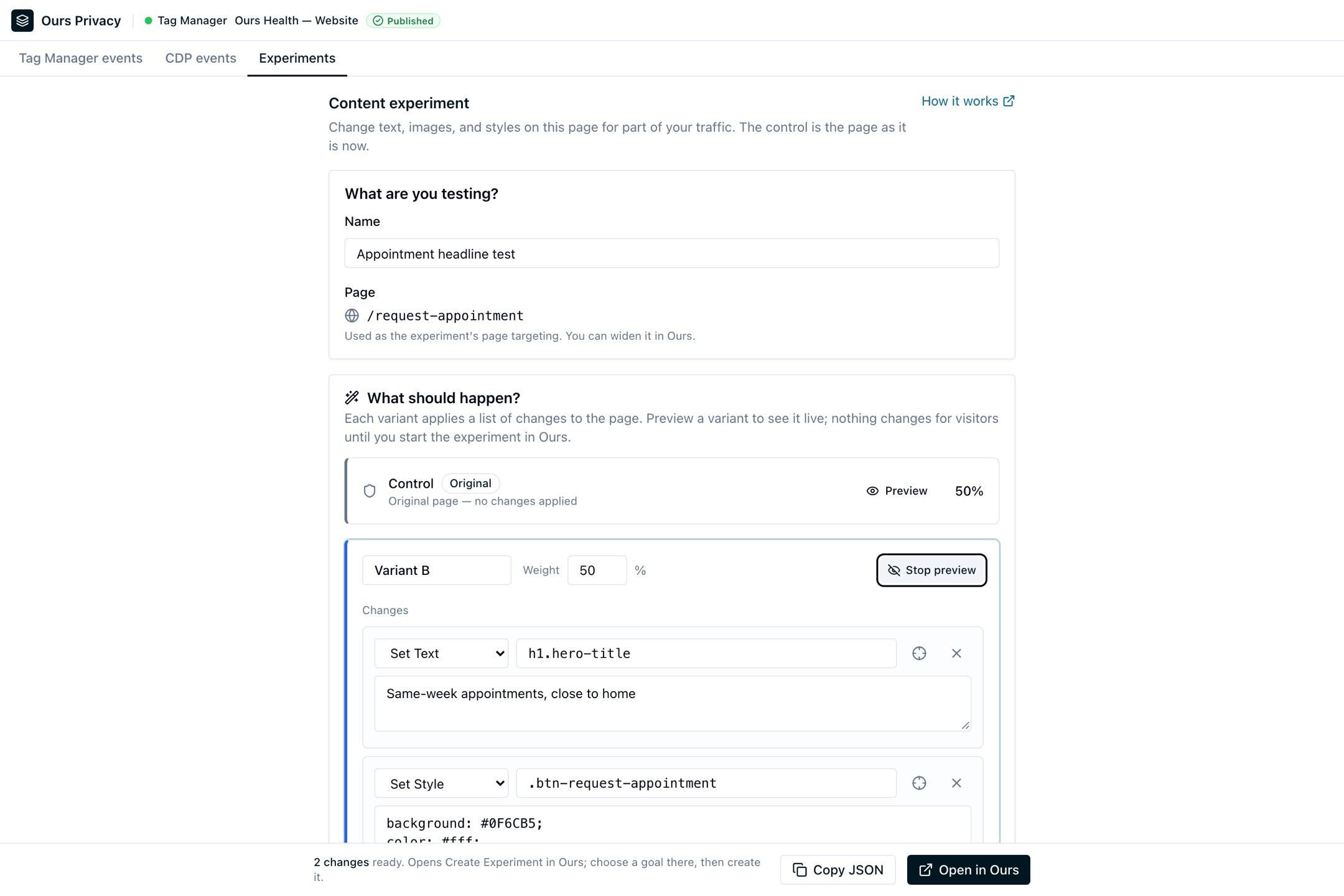
Copy JSON copies the variants and changes so you can add them to an existing draft with Import from JSON in the dashboard. Limits: Pick element does not reach elements inside iframes or shadow DOM, a custom JavaScript change cannot be undone in preview, and the builder creates content experiments only. The dashboard side of this flow is on Point-and-click editing.
Draft preview
When a page was opened from the dashboard's Preview button, the header shows a Draft preview badge with Exit preview, and the events you see come from the draft container. See Preview Mode for the Preview button flow.
Troubleshooting
- No Tag Manager tab: make sure the extension is enabled at
chrome://extensions, then close and reopen DevTools. - Not detected on this page: confirm the install tag is on the page and reload with DevTools open.
- Not connected to the extension: Chrome reloaded or updated the extension; close and reopen DevTools.
Next Steps
- Preview Mode: load your draft container on your live site before publishing.
- Query Events: confirm what Ours Privacy received.
- Point-and-click editing: finish and start an experiment built in the extension.
How is this guide?