

Point-and-Click Editing
Build a content experiment by clicking elements on your live site with the Ours Privacy Chrome extension, preview each variant, then open it in the dashboard to finish.
Use this page to build a content experiment by clicking the parts of your page you want to change, instead of writing CSS selectors by hand.
Prefer to describe it? An AI assistant can create the same experiment from a plain-language request, including targeting and the goal. See Manage Experiments with AI.
Build Your Variants
- Install the Ours Privacy Chrome extension, open the page you want to test, and open Chrome DevTools.
- In the Tag Manager panel, open the Experiments tab and give the experiment a name.
- Choose Pick element, then click the text, button, or image you want to change.
- Choose what should happen to it, such as new text, a different image, a style change, or hiding it. Repeat for each change.
- Choose Preview on a variant to see it on your page, and Stop preview to go back to the original.
The control is always your page as it is today. To test more than one idea, choose Add variant and set each variant's share of traffic.
Finish in the Dashboard
When the variants look right, choose Open in Ours. The Create Experiment page opens with your variants, their changes, and the page you built on already filled in.
- Review the changes. You can edit or add to them just like an experiment built by hand.
- Choose a goal, and add more pages to the targeting if the test should run on them.
- Choose Create Experiment. It's saved as a draft, so nothing changes for visitors until you start it.
Tip: The experiment is created in the organization you have open in the dashboard. If you work in more than one, switch first.
Add Changes to an Existing Draft
To add changes to an experiment you've already created, choose Copy JSON in the extension, then choose Import from JSON on a variant in the dashboard and paste. Imported changes are added to that variant; its name and traffic share don't change.
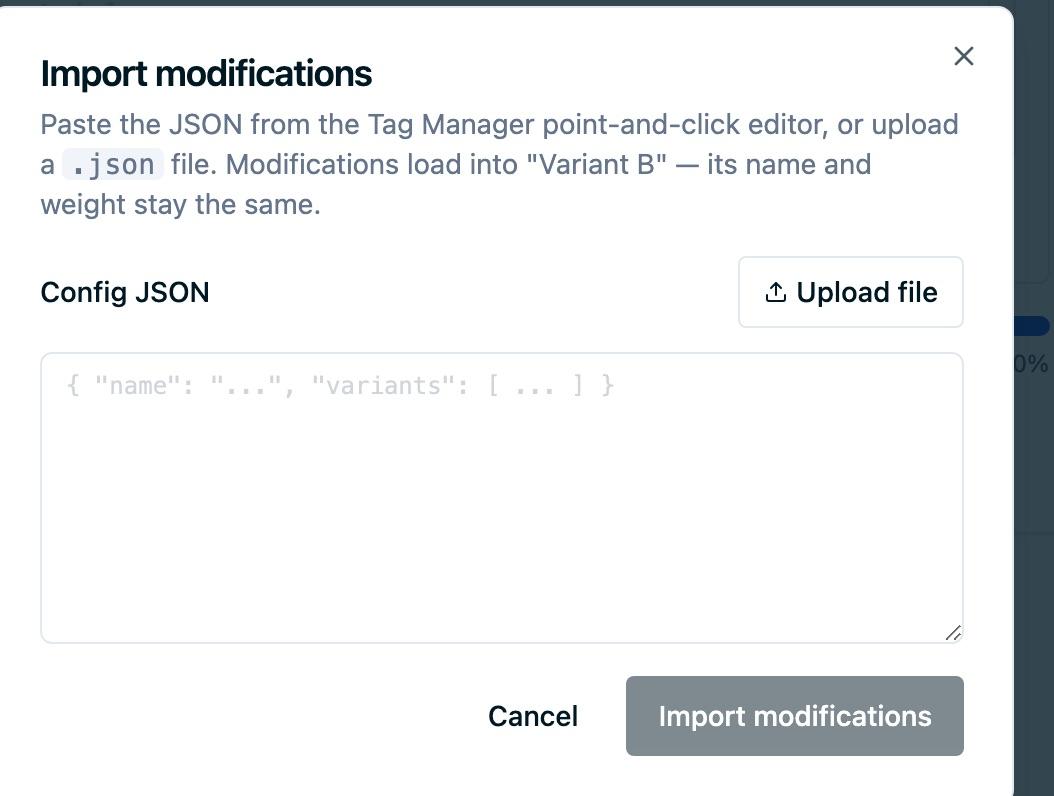
You can import into an experiment while it's still a draft. Once it's running, its variants are locked.
Next Steps
- Content Experiments: the kinds of changes a variant can make
- Experiment Settings: targeting, traffic allocation, and consent rules
- Goals & Conversion Tracking: choose what the experiment measures
Need Help?
Reach out to support@oursprivacy.com if you have questions about building experiments visually.
How is this guide?