

Content Experiments
Run content A/B tests with Ours Privacy. Change headlines, images, buttons, or sections on the same URL and measure results with events already flowing through your CDP.
A content experiment shows different versions of a page to different visitors, then measures which version converts better.
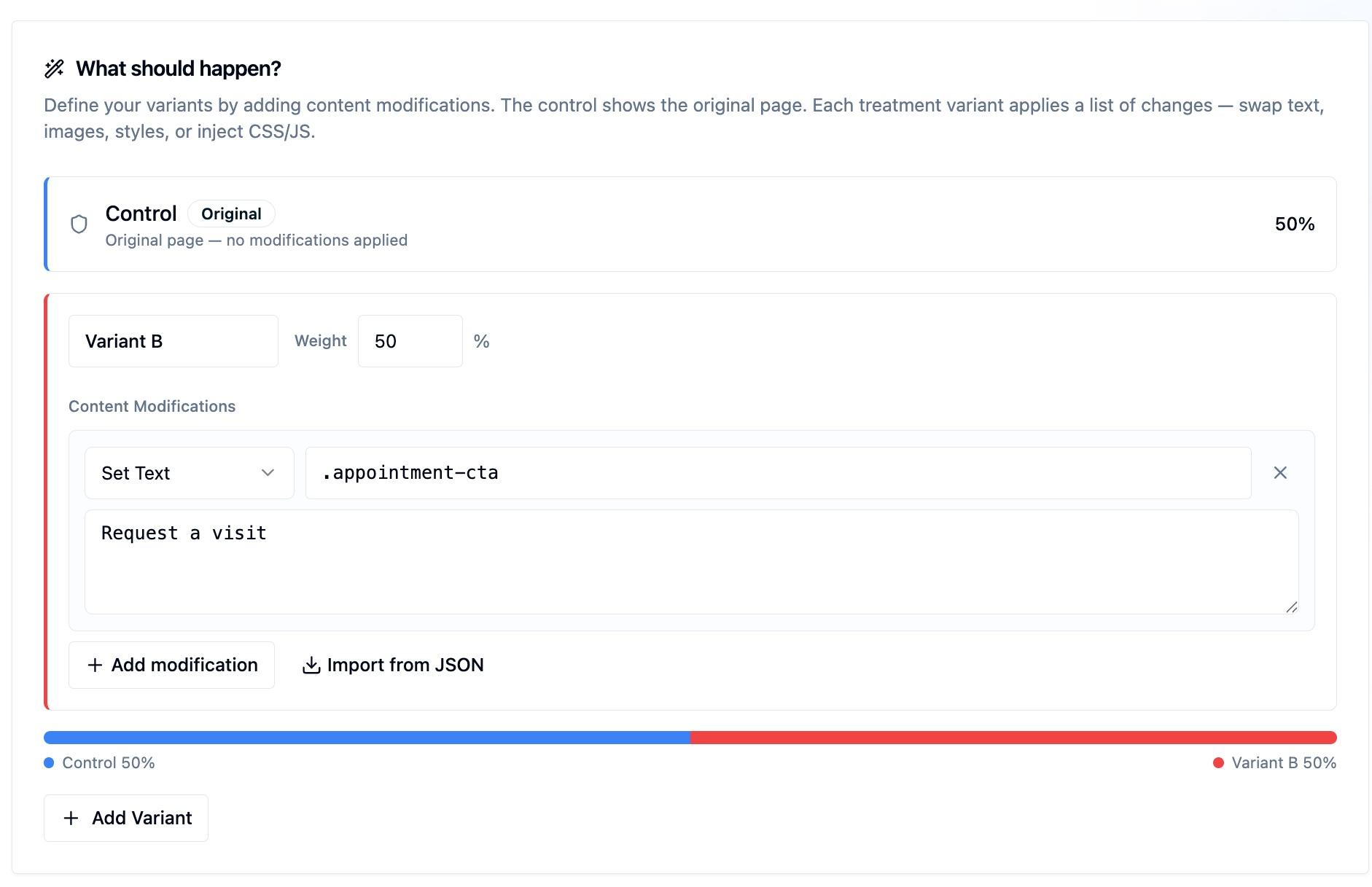
Each variant is defined as a list of DOM modifications: typed actions that update the rendered page (set text, swap an image, toggle styles, inject custom CSS or JS, and so on). The runtime applies them to the assigned variant so the visitor sees only their version.
You stay on the same URL. Half your visitors see your original headline. The other half see a new one. The version that drives more sign-ups, demo requests, or purchases wins.
In reporting, both groups count as experiment participants. Visitors assigned to the original experience are the control group, and visitors assigned to changed experiences are treatment groups. Both control and treatment receive experiment impression events; visitors outside traffic allocation do not.
This is the most common type of experiment. Use it when you want to test a change to a page without building a whole new page.
What You Can Test
Anything visible on the page is fair game:
- Headlines and body copy: does "Start your free trial" outperform "Get started today"?
- Button text and color: does a green button convert better than a gray one?
- Hero images: which photo drives more engagement?
- Entire sections: test a short-form hero against a long-form one
- Calls to action: price anchoring, urgency copy, social proof placement
- Layout changes: reorder sections, show or hide elements, restructure a form
Available DOM Modification Actions
Every variant is a list of these actions. AI assistants and the REST API use this canonical action set:
| Action | What it does | value shape |
|---|---|---|
setText | Replace the element's text content | Plain string |
setHtml | Replace the element's inner HTML | HTML string |
setStyle | Set one or more inline CSS properties | JSON-stringified { property: value } map |
setAttribute | Set one or more attributes (e.g. class, href) | JSON-stringified { name: value } map |
setImage | Update an <img> src (or background image) | URL string |
remove | Remove the element from the DOM | (none) |
insertBefore | Insert HTML immediately before the element | HTML string |
insertAfter | Insert HTML immediately after the element | HTML string |
customCss | Inject a <style> block scoped to this variant | CSS string |
customJs | Run a JavaScript snippet for this variant | JS source |
Each modification also carries a CSS selector. Modifications run in order, and the runtime watches for matching elements to appear before applying, which helps with single-page apps and lazy-rendered sections. Target a specific selector rather than a bare tag like h1 or button: the runtime applies each modification to matching elements, so a broad selector can change the wrong element.
For setStyle and setAttribute, the API also accepts structured styles[] and attribute inputs and normalizes them into the canonical JSON-string value for you.
How to Set Up an Experiment
Create content experiments in the dashboard, through an AI assistant connected with the Model Context Protocol (MCP), or with the Platform API.
- Create an experiment and name it
- Set the URL where the experiment should run (e.g. your homepage or pricing page)
- Define your variants by asking AI to create specific DOM modifications, or by supplying the selector, action, and value through the API.
- Set your conversion goal: pick any event already flowing through your CDP. A page view, a button click, a form submit, a purchase. If you're tracking it, you can measure against it. See Goals & Conversion Tracking.
- Choose targeting: run the experiment for all visitors, or limit it with URL/query conditions, visitor context, or accumulated personalization properties
- Set traffic allocation: start at 50% if you want to ease into it, or 100% to run it on everyone
- Start the experiment
The dashboard updates results as data comes in. The measures and when they support an official conclusion depend on your chosen analysis method.
How It Uses Your Existing CDP Data
The experiment system is built into the same platform as the rest of your CDP, which means:
Events you're already tracking become conversion goals. If you track trial_started, demo_requested, or checkout_completed, those events are already available as metrics. You don't need to add new tracking code for most experiments.
Runtime visitor signals become targeting rules. Run a test for mobile visitors arriving from Google Ads, or for visitors whose property rule has accumulated visited_pricing: true. Saved Audience Builder membership is not a runtime experiment target.
Session replays are filtered by variant. On the experiment page, watch recordings for a single variant or all variants together, so you understand not just whether a variant won, but why.
Visitors Always See the Same Variant
Once a visitor is assigned to a variant, they see it on every visit: across sessions, page reloads, and browser restarts. Assignments are stored in a first-party cookie and tied to the visitor's identity in the CDP.
This prevents the same visitor from appearing in both variants, which would corrupt your results.
Flicker and Page Rendering
Content experiments modify the live page after it loads, so how you install the runtime affects whether a visitor briefly sees the original version.
- Load the runtime synchronously (a non-
asyncscript in the<head>, before other scripts) to apply variants as early as possible. On static and server-rendered pages, this keeps flicker to a minimum. - Static and server-rendered pages are the best fit. Once the runtime applies a modification, the element stays changed.
- Framework-rendered pages (React, Vue, Next.js, Svelte) are different. If the framework re-renders an element the experiment changed, it can overwrite the variant. Content experiments are best-effort on framework-owned sections, so for those cases use a Headless Experiment and let your own code render the variant.
If you're comparing two entirely different pages rather than modifying one, a Redirect Experiment navigates before the original page renders.
Preview a Variant
Click Preview next to any variant on the experiment detail page to open your site with that variant forced. The dashboard remembers the URL you used last time. The variant applies without tracking an impression, so you can review it without affecting your results.
You can also preview by hand: add ?ours_preview=<variantId> to any page where the experiment runs.
Preview only works once the experiment is running (or completed with a rolled-out winner) and a new version has been published to your site. Drafts and stopped experiments aren't shipped to the browser runtime.
Picking a Winner
The dashboard presents the result for your selected analysis method: probability to be best and expected loss for Bayesian experiments, confidence intervals and adjusted p-values for fixed-horizon Frequentist experiments, or always-valid confidence bounds for Sequential experiments. When the result supports your decision, stop the experiment and declare the winner. Optionally roll it out to serve the winning variant to all visitors going forward.
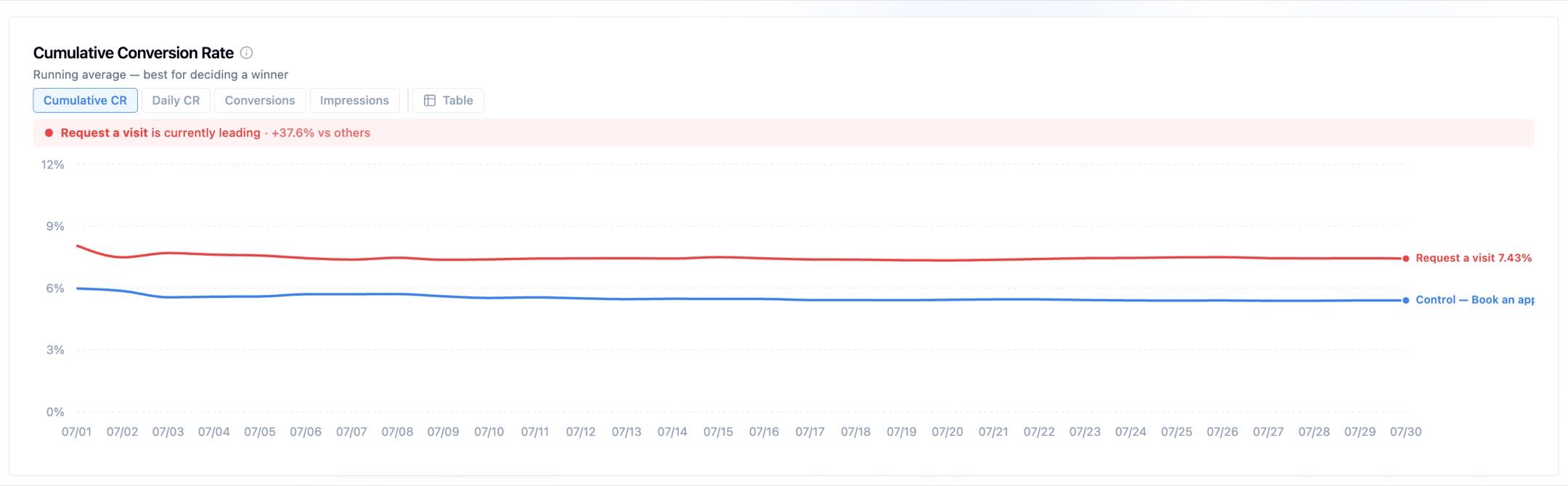
There's no hard rule on when to call a winner. It depends on how much risk you're comfortable with and how long you want to wait. The dashboard shows you the tradeoffs in real time.
Next Steps
- Headless Experiments: Run an A/B test where your application code renders the variant
- Redirect Experiments: Test two completely different pages instead of modifying elements on one
- Content Personalization: Show specific content to qualifying visitors without running a statistical test
- Goals & Conversion Tracking: How experiments measure results and how to send a goal event you're not tracking yet
- JavaScript SDK: Access variant assignments from your own code
How is this guide?