

Scan Schedule
Set how often each Web Scanner monitor crawls your site. Choose daily, weekly, or monthly scanning, or run scans manually.
Use this page to set how often the Web Scanner crawls your site. Scan frequency is a setting you control, per monitor, and you can change it whenever you want.
Pick the frequency that matches how fast the site changes and how closely your team needs to watch it, and set a different frequency for each site you monitor.
Choosing a frequency
Every monitor has its own Scan Frequency setting. Open a monitor, choose Edit, and pick one of:
- Daily. The site is crawled every day. Best for sites that change often, sites where marketing or agency teams deploy tags on their own, and any property under active compliance review.
- Weekly. The site is crawled once a week. A good baseline for a stable site.
- Monthly. The site is crawled once a month. Suited to low-traffic or rarely updated properties, such as an archived microsite.
- Manual only. No scheduled crawls. The monitor runs only when you start a scan yourself.
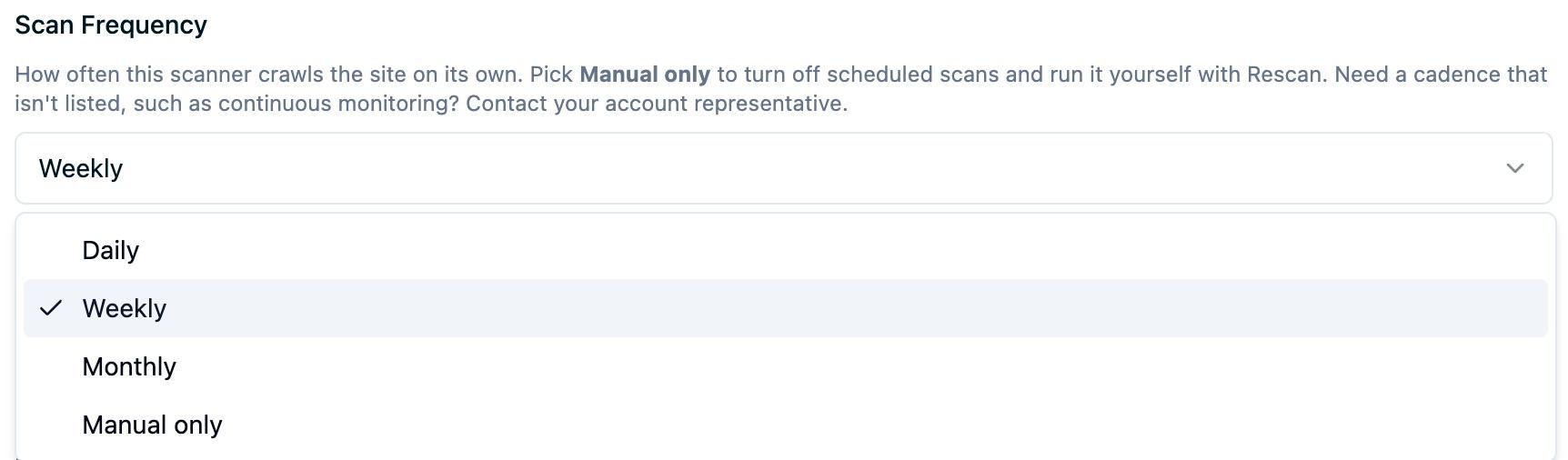
Your choice takes effect immediately. There is nothing to redeploy and no code to change.
Setting a different frequency per site
Frequency is set on the monitor, not on your account, so a single organization can mix cadences freely:
- Your primary marketing site on Daily, because that is where new tags appear first.
- A patient portal or booking flow on Daily, because an unexpected tracker there carries the most risk.
- A stable corporate site on Weekly.
- A retired campaign microsite on Monthly.
- A staging property on Manual only, scanned on demand before a release.
Add a monitor per root domain, then set each one's frequency independently. See Scanner configuration for how coverage and page discovery work per monitor.
When your next scan runs
The monitor shows the next scheduled scan alongside the frequency setting, so you always know when the next crawl is due.
A few things worth knowing about how scheduled scans behave:
- Frequency is measured from your last completed scan, not from a fixed day of the week. A weekly monitor becomes due seven days after its last scan finished, so a long crawl never pushes the schedule later and later over time.
- Running a manual scan counts. A manual scan resets the clock, so a weekly monitor you rescan today becomes due again a week from today.
- A brand new monitor is scanned right away, then follows its frequency from there.
Running a scan yourself
Any monitor can be scanned on demand with Rescan, whatever its frequency is set to. Manual scans and scheduled scans produce identical results.
This is useful when you want a scan on your own timing rather than the schedule's:
- Right after removing a tracker, to confirm it is gone.
- Right after a site release, to see what shipped with it.
- Before a compliance review or audit, to make the newest report the one on record.
Manual-only monitors work entirely this way. Choose Manual only when you want a monitor available for on-demand checks without any recurring crawl.
Scanning pages behind a login
A scheduled or manual scan only reaches pages your crawler can discover by following links, so anything behind a login wall is out of reach by default. Use an external scheduler with a short-lived header or cookie credential to cover those pages instead. See Authenticated scanning for how it works and how to set it up.
Turning scheduled scanning off and back on
Set a monitor to Manual only to stop scheduled crawls. Your history, suppression rules, and notes stay exactly as they are, and nothing is deleted.
Switching back to Daily, Weekly, or Monthly resumes scheduled scanning from your last completed scan. If that scan is already older than the frequency you picked, the monitor is due immediately and is crawled on the next scheduling pass.
Frequencies beyond the standard options
To check a single page between scans, use Verify a page; to run a full crawl on demand, use Rescan.
Scan frequency is also not the only tool for catching a tracker quickly. Scanning tells you what is on your site; the CMP in Enforce mode stops an uncategorized third-party script in the visitor's browser before it executes, no matter when the next scan runs. Teams with strict requirements typically pair the two: real-time blocking for enforcement, scheduled scanning for the record of what appeared and when. See Real-time script blocking.
How frequency affects notifications
Notifications are driven by change, not by the calendar. Every scan is compared to your previous scan for that monitor, and your team hears from the scanner only when something is new or has moved to a higher risk level.
This means a higher frequency gives you faster notice of a change, not more noise. A daily monitor on a site that has not changed sends nothing at all. See How scanning works for what each notification contains and how to route it.
Choosing the right frequency
A practical way to decide:
- How often does the site change? Frequent marketing releases, third-party embeds, or agency-managed tags point to Daily.
- What is the risk if a tracker sits unnoticed? Pages in regulated workflows, such as appointment booking or patient intake, are worth scanning daily even if they rarely change.
- Who needs the report, and how often? If a compliance review is monthly, Weekly still gives you several data points between reviews.
- Is the property still live? Retired sites are worth keeping on Monthly rather than dropping entirely, so a forgotten tag still surfaces.
When in doubt, Daily on the properties that matter most and Weekly elsewhere is a sound starting point. Changing your mind later costs nothing.
Next Steps
How is this guide?