

How Scanning Works
How the Web Scanner discovers pages, what each scan collects, and how it stays within your domain scope.
How Scanning Works
Use this page to understand how the Web Scanner discovers and scans your pages, and what to expect from each scan. How often each monitor runs is a setting you control, covered in Scan schedule.
What happens on a scan
When you add a URL to the Web Scanner, it:
- Performs an initial scan of the homepage and a few additional linked pages to get started.
- Scans pages from multiple sources on an ongoing basis:
- Links discovered during crawling
- URLs found in any discovered sitemaps
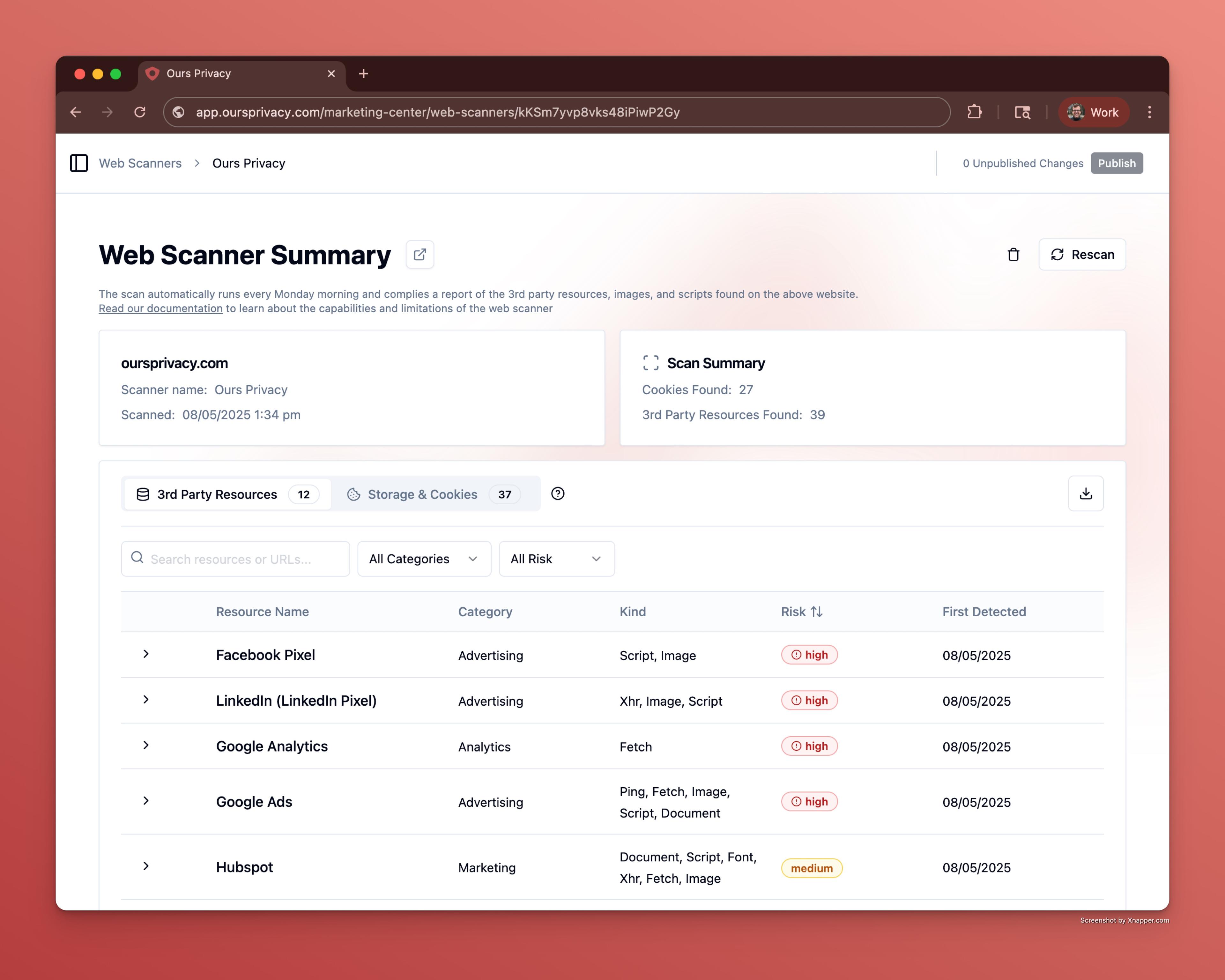
- Detects third-party scripts on each page it visits.
- Scans script and stylesheet content for privacy-sensitive keywords such as ad platform identifiers, tracker brands, and data collection patterns (see What the scanner detects).
- Analyzes Content Security Policy (CSP) headers from each hostname to identify gaps in your site's security configuration (see What the scanner detects).
- Collects cookies and localStorage identifiers set by third-party scripts and services on your website.
- Runs automated accessibility (WCAG) checks on each rendered page and scores your site's accessibility posture (see What the scanner detects).
Domain scope
The scanner follows a hierarchical domain rule so it only crawls pages within your control:
- If you configure
example.com, it will crawlexample.com,app.example.com,blog.example.com, etc. - If you configure
app.example.com, it will only crawlapp.example.comand its subdomains, NOTexample.com. - It will not follow links to completely different domains outside your organization's control.
What to expect
- Scans run on the frequency you choose for each monitor: daily, weekly, monthly, or manual only. See Scan schedule.
- Pages are discovered through crawling links found on each page.
- Only publicly accessible pages on your domain will be scanned by default. To reach pages behind a login, see Authenticated scanning.
Seeing which pages the scan reached
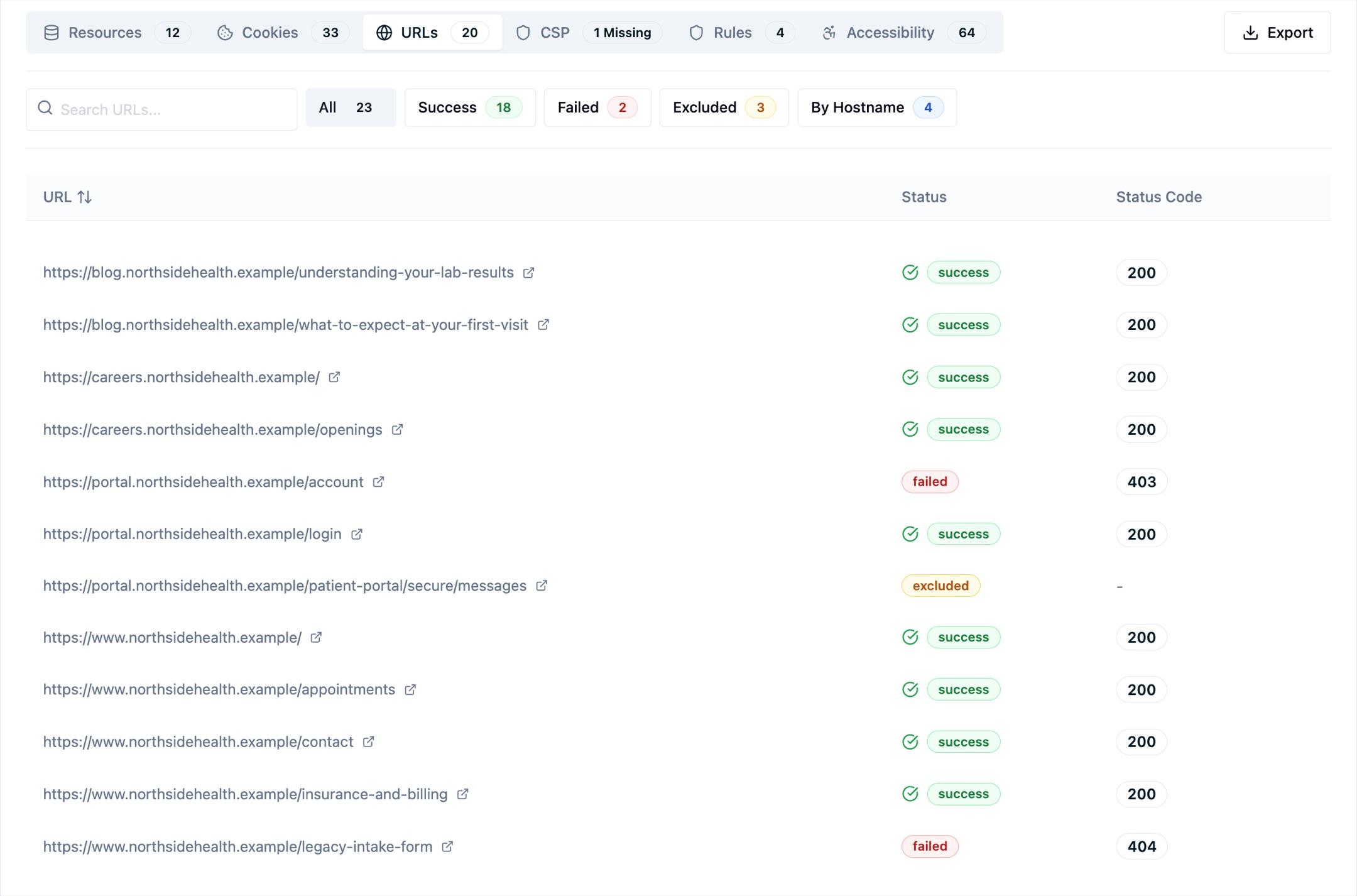
The URLs tab lists every page the crawl touched and what happened to it, so you can confirm coverage rather than assume it. Filter by outcome:
- Success — the page rendered and its resources were recorded, with the HTTP status code alongside.
- Failed — the crawler couldn't render the page. The status code usually tells you why: a
403often means the request was blocked before it arrived (see Allowing the scanner through a firewall), a404usually means a stale internal link. - Excluded — the URL matched one of your exclude patterns and was skipped on purpose (see Scanner configuration).
If a page you expected is missing entirely, it wasn't reachable from your homepage or a sitemap — add it under Additional Start URLs in your monitor settings.
Change notifications
After each scan, the Web Scanner compares the results to your previous scan. When something changes — a newly detected third-party script, or a hostname that moved to a higher risk level — everyone on your team with access to the Web Scanner is notified by email and in their in-app notifications.
Each notification summarizes the scan: how many high, medium, and low risk hostnames were found, and which hostnames are new or changed since the last scan. If a scan turns up nothing new, no notification is sent — so you only hear from the scanner when there's something to review.
Newly detected hosts that your consent configuration doesn't cover are called out as uncovered vendors. A host is flagged this way when it's new since your last scan and matches neither a configured consent service nor one of your suppression rules, which makes it the list of scripts still waiting on a categorization decision.
Open the notification or your scan results to review and manage the changes.
Customizing who gets notified, and where
Scanner notifications belong to the Security & scanning category, so you control them the same way you control every other notification:
- Per person, per channel. Each teammate turns email and in-app on or off independently, or pauses everything for a while, on their notification preferences.
- Per organization. If you work across several organizations, you can keep scanner notifications on in one and off in another. See per-organization preferences.
- To a shared channel. An admin can route Web scanner findings to a Slack channel so the whole team sees each scan in one place, independent of anyone's personal settings. See Slack notifications.
Limitations
- While the scanner makes a best effort to detect all third-party scripts, we recommend verifying results with your IT team for full visibility.
- The scanner is intended for general monitoring. It should not be relied on as a full security audit or compliance certification.
Next Steps
How is this guide?