

Recommended Fixes
How to act on Web Scanner findings: route tracking server-side, self-host fonts, consent-gate embeds, cover vendors in your CMP, and strengthen CSP.
Use this page to act on what the Web Scanner finds. Each finding in the scanner links here with a "Recommended fix"; the sections below explain why a class of finding matters and the concrete steps to resolve it.
Tip: Start with high-risk, uncovered findings. A finding that is already covered by your consent manager is lower priority than one that loads and shares data before consent.
Investigate unknown resources
When the scanner shows a resource as Unknown, it has not been matched to a known vendor, so its risk is unconfirmed rather than safe.
- Open the finding and review its requested URLs and the pages it was seen on.
- Decide whether the resource is necessary. Many unknowns are your own CDN assets or subdomains.
- If it is a real third party, gate it behind consent (see Cover vendors in your consent manager). If it is first-party or expected, add a suppression rule so it stops being flagged (see Managing results).
Route conversions through Ours server-side
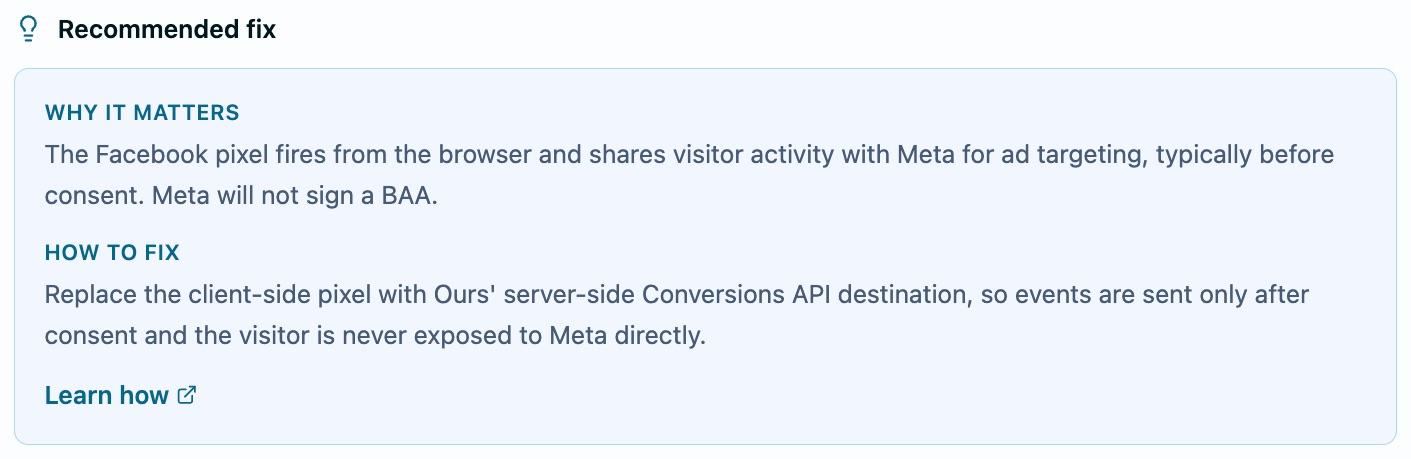
Advertising and analytics tags (such as Google Analytics, the Facebook pixel, and the TikTok pixel) send visitor identifiers and behavior to the vendor from the browser, often before a visitor consents. Most ad platforms will not sign a Business Associate Agreement, which makes browser-side tracking high-risk for regulated data.
- Remove or disable the client-side tag.
- Send the same events server-side through Ours Privacy, which forwards only consented, governed data to the platform.
- Gate any tag you keep in the browser behind consent in your consent manager.
Server-side routing keeps the browser from talking to the vendor directly and gives you one place to enforce consent.
Self-host fonts and static assets
Loading fonts from a third party (for example Google Fonts) sends every visitor's IP address to that provider on each page view. Courts in the EU have treated this as a privacy violation, and it is avoidable because the files can be served from your own domain.
- Download the font files (or other static assets) you use.
- Serve them from your own domain.
- Update your stylesheet to reference the local files and remove the third-party reference.
Pages render identically, and no visitor data is sent to the provider.
Lazy-load and consent-gate embeds
Embedded maps, video players, and support widgets (such as Google Maps, YouTube, and Mapbox) load third-party scripts and can set cookies or read approximate location as soon as the page loads, even if the visitor never interacts with them.
- Replace the live embed with a lightweight placeholder (a static image or a click-to-load button).
- Load the real embed only after the visitor interacts, and only after consent.
- Where a privacy-enhanced mode exists (for example the
youtube-nocookie.comdomain), use it.
Cover vendors in your consent manager
Marketing tools and third-party cookies can set identifiers and share form or behavior data before a visitor consents. The fix is to make sure each vendor is governed by your consent settings.
- Confirm the vendor appears in your consent manager's vendor list.
- Map it to the correct consent category so it only loads after the visitor opts in.
- Re-scan and confirm the finding now reads as covered.
See Cookie Consent for how Ours Privacy gates vendors by category.
Strengthen your Content-Security-Policy
A Content-Security-Policy (CSP) tells the browser which origins may load scripts and where they may send data. The scanner flags pages with no policy, or with a policy that leaves scripts or connections unrestricted.
- If there is no policy, add one that starts from
default-src 'self'. - Add a
script-srcdirective that allowlists only the script origins you need, and aconnect-srcdirective for the origins your pages talk to. - Remove broad wildcards so an injected or compromised third-party script cannot exfiltrate data unchecked.
Tighten the policy in stages and re-scan after each change to confirm coverage.
Audit your tag manager
A tag manager can load other vendors at runtime, so new trackers can appear without a code change and outside your review.
- Open the container and list every tag it loads.
- Remove tags you no longer use.
- Gate non-essential tags behind consent so they only fire after a visitor opts in.
Next steps
- Understanding detections: what each finding type means.
- Managing results: suppression rules and re-scanning.
- Cookie Consent: gate vendors by consent category.
Need help? Contact support@oursprivacy.com.
How is this guide?