

Microsoft Advertising (Bing Ads) for Web
Track web conversion events in Microsoft Advertising (Bing Ads) through a HIPAA-compliant web proxy, enabling privacy-safe conversion tracking without requiring full account authentication.
Overview
Microsoft Advertising supports two separate types of conversion events: offline conversions and web conversions. These conversion types cannot be used interchangeably: you cannot use the offline conversion API to record web conversion events, and vice versa.
The Microsoft Advertising (Bing Ads) for Web destination enables you to track web conversion events through a HIPAA-compliant web proxy. This destination is ideal when you need to send data for web-type conversion events in Microsoft Advertising.
Note: If you need to track offline conversion events, use the Microsoft Advertising Offline Conversions destination instead.
Choosing the Right Destination
The destination you choose depends on the type of conversion events you're trying to send data for:
-
Use Microsoft Advertising (Bing Ads) for Web (this destination) when:
- You need to track web conversion events in Microsoft Advertising
- You only have conversion IDs and don't have access to authenticate with the Microsoft Advertising account
- Your conversion events are configured as "web" type in Microsoft Advertising
-
Use Microsoft Advertising Offline Conversions when:
- You need to track offline conversion events in Microsoft Advertising
- You have access to authenticate with the Microsoft Advertising account
- Your conversion events are configured as "offline" type in Microsoft Advertising
Microsoft Advertising Features
The Ours Privacy Microsoft Advertising for Web feature enables you to track web conversion events through a HIPAA-compliant web proxy, ensuring that sensitive client data remains private. By routing all events through our servers, Ours Privacy prevents Microsoft from directly accessing clients' browsers, IP addresses, or other PII and PHI.
Ours Privacy automatically captures Microsoft click IDs (msclkid) from the URL query string and saves them for dispatching future events.
This setup gives you the ability to optimize your Microsoft Advertising campaigns with accurate, privacy-safe data for web conversion events, while remaining compliant with strict healthcare and privacy regulations. With Ours Privacy, you can confidently use Microsoft Advertising without compromising on data protection or client confidentiality.
Configuring Microsoft Advertising for Web
To add a destination, open Destinations in your Ours Privacy dashboard. Click the Add destination button and select Bing Ads for Web.
Configuration Requirements
To configure the Bing Ads for Web destination, you'll need to provide your UET Tag ID from your Microsoft Advertising account.
Finding Your UET Tag ID
The first step is to find your Tag ID for Microsoft Advertising. You can find this in the UET tag management interface:
- Log in to your Microsoft Advertising account
- Navigate to Tools > Universal Event Tracking (UET)
- In the UET tag interface, you'll see a table listing your tags with the following columns:
- Tag name
- Tag description
- Tag ID
- Tracking status
- Locate your tag in the table and find the Tag ID column
- Copy the Tag ID value (it will appear as a masked value in the interface)
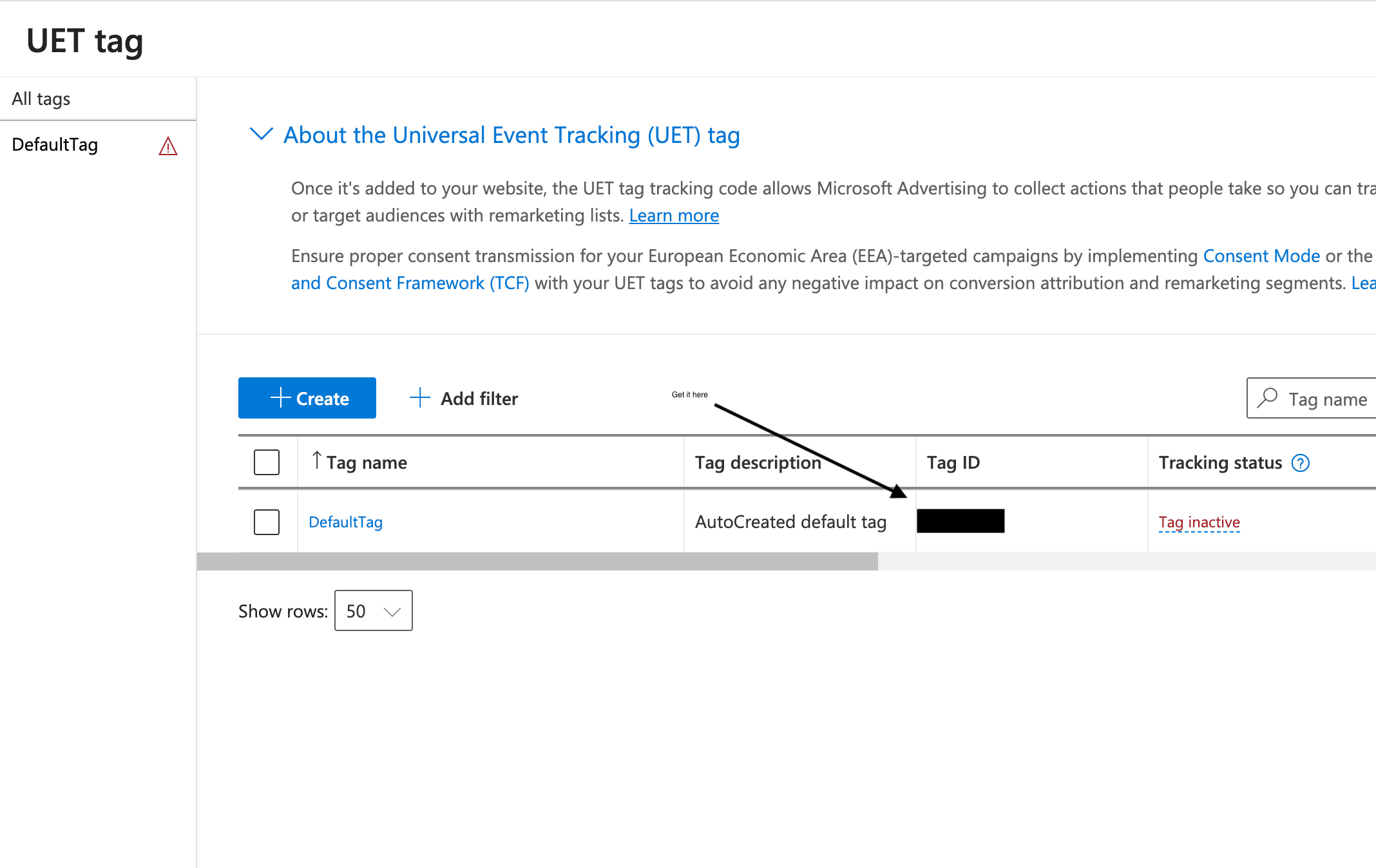
Note: If you don't have a UET tag yet, you can create one by clicking the + Create button in the UET tag interface. Microsoft Advertising also provides a default auto-created tag called "DefaultTag" that you can use.
Once you have your Tag ID, you can enter it in the Bing Ads for Web destination configuration in Ours Privacy.
Creating a Conversion Event in Microsoft Advertising
After configuring your UET Tag ID in Ours Privacy, you'll need to create a corresponding conversion event in your Microsoft Advertising account. This conversion event will receive the web conversion data from Ours Privacy.
To create a conversion event in Microsoft Advertising:
- In your Microsoft Advertising account, navigate to Tools > Conversions
- Click + Create conversion goal
- Select Business Website as the goal type
- Choose Manual Setup as the setup method
- In the conversion details:
- Select Other as the category
- Select Event as the type
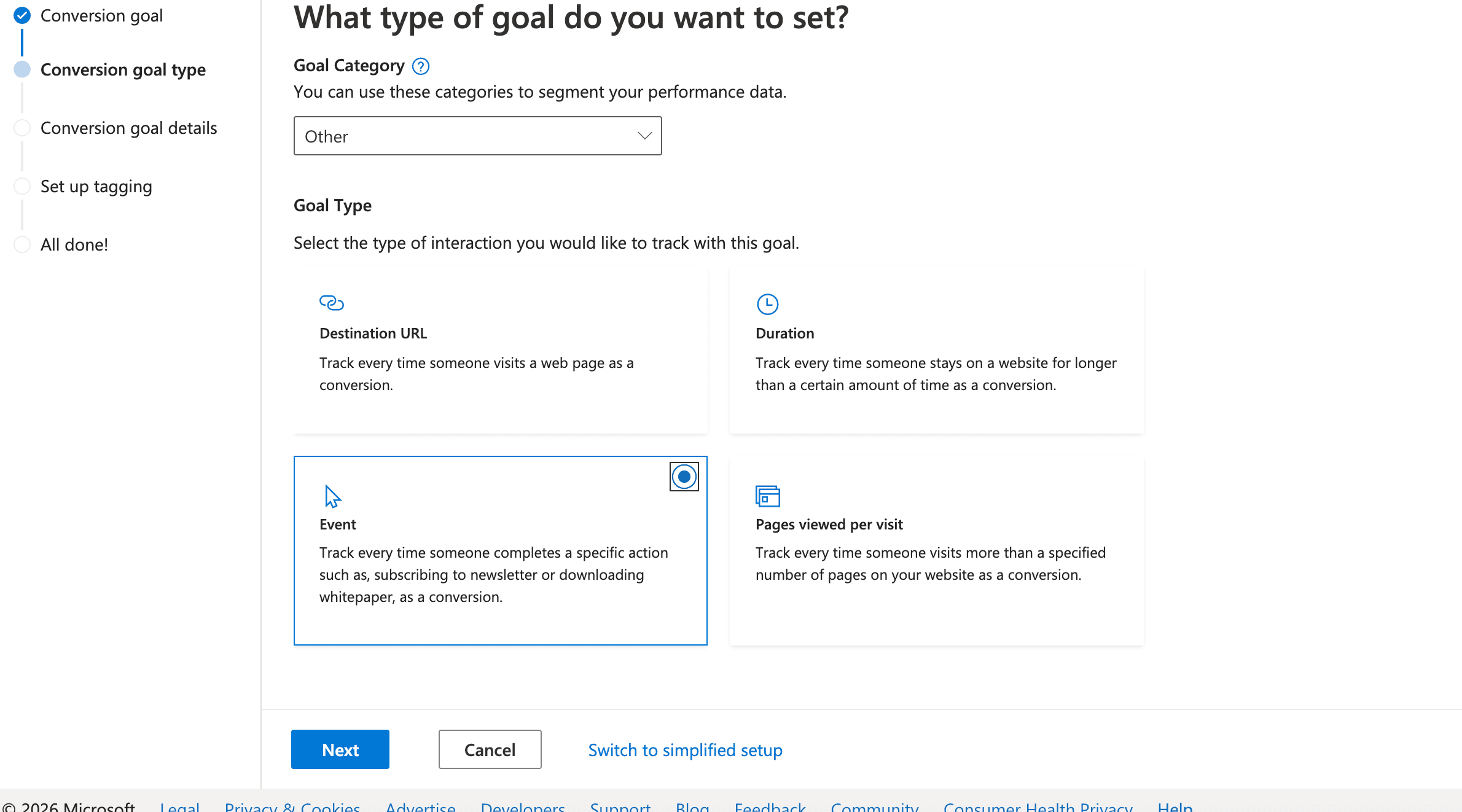
- Give your conversion event a name. This name is used for internal Microsoft Advertising reporting only and does not need to match the event name in Ours Privacy.
- Continue through the setup process until you reach the Manual Installation section
- In the manual installation configuration:
- Enter
trackfor the Action field - Enter the event name (or renamed event) from your Ours Privacy dashboard as the Label field
- Enter
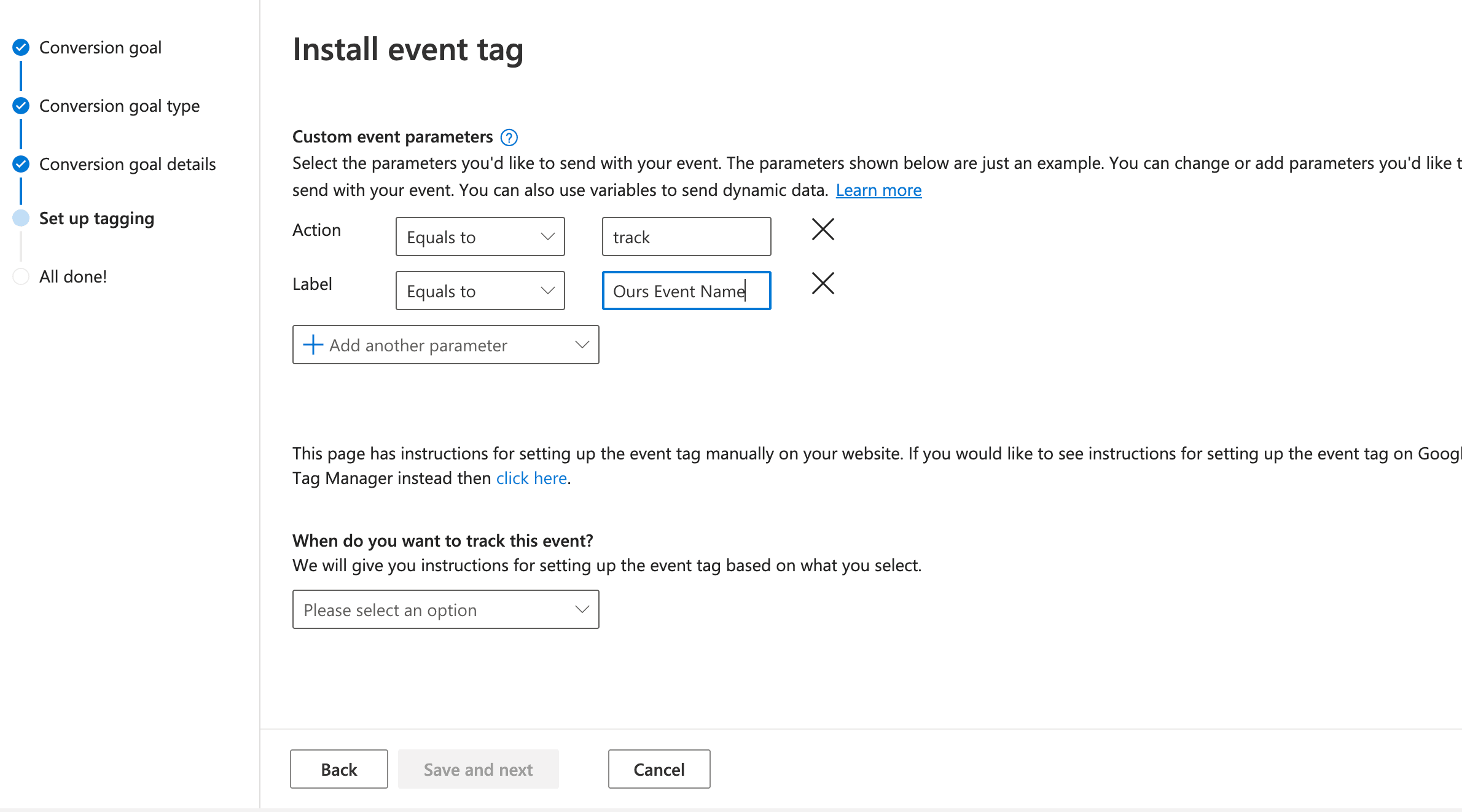
- Select Track inline action as the tracking method
- Complete the conversion event setup
Once you've created the conversion event in Microsoft Advertising, make sure the event name in your Ours Privacy dashboard matches the label you entered there. This ensures that events tracked through Ours Privacy will be properly attributed to the correct conversion event in Microsoft Advertising.
How is this guide?