

Global Privacy Control (GPC)
How to set up Global Privacy Control (GPC) in the Ours Privacy CMP, including per-category auto-disable and regional policy configuration.
Global Privacy Control (GPC)
Global Privacy Control (GPC) is a browser signal that communicates a visitor's wish to opt out of the sale or sharing of their personal information. Several US privacy laws (such as CCPA/CPRA in California and similar laws in other states) recognize GPC as a legally meaningful opt-out signal. The Ours Privacy CMP can detect GPC and automatically reject the categories you choose on the visitor's behalf.
This page explains how to configure the CMP. It is general guidance, not legal advice. Which categories should respect GPC, and in which regions, depends on your product, your data practices, and the advice of your own legal or privacy counsel.
What the CMP Does When It Detects GPC
When a visitor arrives with GPC turned on in their browser and your CMP is configured to respect it:
- The categories you have marked as GPC-respecting are moved to the rejected set before the visitor interacts with anything.
- The consent banner does not open. The visitor has already told you what they want, so there is nothing left to ask. In its place the CMP shows a small acknowledgement reading "We detected and are honoring your Global Privacy Control (GPC) signal", so the visitor can see their signal was recognized.
- Scripts in the rejected categories are blocked by Script Blocking the same as any other rejection.
This is what that visitor sees instead of the usual banner:
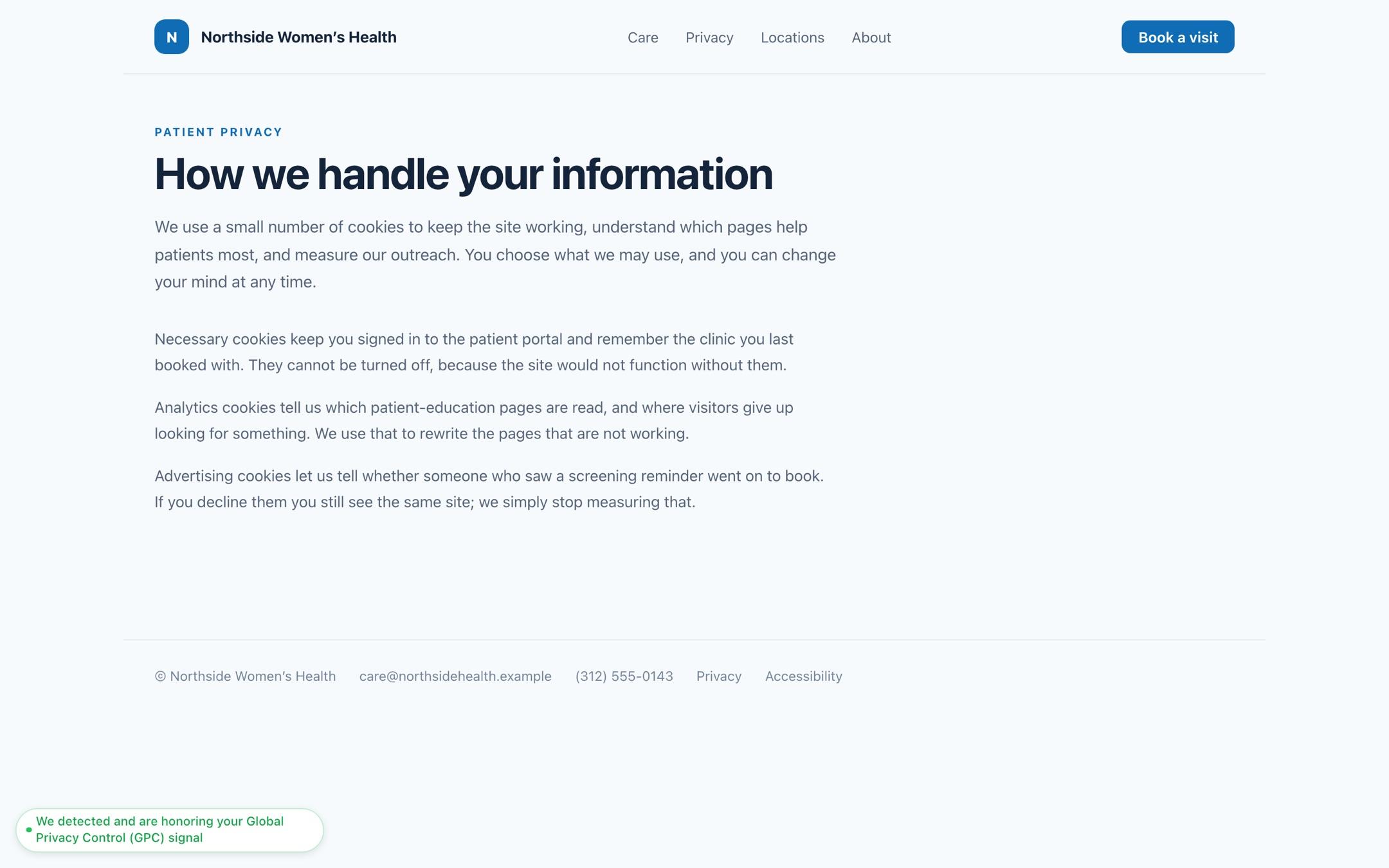
The acknowledgement asks for nothing and blocks nothing. Visitors without GPC on the same page still get the full banner and still choose for themselves.
For this to work, two settings need to line up. Both are described below.
Step 1: Mark the Categories That Should Respect GPC
Open your consent setting's Default Consent Settings section and find the Consent Posture card. Each category listed there has an Auto Disable on GPC toggle — open a category to set it, and categories that have it on are marked with an Auto disable on GPC badge in the list. Turn it on for every category you want GPC to automatically reject.
Commonly this includes:
- Advertising
- Analytics (if your analytics use constitutes a "sale" or "share" under applicable law)
- Marketing
It typically does not include Necessary or other categories that do not involve the sale or sharing of personal information.
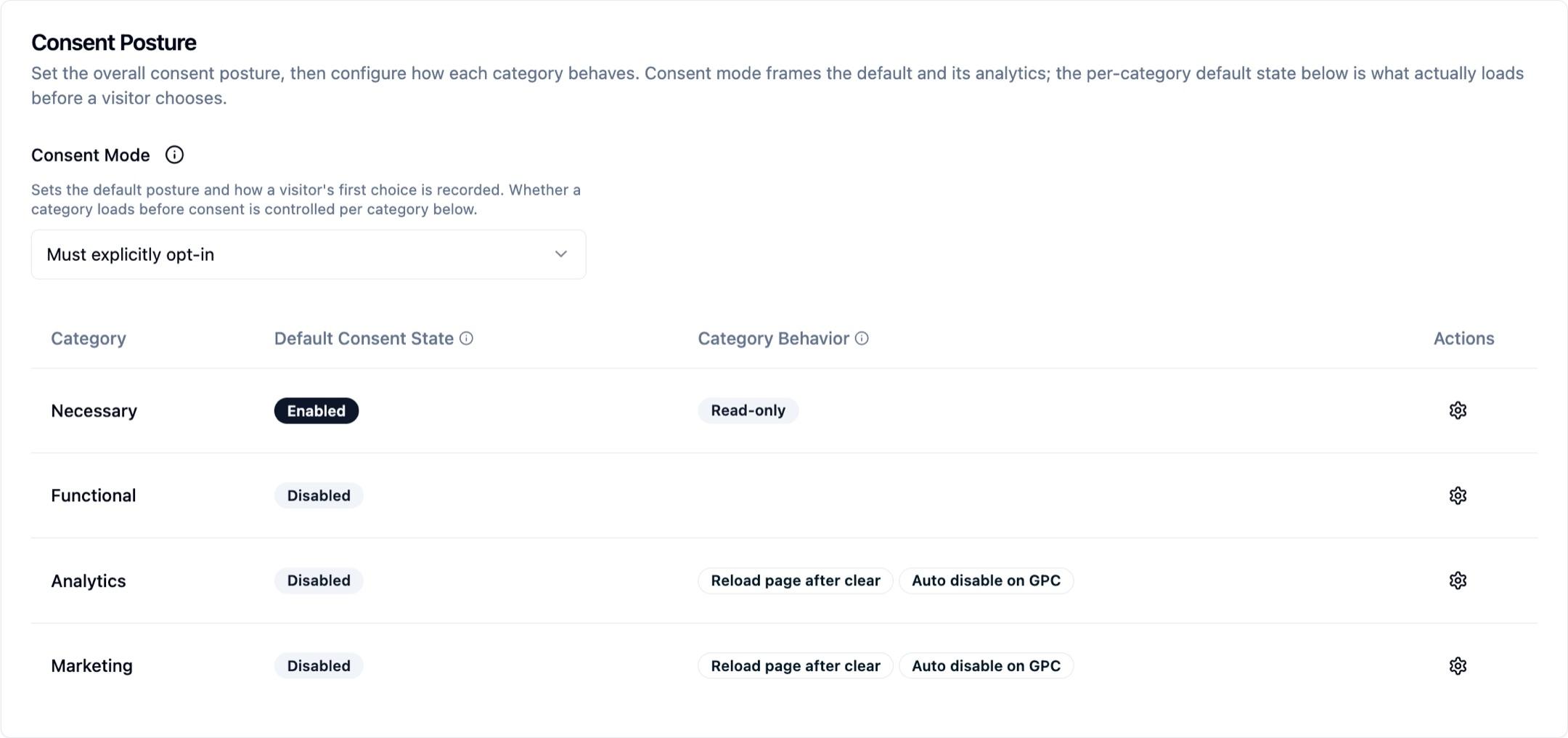
Important: Only categories with this toggle enabled are rejected by GPC. A category without it will remain in its default state even for visitors who have GPC turned on.
Step 2: Use a Regional Policy That Includes Those Categories
GPC handling is evaluated against the rule the visitor lands in — your default configuration or a Regional Policy override. For visitors from regions where GPC is legally recognized (for example California), make sure the active rule:
- Is scoped to the relevant regions (e.g.,
US-CA, and consider addingUS-UNKNOWNper the regional policies guidance). - Includes the categories you marked as GPC-respecting in Step 1.

If a regional rule does not include any GPC-respecting categories, the CMP has nothing to reject on the visitor's behalf. Visitors hitting that rule see the normal consent banner instead of the acknowledgement, even with GPC turned on.
Testing Your Configuration
- Install a browser extension that enables GPC (for example, Privacy Badger or DuckDuckGo Privacy Essentials), or use a browser that sends GPC natively with the setting turned on.
- Load a page on your site that is scoped to the regional policy you configured.
- Confirm the GPC acknowledgement appears and that the consent banner does not open.
- Open
window.ours_consent.getConsent()in the browser console and verify the GPC-respecting categories are listed underrejectedCategories. - Confirm that scripts in those categories are not executing (for example, check the Network tab for the vendor domains you expect to be blocked).
For an audit-grade record, export the visitor's consent from Auditing and Reporting.
FAQ
Do I also need to configure anything for server-side tracking?
Yes, if you use the Ours Privacy CDP or send events to destinations from the server. The CMP setting described on this page only governs what happens in the visitor's browser. Events that your backend sends after the browser has stored consent are evaluated separately. Use Global Data Governance to create rules that stop server-side dispatch when the relevant consent category has been rejected. This is a separate configuration from the CMP-level toggle and is typically required alongside it.
Does turning on auto-disable prove we are compliant with CCPA, CPRA, or other laws?
No. Honoring GPC is one piece of how several US privacy laws define a valid opt-out, but compliance depends on many other factors specific to your business — your data practices, contracts with vendors, privacy notices, response workflows, and more. Please work with your legal or privacy counsel to determine what your obligations are and whether this configuration is sufficient.
Why is the GPC acknowledgement not appearing for a test visitor?
Typical reasons:
- No category in the active regional policy has Auto Disable on GPC enabled.
- The visitor is being matched to a different regional rule than expected. Check the rule's regions, including whether
US-UNKNOWNis handled. - The GPC extension is not actually sending the signal on your page (some extensions only send GPC on specific contexts). Verify with
navigator.globalPrivacyControl === truein the browser console.
What happens to a returning visitor who had already accepted a category before GPC was turned on?
On the next load, the CMP re-evaluates consent against the current GPC state. Categories marked as GPC-respecting are moved to the rejected set, overriding the earlier acceptance, and the acknowledgement is shown.
Can I configure GPC handling differently per region?
Yes. Because GPC handling is evaluated against the regional policy the visitor hits, you can include or omit GPC-respecting categories from each regional rule independently. For example, you might configure a US-CA rule that respects GPC for advertising and analytics, while an EU rule relies on explicit opt-in consent instead.
Next Steps
- General Settings: Configure categories and the per-category GPC toggle
- Regional Policies: Scope your GPC-respecting rules to the right regions
- Auditing and Reporting: Export visitor-level evidence that GPC was honored
How is this guide?