

Script Blocking
Guide to configuring automatic and manual script blocking in the Ours Privacy CMP to prevent tracking until consent is granted.
Script Blocking
Our CMP is designed to prevent tracking scripts from running until consent is given. It does this in two complementary ways: automatic blocking (always on) and manual blocking (optional for advanced control).
All blocking relies on the concept of Services you define in your configuration. Each Service includes:
- A domain pattern to match requests (e.g.
*.google-analytics.com) - The category it belongs to (like Analytics or Advertising)
When a user hasn't consented to a category, any Service matching that category will be blocked — provided the category's "enabled by default" setting is off.
Categories configured as "enabled by default" are active before the visitor takes action. To block a category before consent, set its "enabled by default" to off.
Automatic Blocking
Automatic blocking is always enabled. It scans your pages for network requests and script loads that match any configured Service domains:
- Blocks requests that match configured Services immediately on page load.
- Also blocks dynamically injected scripts (e.g. from tag managers).
- Stops these scripts from executing until consent is granted for their category.
Important: Always test your implementation to ensure no critical functionality is inadvertently blocked.
Important: Scripts that are present on the page during load (not injected via tag managers) may have their assets loaded in the browser's resources tab. However, Ours will still attempt to block these scripts from executing, assuming you've properly configured your services and loaded the Ours Privacy CMP script early enough in your HTML page.
Important: Always configure your web scanner and check it frequently. This will help you identify which pixels, scripts, and cookies are being set without proper categorization.
If a script needs to be loaded on the page (not injected), it's best practice to include it directly in your HTML with the data-category and type="text/plain" attributes shown in the manual blocking section below.
Blocking Modes: Monitor vs Enforce
Your CMP operates in one of two blocking modes, configured per rule (so each region can use a different mode):
Monitor Mode (Default)
In Monitor mode, the CMP only blocks resources that match a configured Service with a category the user hasn't consented to. Resources from domains not listed in your Services are allowed to load normally.
This is the default for all rules. Use Monitor mode while you're setting up your CMP, building out your service list, and validating your configuration.

Enforce Mode
In Enforce mode, the CMP blocks all resources from domains not listed in your Services in addition to the standard category-based blocking. Any script, image, iframe, link, or network request from an uncategorized third-party domain is blocked automatically.
Resources from your own site's domain (and its subdomains) are always allowed, even in Enforce mode.
When to enable Enforce mode:
- Your service list is complete and covers all legitimate third-party integrations on your site
- You've validated your configuration in Monitor mode and confirmed nothing critical is missing
- You want the strictest possible blocking posture for compliance (e.g., GDPR, HIPAA)
How to enable it:
- Navigate to your consent setting's rule configuration (default or a regional override)
- Find the Resource Blocking selector
- Switch from Monitor to Enforce
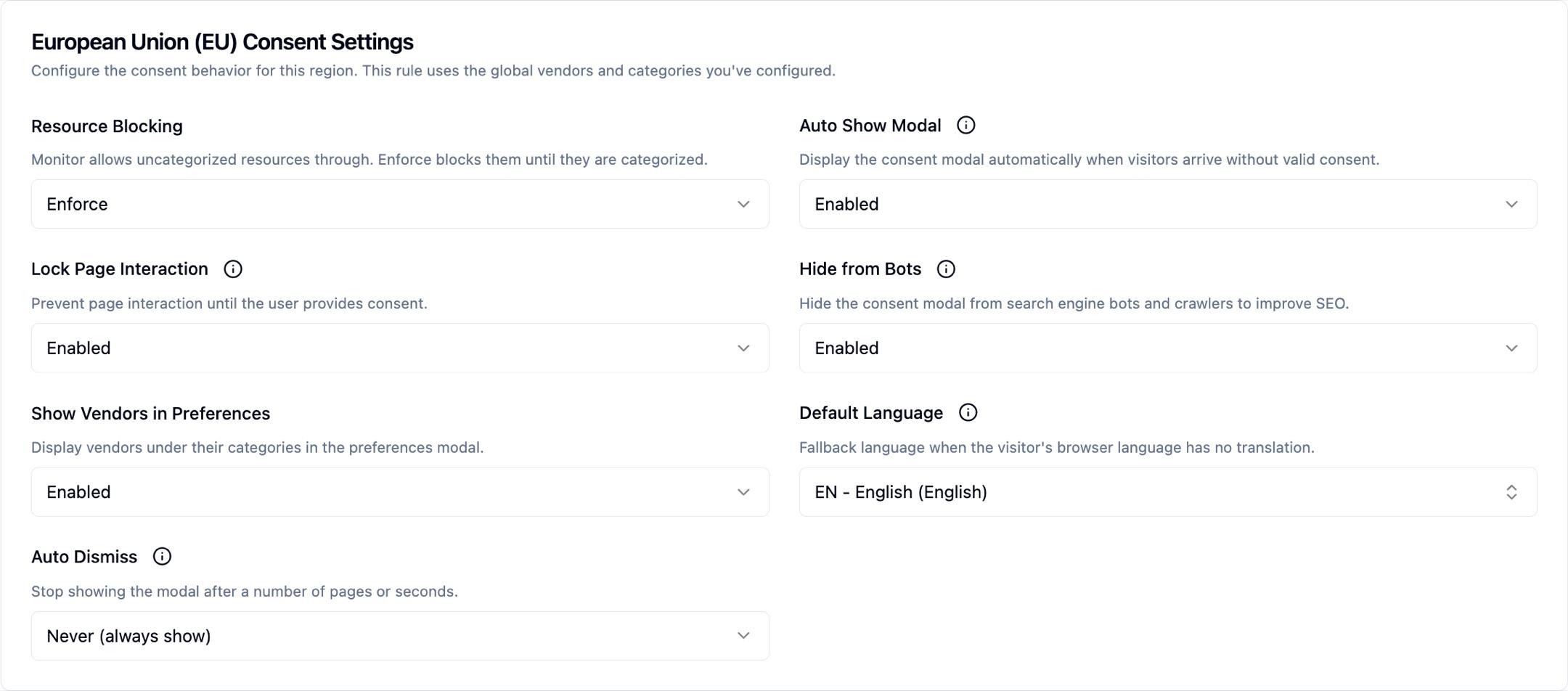
Important: Enabling Enforce mode without a comprehensive service list will block third-party integrations you haven't categorized yet. Always validate in Monitor mode first. Use your Web Scanner to discover uncategorized resources before switching.
Tip: You can run Enforce mode for EU visitors while keeping Monitor mode for US visitors by configuring each regional rule independently.
Enforce mode is also what holds back a script nobody has classified yet. For how that blocking relates to what the Web Scanner reports, and when your team is notified, see Real-time script blocking.
Manual Blocking
Manual blocking gives you precise, in-page control over which scripts are held back until consent.
Use manual blocking for any script that exists in your HTML document when the page loads. This includes:
- Scripts in your HTML source code
- Scripts added during server-side rendering
- Scripts that are part of your initial page structure
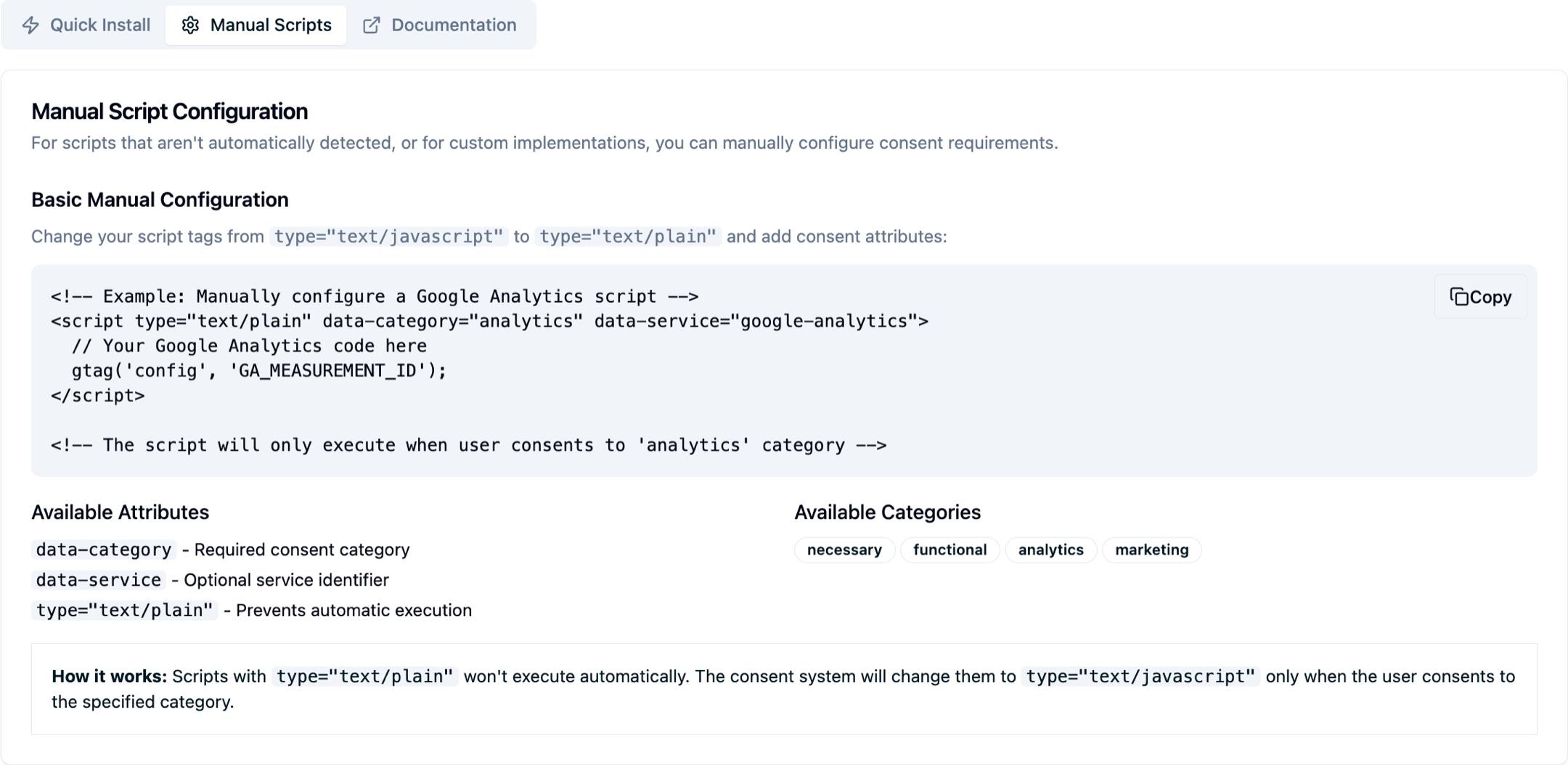
For this approach, you manually mark scripts in your HTML with special attributes that identify their category:
<script
  type="text/plain"
  data-category="analytics"
  src="https://www.google-analytics.com/analytics.js"
></script>
When the user consents to "analytics," these scripts are dynamically enabled.
What manual blocking controls:
- Execution: Scripts marked with
type="text/plain"won't execute until consent - Download: Scripts still download initially (unless you add additional attributes)
- Timing: Script execution is delayed until the user grants consent
When you don't need manual blocking:
- Scripts dynamically inserted via tag managers (e.g. Ours Privacy Tag Manager)
- Scripts added by JavaScript after page load
Benefits of manual blocking:
- Full control over which inline or external scripts are gated
- Ensures even scripts without network patterns can be held until consent
- Useful for self-hosted or custom third-party scripts
The Manual Scripts tab of your Install & Setup panel shows the same reference in-app, including the exact category keys your configuration accepts:
Tip: Combine automatic blocking (for domain-level detection) with manual blocking (for page-specific script tags) to ensure comprehensive coverage.
Next Steps
- General Settings: Configure Services and categories for blocking
- Installation: Ensure proper script placement for blocking to work
How is this guide?