

Bots & Traffic Quality
See how Ours Privacy identifies bot and automated traffic, analyze it in the Bot Analytics view, and keep your web analytics focused on real human visitors.
Use this page to understand how bot and automated traffic is handled in Web Analytics, so the numbers you act on reflect real human visitors. Bots, including crawlers, scrapers, uptime monitors, and automated tools, can inflate pageviews and skew engagement metrics if they're counted as people.
Ours Privacy classifies every event as it arrives, using both user-agent detection and an opt-in behavioral scoring algorithm. The mechanics live in the platform-wide Bot Detection and Filtering guide; this page covers what that means inside the analytics dashboard.
How Traffic Is Classified
Every web event is evaluated on two signals:
- User-agent detection flags traffic from known bots and crawlers (
is_bot). - Advanced Bot Detection (opt-in) assigns a behavioral
bot_scorefrom 0–100 and a category fromhumanthroughbot, based on mouse, scroll, click, keyboard, and timing patterns. Behavioral signals can catch bots that disguise their user-agent string.
Because the classification is stored on each event, the analytics dashboard can tell human sessions apart from automated ones. To get the most accurate scoring, enable Advanced Bot Detection in your SDK. See Bot Detection and Filtering.
The Bot Analytics View
A dedicated Bot Analytics view breaks down the automated traffic hitting your site, so you can see what you'd otherwise be filtering blind:
- Bot traffic over time: automated vs. human volume across your selected date range
- By page: which pages attract the most bot activity
- By event: which tracked events are most affected
Use it to gauge how much of your raw traffic is automated, spot crawler spikes, and confirm that filtering is doing its job. Open the Bot Analytics view from the left navigation.
Exclude Bots From Your Reports
Bot filtering keeps automated traffic out of every metric: session counts, bounce rate, sources, pages, locations, and devices all reflect humans only. Its control sits in the header of the Filters & segments panel, which opens from the Filter button in the toolbar.
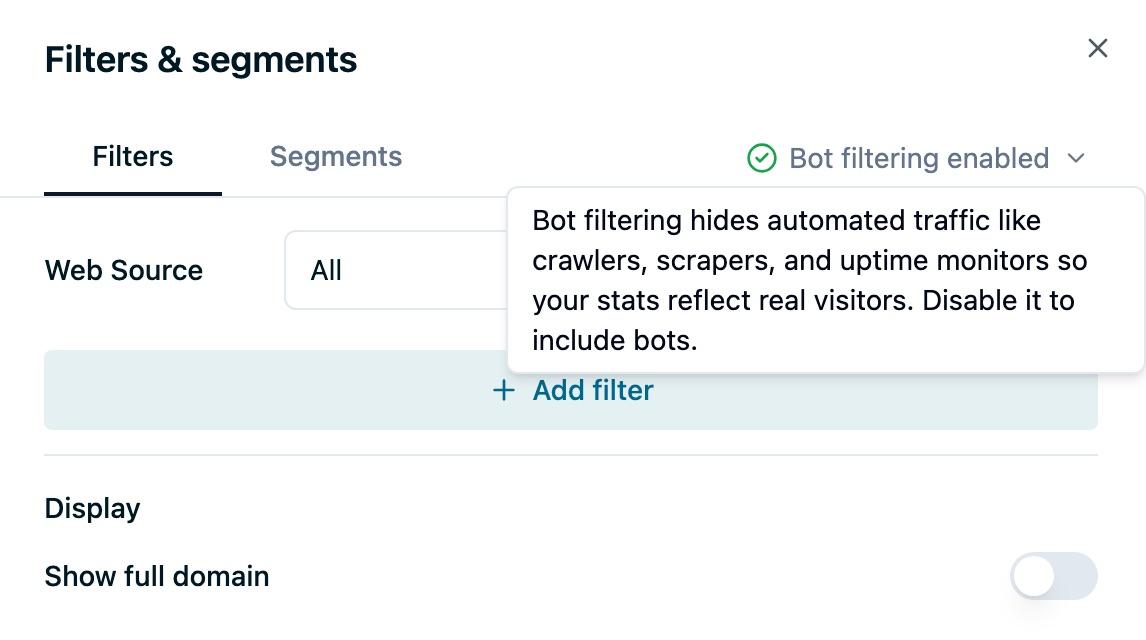
- On by default. Your dashboard shows human traffic out of the box. No configuration required.
- Turn it off to include bots when you want to see total raw traffic: open the Bot filtering enabled menu and choose Bot filtering disabled. Choose Bot filtering enabled to turn it back on.
- Persists with your view. The setting is saved in the dashboard URL, so a shared or bookmarked link keeps it. Saved segments do not store it.
- Realtime count includes bots. The live active in the last 30 minutes count in the toolbar is not affected by this setting.
Bot filtering is applied at query time, so your raw data is never discarded. Turn it off and the bot traffic reappears.
What gets excluded
With bot filtering enabled, Web Analytics removes two kinds of non-human traffic from the metrics:
- Known bots and crawlers, identified by user-agent.
- Datacenter and cloud traffic, from IP ranges that belong to providers like AWS, Google Cloud, and Azure. Real visitors rarely originate there, but scrapers and automated tools often do.
Filtering before data is collected
Bot filtering controls what you see in the dashboard. To drop bots before they're stored or sent to destinations at all, set a source's Bot Control Mode to Block or Threshold. See Bot Control Modes. The two work together: source-level modes decide what enters your data, and bot filtering decides what shows in this dashboard.
Common Use Cases
- Sanity-check a traffic spike. Before celebrating a jump in pageviews, open Bot Analytics to confirm it's human, not a crawler wave.
- Decide on a filtering policy. Start with Allow to measure how much bot traffic you get, then move a source to Threshold once you know your baseline.
- Protect downstream platforms. Keep bots out of ad and analytics destinations using Data Governance rules on
bot_score, as described in Bot Detection and Filtering.
Limitations
- Fully human-simulating bots that reproduce natural browsing across every measured dimension may score as human.
- Scoring is most accurate with the SDK signals enabled. Without Advanced Bot Detection, classification falls back to user-agent analysis only.
- No IP reputation data is used in behavioral scoring; it relies on user-agent and behavioral signals.
FAQ
Does Web Analytics count bots as visitors?
No, not by default. Bot filtering is enabled out of the box, so known bots and datacenter traffic are kept out of your metrics. Turn it off in the Filters & segments panel to include them, or open the Bot Analytics view to analyze automated traffic on its own.
How do I get more accurate bot detection?
Enable Advanced Bot Detection in your SDK init options (bot_detection: true). See Bot Detection and Filtering.
Is bot detection an extra charge?
No. Bot detection and filtering is free and included on all Ours Privacy accounts.
Next Steps
- Bot Detection and Filtering: configure Bot Control Modes and Advanced Bot Detection
- Filtering & Exporting Data: segment the dashboard once your traffic is clean
- Metrics Glossary: how visitors and sessions are counted
Need Help?
Reach out to support@oursprivacy.com if you have questions about bot traffic or filtering it from your reports.
How is this guide?