

Funnels
Build conversion funnels in Ours Privacy that follow a person across visits for up to 90 days, measure the conversion rate at each step, filter steps by any property, and find where people drop off.
Use Funnels to measure how people move through a series of steps, see the conversion rate at each step, and find where they drop off. A funnel follows one person across visits by default, so someone who reads a service page on Tuesday and books on Friday counts as a conversion.
Open Funnels in appFunnels is available on the Analytics Suite. Contact your account representative to add it to your plan.
Permissions
Funnels uses the Web Analytics permission set.
| Permission | Capabilities |
|---|---|
| Web Analytics: View | View funnel results, browse the funnels list, and export PDFs |
| Web Analytics: Write | Create, edit, duplicate, and delete funnels (includes all View capabilities) |
If you do not have Write access, ask your account administrator for Web Analytics: Write access.
Create a funnel
Open Funnels from the Analytics section of the left navigation, then select Create Funnel.
Steps
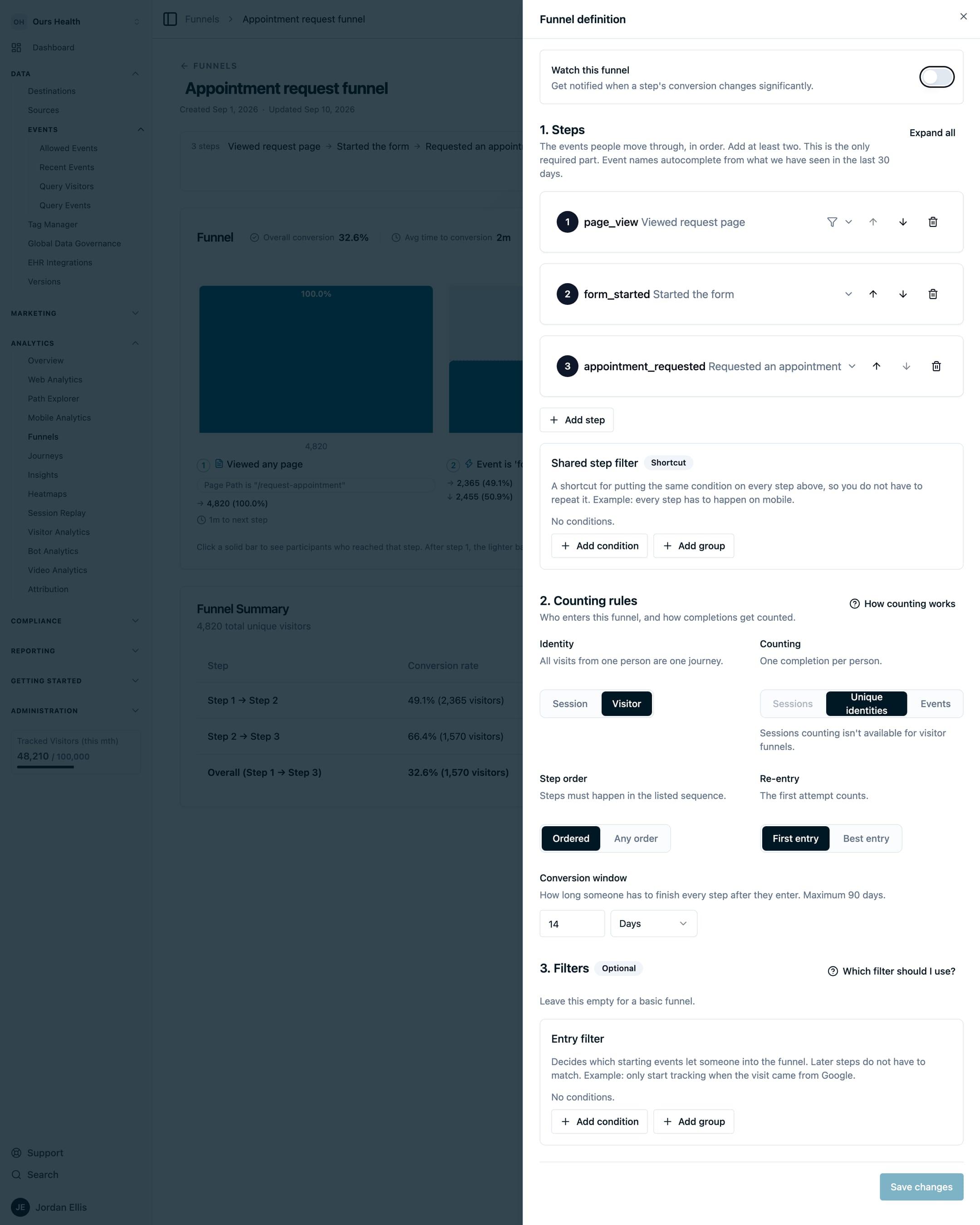
A funnel needs between 2 and 10 steps. Each step is an event or a page view. Pick an event name from the list of events seen in your account, or match a page by its path. Drag steps by the handle to reorder them.
Filters
Filters narrow what counts, at three levels:
- Entry filter: who enters the funnel at all, such as visitors from one campaign.
- Event filter: a condition every matched event must satisfy, such as a source.
- Step filter: a condition on one step, such as
form_idisappointment.
Conditions use the same property picker as the rest of Analytics: page, campaign, traffic source, location, device, visitor properties, and custom event properties. The picker suggests custom properties seen in the last 30 days, and you can type a property path by hand. Page URL conditions match URL fragments, so a single-page form that moves through #step-2 and #step-3 without a page load still produces a readable funnel, provided the page sends an event on each change.
Settings
| Setting | Options |
|---|---|
| Identity | Visitor: all visits from one person are one journey (the default). Session: each visit is judged on its own. |
| Counting | Unique identities: one completion per person. Sessions: one completion per session. Events: every qualifying event counts. |
| Order | Ordered: steps must happen in the listed sequence. Any order: steps can happen in any sequence. |
| Re-entry | First entry: the first attempt counts. Best entry: the attempt that reached the most steps counts. |
| Conversion window | How long a person has to complete every step from the first. Up to 90 days. |
Watch this funnel
Turn on Watch this funnel to be notified when a step's conversion rate moves beyond its expected range. Delivery follows your notification preferences, and an administrator can route funnel notifications to Slack from Notification channels. Watching does not change the results.
Save
Select Save funnel. Results are computed when you open the funnel, so there is no waiting period.
Read the results
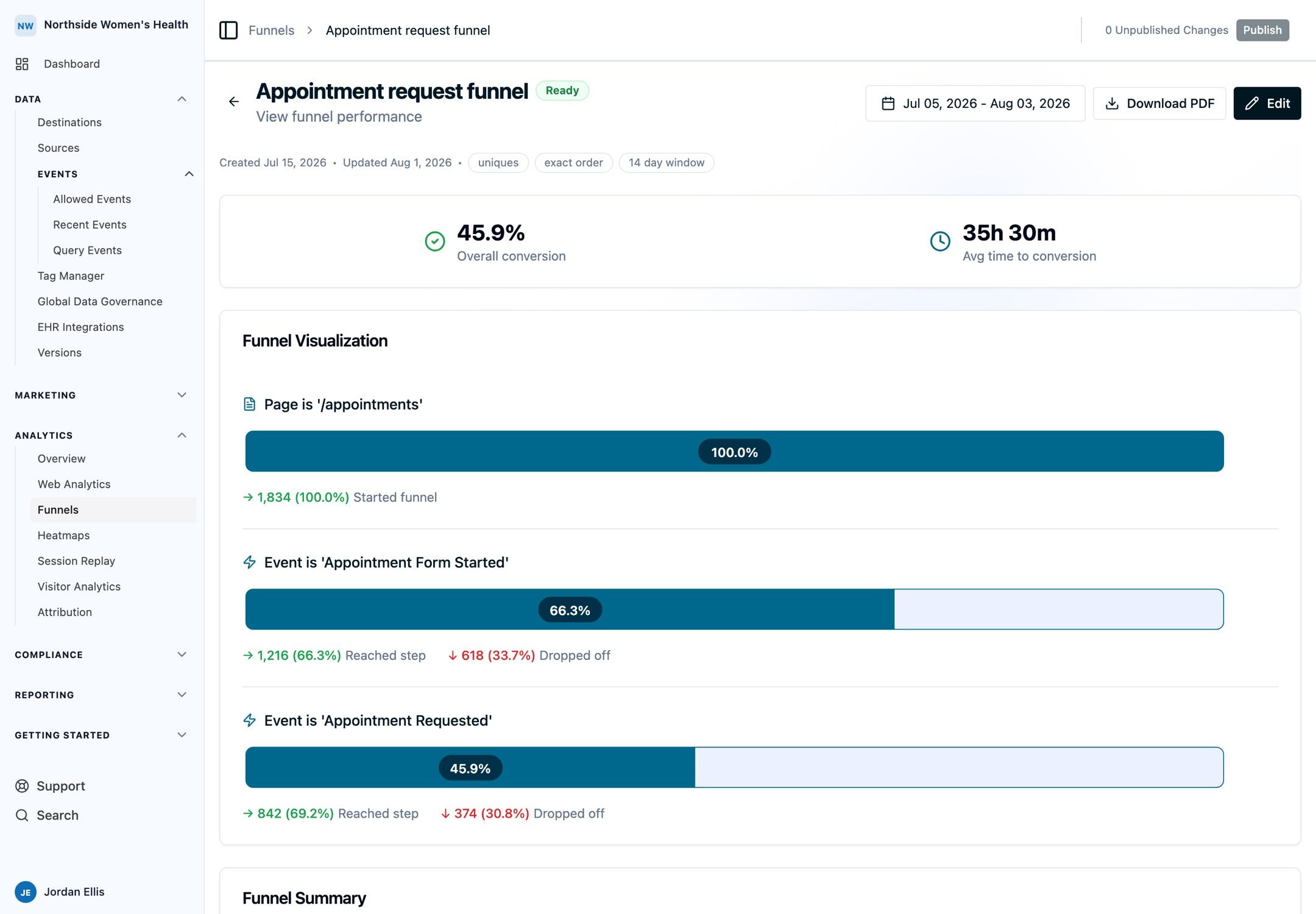
- Overall conversion is the share of people who completed every step. Avg time to conversion is the average time from the first step to the last.
- The funnel chart draws one bar per step with the share that reached it and the share that dropped off before it.
- The summary table breaks down each transition with its conversion rate, drop-off, and time between steps.
A funnel that counts Events shows Event volume by step and event ratios instead of drop-off percentages, because drop-off describes people rather than event counts. The same applies where an experiment embeds a funnel.
Use the date picker to view any range up to 90 days. Dates are in UTC.
Edit from the results page
Select Edit to open the definition in a side panel beside the results. Change a step, a filter, or a setting and the results update when you save. Rename the funnel from its header.
Samples and session replays
Select a solid bar to see a sample of the people who reached that step. After step 1, select the lighter band above a bar to see who dropped off since the previous step. Each sample holds up to 50 visitors and 50 sessions, and can differ each time you open it. A funnel that counts Events shows View participants under each step instead.
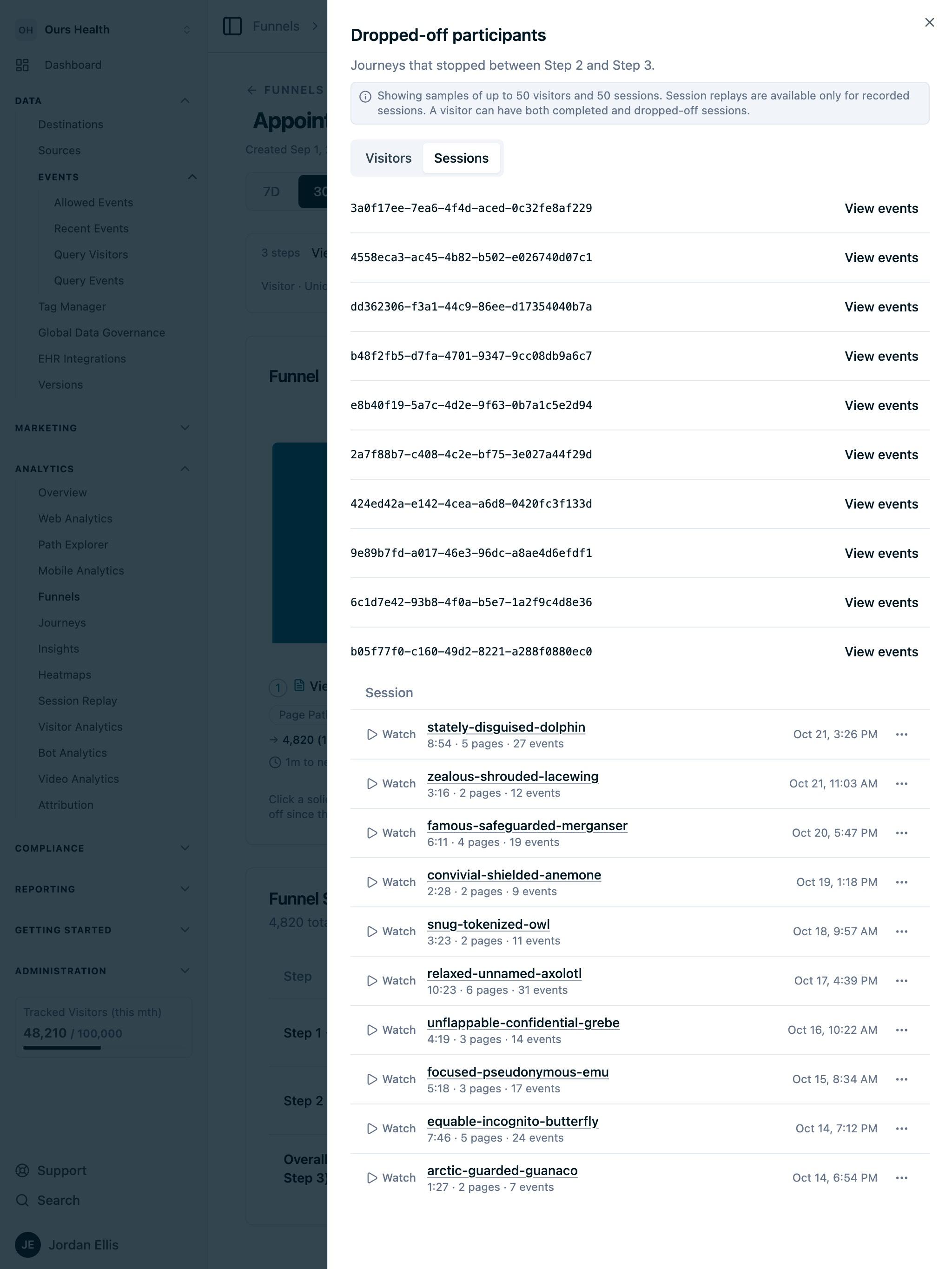
- Visitors lists each person, linked to their visitor profile, where you can follow them across visits. View events opens their events in Query Events.
- Sessions lists the sampled sessions. Select Watch to open a session's replay, for example to see where people who started the appointment form stopped. Replays appear when Session Replay is enabled on your account, and only for sessions that were recorded.
Export, duplicate, and delete
- Download PDF produces a report with the funnel name, date range, settings, per-step filters, the chart, and the summary table.
- Duplicate from the funnels list copies the definition, so a variant for a second location starts from the original.
- Delete from the actions menu on the funnels list asks you to confirm first.
Funnels are also available over the REST API, including results and duplication, and through the MCP server, where an agent can list funnels, read a definition, and pull results.
FAQs
Does a funnel follow a person across visits?
Yes, by default (Identity set to Visitor). Set Identity to Session when a single sitting is what you want to measure.
How long does it take for results to appear?
Results are computed when you open the funnel. Large accounts, wide date ranges, and any-order funnels take longer, and a very large any-order funnel can exceed the query limit. Narrow the range if that happens.
Can I break a funnel down by a property?
Not yet. Duplicate the funnel and add an entry filter per value you want to compare.
What counts as the conversion window?
The time a person has to complete every step, counted from the first step. A 7-day window means every step must happen within 7 days of the first.
Next Steps
- Journeys: see where people went instead of the next step.
- Insights: chart the events in your funnel over time.
- Audience Performance: conversion rate and revenue for a segment.
- Session Replay: watch the sessions behind a sample.
How is this guide?