

Slack Notifications
Connect a Slack workspace to your organization and route selected notifications to a shared channel so the whole team sees them in one place.
Send selected notifications to a shared Slack channel so your whole team sees them in one place, instead of relying on individual inboxes. Slack is connected once for the entire organization, not per person.
Open Notification channels in appNote: Connecting Slack and choosing what posts there is an admin task. It needs the Manage notification channels permission, which is available to organization admins. If you don't see the Notification channels page, ask an admin or owner to grant it. See policies and permissions. Personal email and in-app notifications are set separately on your notification preferences.
Connect Slack
- Open Notification channels.
- Connect your Slack workspace and authorize Ours Privacy.
- Choose the channel where notifications should post.
You connect Slack once for the organization. After it's connected, anyone with the Manage notification channels permission can choose which notifications post.
Important: The Ours Privacy app must be a member of the channel you choose. For a private channel, add the Ours Privacy app to it in Slack first so it appears in the list.
The connection belongs to the organization, not the person who set it up. It keeps working if that person later leaves the team. You can change the channel or disconnect from the same page at any time.
Choose which notifications post
Slack delivery is set per individual notification, and every notification starts off. Nothing posts to Slack until you turn it on. Each notification has its own on/off switch; turn on the ones your team should see in the channel:
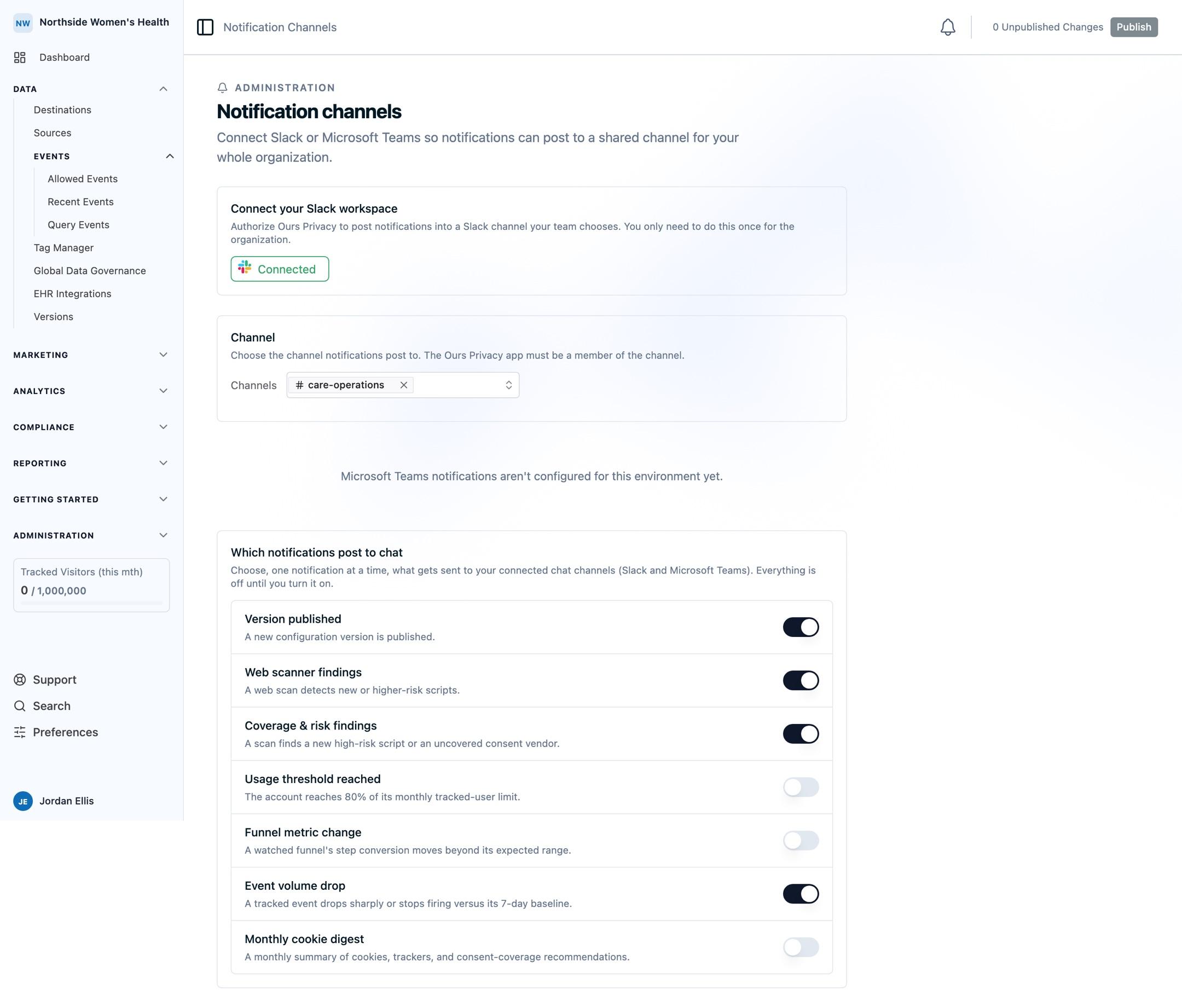
- Version published: a new configuration version is published.
- Web scanner findings: a web scan detects new or higher-risk scripts.
Turn a notification off again at any time to stop it posting.
Note: Slack routing is separate from each person's notification preferences. Turning a notification on for Slack posts it to the shared channel regardless of any individual's email or in-app settings.
What a Slack post looks like
Posts are intentionally minimal: a one-line summary and a link back into Ours Privacy where the full detail lives. For example:
- Version published: "Version 42 of Ours Privacy was published by Jordan." with a View the version link.
- Web scanner findings: "Web scan of example.com completed with changes from the previous run. 2 high, 5 medium, 1 low risk." with a View scan results link.
Posts carry only summary counts and a link, never your customers' data.
Microsoft Teams
Slack is supported today. Support for other shared channels, such as Microsoft Teams, is planned. We don't have a date to share yet. Contact support@oursprivacy.com if Teams is important to your rollout.
FAQ
Who can connect Slack and choose what posts? Anyone with the Manage notification channels permission, which is available to organization admins. A partner or admin can set it up, and another admin can manage it later. The connection isn't tied to one person.
Can I use a private channel? Yes. Add the Ours Privacy app to the private channel in Slack first, then choose it during setup.
Does Slack delivery depend on anyone's personal preferences? No. Slack routing is per organization and independent of each person's email and in-app settings.
How often do posts arrive? A post is sent each time the notification happens. There is no digest or batching today.
I manage several organizations: can I reuse one Slack workspace? Yes. Connect Slack in each organization separately; you can authorize the same workspace for each and point each organization at its own channel.
Next Steps
How is this guide?