

Notification Preferences
Choose which notifications you receive by email and in-app, by category, and pause everything when you need quiet.
Use this page to choose which notifications you receive and where. Your preferences are personal. They affect only your own email and in-app notifications, not your teammates'.
Open Notification preferences in appNote: Preferences apply to the organization you're currently in. If you work across several organizations, see per-organization preferences.
Channels
Each notification can reach you on two channels:
- Email: sent to the address on your account.
- In-app: shown in your in-app inbox inside Ours Privacy.
Want notifications to reach a shared team channel instead of individual inboxes? That's set up separately by an admin. See Slack notifications.
Categories
Notifications are grouped into categories so you can manage related alerts together:
- Configuration updates: when a new version of your configuration is published.
- Security & scanning: when a web scan detects new or higher-risk scripts.
- Usage & billing: when the account approaches its monthly tracked-user limit.
New categories appear here automatically as new notification types are added.
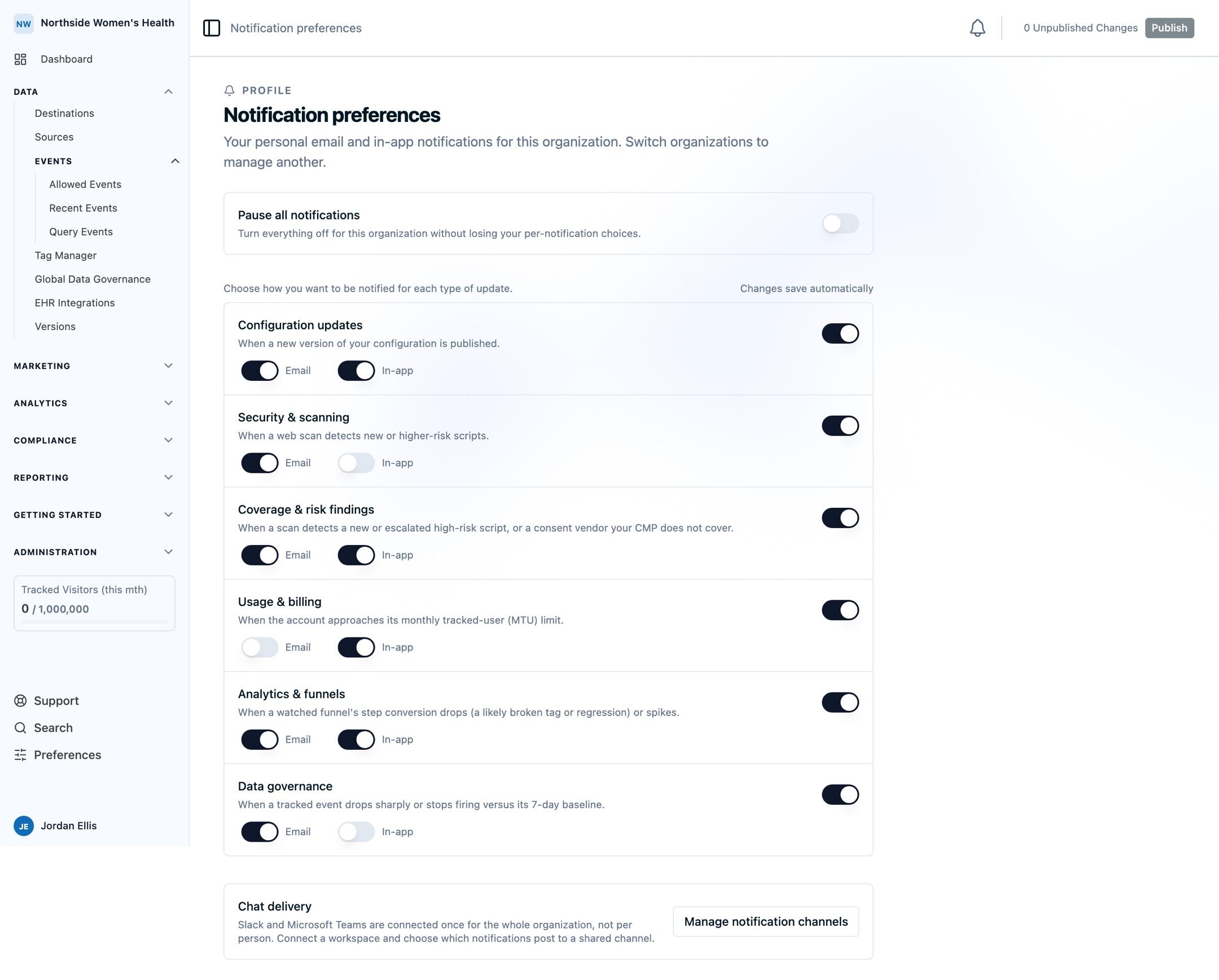
Turn a notification on or off
You receive every category on both channels by default. To change that:
- Open your notification preferences.
- Find the category you want to change.
- Toggle a single channel (for example, turn off Email but keep In-app), or use the category's master toggle to turn the whole category off.
Changes save as you make them.
Pause everything
Need quiet for a while? Use Pause all to switch off every channel for every category at once, for the organization you're currently in. Switch Pause all off again to resume your previous settings. Your per-category choices are kept while paused. Pause all stays on until you turn it off; it doesn't expire on its own.
Note: Pause all affects only your notifications in the current organization. It does not change anything for your teammates or for a shared Slack channel.
FAQ
Does turning off email also turn off in-app? No. Email and in-app are independent. Turn off email and keep the in-app inbox, or the other way around.
Do my teammates inherit my settings? No. Preferences are personal. Everyone receives notifications by default and can adjust their own.
How often do notifications arrive? One per event, as things happen. There is no digest today.
Next Steps
How is this guide?