

Per-Organization Preferences
Notification preferences apply to one organization at a time. Learn how to quiet a single organization without affecting the others.
Your notification preferences apply to one organization at a time, the one you're currently working in. If you belong to several organizations, each keeps its own preferences. This page explains how that works and how to quiet a single organization.
Why preferences are per organization
Many teams, including agencies, partners, and anyone managing more than one account, work across several organizations in Ours Privacy. Per-organization preferences mean you can stay closely notified about an active project while keeping a quieter one silent, without one setting bleeding into another.
When you open your notification preferences, you're always looking at the settings for the organization you're currently in.
Switch which organization you're managing
Use the organization switcher in the app to change which organization you're working in. Your notification preferences follow that switch. Once you're in the organization you want to adjust, open your notification preferences and your changes apply to that organization only.
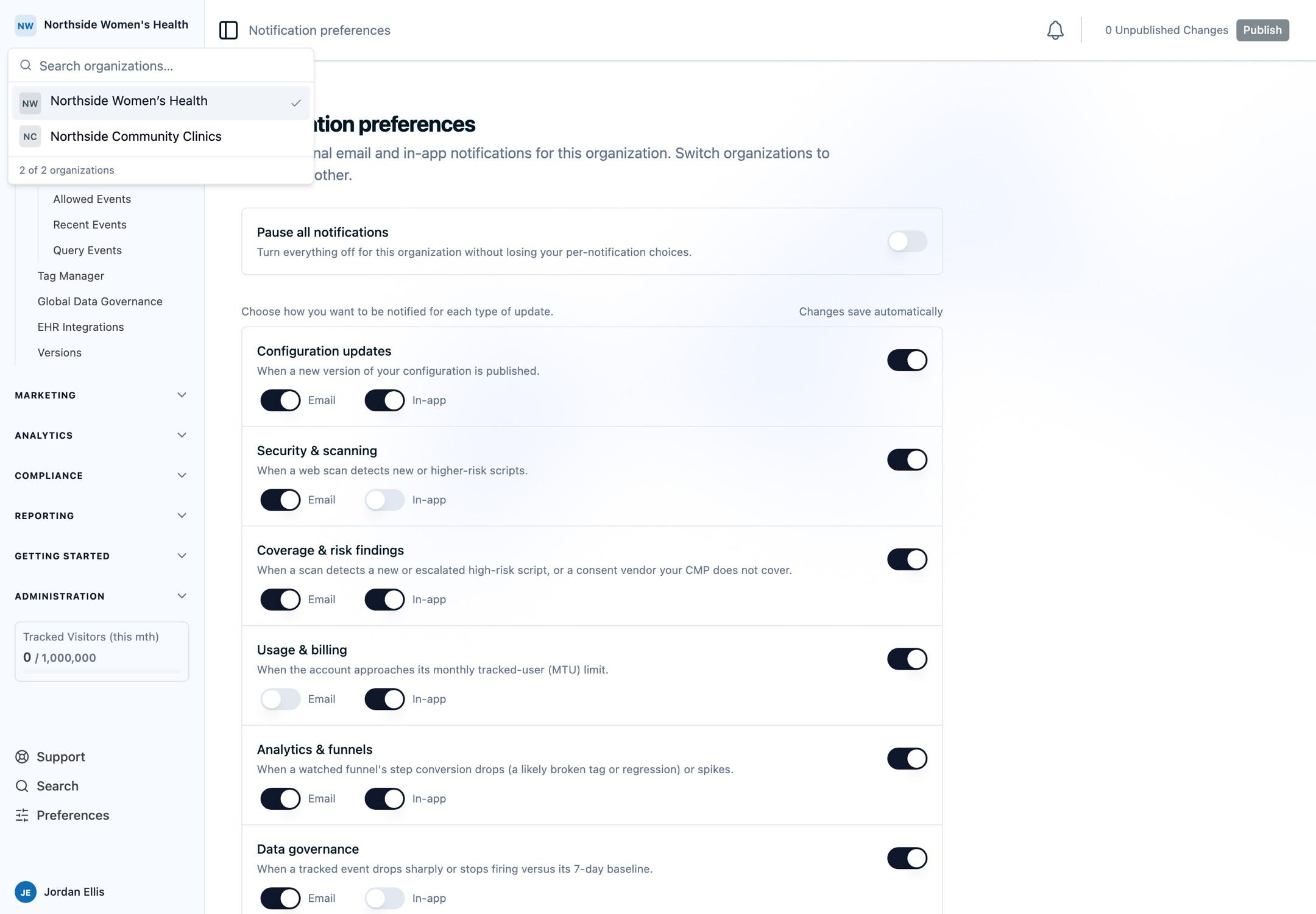
Quiet a single organization
To stop notifications from one organization while keeping the others as they are:
- Switch to the organization you want to quiet.
- Open your notification preferences.
- Use Pause all to silence everything, or turn off individual categories or channels.
Your other organizations are untouched. Switch back at any time to re-enable.
Note: This changes only your notifications. To stop a notification for the whole team's shared Slack channel, an admin manages that separately.
Managing many organizations
If you manage many organizations, for example, an agency with a separate organization per client, a few things to know:
- Organizations are isolated. Preferences, and any Slack connection, are scoped to a single organization. One client's settings never affect another's, and people in one organization don't see another's notifications.
- Settings are applied per organization. Today you adjust preferences one organization at a time by switching to it; there's no single control that changes every organization at once.
- New notification types start on for email and in-app (you can turn them off) and off for Slack until an admin turns them on. So a new notification type won't start posting to a client's Slack channel on its own.
If managing notifications across many organizations at scale is important to your workflow, let us know at support@oursprivacy.com.
Next Steps
How is this guide?