

Journeys
Build a saved Journey in Ours Privacy: pick up to 10 anchor events and see the paths people take before, between, and after them as a User Flows diagram or a Top Paths list, with timing, samples, and export.
Use Journeys to see the paths people take before, between, and after the events you care about. You pick the anchor events, and the report draws every observed path around them, counts how many people took each one, and shows how long each step took.
Open Journeys in appJourneys is available on the Analytics Suite. Contact your account representative to add it to your plan.
Looking for a different report? Path Explorer walks page-to-page flows one step at a time inside Web Analytics. Conversion Paths summarizes the sources and timing behind one conversion event. Journeys is the saved, event-anchored analysis of everything that happens around the events you choose.
Permissions
Journeys uses the Web Analytics permission set.
| Permission | Capabilities |
|---|---|
| Web Analytics: View | Open saved journeys, explore results, and export |
| Web Analytics: Write | Create, edit, and delete journeys (includes all View capabilities) |
Create a journey
Open Journeys from the Analytics section of the left navigation, then select Create journey.
Anchors
Add between 1 and 10 anchors. An anchor is an event or a page view that every counted journey must pass through, in order. In the dashboard, choose one event or page matcher per anchor.
With one anchor, the report shows what happened before and after it. With two or more, it also shows the steps between them.
Exploration
Choose where to look relative to the anchors: steps before the first anchor, between anchors, after the last anchor, or any combination. Set how many steps deep to go in each direction.
Counting
| Option | Counts |
|---|---|
| Unique visitors | Each person once. Visits are joined by visitor ID, so a person who returns on another day stays in one journey, and server-side events join the same journey as browser events. |
| Sessions | Each browser session as its own journey. A session journey needs every anchor in one session. |
| Total attempts | Every pass through the anchors, so one person can contribute several. |
Re-entry decides which attempt counts when a person passes the first anchor more than once: First entry or Best entry, the attempt that reached the most anchors. Total attempts always uses First entry.
Windows
- Conversion window (days): how long a person has to move from the first anchor to the last. The default is 30 days and the maximum is 90.
- Context window (days): how far before the first anchor and after the last anchor to look for surrounding steps.
Filters
Add filters at four levels: on the entry (who starts the journey), on the path (which surrounding events count), on the session, and on all anchors at once. Scope the journey to one source or All sources, and choose whether to include bot traffic.
Save
Select Save to journey. The journey saves with every setting, and results are computed when you open it.
Read the results
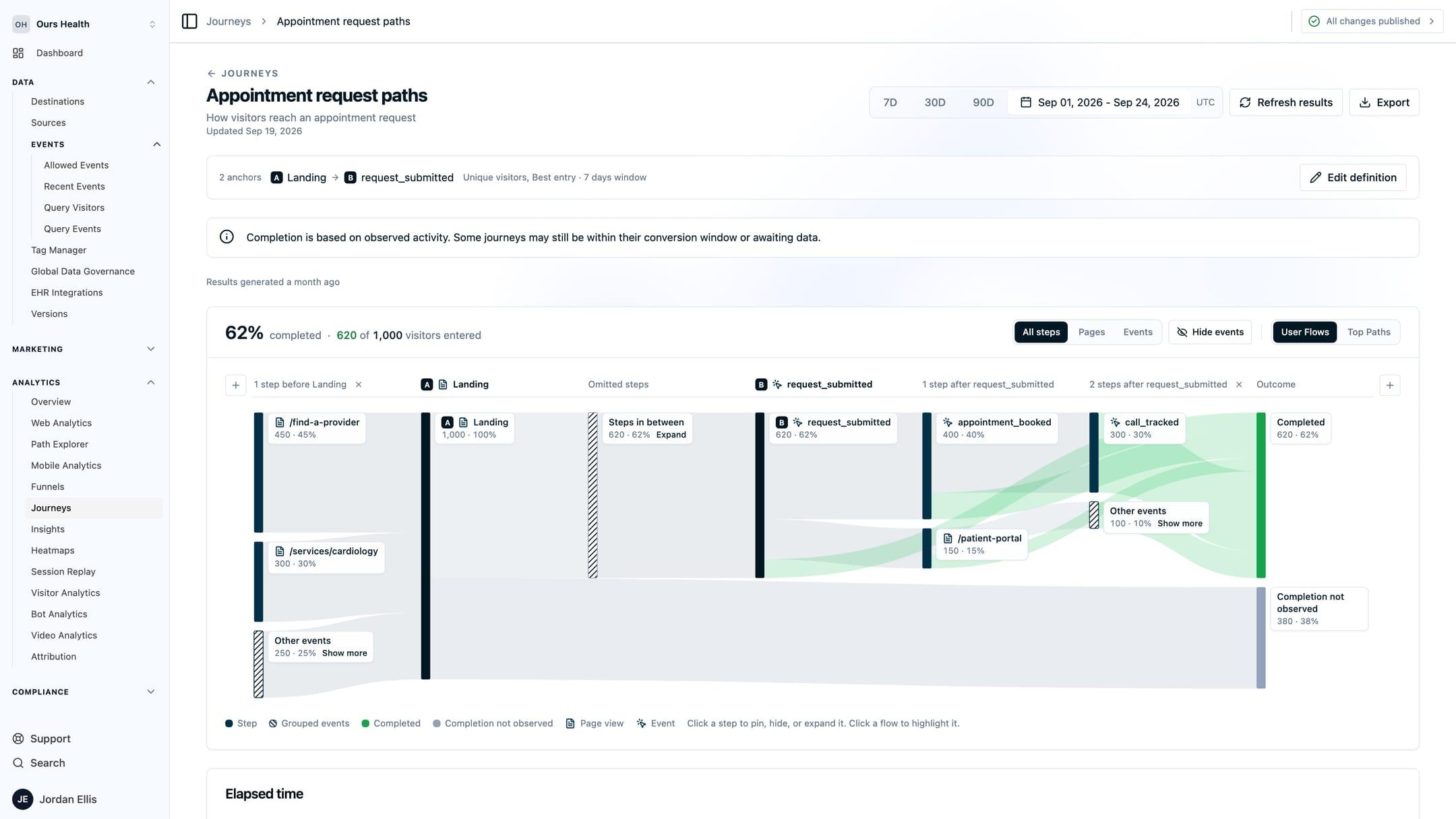
User Flows
User Flows draws the journey as a flow diagram. Each column is a step position relative to the anchors, each node is an event or page, and the width of a connection is the share of journeys that took it. Hover a connection to see its count and the elapsed time between the two steps.
Top Paths
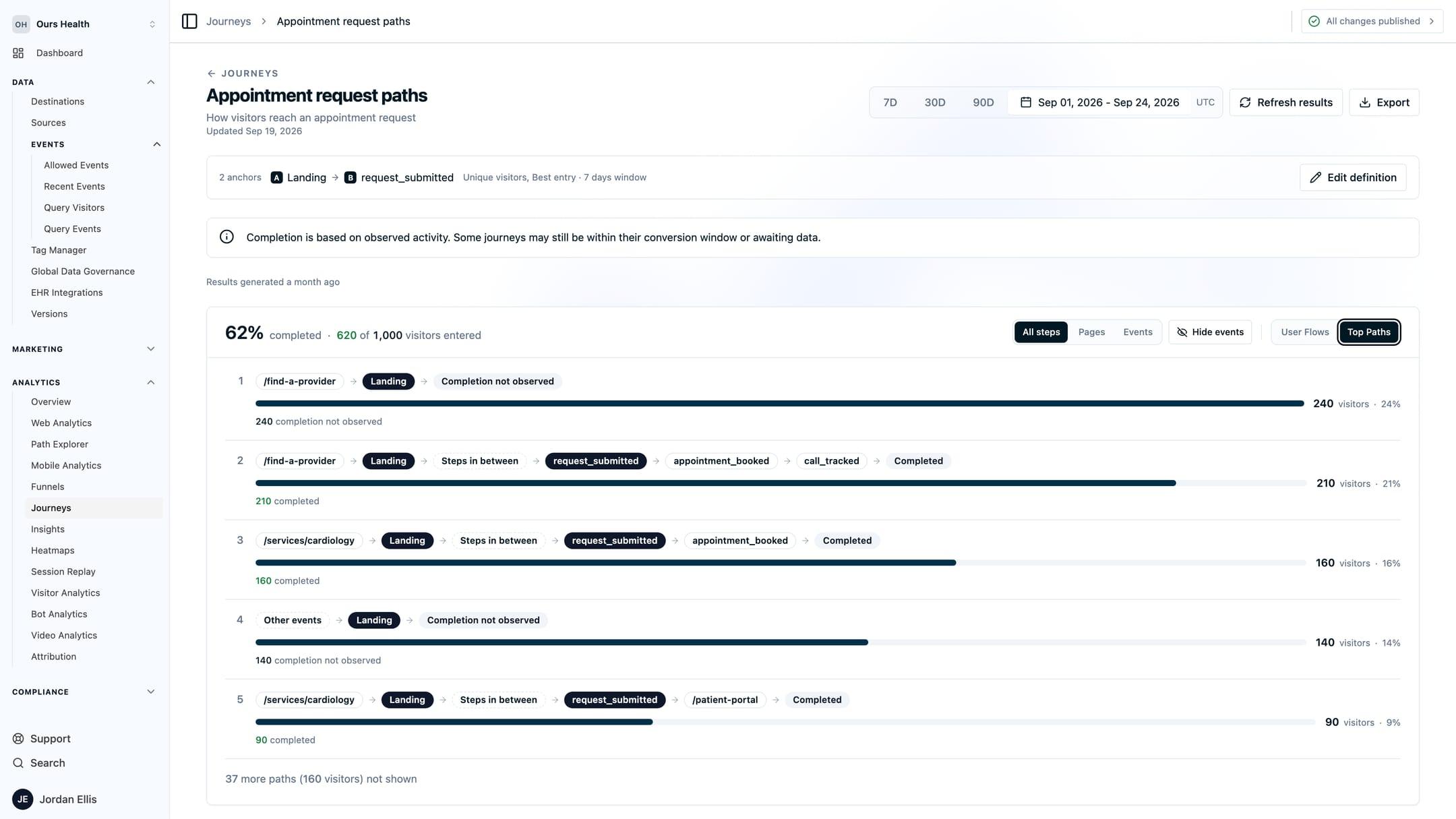
Top Paths ranks the most common complete sequences as a list, with the count and share of journeys for each. Sequences that fall below the Top paths count you set are grouped under Other events.
Focus and cleanup
- Hide this event or Hide this page removes a noisy step from the diagram without changing the saved definition.
- Collapse merges consecutive repeats of the same step into one.
- Pin this step limits the diagram to paths through that step. Pin an outcome to show only Completed or incomplete journeys.
- Show steps in between and Expand steps in between open up the detail between two anchors.
Display changes are separate from the saved definition. Save or reset them before exporting a CSV.
Timing
Every connection carries the elapsed time between its two steps, and the journey header shows the time from the first anchor to the last.
Samples
Select a node or an outcome to open Sample journeys: up to 50 visitors, sessions, or attempts that took that path. Each sample links to its session replay when one exists. Session replays appear only when Session Replay is enabled on your account.
Export
Open Export to Download CSV or Download PDF. The CSV contains the aggregate flow and path counts, not the samples. Saved journeys are also available over the REST API as Journey Flows, including preview, results, and CSV export.
Limits
- Dates are in UTC, and a journey covers up to 91 calendar dates.
- Exclusion steps, breakdowns by property, and comparisons between two journeys are not available yet.
- Very large journeys with two or more anchors over long ranges can take longer than the query limit and return an error. Narrow the date range or the context window if that happens.
FAQs
Does a journey follow a person across devices?
Journeys join visits by visitor ID. A person is followed across visits on the same identity, including server-side events sent with that visitor ID. Two devices with different visitor IDs are two people unless an identifier you send resolves them to one. See Visitor Identity and Matching.
What is the difference between Journeys and Path Explorer?
Path Explorer walks page views one step at a time from a starting page, inside Web Analytics. Journeys starts from events you choose, includes every source, saves as a report, and exports.
Can I compare two journeys?
Not yet. Save each one separately and compare the Top Paths lists.
Next Steps
- Insights: chart how often the events in your journey happen over time.
- Funnels: measure drop-off across an ordered set of steps.
- Journey Flows API: create and read journeys over REST.
- Session Replay: watch the sessions behind a sample.
How is this guide?