

Insights
Chart how often events happen, how many visitors do them, and the sum or average of an event property over time in Ours Privacy Insights, with period comparison and PDF, PNG, and CSV export.
Use Insights to chart how often events happen, how many visitors do them, and the sum or average of a numeric property, over any range up to a year, with a comparison to an earlier period.
Open Insights in appInsights is available on the Analytics Suite. Contact your account representative to add it to your plan.
Which Insights? This page covers the Insights report under Analytics. Event Attribution Insights is an Attribution Center report about where converters came from. Page Insights is a Web Scanner review of a captured page. Each has its own page in the docs.
Permissions
Insights uses the Web Analytics permission set. Web Analytics: View opens and exports saved insights. Web Analytics: Write creates, edits, and deletes them.
Create an insight
Open Insights from the Analytics section of the left navigation, then select New insight.
Metrics
Add up to 10 metrics. Each metric matches one or more events (up to 10, combined with "or") and measures one of:
| Measure | What it counts |
|---|---|
| Total events | Every matching event in the period |
| Unique visitors | Each visitor once per period, and once across the whole range in the totals |
| Sum of | The sum of a numeric event property, such as order value |
| Average of | The average of a numeric event property, weighted across the range |
Each metric has its own filter under Filter on event. Use Filter all metrics to apply one condition to every metric in the report.
Chart
Choose Line, Column, Bar, Pie, Metric, or Table. Line and column charts plot one value per period, with a results table underneath that lists each metric's total, its average per period, and the value for each period. They offer a log scale, Cumulative values, and a rolling average of up to 30 periods. Point at a bar or a point to see its value.
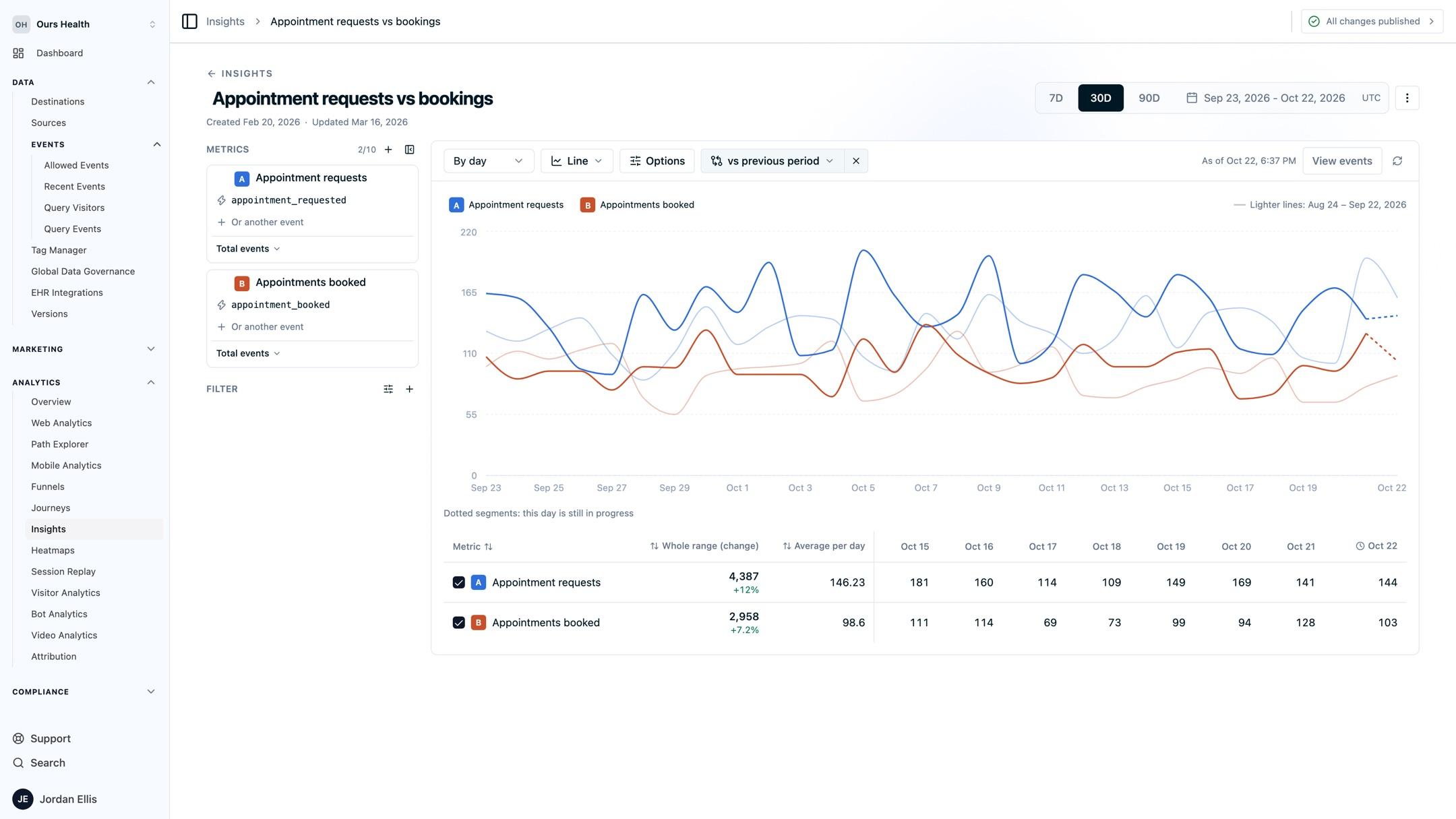
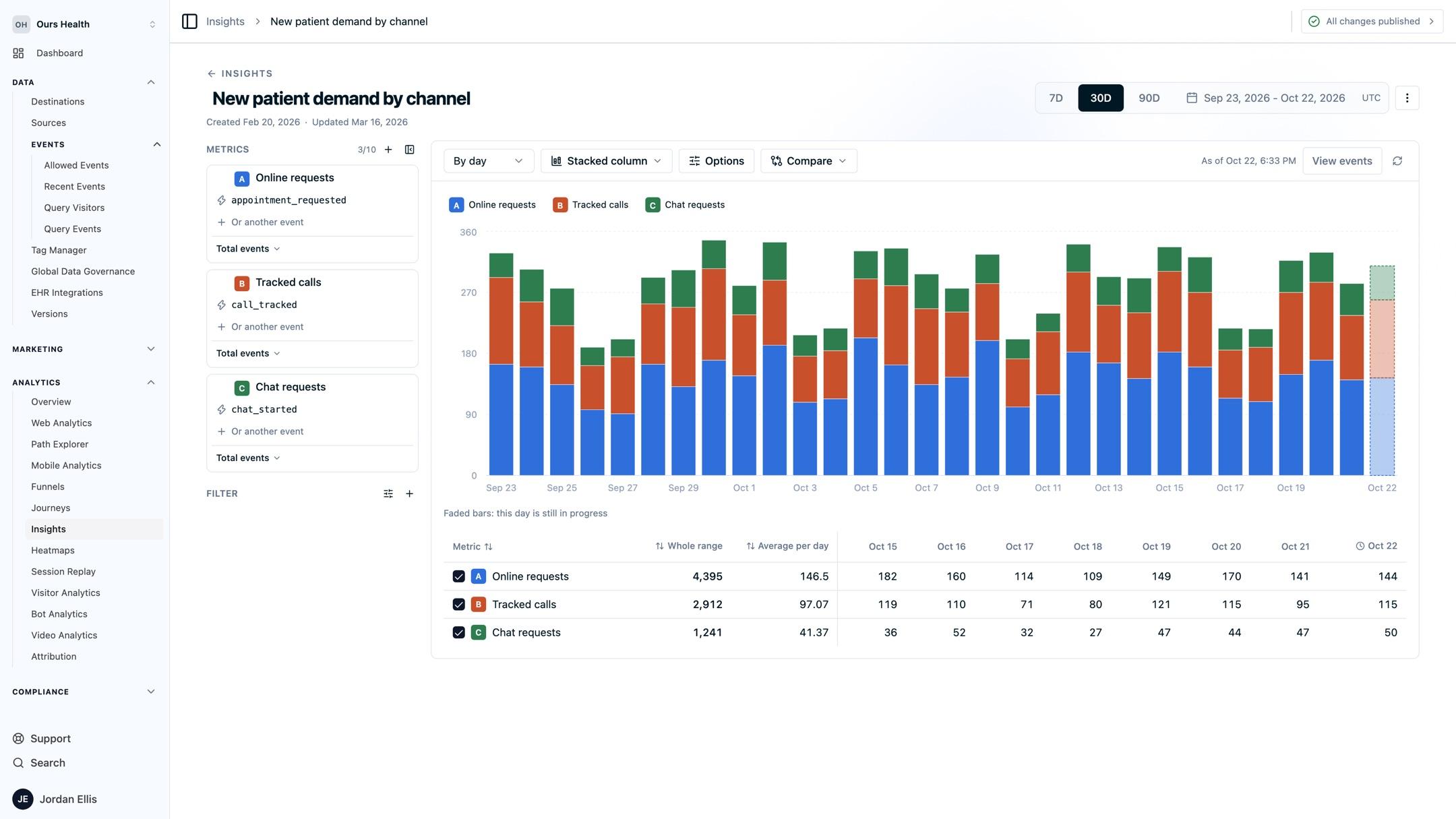
Choose Stacked column or Stacked line to stack the metrics, so each column shows the combined total and how it splits across metrics. A period that is still running, such as today, is drawn faded.
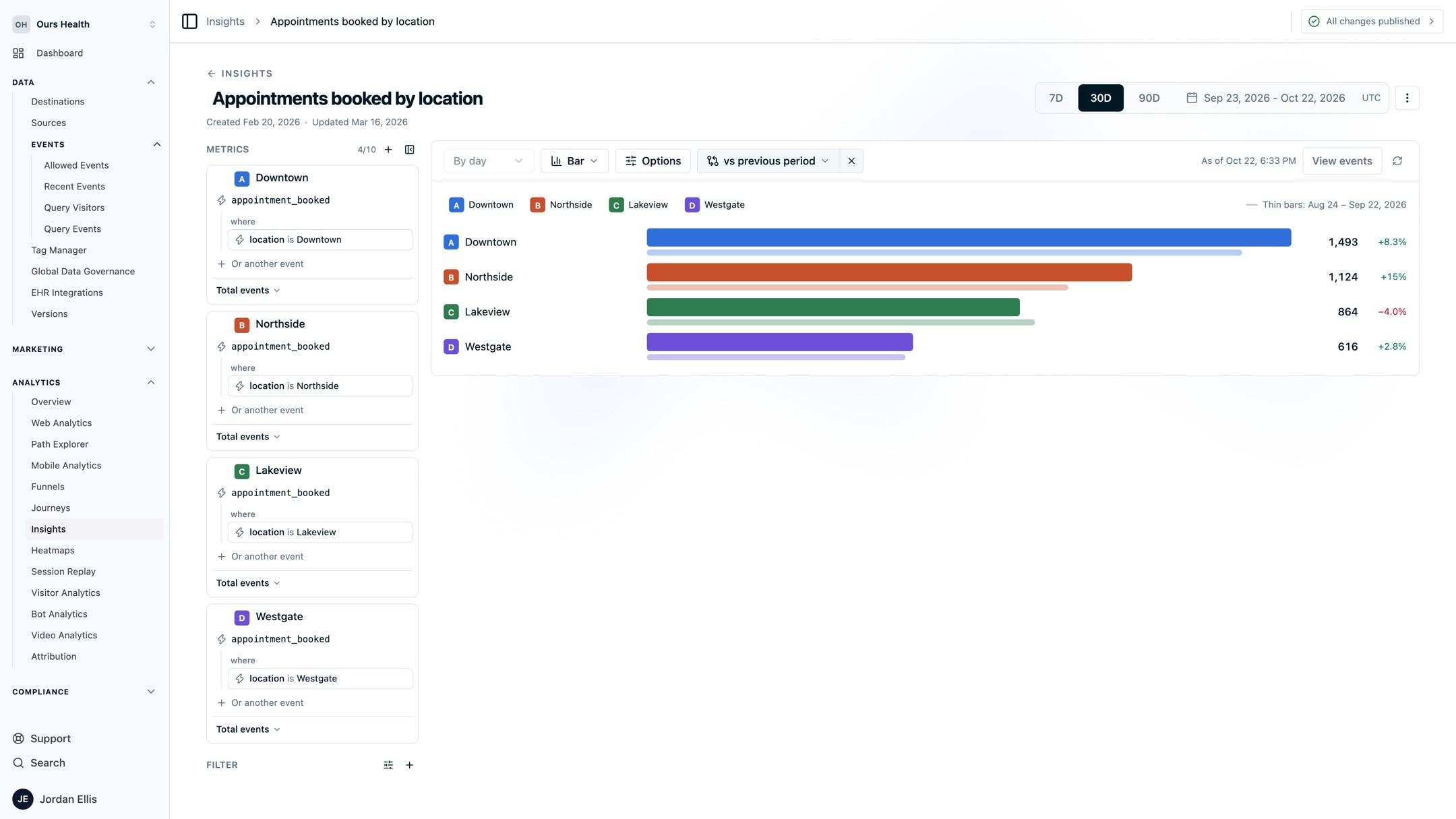
Bar and Pie total each metric over the whole range instead of by period. A bar chart ranks the metrics side by side, and with a comparison applied, a thin bar under each one shows the earlier period and the change appears next to the total. A pie chart shows each metric's share of the combined total.
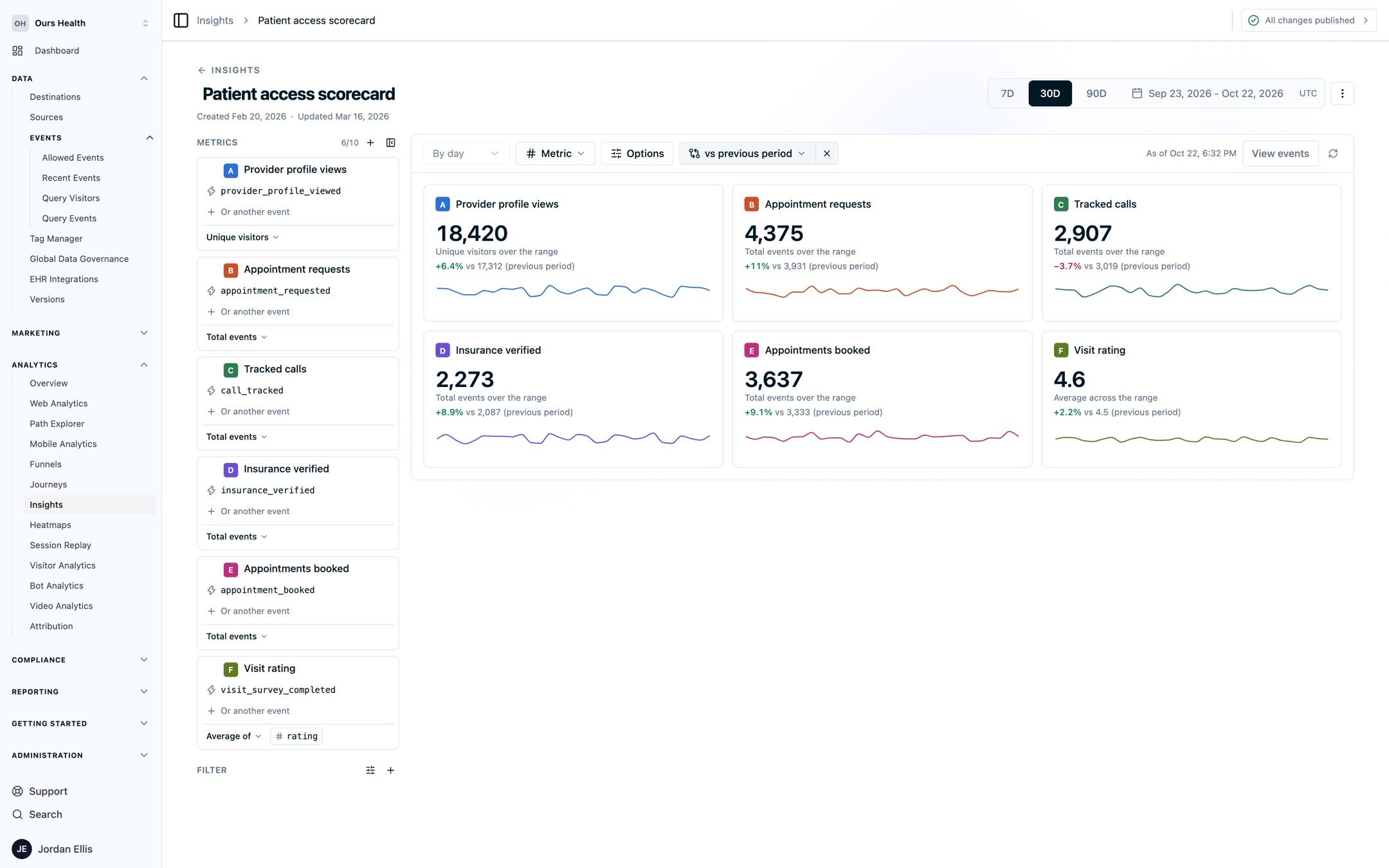
Metric shows one tile per metric with its total for the range, a sparkline of each period, and, with a comparison applied, the change and the earlier period's value. Average metrics show the average across the range. Table shows the results table on its own.
Compare
Open Compare to another period and choose Previous period, Previous year, or Compare starting on a date you pick. The comparison draws as a second series, and the totals show the change. A period that is still running is marked as partial so it is not read as a drop.
Save
Select Save. The metrics, filters, and chart type are saved. The date range and the comparison are not, so a saved insight reopens at the last 30 days with no comparison applied.
Export
Open Export to Export PDF, Export PNG, Export CSV, or Copy CSV. The CSV holds one row per metric and one column per period, with additional rows for comparison metrics.
Limits
- Ranges up to 366 days, in UTC. Weeks start on Monday.
- Breakdowns by property are not available yet. To compare two values of a property, add a metric per value with a filter on each. The location bar chart above is built this way.
- Insights is a dashboard report. It has no REST endpoint or MCP tool.
FAQs
Are unique visitor totals a sum of daily uniques?
No. The total for the whole range counts each visitor once, even when the same person appears on several days.
Can I chart a visitor property or an audience?
Not yet. Metrics measure events and their properties.
Why does my saved insight open at a different date range?
Dates and comparisons are not part of the saved definition. Set them each time you open the report.
Next Steps
- Journeys: see the paths around the events you are charting.
- Funnels: measure conversion across ordered steps.
- Query Events: open the individual events behind a number.
- Standard Healthcare Events: the event names most practices chart first.
How is this guide?