

Event Attribution Insights
Explore which channels and touchpoints contributed to a single conversion event, with first-touch or last-touch attribution and UTM filtering down to the visitor level.
Event Attribution Insights is the fastest way to explore which sources, campaigns, and touchpoints contributed to a single conversion event, down to the individual visitors who converted.
Open Event Attribution Insights in appWant credit split across every touchpoint in a journey using models like Linear or Time Decay? Use Conversion Attribution. Event Attribution Insights is a lighter-weight, single-model view focused on exploring one event and the visitors behind it.
What It Shows
Pick a conversion event and Event Attribution Insights surfaces how many times it happened, how it trended over time, who triggered it, and which traffic sources brought those visitors in. It's a diagnostic tool: start broad, then narrow with UTM filters to test a hypothesis about a specific channel or campaign.
Building a Report
Navigate to Attribution Center > Event Attribution Insights.
Step 1: Choose the Conversion Event and Date Range
Select the event you want to analyze from the dropdown, which lists every event your website is tracking. Then choose a date range of up to 60 days.
Step 2: Choose an Attribution Model
Pick how credit is assigned to a visitor's touchpoints:
| Model | How it assigns credit |
|---|---|
| First Touch | The visitor's earliest session |
| Last Touch | The visitor's most recent session before the event |
For credit spread across multiple touchpoints in a journey, use Conversion Attribution instead.
Step 3: Filter by UTM Parameters (Optional)
Open the UTM Parameters section to narrow the report to a specific channel or campaign with any combination of six UTM filters: source, campaign, medium, content, term, and name. Each filter autocompletes against the values seen for the selected event and date range, and you can type a custom value if you don't see the one you want.
The attribution model selector also lives in this section, so you can switch between First Touch and Last Touch alongside your filters.
Viewing Results
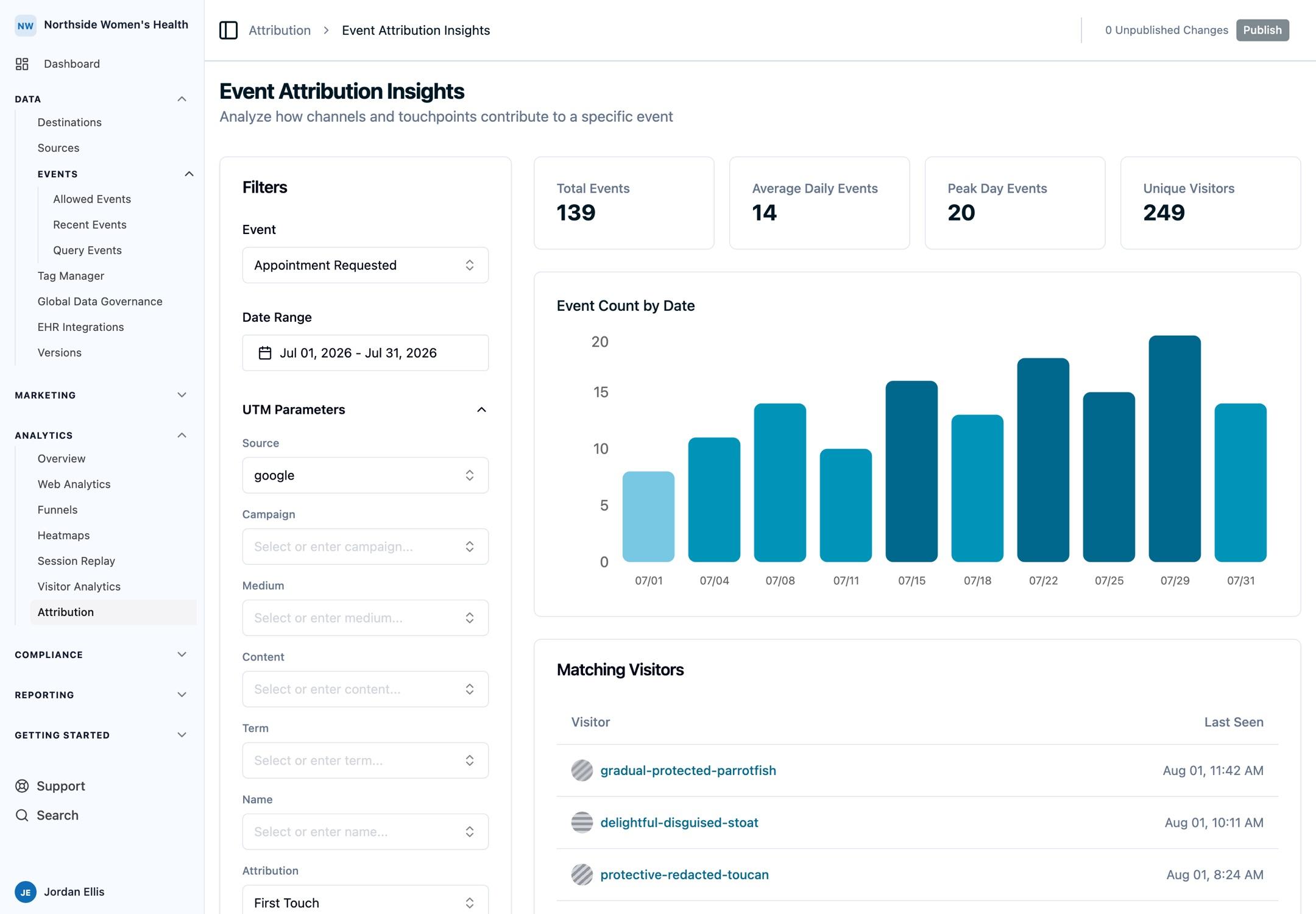
Summary Cards
Four cards summarize the event over the selected range:
| Metric | Description |
|---|---|
| Total Events | All occurrences of the event |
| Average Daily Events | Total events divided by days in range |
| Peak Day Events | The single busiest day's count |
| Unique Visitors | Distinct visitors who triggered the event |
Event Timeline
A chart of event count by day, so you can spot trends, spikes, and quiet periods across the range.
Matching Visitors
A list of the visitors who triggered the event. Each row shows the visitor with their avatar and name and when they were last seen, and links to that visitor's full profile. The list loads 25 visitors at a time; click Load More to page through the rest.
Entry Pages and Source Breakdown
An entry pages table breaks the converting visitors down by the page they landed on. Below it, two side-by-side source tables show traffic source and a last-touch view, so you can see where this event's audience came from. All three tables respect your selected attribution model and UTM filters.
Session Replays
Up to 10 recent session replays for the event appear at the bottom of the report. If you have Session Replay recording enabled, you can watch the actual sessions behind the numbers.
When to Use This Tool
Reach for Event Attribution Insights when you want a quick, visitor-level look at one event and the channels behind it. Step up to Conversion Attribution when you need multi-touch credit split across a full journey, or UTM Performance Comparison when you want to put several UTM combinations side by side.
Next Steps
- Conversion Attribution: full-journey multi-touch credit across six attribution models.
- UTM Performance Comparison: compare specific UTM combinations head to head.
- Attribution FAQs: attribution models, date-range limits, exports, and more.
How is this guide?