

UTM Performance Comparison
Build a side-by-side table of specific UTM combinations and compare them on visitors, sessions, events, and conversion rate for a chosen event.
UTM Performance Comparison lets you line up specific campaigns or UTM combinations side by side and compare how each one performed against a conversion event.
Open UTM Performance Comparison in appUse this tool for head-to-head questions like "did the email campaign or the paid social campaign drive more bookings?" If you want credit spread across a visitor's whole journey instead of comparing fixed campaigns, use Conversion Attribution.
What It Shows
You define each comparison as a UTM combination (for example, source: google plus medium: cpc), give it an optional label, and the tool measures all of them against the same conversion event and date range. The result is one row per comparison, side by side, so differences in reach and conversion are easy to spot.
Building a Comparison
Navigate to Attribution Center > UTM Performance Comparison.
Step 1: Choose the Conversion Event and Date Range
Select the event to measure from the dropdown, which lists every event your website is tracking. Then choose a date range of up to 31 days.
The date range is capped at 31 days. Ranges longer than that aren't supported.
Step 2: Choose an Attribution Model
Pick First Touch or Last Touch to decide which session in a visitor's path the comparison attributes to.
Step 3: Add Comparison Rows
Add up to five comparison rows. For each row:
- Give it an optional label (for example, "Holiday email" or "Brand search") to make the table easy to read.
- Choose a combination of UTM filters from source, campaign, medium, content, term, and name. Each filter is optional, but a row needs at least one. Each field suggests the values already seen for your selected event and date range, and you can type a custom value if you don't see the one you want.
You can edit or delete any row later, and editing a row's UTM filters recalculates that row against the current event and date range.
Reading the Table
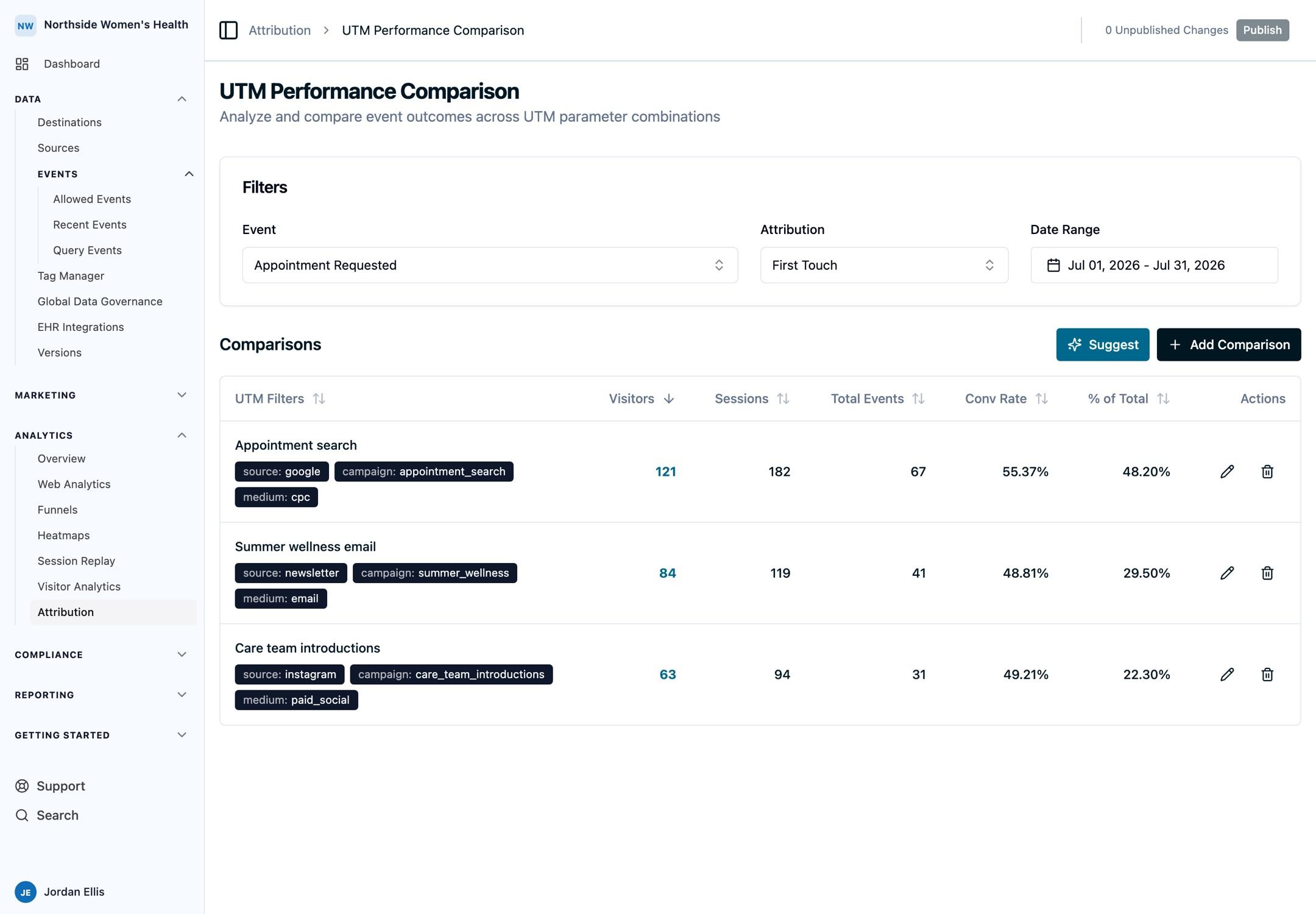
Each comparison appears as a row with these columns:
| Column | Description |
|---|---|
| UTM Filters | The combination defining the row, shown as labeled badges, plus your optional label |
| Visitors | Distinct visitors matching the combination |
| Sessions | Sessions matching the combination |
| Total Events | Occurrences of the chosen event for those visitors |
| Conv Rate | Total events divided by visitors |
| % of Total | This row's events as a share of events across all comparison rows |
Every column is sortable, so you can rank comparisons by reach (Visitors) or by efficiency (Conv Rate). Click the Visitors count on any row to open those visitors in Web Analytics, filtered to the same event, date range, and UTM combination.
Conv Rate is calculated as total events divided by visitors, so it can read above 100% when visitors trigger the event more than once. Read it as events per visitor rather than a funnel completion rate. It is also not the same metric as the Conversion Rate in Audience Performance, which is unique converters divided by audience size, so the two are not directly comparable.
Your event, date range, attribution model, and comparison rows are remembered in your browser, scoped to the organization you're viewing, so they're still there when you come back. Use the Export button in the page header to download the comparison table as a ZIP of CSV files.
When to Use This Tool
Reach for UTM Performance Comparison when you already know the campaigns you care about and want them measured against each other. To explore an event without knowing the channels in advance, use Event Attribution Insights. To split credit across a full multi-touch journey, use Conversion Attribution.
Next Steps
- Event Attribution Insights: explore one event and the visitors behind it.
- Conversion Attribution: full-journey multi-touch credit across six models.
- Attribution FAQs: conversion-rate math, date-range limits, exports, and more.
How is this guide?