
Reports Center
Find every report you can download in Ours Privacy in one place, grouped by area, with the formats each one exports.
Use the Reports Center to find any report you can download in Ours Privacy. Open it from Reports Center in the left navigation, or go to Reports Center.
Find a report
The Reports Center lists every report you have access to, grouped by area: Analytics, Attribution, Compliance, Consent, Events & destinations, and Marketing & setup. Jump to an area from the top of the page, or begin with Start here. Each report with a PDF shows a thumbnail of its first page, and every report lists the formats it downloads in, such as PDF, CSV, ZIP, Excel, or PNG. Pages you read on screen, such as the audit log, are listed after the downloadable reports.
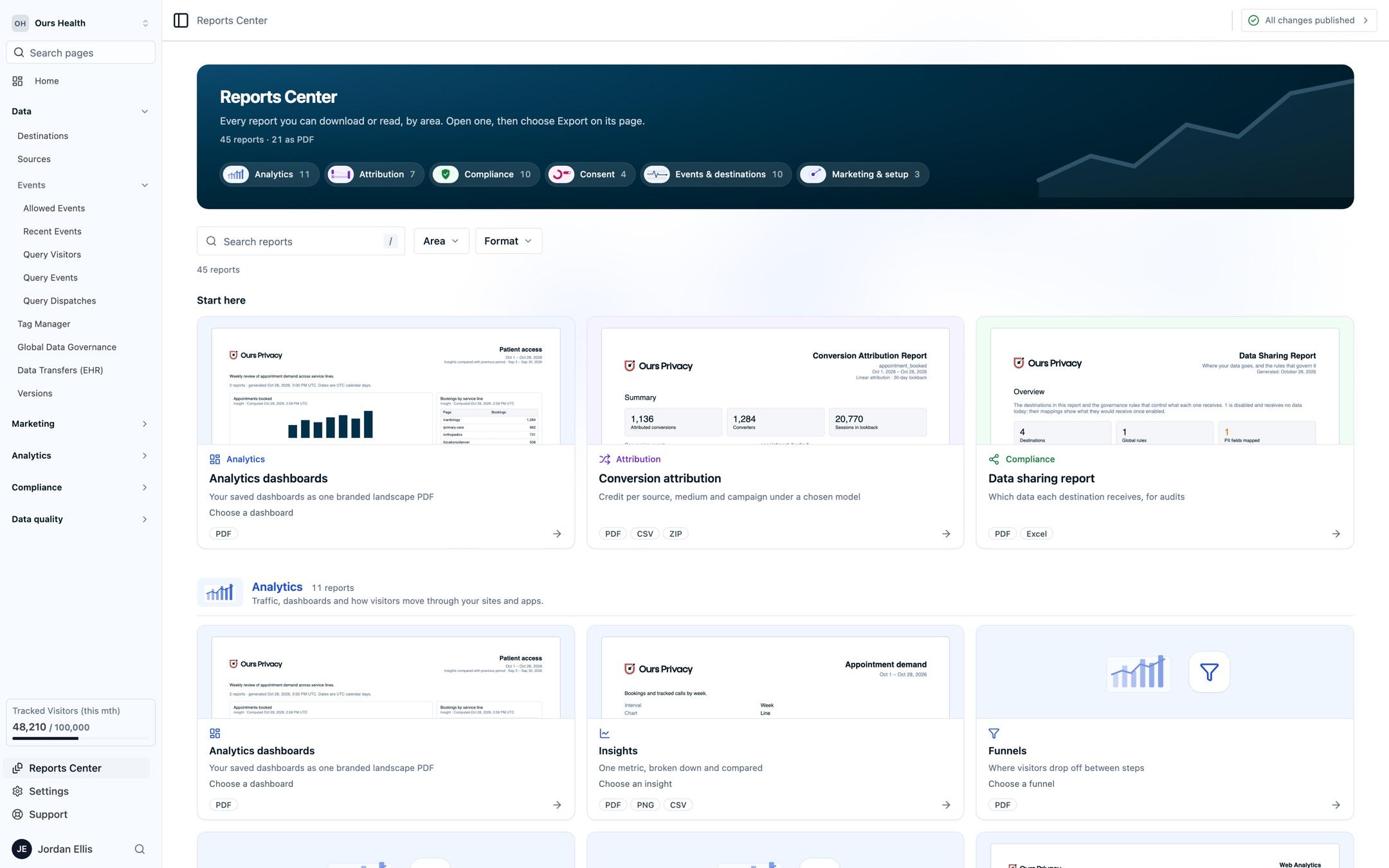
Search by name or by what a report is for, such as "audit", "consent", or "campaigns". Narrow the list with the Area and Format filters. Your search and filters stay in the page's link, so you can share the exact list with a teammate.
Download a report
Select a report to open its page. Pick what it covers, such as a dashboard, a funnel, or a scanner, set the date range and filters, then download it from the page's Export menu.
You only see the reports your role can open. If a report you expect is missing, ask an admin about your permissions.
Next Steps
- Dashboards: build the dashboards you download as PDFs.
- Report branding: add your logo and brand color to every PDF report.
How is this guide?