

Report branding
Add your organization's logo to Ours Privacy dashboards, dashboard PDF exports, and presentations from the Report branding settings page.
Use this page to put your organization's logo on every dashboard, dashboard PDF, and presentation, so reports you send to leadership or clients carry your brand. One logo applies to every dashboard in your organization.
Add your logo
- Open Administration in the left navigation and select Report Branding.
- Drop a logo file on the Logo card, or select Choose file. PNG, JPEG, WebP, and SVG files all work. A transparent PNG or SVG wordmark prints best.
- Check the details and the previews, then select Save logo.
Before you save, the card shows what will be uploaded. Every logo is saved as a PNG: SVG, JPEG, and WebP files are converted, empty transparent edges are trimmed, and very large images are resized, with a note for each change. If a logo is small enough to look soft in print, the card says so.
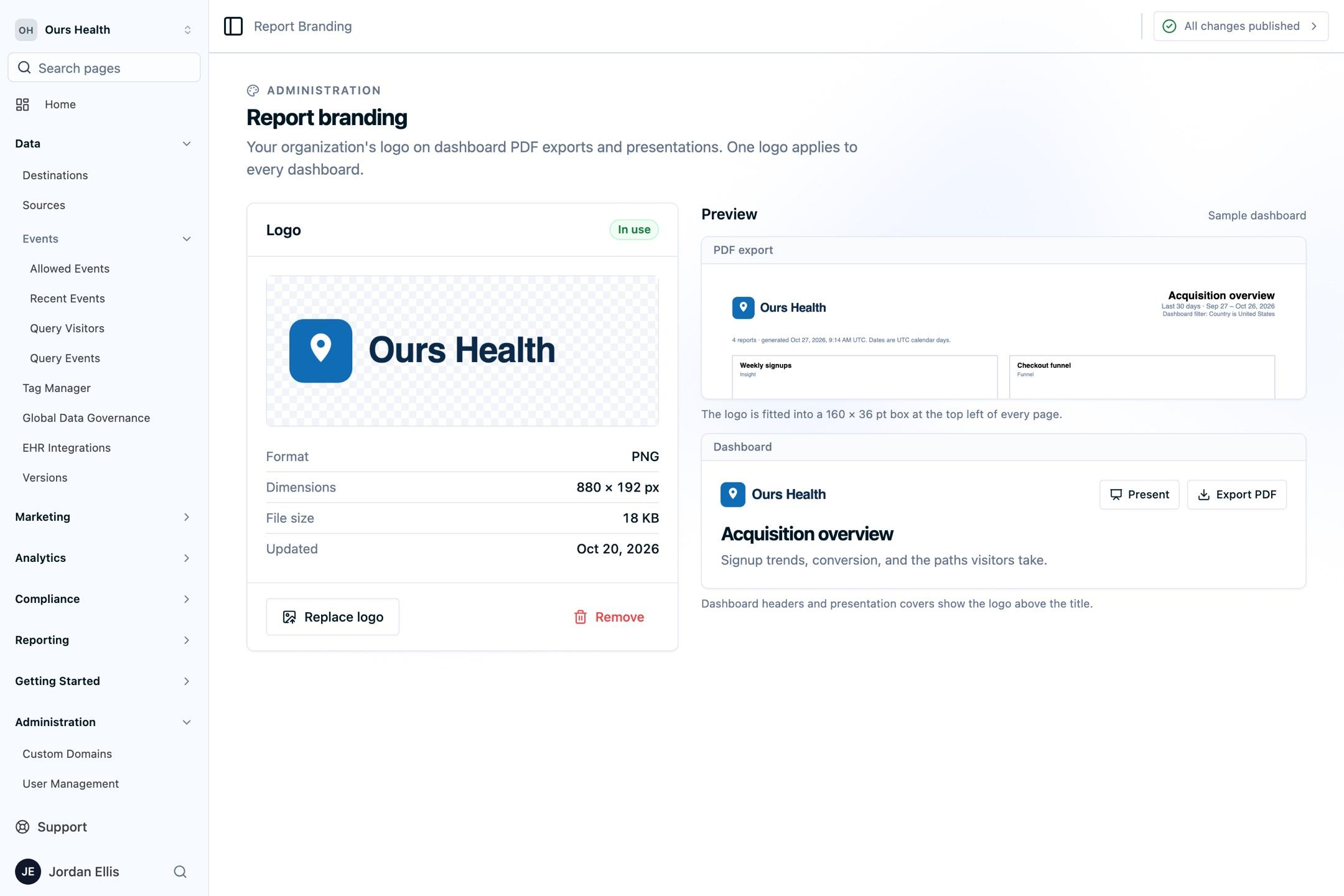
Where the logo appears
- Dashboards: above the dashboard title.
- PDF exports: at the top left of every page, next to the dashboard name and dates. See Export a PDF.
- Presentations: on the title slide. See Present full screen.
The Preview panel shows a sample PDF header and dashboard header with your logo, including a new logo before you save it. New PDFs and presentations use a saved logo right away.
Replace or remove the logo
Select Replace logo to upload a new file, or Remove to take the logo off. Without a logo, dashboards show only their title, and PDFs carry the Ours Privacy mark. Every PDF footer reads Created with Ours Privacy.
If Report Branding is not in your Administration menu, or the page is read-only for you, ask your account administrator to add or change the logo.
Next Steps
- Dashboards: build the dashboards your logo appears on.
- Dashboards API: read, replace, or remove the logo from code.
How is this guide?