

Dashboards
Build dashboards in Ours Privacy from up to 12 saved Insights, Funnels, and Journeys, with one shared date range and filter set, period comparison, CSV export, and tiles that load independently.
Use Dashboards to see how demand, booking, and patient paths are doing on one page. Put up to 12 of your saved Insights, Funnels, and Journeys side by side, read them under one date range and one set of filters, and compare Insights with an earlier period. You build each dashboard from reports you already saved, so every tile keeps the definition your team agreed on.
Open Dashboards in appDashboards is available on the Analytics Suite. Contact your account representative to add it to your plan.
Permissions
Dashboards uses the Web Analytics permission set. Each tile checks the viewer's own permissions, so everyone sees the reports they can already open.
| Permission | Capabilities |
|---|---|
| Web Analytics: View | Open dashboards, change dates, filters, and comparison for yourself, refresh, and export |
| Web Analytics: Write | Create, edit, save, duplicate, and delete dashboards (includes all View capabilities) |
Insight tiles also need the variables:find-custom permission. Without it, the tile shows "You do not have access to this report." and the rest of the dashboard still loads. Editing the dashboard filters needs property access as well; without it, saved dashboard filters still apply.
Create a dashboard
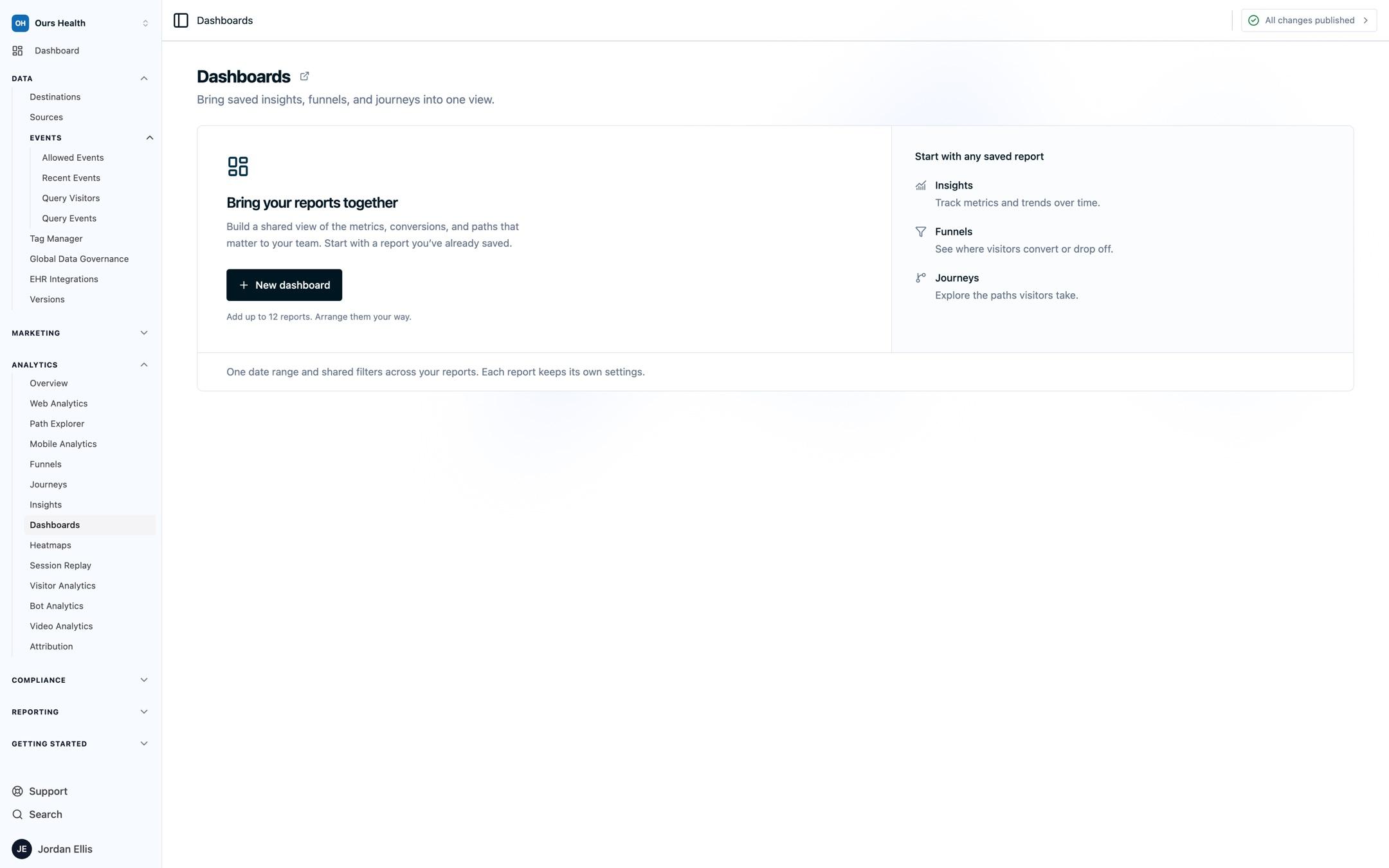
Open Dashboards from the Analytics section of the left navigation, then select New dashboard. An account with no dashboards yet shows a welcome card with the same button.
Add saved reports
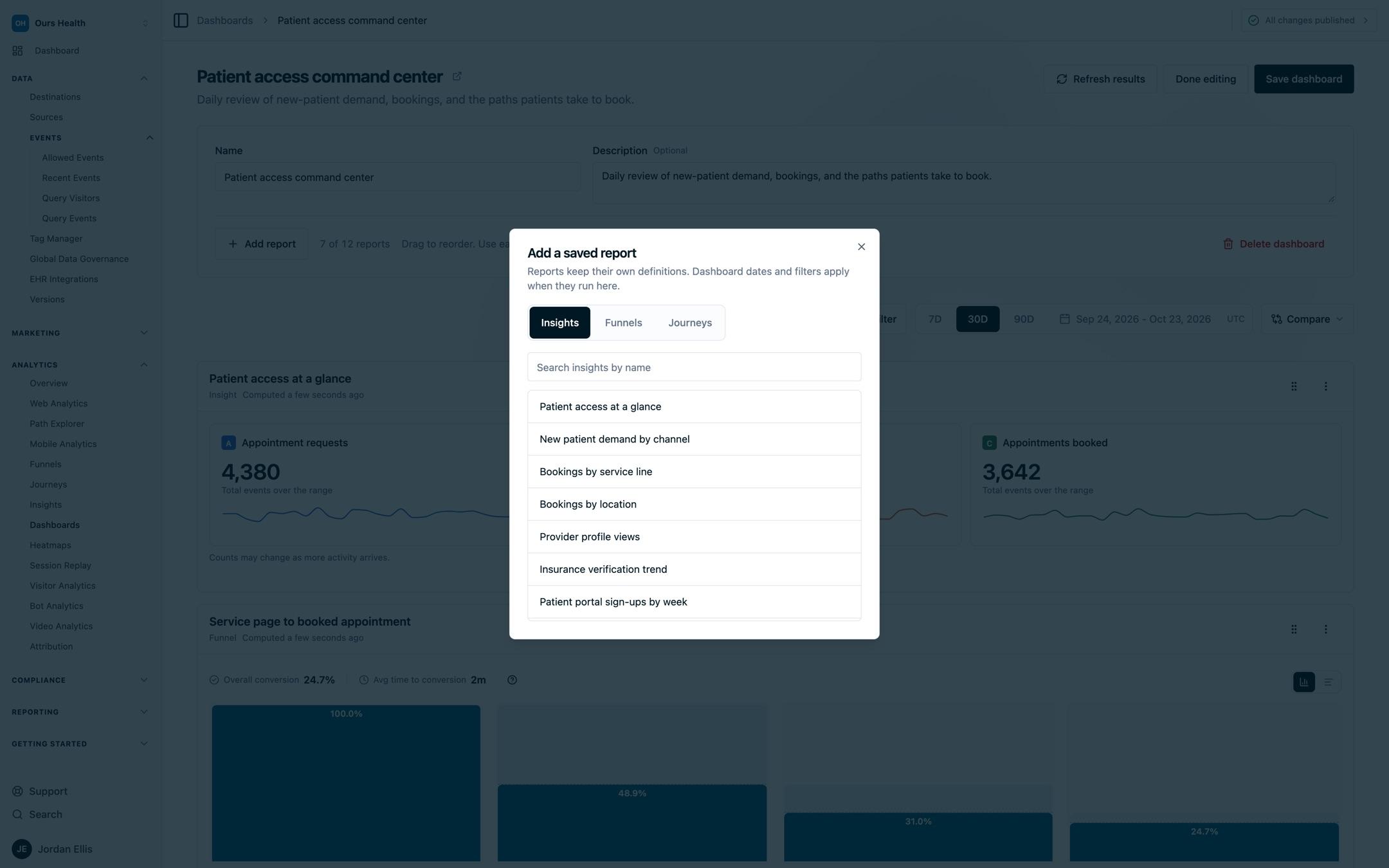
Select Add report, or the dashed Add report tile at the end of the grid. The Add a saved report dialog has Insights, Funnels, and Journeys tabs, each with a name search. Pick a report to add it as a tile. The counter beside Add report shows how many of the 12 places are used.
Every tile is a saved report. To chart something new, save it as an Insight, Funnel, or Journey, then add it here. A new tile previews with the dashboard's current dates and filters before you save.
Arrange tiles
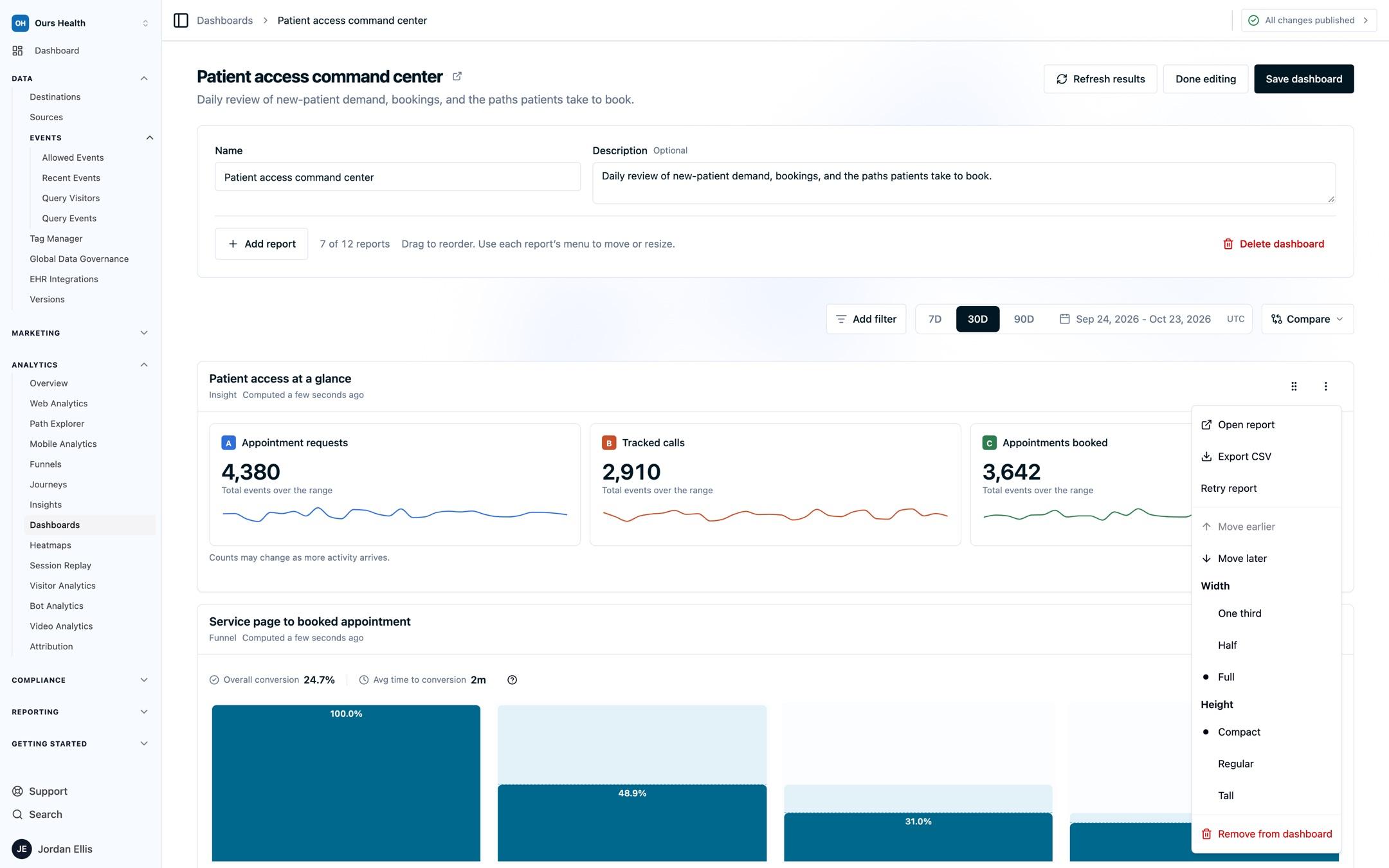
Drag a tile by its handle to reorder it, or open the tile's menu and choose Move earlier or Move later. The same menu sets the size:
| Setting | Options |
|---|---|
| Width | One third, Half, or Full |
| Height | Compact, Regular, or Tall |
New tiles start at Half width and Regular height. Journeys start at Full width so their columns have room. Remove from dashboard takes the tile off the dashboard and leaves the report saved.
Name and save
Give the dashboard a Name and an optional Description, then select Save dashboard. The layout, the date range, and the dashboard filters are saved. To change a saved dashboard later, select Edit dashboard, make the change, and save again. Done editing leaves edit mode when nothing is unsaved.
Shared dates and filters
The Dashboard filters toolbar stays at the top of the page as you scroll. Its date range and filters apply to every tile at once.
- Dates: pick a preset (7D, 30D, 90D) or a custom range from the calendar. Every tile uses the same UTC dates. A dashboard with only Insight tiles accepts ranges up to 366 days. Add a Funnel or a Journey and the range is capped at 91 days, the same limit those reports have on their own.
- Filters: select Filters to build a condition, such as one location or one campaign. Active filters appear as chips in the toolbar.
Dashboard filters combine with each report's own filters, and both must match. An Insight keeps every metric's own filter, and the dashboard filter narrows all of them. A Funnel or Journey applies the dashboard filter to the people who enter it, and its steps, anchors, and windows stay as saved. The saved reports themselves never change.
Changing the dates or filters is temporary until you save. A bar at the bottom of the page says Temporary dates and filters (or Unsaved dashboard changes after a layout, name, or description edit), with Reset to return to the saved dashboard and Save for people with Web Analytics: Write. Viewers without Write can explore dates and filters for themselves, and the saved dashboard stays the same for everyone else. If you try to leave with unsaved layout, name, or description edits, the app asks you to confirm.
Compare with a previous period
Open Compare in the toolbar and choose Previous period, Previous year, or a custom start date. Comparison applies to Insight tiles only and is never saved with the dashboard, so it resets when you reload.
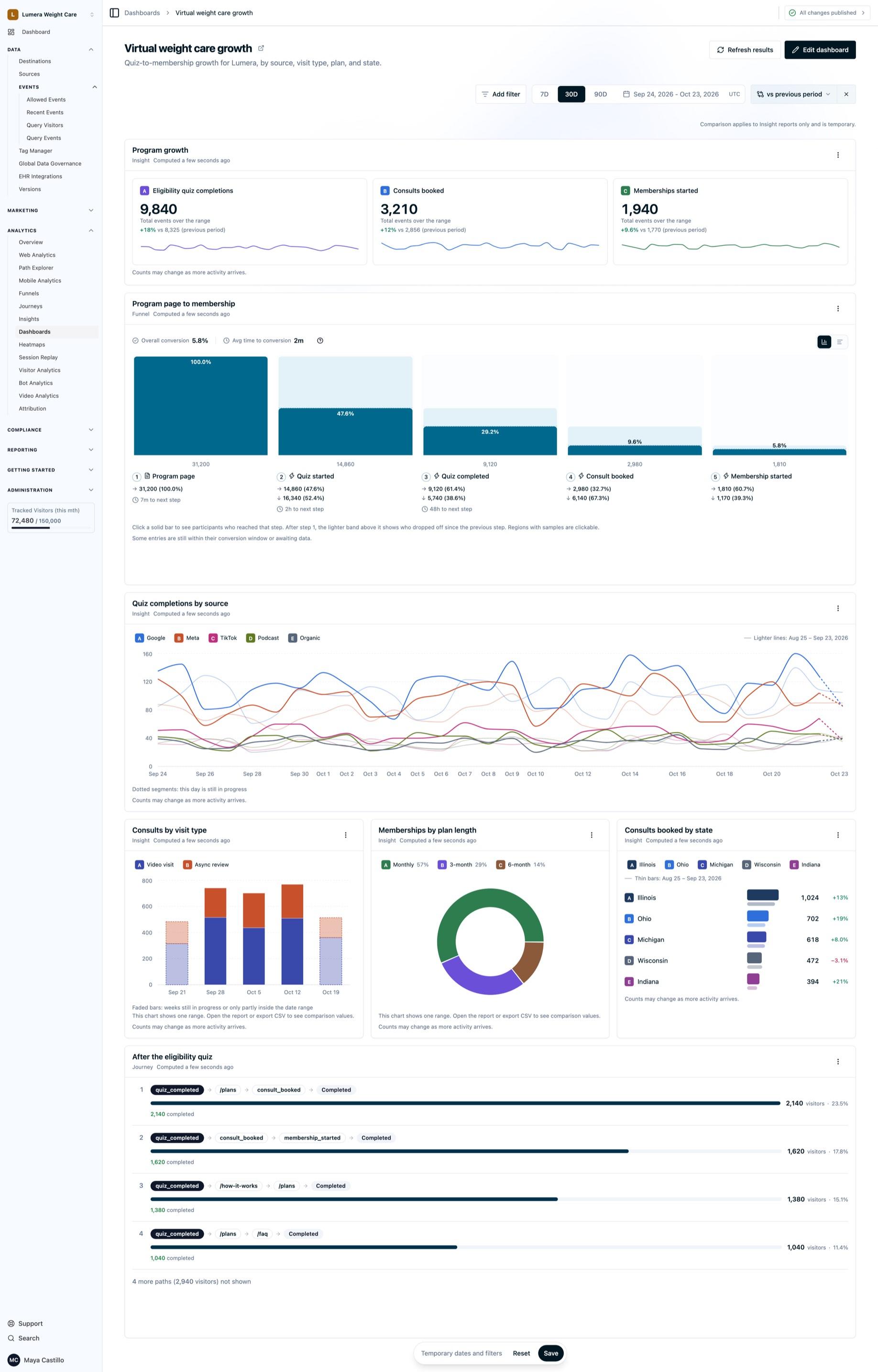
Each chart shows the comparison the way the Insight itself does:
- Line and Column: the earlier period draws as a lighter line or a faded bar.
- Bar: a thin bar for the earlier period under each metric, with the percent change.
- Metric: the change and the earlier value on each card.
- Pie, Stacked column, and Stacked line: the current range, with a note. The comparison values are in the tile's CSV export and in the report.
Read a dashboard
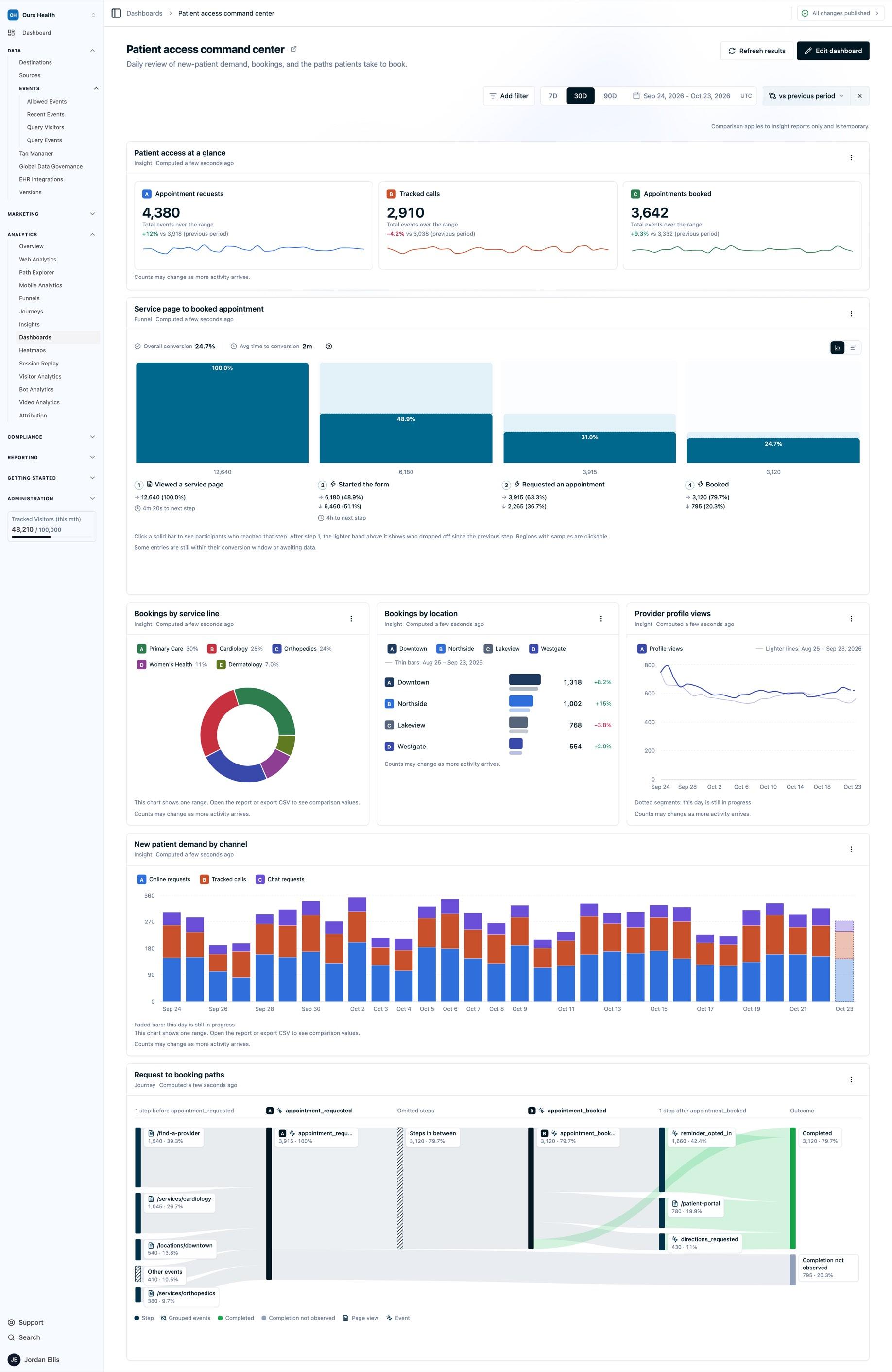
Each tile header shows the report name, which links to the report, its type, and when its results were computed, such as Computed 2 minutes ago. Updating… appears while a tile reloads, and Stale results marks numbers from before your last date or filter change, or from before a failed reload.
Tiles load on their own, starting with the ones on screen. A slow report shows a spinner in its own tile while the others fill in, and a failed report shows its error with Try again inside its tile without affecting the rest. Select Refresh results in the header to recompute every tile.
Results are computed from your events each time a tile loads. Every Insight tile ends with "Counts may change as more activity arrives." because counts are live: events for the dates in range can still arrive, so a number can change on the next refresh. A Funnel tile may also note that some entries are still inside their conversion window and can still convert.
Long results scroll inside their tile. A Journey's User Flows diagram scrolls sideways when it has more columns than fit, so give it Full width.
Open a report from a tile
Select a tile's name, or Open report in its menu, to open the report. The menu also has Retry report to reload that tile alone.
- An Insight opens with the dashboard's dates, filters, and comparison applied, and shows them as inherited from the dashboard. Back to dashboard returns you with your temporary dates and filters intact. Use report defaults clears them. Saving the Insight from there keeps its own filters, not the dashboard's.
- A Funnel or Journey opens as saved, with its own dates and settings.
Export
Open an Insight tile's menu and select Export CSV to download the results the tile shows, including comparison values when Compare is on. Export is available once the tile's results are current. To export a Funnel or Journey, open the report and use its own export.
Duplicate and delete
Open the menu on a dashboard's row in the dashboards list:
- Duplicate dashboard creates a copy named after the original with "(copy)" appended, with the same layout, dates, and filters. The copy points at the same saved reports, so editing one of those reports changes it on both dashboards. Duplicate a dashboard to build one per service line or location, then change its filters.
- Delete dashboard asks you to confirm. The reports in it stay saved.
You can also delete a dashboard from its own page while editing.
Limits
- Up to 12 reports per dashboard, all on one date range.
- Ranges up to 366 days, or 91 days when the dashboard has a Funnel or a Journey. Dates are in UTC.
- Comparison applies to Insight tiles and resets when you reload.
- To compare locations or channels, add an Insight metric per value with a filter on each. For a conversion rate, add a Funnel tile.
- Tiles sit side by side on screens at least 1280 pixels wide, and one per row on narrower screens.
FAQs
Can I put the same Insight on two dashboards?
Yes. A tile points at the saved report, so the same report can sit on any number of dashboards. Editing the report changes it everywhere.
Does changing the dashboard date change my saved Insight?
Your saved Insight stays exactly as you saved it. Dashboard dates, filters, and comparison apply only while the report is on the dashboard or opened from it.
Why does my Journey tile scroll sideways?
The flow has more columns than the tile is wide. Set the tile to Full width from its menu while editing.
Can I share a dashboard with someone outside Ours Privacy?
Everyone in your organization with Web Analytics: View sees it. To share numbers outside, export an Insight tile's CSV, or export a Funnel or Journey from its report.
Why does a tile say I do not have access?
Each tile checks your permissions for its report. Ask your account administrator for the
variables:find-custompermission to see Insight tiles.
Can I set a different date range for one tile?
Yes, in the report. Open the report from the tile and pick any range there. On the dashboard itself, every tile shares one range so the numbers line up.
Why is my date range capped at 91 days?
The dashboard has a Funnel or Journey tile, and those reports cover up to 91 days. Dashboards with only Insights accept up to 366 days.
Next Steps
- Insights: build the charts and metric cards most dashboards start with.
- Funnels: save the conversion steps you want on a dashboard.
- Journeys: save the paths around a booking or a request.
- Analytics Recipes: tile-by-tile build lists for common healthcare dashboards.
- AI Assistant: ask it to explain the numbers on a tile.
How is this guide?