

QR Codes
Design and export a QR code for any Ours Privacy short link: six themes, module and corner shapes, gradients, a centered logo, frame shapes, the contrast check, and PNG or SVG export at print resolution.
Use this page to design and export the QR code attached to a short link. Every short link has one, whether or not you customize it.
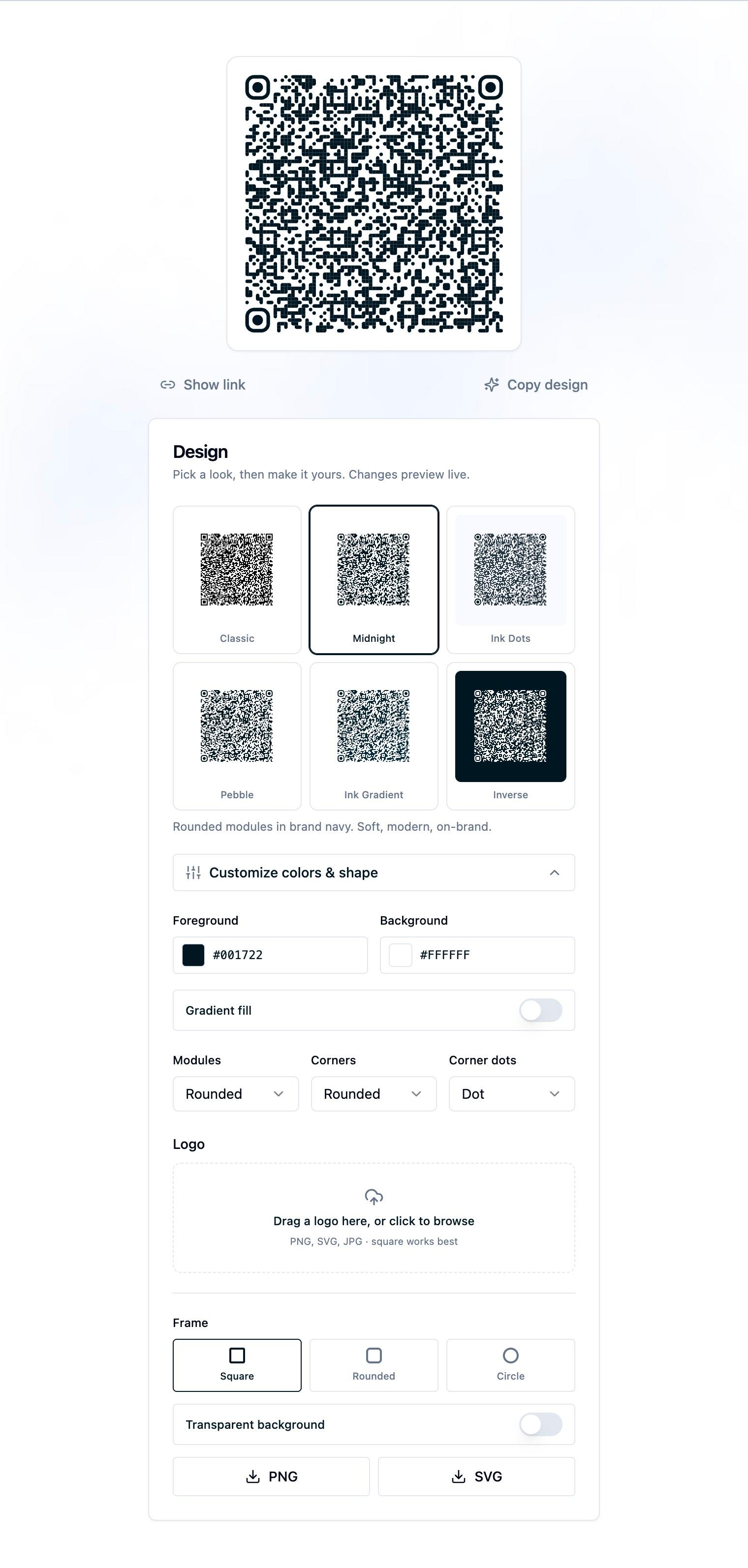
The design surface sits on the left of the short link editor. The preview re-renders as you type, so what you see is what exports.
The code is dynamic
The QR code encodes the short URL, not the destination. Change the destination and every printed code follows along. This is the reason to use a short link on print at all rather than encoding a landing page URL directly.
Two rules follow from it:
- Disable a link to take it out of service temporarily. It stops resolving and can be turned back on.
- Never delete a link with printed codes in the wild. Deleting is permanent and the codes become dead.
Themes
Six themes cover most brand situations. Selecting one sets the colors and the module and corner shapes in a single step.
| Theme | Look |
|---|---|
| Classic | Square modules, maximum scannability. The universal default. |
| Midnight | Rounded modules in a deep navy. Soft and modern. This is the starting theme. |
| Ink Dots | Circular dot modules on a cool off-white. Playful and high-tech. |
| Pebble | Fully rounded modules that flow together. Smooth and friendly. |
| Ink Gradient | Classy modules with a navy gradient. Premium and editorial. |
| Inverse | White modules on deep navy. Bold and high-contrast. |
The picker shows a live miniature of your actual code in each theme, so you are choosing from real renders rather than generic samples.
Switching themes keeps your logo, logo size, frame shape, and transparent-background setting. Only the colors and module shapes change.
Customize colors and shape
Expand Customize colors & shape for the individual controls. Changing any of them switches the theme label to Custom design.
- Foreground: the color of the modules, as a color picker or a hex value.
- Background: the color behind the modules.
- Gradient fill: replaces the single foreground color with Gradient from and Gradient to, applied diagonally across the code.
- Modules: the shape of the individual cells. Square, Rounded, Dots, Classy, Classy rounded, or Extra rounded.
- Corners: the shape of the three large position markers. Square, Dot, or Rounded.
- Corner dots: the shape of the small square inside each position marker. Square or Dot.
The contrast check
If the module color and the background are too close in luminance, an inline warning appears under the preview noting that some cameras may fail to scan the code. Take it seriously. A code that looks fine on a bright laptop screen can be unreadable on a printed postcard held at arm's length in a waiting room.
Logos
Drag an image into the logo dropzone or select it to browse. PNG, JPG, SVG, and WebP are accepted, and a square image works best.
Once a logo is in place you get a Size slider, plus Replace and Remove buttons.
What happens to the image:
- It is centered and scaled to fit.
- The modules behind it are cleared so the logo sits in clean space rather than on top of data.
- Flat logos and marks work; photographs generally do not.
QR codes here are always generated at the highest error-correction level, which is what makes a centered logo safe. Even so, scan a printed proof before a large run.
Frames and background
- Frame sets the shape the code is clipped into: Square, Rounded, or Circle. Rounder frames add more quiet space around the code, which is a scanning aid rather than only a style choice.
- Transparent background removes the background fill from both the preview and the export, so the code can sit on colored artwork. The preview switches to a checkerboard to show the transparency.
Transparent PNG and SVG both preserve the transparency. If you are placing a code on a photograph or a busy background, put a solid shape behind it in your design tool anyway. Cameras need contrast at the module level.
Copying a design between links
Select Copy design to apply another link's QR styling and campaign tags to the one you are editing. Pick a link from the list and both its design and its campaign tags come across into the editor. Nothing is stored until you save.
This is the fastest way to keep a set of campaign codes visually consistent. Build one, then copy it to the rest.
Exporting
Two buttons under the preview: PNG and SVG. Both export at 2048 by 2048 pixels, which is print resolution for any realistic placement.
- PNG for slides, documents, email, and anywhere raster is expected.
- SVG for print, signage, packaging, and any large-format asset that must scale without softening. Take SVG to your printer if they will accept it.
Files are named after the link, lowercased and hyphenated, with -qr appended. A link called Spring Postcard QR exports as spring-postcard-qr.png.
Export once at 2048 and let your design tool scale down.
Printing checklist
- Publish the link before the artwork goes to print. An unpublished code does not resolve.
- Scan the exported file from a phone, then scan a physical proof.
- Keep the quiet space around the code clear of other artwork.
- Do not print a code smaller than roughly one inch square for a hand-held scan, and scale up for anything read at a distance.
- Confirm the destination is a page that works well on a phone, because most scans are mobile.
- If the campaign will change, plan to repoint the destination rather than reprint.
Formats and placements
- Lead anywhere with a URL. Every code opens a short link, so point it at a hosted PDF, a contact page, a menu, or a booking form.
- Add a "Scan me" caption in your design tool. The frame control sets the shape the code is clipped into, and your artwork carries the label.
- Send printers the SVG. Codes export as PNG or SVG, and the SVG scales to any print size.
- Report print on its own. A scan and a click open the same URL, so give the printed code its own link to see its scans separately. See Reporting.
Next Steps
- Campaigns and UTM tags: tag the code so it groups with the rest of the campaign.
- Branded domains: make the encoded URL read as your brand.
- Short link reporting: measure the scans.
- Recipes: worked print and event configurations.
How is this guide?