

Creating a Short Link
Walkthrough for creating an Ours Privacy short link: name it, set the destination, add campaign tags, design the QR code, save, and publish so the link resolves.
Use this page to build a short link from scratch, from an empty link to a published one that resolves and reports. Budget about two minutes.
1. Create the link
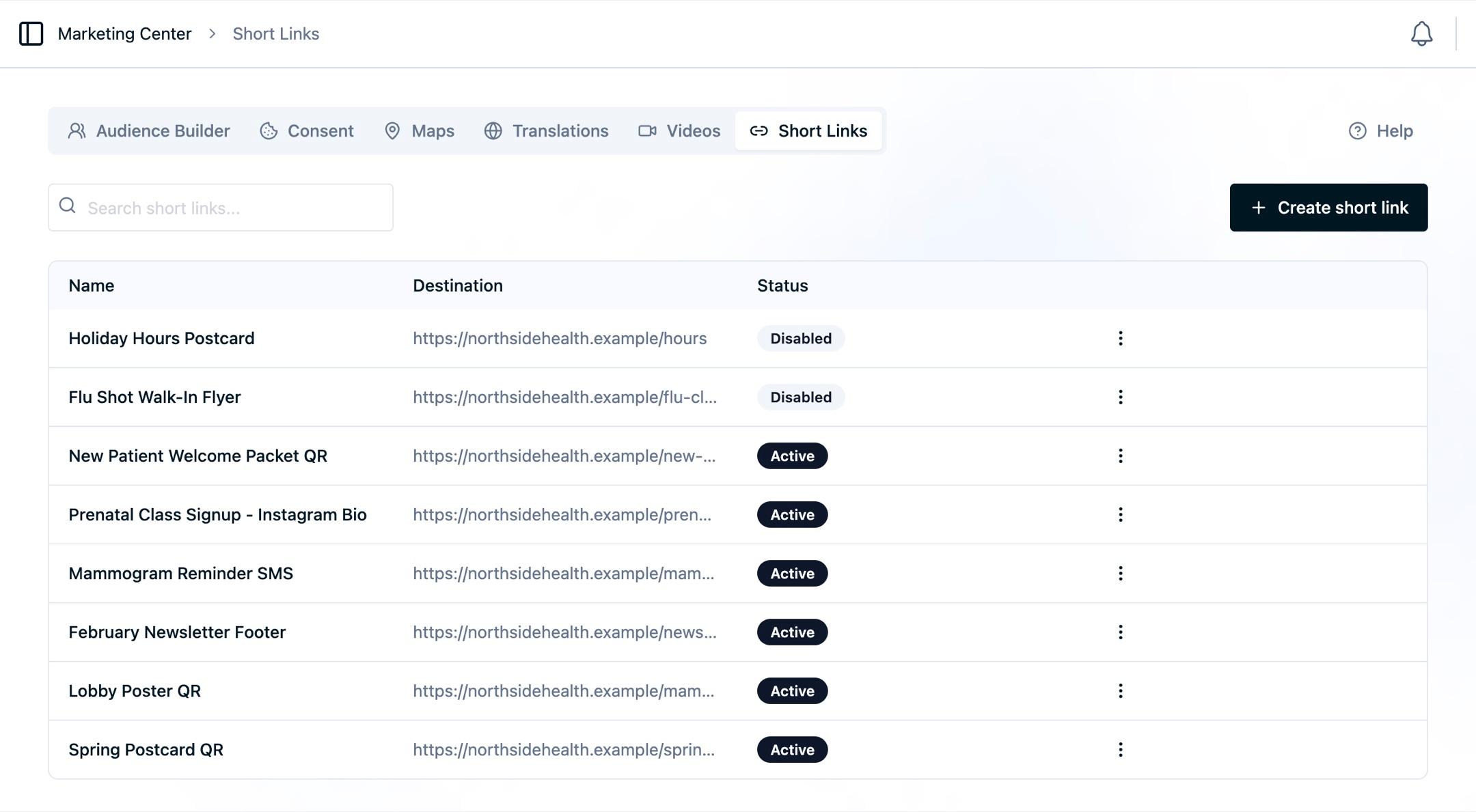
- Open the Marketing Center and select Short Links.
- Select Create short link.
The link is created immediately and you land on its editor. A brand new link is named Redirect, has no destination, and shows a red No destination pill in the header, so it is not usable yet.
2. Name it
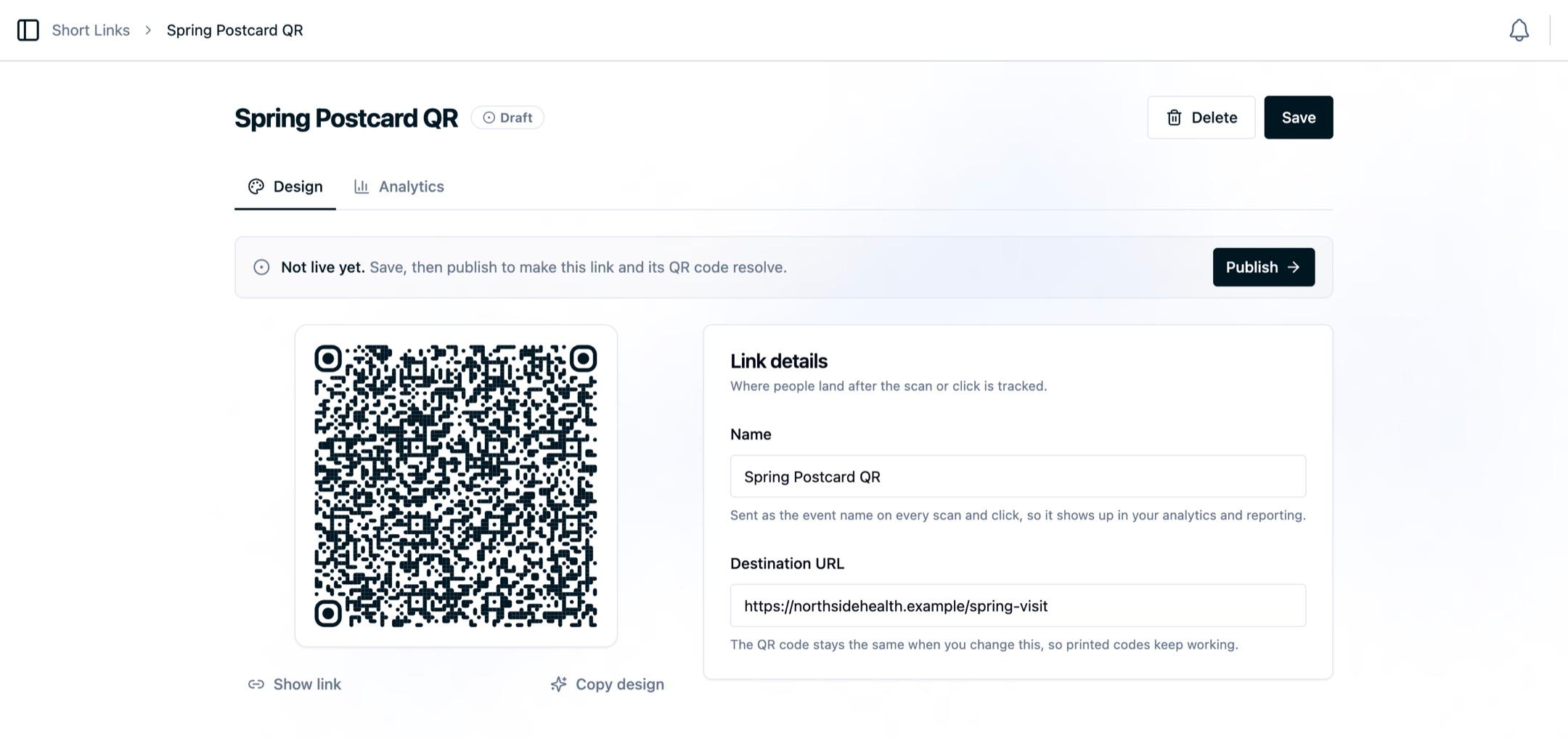
Open the Link details card and replace the default name.
The name is sent as the event name on every scan and click, so it is the label you will search for in Analytics, select when building an audience, and map to a destination. Give it the same care you would give an event name:
- Specific enough to identify the placement:
Spring Postcard QR,Lobby Poster QR,February Newsletter Footer. - Stable, so event-name reports and audience conditions stay easy to maintain.
- Distinct per link, with campaign grouping handled by the campaign tags rather than by the name.
3. Set the destination URL
Enter the page visitors should land on in Destination URL.
Two things about the destination that are worth knowing before you print anything:
- The QR code does not change when the destination changes. The code encodes the short URL, so you can repoint a printed code at a new landing page at any time.
- Your campaign tags are added to this URL. Any UTM tags you put on the destination yourself are kept. See Forwarding UTM tags.
4. Add campaign tags
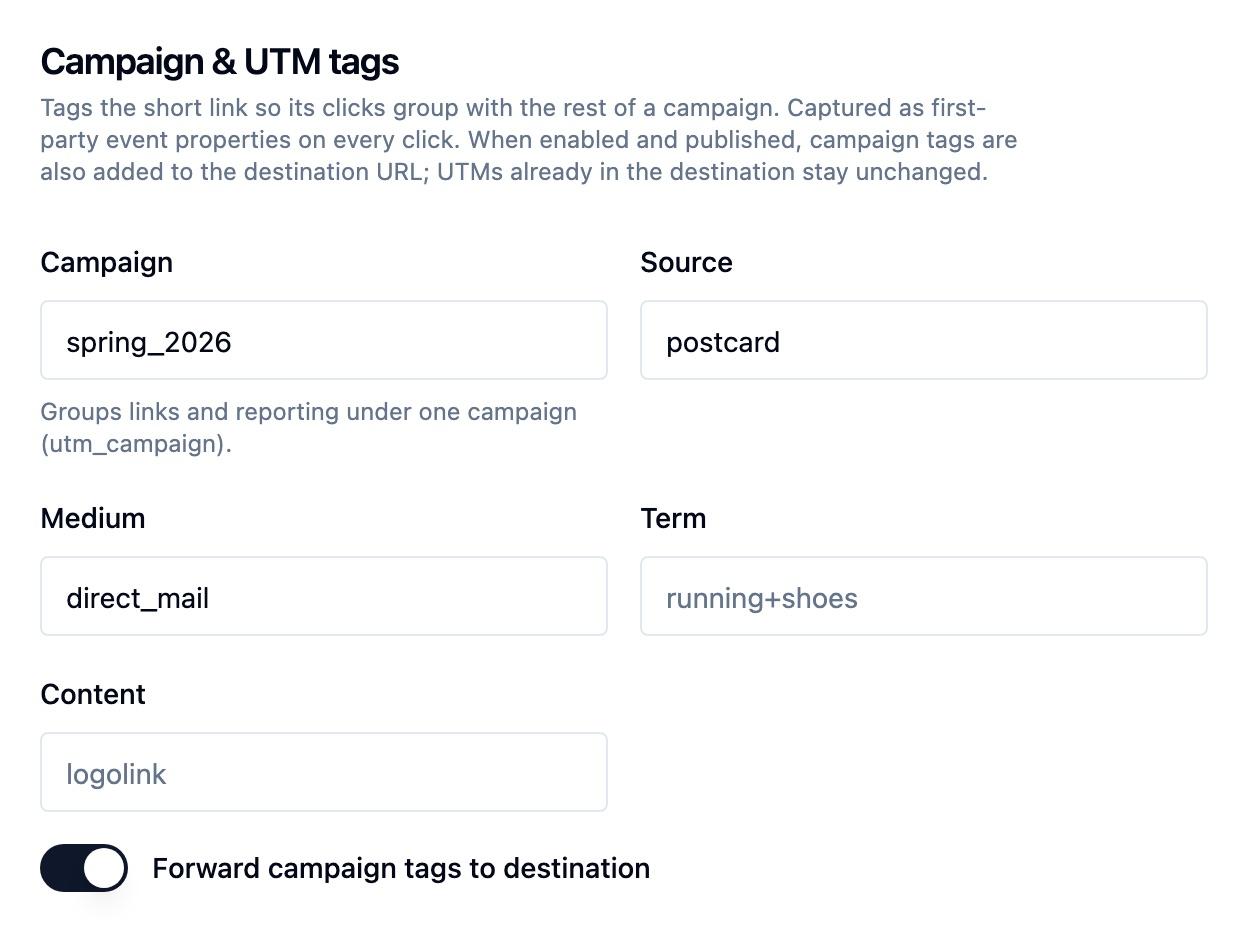
Open Campaign & UTM tags and fill in whichever of the five fields you need: Campaign, Source, Medium, Term, and Content. All are optional and all are free text.
These are captured as first-party event properties on every click, which is what lets you group links under one campaign in reporting. Full detail in Campaigns and UTM tags.
Forward campaign tags to destination is on by default, so your landing page receives these tags too. Turn it off to keep the destination URL exactly as entered.
5. Design the QR code
The QR preview on the left updates live as you type. Pick a theme, adjust colors and shapes, and drop in a logo if you want one.
You do not have to design anything to have a working QR code. The default theme is scannable as-is. See QR codes for every control, and download the file after you have saved.
6. Save
Select Save in the header. The header shows Unsaved changes whenever the form has drifted from what is stored, so use that as your check.
Saving stores the name, the destination, the campaign tags, the forwarding choice, and the QR design. It does not make the link resolve.
Publishing the link
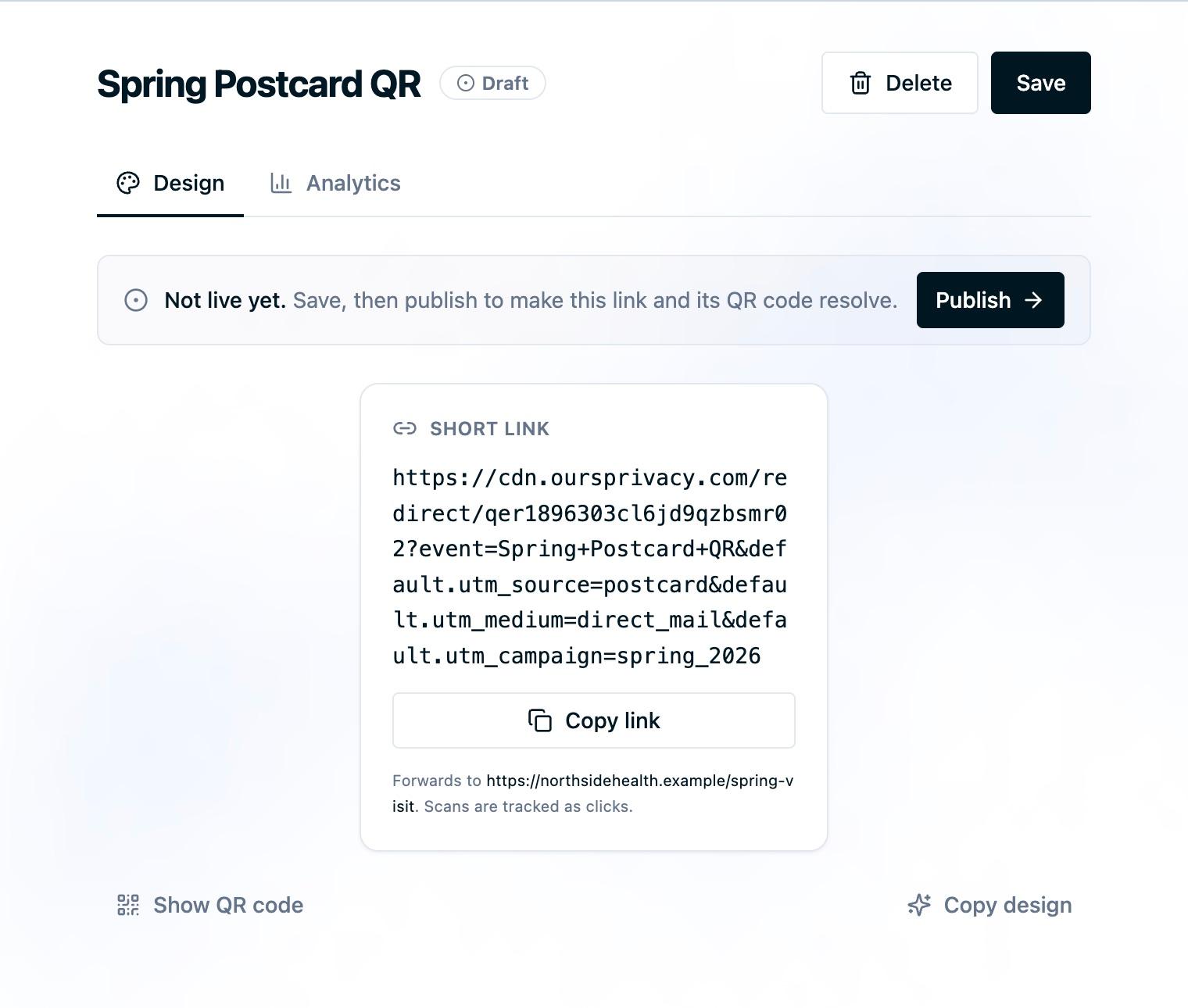
A saved short link is a Draft. It will not forward anyone until a version is published.
- From the editor, select Publish in the readiness banner, or go to the publish screen from the main navigation.
- Review the Short Links section of the version, which lists the links this publish will affect.
- Publish.
The readiness pill in the editor header turns green and reads Live.
Important: Do not print or distribute a QR code before publishing. Scans of an unpublished link are forwarded to the Ours Privacy website and are not recorded, so early scans are lost with no error anywhere for you to notice.
Every later edit follows the same rule. Changing a destination, campaign tags, the forwarding choice, a name, or the enabled status takes effect on the next publish.
Copy the link and download the QR code
Once the link is live:
- Copy link: flip the QR card with Show link and select Copy link. The card also confirms where the link forwards to.
- Download the QR code: select PNG or SVG under the preview. Files are exported at 2048 by 2048 pixels and named after the link, for example
spring-postcard-qr.png.
Use PNG for slides, email, and documents. Use SVG for print and any large-format asset that has to scale without softening.
Verify it works
- Open the short URL in a private browsing window, or scan the printed code with a phone.
- Confirm you land on the destination.
- Open the Analytics tab on the link. A click should appear within a short delay.
If nothing shows up, work through My short link is not recording clicks.
Next Steps
- QR codes: every design control and how exporting works.
- Campaigns and UTM tags: group links under a campaign.
- Branded domains: serve the link from your own domain.
- Short link reporting: read the Analytics tab.
How is this guide?