

Managing Short Links
Work with the Ours Privacy short links list: search, sort, duplicate, enable and disable, and delete.
Use this page to work with short links after they exist: finding them, copying them, taking them out of service, and removing them.
The list lives at Marketing Center → Short Links.
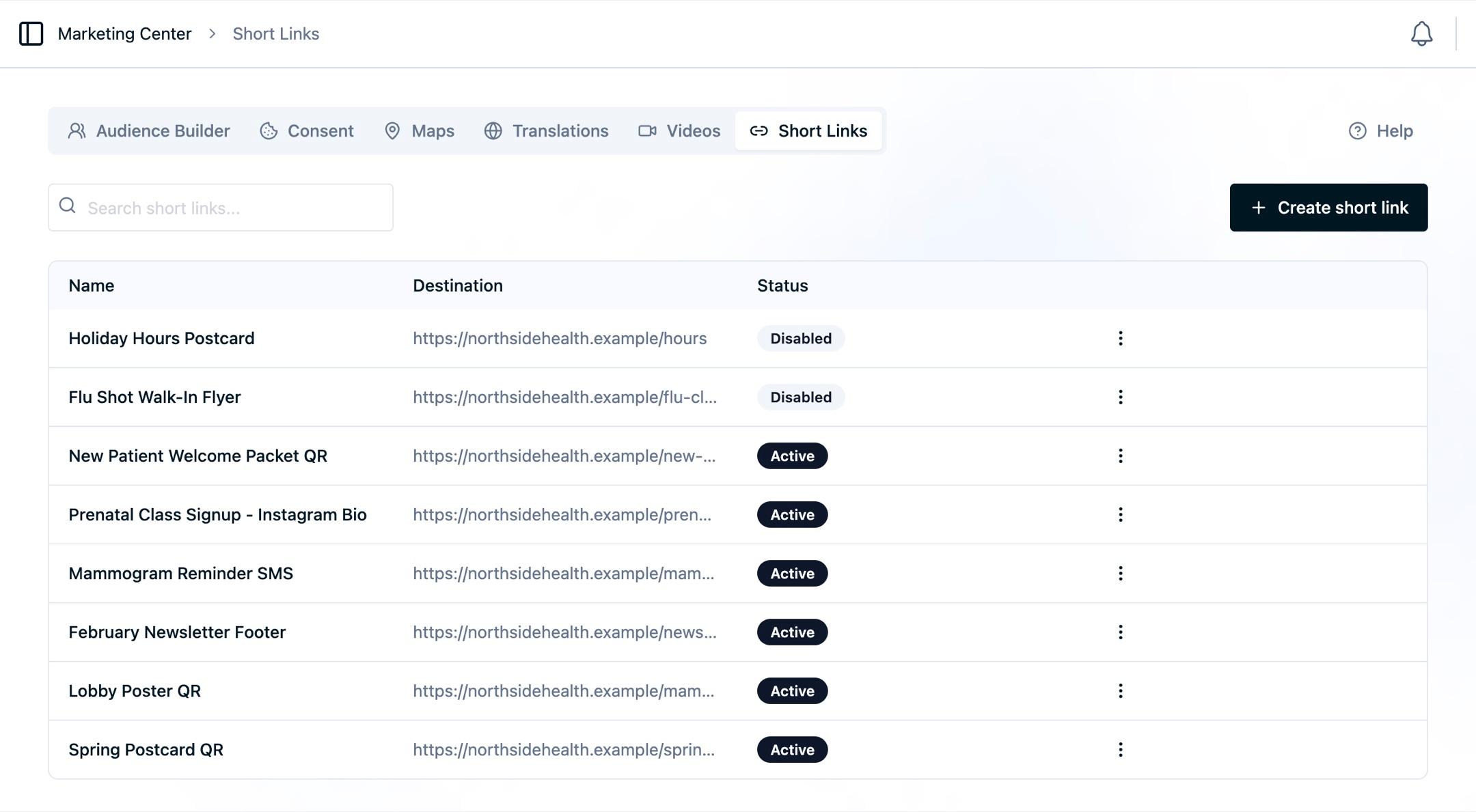
The list
Four columns, all sortable:
- Name: the link name, which is also the event name. Select it to open the editor.
- Address: the short-link path and code.
- Destination: the destination URL, truncated. Links with nothing set show No destination set.
- Status: Active or Disabled.
Search matches part of a name, destination, or short code as you type.
Row actions
Open the actions menu at the end of any row.
Duplicate
Creates a copy of the link, including its QR design and campaign tags, with a new short code. Use it to build a set of visually consistent campaign links: set up the first one, then duplicate and adjust the name, destination, and tags.
The copy starts disabled and unpublished. Enable it and publish before distributing it.
Enable and disable
Disabling takes a link out of service without destroying it. A disabled link stops resolving, its printed QR codes stop working, and the readiness pill in the editor reads Disabled. Re-enable it from the editor's disabled banner or the list action menu.
Disable is the right tool for:
- A seasonal campaign that will run again next year.
- A link that was published early by mistake.
- A placement you want to retire while keeping its reporting history.
Like every other change, enabling and disabling take effect on the next publish.
Delete
Deleting is permanent and cannot be undone. The link, its QR design, and its mappings are removed, and every printed or distributed code for it stops working for good.
If there is any chance a code is still in circulation, disable instead.
Editing an existing link
Open a link from the list to edit it. Everything is editable: name, destination, campaign tags, and QR design.
Three edits deserve thought before you make them:
| Edit | Effect |
|---|---|
| Change the destination | Every existing link and printed QR code repoints. This is the intended way to reuse printed material. |
| Rename the link | After publishing, new clicks use the new event name. The link’s Analytics tab keeps its history together; event-name reports need both names. |
| Disable the link | Existing codes stop resolving until you re-enable and publish. |
The header shows Unsaved changes whenever the form has drifted from what is stored. Save, then publish.
Next Steps
- Short link reporting: read the Analytics tab.
- Automating short links: manage links in bulk through the API.
- Short link FAQs: answers to the questions this page raises.
How is this guide?