

Marketing Tools
Audience Builder
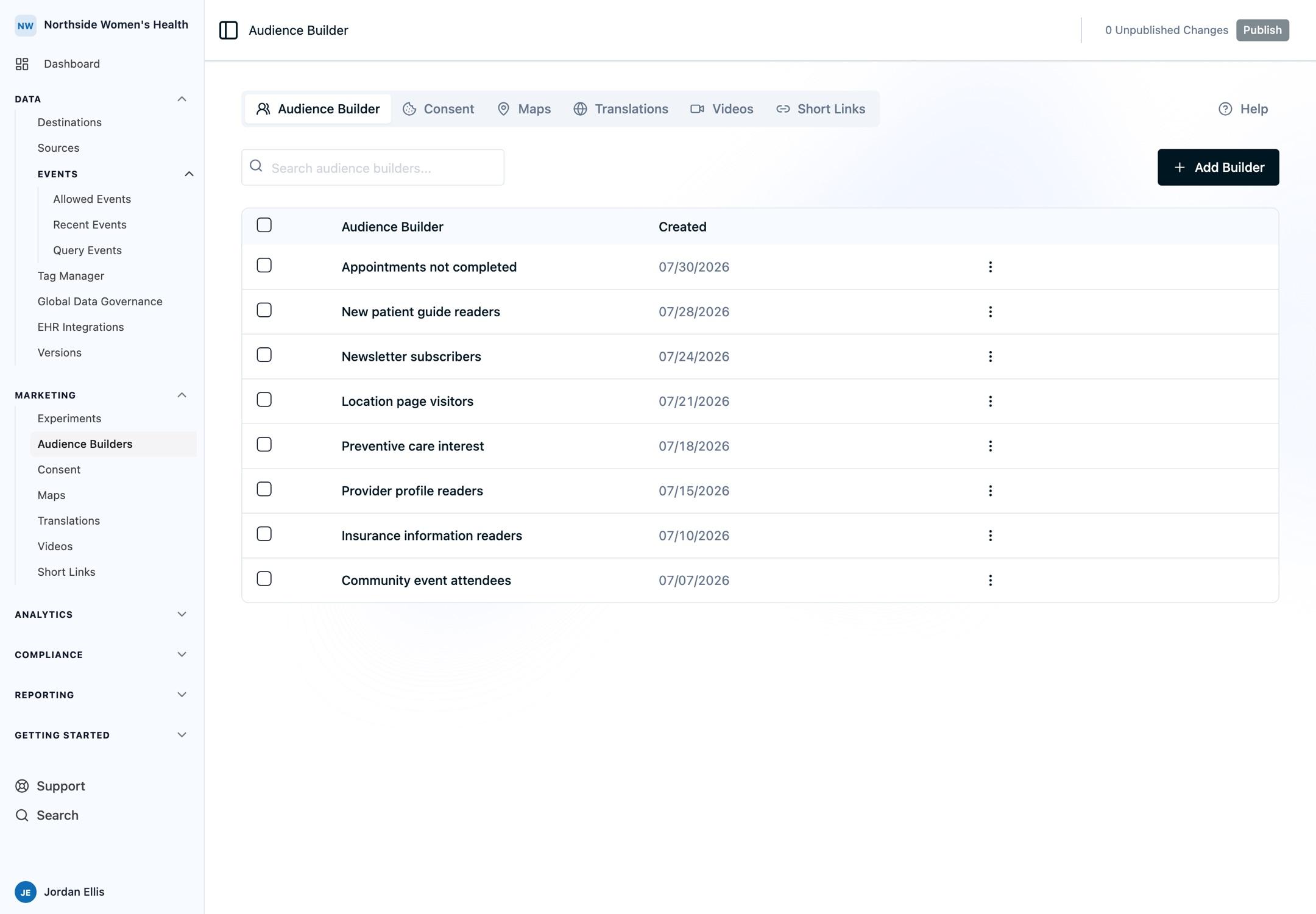
Create, preview, and export audiences based on visitor properties and event activity. Download formatted CSVs or sync an audience to an advertising platform daily.
The Ours Privacy Audience Builder lets you create, manage, and export audiences based on visitor properties and event activity. Define who matches, preview them, then download the audience as a CSV or sync it to an advertising platform daily. Every audience carries a separate destination-facing name, so what leaves Ours Privacy never describes who is in the list.
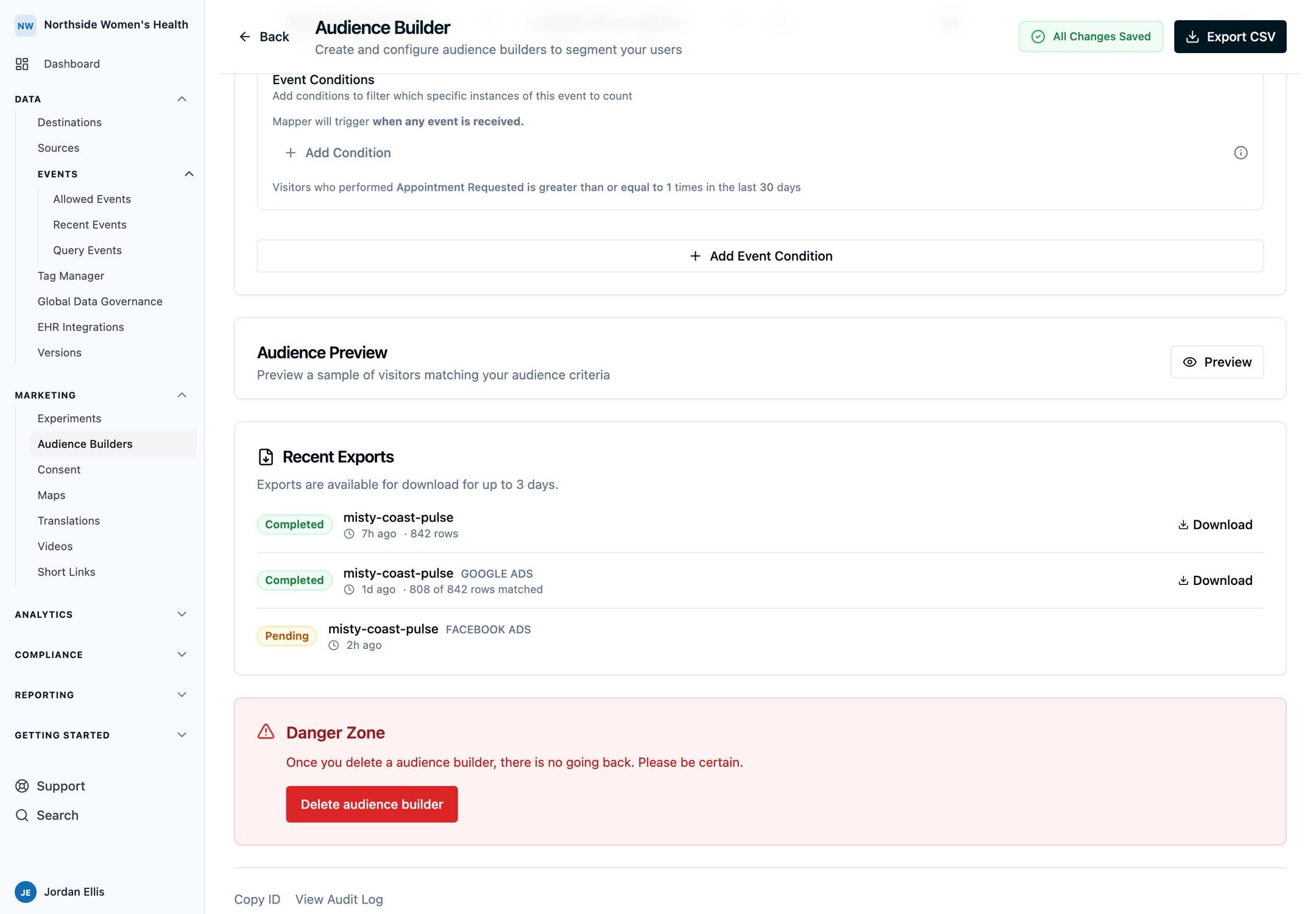
Open an audience to review its export history, including completed and pending export status and matched-row counts.
Use Cases
- Exclusion lists so acquisition campaigns stop paying for people who already converted
- Retargeting the visitors who showed intent and did not finish, using the zero-count pattern
- Lookalike seeds built on your best customers rather than your biggest list
- Suppression lists for anybody who should be left out of everything, kept current by a daily sync
- CRM and warehouse loads through an all-fields CSV export with raw visitor values
Where to Start
- Building an audience for the walkthrough from empty audience to activated one
- Visitor conditions and Event conditions for every filter and operator
- Export names for the two-name model and why the external one should mean nothing
- Compliance for audiences for what to settle before an audience reaches a platform
- Recipes for worked configurations: exclusions, abandoned funnels, and lookalike seeds
How is this guide?