

Funnels
Build conversion funnels to visualize how visitors move through key steps on your website, measure conversion rates at each step, and identify where they drop off.
Use Funnels to see how visitors move through a series of steps on your website, measure the conversion rate at each step, and find where they drop off. Funnels are session-based: they track a visitor's progression through the steps within a single browsing session.
Open Funnels in appWhether you are tracking a patient intake flow, an appointment booking process, or a content engagement path, a funnel shows you exactly where visitors convert and where they leave, so you can focus on the steps that matter most.
Permissions
Funnels uses the Web Analytics permission set.
| Permission | Capabilities |
|---|---|
| Web Analytics: View | View funnel analytics, browse the funnels list, and export PDFs |
| Web Analytics: Write | Create, edit, and delete funnels (includes all View capabilities) |
If you do not have Write access, you can view funnel analytics but cannot change funnel configuration. Ask your account administrator for Web Analytics: Write access.
Create a funnel
Open Funnels from the Analytics section of the left navigation, then click Create Funnel.
Name the funnel
Give the funnel a descriptive name that identifies the journey you are tracking, such as "Appointment Booking Flow" or "Blog to Contact Form."
Define the steps
A funnel needs between 2 and 10 steps. Each step represents an action a visitor must take to continue through the funnel. There are two step types:
| Step type | Matches when a visitor... | Example |
|---|---|---|
| Viewed page | Views a specific page, or any page | Page is /appointments/schedule |
| Event | Triggers a specific tracked event | Event is form_submit |
For a Viewed page step, select a pathname from the dropdown (your top pages from the last 60 days) or leave it blank to match any page view, which works well as a broad entry point. You can also type a custom pathname.
For an Event step, pick from the list of event names. The dropdown combines your allowed events with events tracked in the last 60 days.
To reorder steps, drag them by the handle on the left. The funnel measures progression in the order you set.
Add step filters
Each step supports optional filters that narrow what counts as a match. Open a step for editing and add conditions under Where.
Available filter properties include:
- Page: pathname, current URL, and page title
- UTM: source, medium, campaign, content, and term
- Traffic source: referrer and referring domain
- Location: country, state, and city
- Browser and device: browser, operating system, device type, and is-bot
- Event properties: any custom property sent with the event
Each condition has a property, an operator (is, is not, contains, does not contain, starts with, ends with, is greater than, is less than, is null, is not null), and a value. You can add up to 10 conditions per step, and all of them must match (AND logic). UTM filters offer autocomplete suggestions based on values seen in the last 60 days.
Configure funnel settings
Below the steps, configure how the funnel behaves.
Counting method
Choose how visitors are counted across funnel entries.
| Method | Counts |
|---|---|
| Sessions (default) | Each qualifying browser session as an independent funnel attempt |
| Uniques | Each visitor once, deduplicated by visitor |
| Totals | Every matching event, so one visitor can contribute multiple completions |
Step order
Choose whether steps must occur in the order you defined.
| Order | Behavior |
|---|---|
| Exact (default) | Steps must occur in sequence. Step 2 only counts if it follows Step 1 |
| Any order | Steps can occur in any order within the session, useful for non-linear flows |
Conversion window
The conversion window limits how long a visitor has to complete the whole funnel from the first step. Turn it on, then set a value and a unit (minutes, hours, or days). If a visitor does not complete every step within the window, the later steps are not counted. The window is off by default, in which case there is no time limit within a session.
Funnel change notifications
Use Watch this funnel if you want optional notifications for meaningful changes in funnel performance. When enabled, Ours Privacy sends a notification if a step's conversion rate moves beyond its expected range.
Funnel notifications follow your notification preferences for email and in-app delivery. If your organization uses shared Slack notifications, an admin can also route funnel notifications to a Slack channel from Notification channels.
This setting does not change analytics. You can turn it on or off later from the edit page.
Save
Click Save funnel. Results are calculated when you open the funnel, so analytics are available right away — there is no waiting period after saving.
A funnel needs a name and at least two valid steps before it can be saved.
View funnel analytics
Open a funnel from the funnels list to view its results.
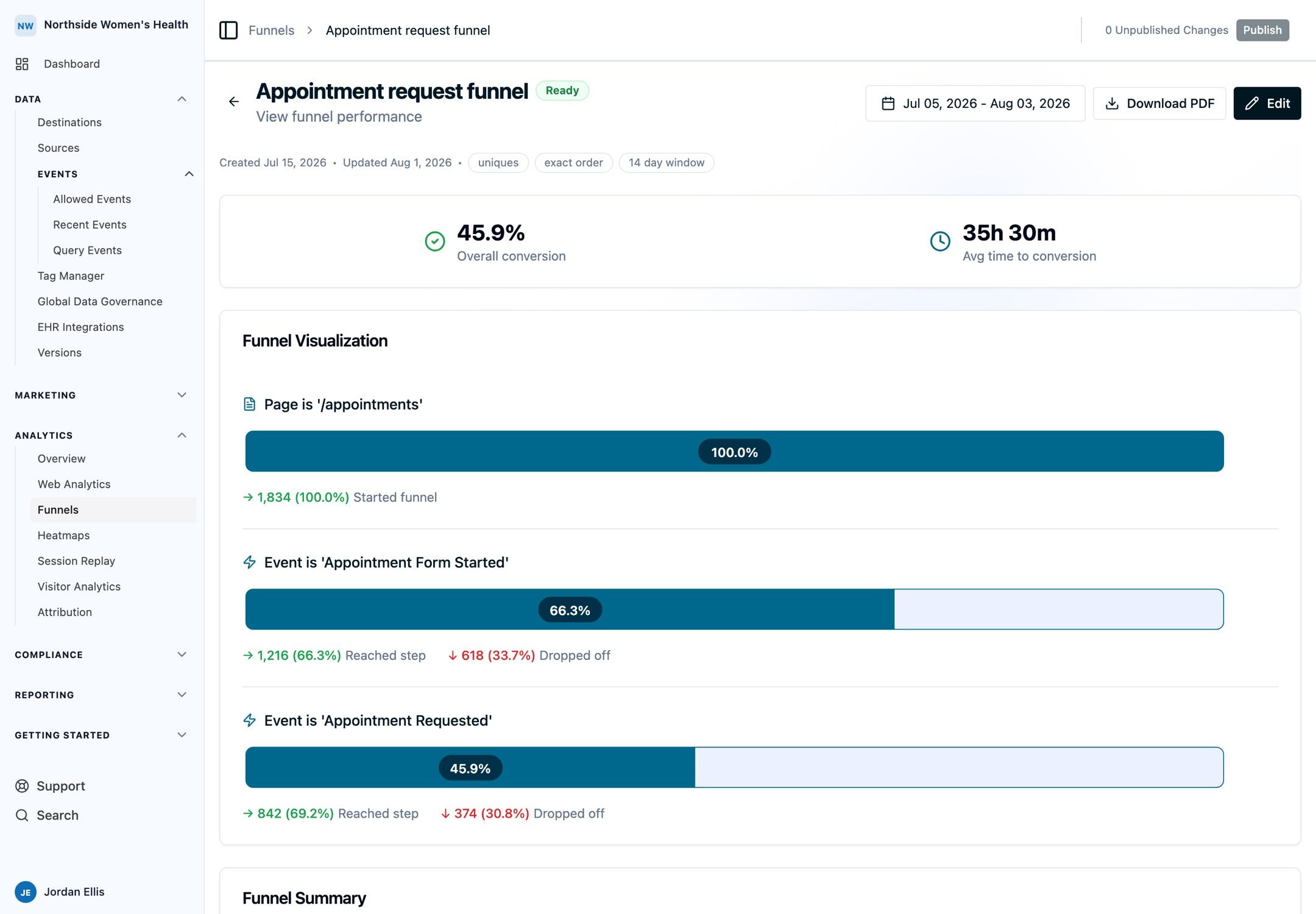
Summary metrics
At the top of the page you see two metrics:
- Overall conversion is the percentage of visitors who completed every step in the funnel.
- Avg time to conversion is the average time for a visitor to go from the first step to the last.
Funnel visualization
The funnel chart shows a horizontal bar for each step. A solid bar shows the share of visitors who reached that step, and a lighter bar shows the share that dropped off before it. Each bar carries its conversion percentage, and below it the chart lists how many visitors reached the step and how many dropped off, each with its rate. This makes it easy to spot the biggest drop-offs in your flow.
Funnel summary
Below the chart, a table breaks down each step transition.
| Column | Description |
|---|---|
| Step | The pair of steps being measured (for example, Step 1 to Step 2) |
| Conversion Rate | Percentage of visitors from the previous step who reached the next, with the visitor count |
| Drop off | Percentage who did not continue, with the visitor count |
| Time to conversion | Average time between the two steps |
An Overall row summarizes the full funnel from the first step to the last.
Date range
Use the date range picker to view performance over different periods. You can select any range up to 31 days, so a full calendar month fits.
Watch session replays
Click Watch next to a step's reached or dropped-off count to open the Session Replays panel.
- Use Watch on a reached count to see sessions that moved on to that step.
- Use Watch on a dropped off count to see sessions that left the funnel there.
The panel shows a sample of up to 50 recent sessions, each with its timestamp and duration, so you can see what visitors actually experienced at each stage.
Session replays appear in Funnels only when Session Replay is enabled on your account. See Session Replay for setup details.
Export to PDF
Click Download PDF on a funnel analytics page to generate a report that includes:
- Funnel name and date range
- Active funnel settings (counting method, step order, and conversion window)
- Per-step filter conditions shown as compact badges
- Overall conversion and average time to conversion
- The funnel visualization
- The funnel summary table, including the Overall row
The report is ready to share with stakeholders or attach to internal reviews.
Edit and delete funnels
To edit a funnel, open it from the funnels list and click Edit. You can rename it, add or remove steps, reorder steps, change step filters, and adjust the funnel settings. Saving changes to steps, filters, conversion window, counting method, or step order applies immediately — the next time you open the funnel, results reflect the updated configuration.
To delete a funnel, open the actions menu on the funnels list and select Delete. You are asked to confirm before the funnel is permanently removed.
FAQs
How many steps can a funnel have?
Between 2 and 10 steps.
How long does it take for results to appear?
Results are calculated when you open the funnel, so they are available immediately after saving. Larger accounts and wider date ranges take longer to load.
What does session-based mean?
A session-based funnel tracks a visitor's progression through the steps within a single browsing session. If a visitor completes Step 1 in one session and Step 2 in a different session, it counts as a drop-off after Step 1.
Can I add filters to individual steps?
Yes. Each step supports property-based conditions, such as a pathname or a UTM source. Open a step for editing and add conditions under Where. All conditions on a step must match for the step to count.
What is the conversion window?
The conversion window limits how long a visitor has to complete the whole funnel from the first step. For example, a 30-minute window means every step must be completed within 30 minutes of the first. When it is off, there is no time limit within a session.
Can funnels send change notifications?
Yes. You can enable optional notifications for meaningful conversion-rate drops or spikes at a funnel step. Personal email and in-app delivery follow your notification preferences. Shared Slack delivery is controlled separately by your organization's notification channel settings.
What is the difference between the counting methods?
Sessions (the default) counts each browser session as an independent funnel attempt. Uniques deduplicates by visitor and counts each person once. Totals counts every matching event occurrence.
What happens if I change my funnel steps or settings?
The change applies immediately. Because results are calculated when you open the funnel, the next view reflects the new configuration. Changing only notification delivery does not affect analytics.
Who can create and edit funnels?
Users with Web Analytics: Write access can create, edit, and delete funnels. Users with view-only access can see funnel analytics and export PDFs but cannot make changes.
Next Steps
How is this guide?