

Installation
Install the Ours Privacy Translation Widget on your website with a single script tag.
Installation
Adding the Translation Widget to your website takes just a few minutes. Follow these steps to get started.
Open Translations in appPrerequisites
Before installing, you'll need:
- Access to your Ours Privacy account
- Translation Widget included in your plan: contact your account representative if you're unsure
- A Translation Widget created in the Ours Privacy dashboard
- Ability to add scripts to your website
Step 1: Create Your Widget
- Log in to the Ours Privacy dashboard
- Navigate to Translations in the sidebar
- Click Create Widget
- Configure your widget settings (languages, appearance, domain allowlist)
- Save your widget
Step 2: Get Your Embed Code
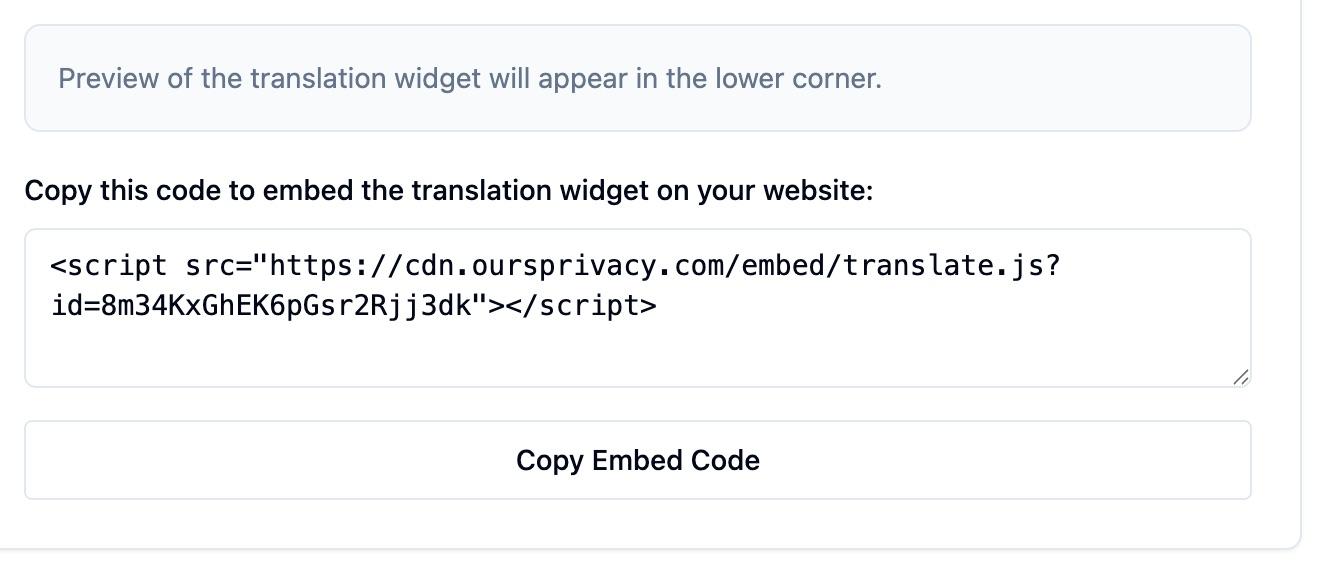
After creating your widget, you'll receive a script tag similar to:
<script src="https://cdn.oursprivacy.com/embed/translate.js?id=YOUR_WIDGET_ID" async></script>The Widget Preview card on your widget's Settings tab shows this exact snippet, ready to copy:
Step 3: Add to Your Website
Add the script tag to your website, ideally just before the closing </body> tag:
<!DOCTYPE html>
<html>
  <head>
    <!-- Your head content -->
  </head>
  <body>
    <!-- Your page content -->

    <!-- Translation Widget -->
    <script src="https://cdn.oursprivacy.com/embed/translate.js?id=YOUR_WIDGET_ID" async></script>
  </body>
</html>
Framework-Specific Installation
Next.js
Add the script to your root layout or use the Script component:
import Script from 'next/script';

export default function RootLayout({ children }) {
  return (
    <html>
      <body>
        {children}
        <Script
          src="https://cdn.oursprivacy.com/embed/translate.js?id=YOUR_WIDGET_ID"
          strategy="afterInteractive"
        />
      </body>
    </html>
  );
}
React (Vite, CRA)
Add to your index.html:
<body>
  <div id="root"></div>
  <script src="https://cdn.oursprivacy.com/embed/translate.js?id=YOUR_WIDGET_ID" async></script>
</body>
WordPress
Add to your theme's footer.php or use a plugin to inject scripts in the footer.
Shopify
Add to your theme's theme.liquid file before the closing </body> tag.
Domain Allowlist
For security, the widget only works on domains you've added to your allowlist. Make sure to add all domains where you'll use the widget:
yoursite.comwww.yoursite.comstaging.yoursite.com(if testing on staging)
You can manage allowed domains in the Ours Privacy dashboard under Translations.
Verify Installation
After adding the script:
- Visit your website
- Look for the floating translate button (default: bottom-right corner)
- Click the button and select a language
- Verify that page content translates
Troubleshooting
Widget Not Appearing
- Check the allowlist: Ensure your domain is on the allowlist in widget settings
- Check for JavaScript errors: Open browser console for any errors
- Verify script URL: Ensure the widget ID is correct
Widget Loads But No Languages
- Check widget configuration: Ensure you've enabled languages in the widget settings
Next Steps
- Configure appearance to match your brand
- Protect brand names and terms from being translated
- Exclude specific content from translation
How is this guide?