

Getting Started with the AI Assistant
Open the Ours Privacy AI Assistant, keep it floating beside your work, ask about the page you are on, and pick up any conversation from your chat history.
Use this page to open the AI Assistant, pick a view, and start asking about what is on your screen.
Open AI Assistant in appThe AI Assistant is enabled per account. Contact your account representative to turn it on.
Open the assistant
Select AI Assistant in the left navigation, or the Open assistant button at the bottom right of any dashboard page. Press Escape to close it. Your conversation is right where you left it when you come back.
Choose a view
Open Change view in the assistant's header:
- Floating (recommended): a small window over the page, which stays visible and usable behind it. Ask about the report or setting in front of you and keep working while you read the answer.
- Sidebar: a drawer beside the page, for reading a page and an answer side by side.
- Full screen: its own page, with your chat history beside the conversation. Good for long answers, wide tables, and picking up an earlier chat.
Ask about what you see
The assistant knows what is on the screen you opened it from. On a destination, ask "Is this destination delivering appointment requests?" On a scan, ask "Which of these hosts need a decision, and what do you suggest?" On an experiment, ask "Is it safe to call a winner?" A Started from link above your first message shows the page it is working from and takes you back to it, and starter questions for that page help you get going.
Type in plain language and press Enter to send, or Shift+Enter for a new line. Keep pulling the thread with follow-ups like "Which of those failed?" or "Now compare it with last month." The assistant keeps the whole conversation in mind and shows its progress while it works through your account.
Read an answer
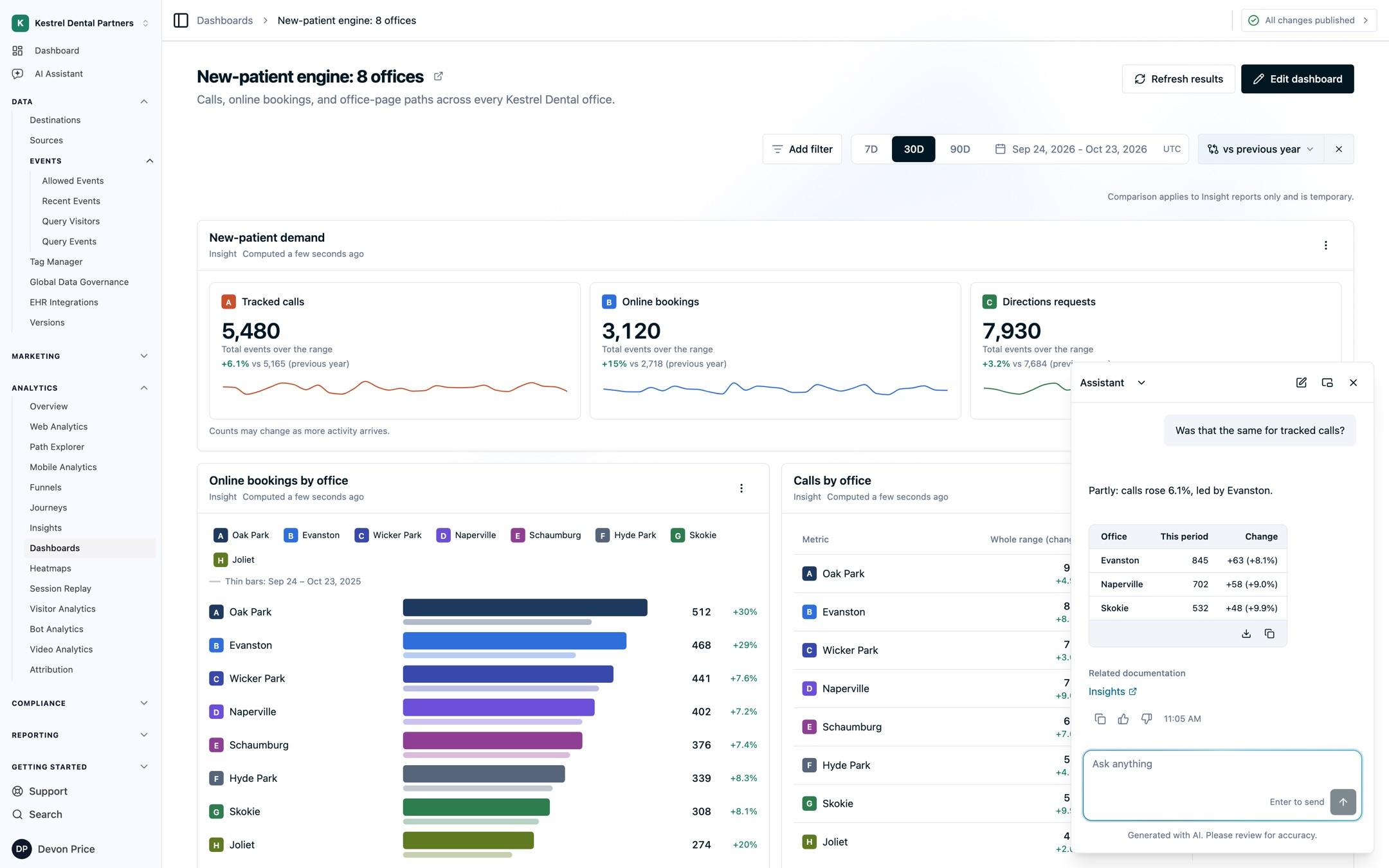
Answers come back in plain language, with tables when a comparison helps. Use Copy table to paste a table into a spreadsheet or document, or Download CSV to save it. Sources links the Ours Privacy docs the answer draws on, Related documentation points you to the feature to go deeper, and when there is something to change, the answer points you to the page where you make it.
Copy any message, see when it was sent, and rate the conversation with thumbs up or thumbs down below the latest answer. For a broad question, such as every mapping across every destination, the answer notes what it covered so you can follow up on the rest.
Manage conversations
- New chat: start a fresh conversation from the assistant's header.
- Chat history: open it from Chat options, or see it beside the conversation in the Full screen view.
- Pin chat and Rename chat: from Chat options for the open conversation, or from a conversation's menu in the history list. Pinned chats stay above recent history.
- Archive chat: from a conversation's menu in the history list. Archived chats move out of your history and can be unarchived later.
Next Steps
- Asking about analytics: explore Insights, Journeys, heatmaps, experiments, and consent rates.
- Reviewing your setup: understand your destinations, mappings, drafts, consent, and scans.
- AI Assistant privacy and permissions: how answers follow your permissions and how your data is handled.
- AI Assistant FAQs: quick answers about page context, exports, timing, and history.
How is this guide?