

Mobile Analytics Dashboard
Select mobile sources and UTC dates, interpret app engagement metrics and coverage, and understand when Mobile Analytics data is available.
Use the Mobile Analytics dashboard to review app activity from React Native, iOS Native, and Android Native sources. This guide explains the report's controls, counts, and collection requirements.
Open and scope the report
- Open the Mobile Analytics dashboard. If you have no mobile source, add a React Native, iOS Native, or Android Native source from the setup link shown there. Access requires your organization's Analytics entitlement and reporting permission.
- Choose All mobile sources or select one or more mobile sources. The default includes all mobile sources available to your report access. A removed or invalid source saved in the URL produces an error until you choose a valid source; it does not switch the report to all sources.
- Choose a UTC date range. The default is the last 30 complete UTC days, ending yesterday. You can select 1–90 inclusive UTC calendar days, ending no later than today. Quick ranges on this dashboard end yesterday.
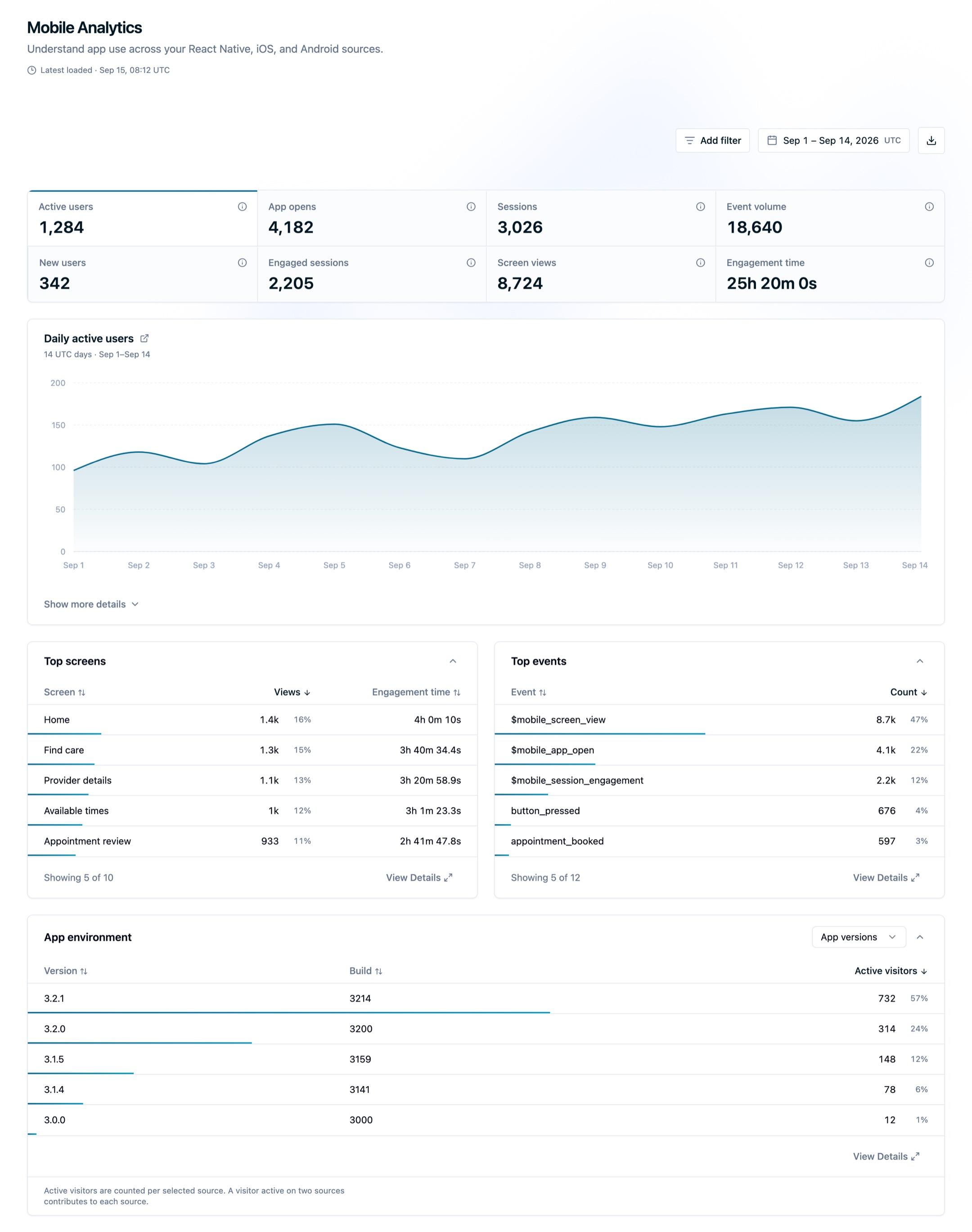
- Read the overview, daily chart, and tables for the selected sources and dates. Choose a chart metric to see its UTC daily trend; select Show more details beneath the chart for all daily values. Export CSV downloads the report aggregates, without visitor IDs or raw event properties.
The report includes events collected under the current mobile contract from iOS and Android app runtimes. Older mobile events, React Native web events, and events from other source types do not enter it.
Read the overview
The overview shows eight metrics. Seven are available in the daily chart:
| Card | What it counts |
|---|---|
| Active users | Distinct visitors with a mobile event in the selected range. Visitors without an ID are excluded from this count. |
| New users | Distinct visitors with a $mobile_first_open in the range. This is a first tracked open, not an installation count. |
| App opens | $mobile_app_open occurrences in the range, including repeat foreground entries. |
| Sessions | Distinct SDK sessions whose session start is in the range. Manual events can create a counted session even when automatic lifecycle collection is off. |
| Engaged sessions | Counted sessions with at least 10 seconds of measured engagement before the end of the range. |
| Engagement time | Positive measured $mobile_session_engagement durations from events occurring in the range, displayed in seconds. |
| Event volume | Mobile event occurrences in the range, excluding $identify. This includes manual events and supported SDK event names. |
| Screen views | $mobile_screen_view occurrences in the range. The daily chart has no Screen views option. |
Events and engagement time use each event's occurrence date. Sessions and engaged sessions use the SDK session's start date, so activity within the selected dates can belong to a session that started earlier and is absent from those two counts. A recent session's engaged status can change when measured engagement arrives before the selected range ends. The daily chart and daily table use UTC dates and show zero for days without activity. The chart shows the selected metric's first, last, and peak day. The daily table places that metric beside the date for easier reading on small screens.
Read screens, events, and breakdowns
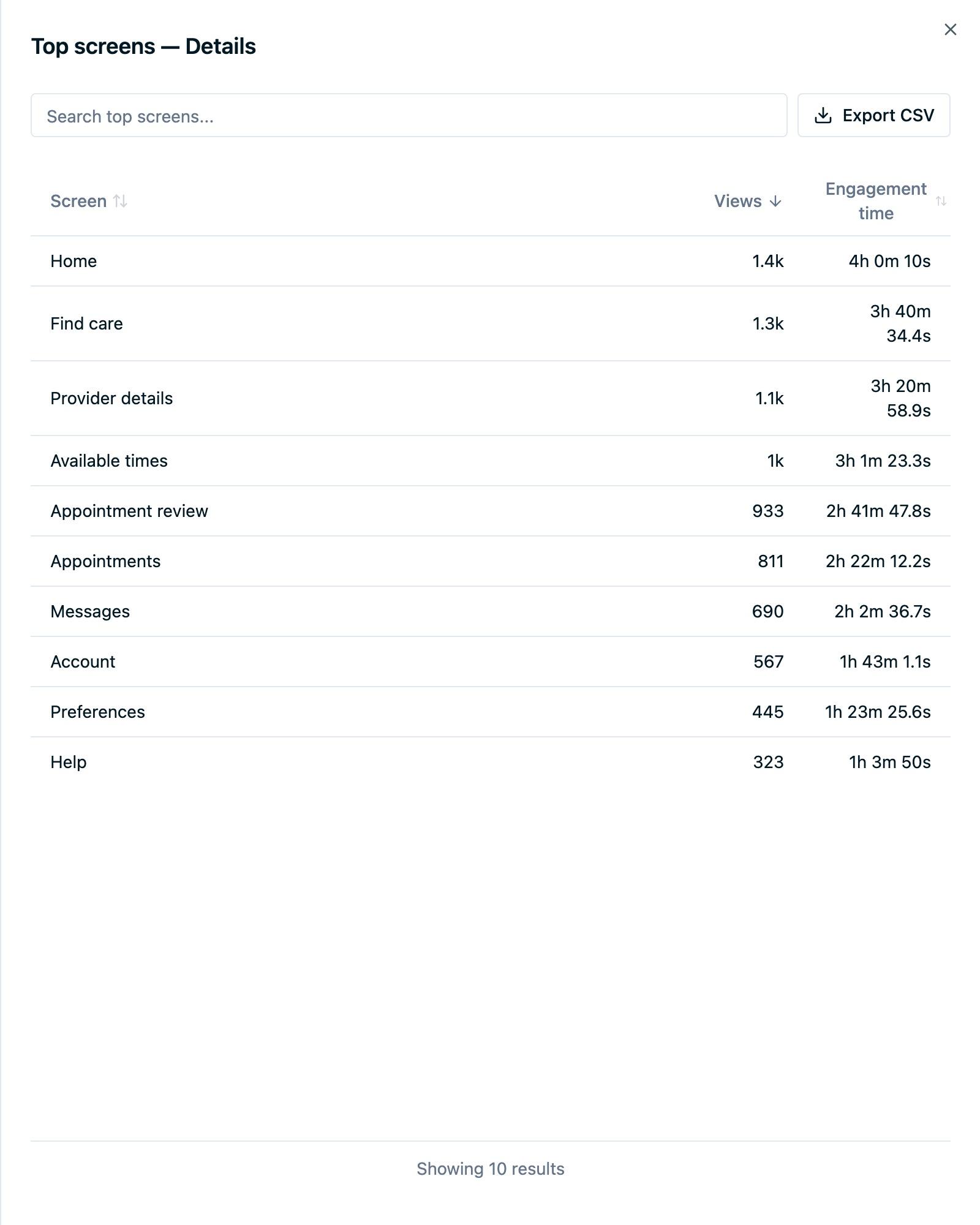
Top screens shows explicit screen view counts and measured engagement time by screen name. Engagement without a tracked screen is grouped under Unknown. Top events lists event names and counts from the event-volume population. Cards show five rows from their top 20 entries. Select a column heading to sort that preview.
Select View Details beneath a card to open its detailed breakdown for the selected sources and UTC dates. Details include matching entries beyond the preview's top 20. Search by label, or by version and build in App versions. Select a column heading to sort ascending or descending; Load more adds the next 50 rows. Close the popup to return to the compact dashboard.
Export CSV inside the popup downloads all matching rows in the selected sort order, including pages you have not loaded. Search also applies to the export. Counts remain exact; screen engagement exports milliseconds. Exports support up to 10,000 rows; if there are more, refine your search and export again. The export in the page toolbar downloads the overview, daily values, and top breakdown entries available in the dashboard report.
Under App environment, choose SDK, Platform, OS, Device, or App versions. The first four show event volume and active users by available app metadata. A person can appear in more than one row if their metadata changes. App versions shows an Active visitors count by version and build. It uses each visitor's latest event per selected source in the range; one visitor active on two selected sources contributes once to each source. This is release adoption, not installations. Missing metadata appears as Unknown.
Interpret coverage and freshness
- No mobile sources: add a mobile source before reading a report.
- No current-contract events in range: the dashboard shows zeros and an empty trend. Check the selected UTC dates and SDK instrumentation. A zero alone does not identify the cause.
- Events with many or large custom properties: mobile metadata shares the 200-key and serialized property-size limits with caller properties. Leave room for up to four SDK keys. When metadata would exceed either limit, the SDK sends the ordinary event without mobile metadata; it is excluded from this report.
- Manual activity without lifecycle observations: manual event volume, active users, and sessions can still appear. New users, app opens, and measured engagement remain numeric zeros when their canonical events are absent; Some mobile signals are absent points you to automatic lifecycle tracking. Screen views can appear if your app calls
trackScreen()with automatic tracking off. If you expected screen views and see zero, connect explicittrackScreen()calls to navigation. - App opens but no first opens: New users is an ordinary zero. Everyone observed in the range may have first opened earlier.
- Missing screen or engagement observations: the dashboard offers conditional setup guidance if you expected those facts. Coverage describes event families observed within the selected range; it cannot determine your SDK configuration.
- Invalid selection or failed query: correct the dates or sources shown in the error, or use Retry for a load failure. An error is not a zero report.
Latest loaded in the page header is the load time of the latest matching report row. Open it for the exact UTC timestamp. It is not the time of the user's latest action, a completeness watermark, or a realtime promise. Processing and report refresh can delay data, including engagement for a recently started session.
Collect and protect mobile data
Automatic lifecycle collection is off by default. Enable it in the React Native, iOS, or Android SDK when your app is ready to track it. Manual event tracking and explicit trackScreen() calls can work with automatic lifecycle collection off. React Native needs an explicit route signal from your navigator for screens; it does not observe React Navigation changes automatically. For native Compose, SwiftUI, UIKit, or other custom navigation, call trackScreen() when the destination changes.
Use fixed, developer-chosen screen labels such as Schedule. Keep patient information and other PHI out of screen labels, route parameters used as labels, event names, IDs, and links. Canonical mobile lifecycle facts do not automatically include patient or advertising identifiers, caller property bags, raw URLs, crash details, or network content. Your app controls manual event properties, including standard healthcare event properties, and must send only permitted values.
A full tracking opt-out stops manual and automatic collection, discards queued events, and clears the current session. React Native retains its visitor ID on opt-out; Android and iOS rotate theirs. After opt-in, collection starts with a fresh session. Account switches may require your app to reset or set the intended visitor ID according to its identity policy.
Understand attribution and limits
Pass a deep link to the SDK before tracking a manual appointment_booked event so the booking can carry the link's permitted UTM values. In React Native, await trackDeepLink() before tracking the booking. Canonical lifecycle facts omit caller attribution. Patient Journey and Appointments use their existing identity and attribution rules; the visitor ID connects activity across sources.
Mobile Analytics reports engagement and tracked app events. It does not provide install attribution, SKAdNetwork or AdAttributionKit reporting, fraud detection, crash monitoring, or performance monitoring. It has no web page views, browser breakdown, bounce rate, or entry and exit pages.
Next steps
- React Native SDK: configure lifecycle collection and explicit screen signals.
- iOS SDK: configure iOS lifecycle collection and screen tracking.
- Android SDK: configure Android lifecycle collection and screen tracking.
- Standard Healthcare Events: send manual booking and other app actions.
How is this guide?